
Source: Roblox Creator Hub · CC BY 4.0 · View source · Code samples: MIT Imported 2026-10-03. Formatting adapted for this site.
Import
After creating your t-shirt in Blender, import the .fbx using Studio's Importer tool to add the t-shirt to your project as a Model.
Use the Importer to import your .fbx into Studio:
In the Home tab, click the Import button to open the Importer. A file browser opens.
Select your t-shirt's
.fbxfile. The Importer loads a preview of the layered accessory.Select Import. The asset populates in your workspace as a
Modelwith the appropriate textures applied as aMeshPart.TextureID.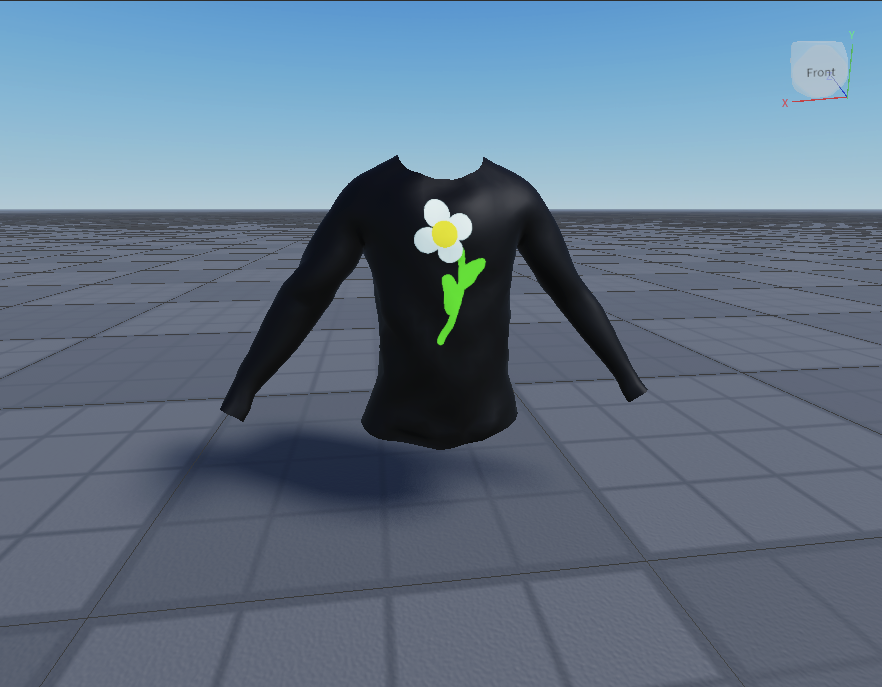
Textures didn't load correctly?
If your textures didn't load correctly, you can import them manually using the Asset Manager:
- In the Asset Manager, click the Import button. If you are unable to access the Asset Manager, save and publish your game first.
- Upload your image file.
- After moderation clears your image, select the
MeshPartparented within your importedModel. - In the TextureID property, select the value field and add the asset ID of the texture image.