
Source: Roblox Creator Hub · CC BY 4.0 · View source · Code samples: MIT Imported 2026-10-03. Formatting adapted for this site.
Create a project
Note
This curriculum uses Studio's built-in Assistant for routine tasks like creating instances, configuring properties, and generating scripts. This lets you spend more time on the creative aspects of building your game.
Steps that include an Assistant workflow provide a Build with Assistant tab alongside a Build it Yourself tab. You can follow either approach, depending on how you'd like to work.
To start recreating the Island Jump 3D platformer game, you need a project to build in. A project is a collection of places, assets, and settings that together make up a Roblox game.
The fastest way to start is to use a Studio template. For this project, you'll use the default Baseplate template, which has a flat ground and a SpawnLocation object.
- In Roblox Studio, click New Experience in the upper-left corner.
- In the Explorer window, expand Workspace and delete the Baseplate object so that the viewport shows an empty world with just the spawn location in the middle.
Note
If you don't see the Explorer window, toggle it on from Studio's Window menu.
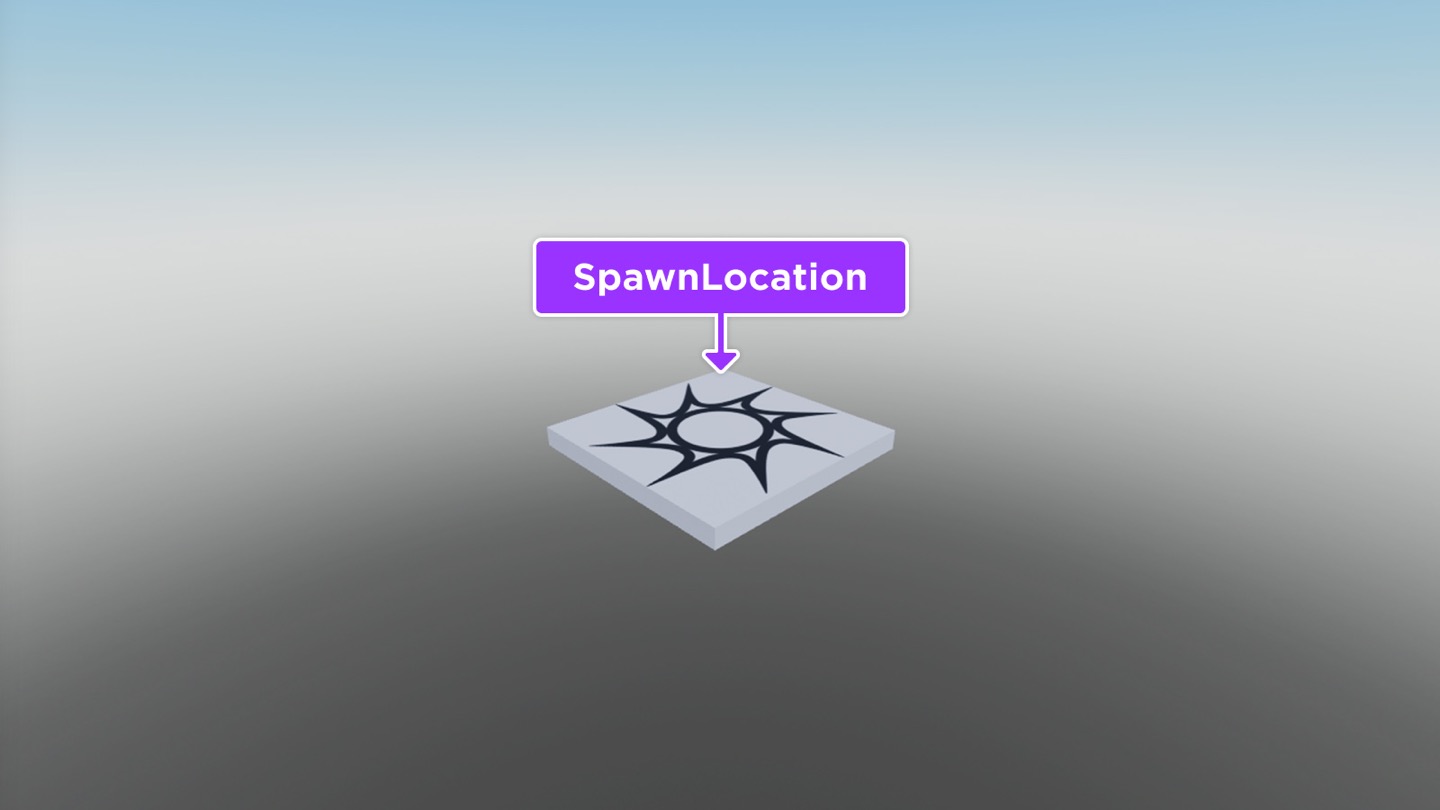
In the next section, you'll learn how to use the Terrain Editor to create an island environment around the spawn location.