
Source: Roblox Creator Hub · CC BY 4.0 · View source · Code samples: MIT Imported 2026-10-03. Formatting adapted for this site.
Console development guidelines
With 200M+ Xbox and PlayStation players, consoles present a major opportunity for you to attract more players. Compared to regular devices, designing for controllers and the 10-foot UI experience of consoles has some special guidelines that you can follow to help your game succeed on consoles.
Note
Games designed for consoles always need to provide content maturity information to ensure smooth releases and minimize the risk of being removed from consoles.
Build for the 10ft experience
When on consoles, players are typically sitting 8–10 feet away from the screen.
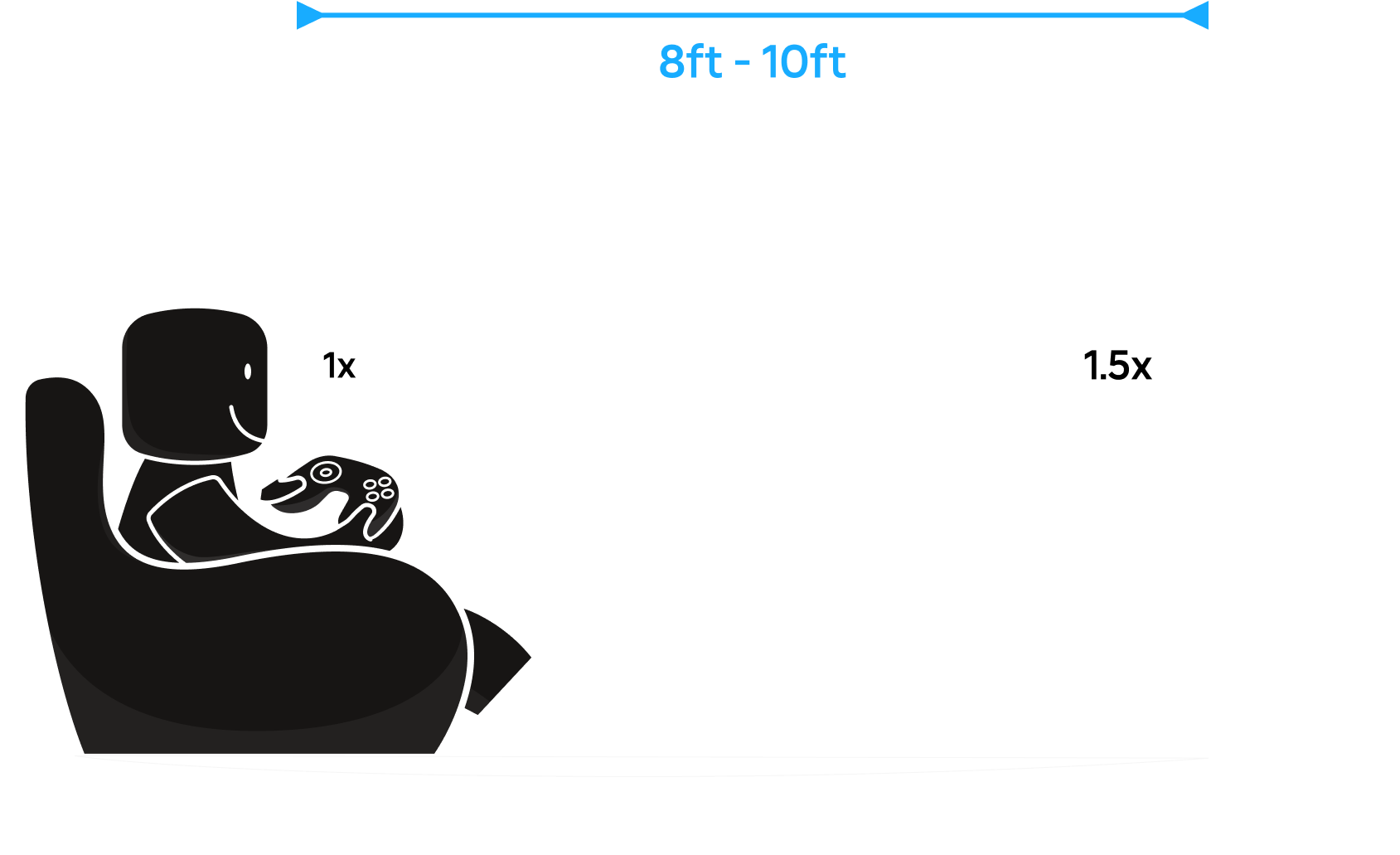
Implement your UI using relative sizes and relative positions to measure everything as percentages of a frame. Incorporate a scale factor to all UI sizes by:
- Developing for lower resolutions first.
- Using relative positions and
UISizeConstraintto scale the UI. - Creating designs that take into consideration large screen sizes, based on
GuiService.ViewportDisplaySize, whereLargerepresents most TVs or larger. - Implementing
ScrollingFrameto reduce clutter on screen as the UI scales up.
Note that some TVs will not show content fully to the edges of the screen due to historical and technical limitations, so you should put UI elements in TV‑safe areas to ensure important game elements are always visible.
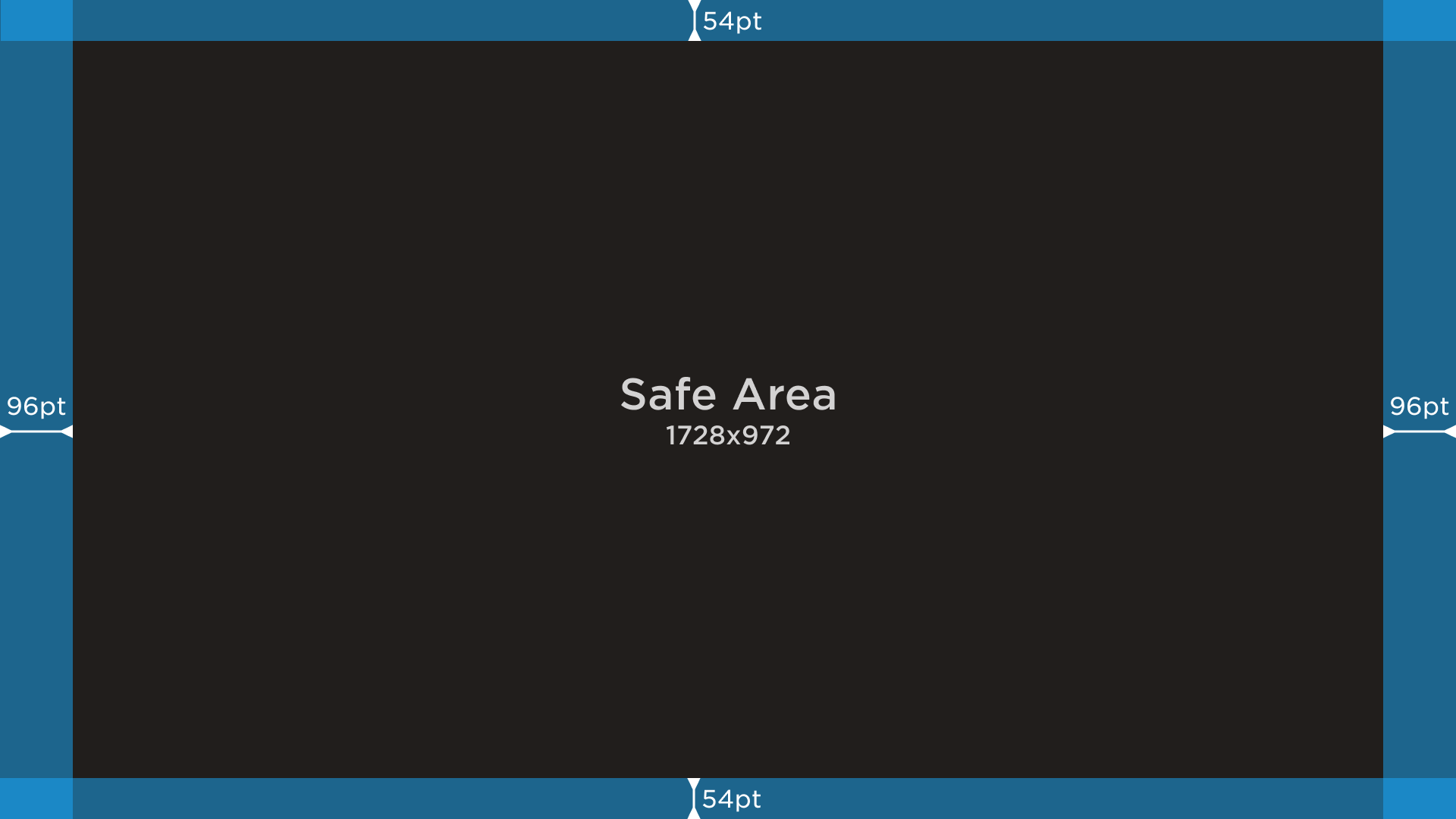
The blue area represents the TV-unsafe zone
Design for controllers
Console games receive commands from players through input controllers, which require special designs for smooth interactions.
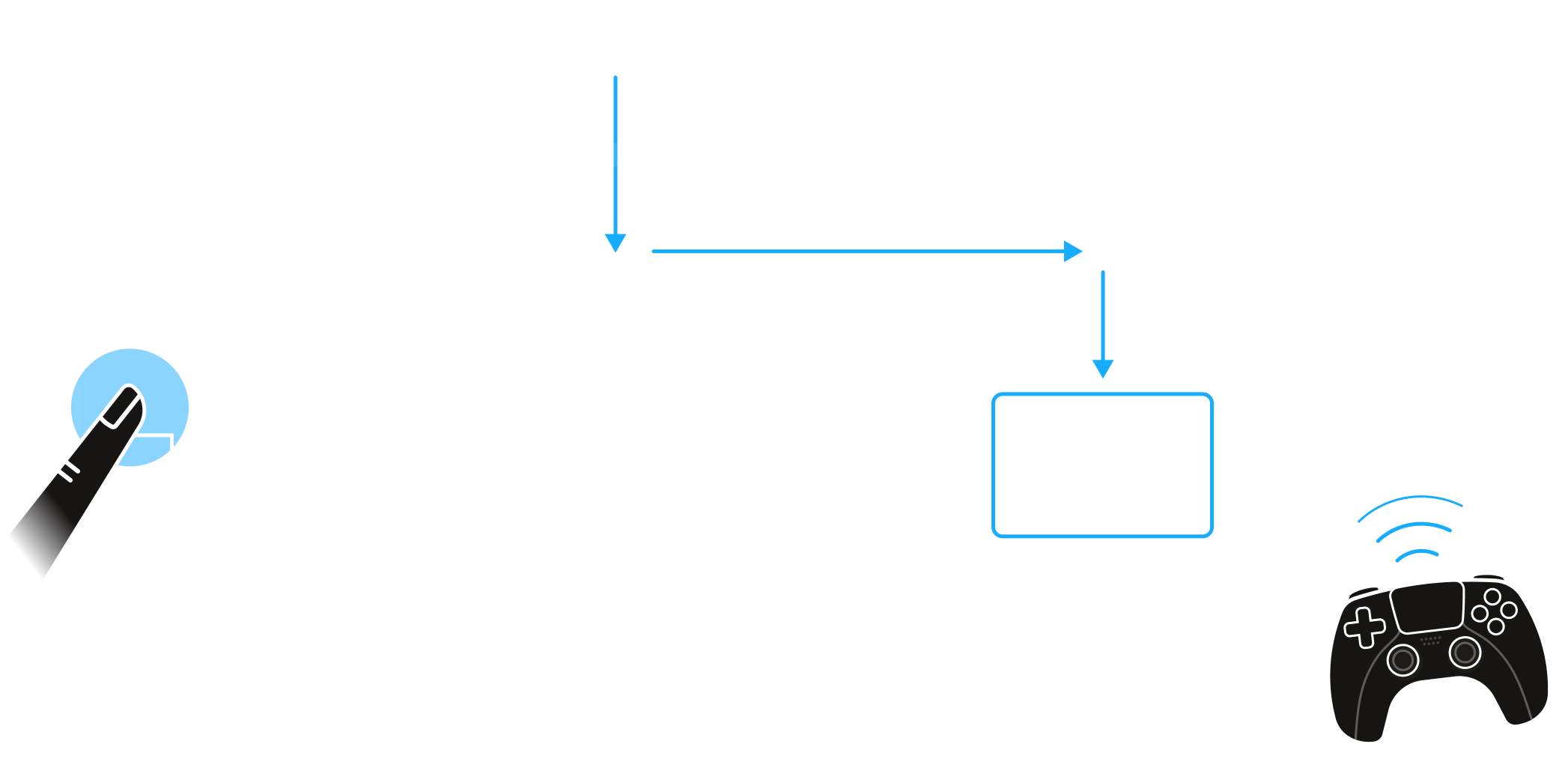
Apply the following concepts to simplify the UI design for consoles:
Accessible navigation control — Baseline navigation, including the four directions, select, and back, controls how players get around and interact with your content on consoles. Make sure players can reach all UI elements using these basic navigation controls, so they can easily access every interactive part of your game.
Default controller navigation — Roblox provides both directional selection and virtual cursor as out‑of‑the‑box solutions, but if you have specific UI layouts, it's recommended that you think about bespoke controller navigation.
Minimal controller input complexity — Unlike tappable or clickable input methods, console players navigate by pressing one button at a time, so an action that takes one move on other devices might take extra moves with a controller. Make sure that key actions in your game only take a few moves to access.
No chat window — Regardless of how you customize the chat system, disable the chat window for console games.
Note
As controllers aren't just for consoles and VR but also are available on devices such as desktop and mobile, minimizing the number of moves needed can enhance the UI for all devices and input types in addition to PlayStation and Xbox.
Add supplemental control
Unlike mobiles and desktops, navigation is always sequential on consoles, so players can't jump between far away elements as quickly as on other devices. To enhance the speed of navigation, consider adding additional buttons and shortcuts for essential in-game actions.
Accommodate dynamic button icons
As your game expands to more platforms, be sure to show button icons that match different devices.
Note
If you're showing bindings from the Input Action System, use InputActionLabel for a no-code way to keep button icons in sync across devices. See displaying bindings for details.
For other input hints, UserInputService has two methods available that can achieve this:
UserInputService:GetStringForKeyCode()can convert the US query key codes to console keyboard layouts. It's helpful for showing your custom assets as button icons to match the look and feel of your game.UserInputService:GetImageForKeyCode()returns Roblox default icons for the requestedKeyCodeas easy drop-in replacements.Key Code Xbox Image PlayStation Image String [`KeyCode.ButtonA`](/docs/enum-keycode#buttona) 

`ButtonA` [`KeyCode.ButtonX`](/docs/enum-keycode#buttonx) 

`ButtonX` [`KeyCode.One`](/docs/enum-keycode#one) n/a n/a `1` [`KeyCode.Five`](/docs/enum-keycode#five) n/a n/a `5`
Provide haptic feedback
One unique advantage of controllers is the capability of providing haptic feedback by physically vibrating the controller to engage players' sense of touch. You can use HapticEffects to enhance player immersion and provide useful feedback.
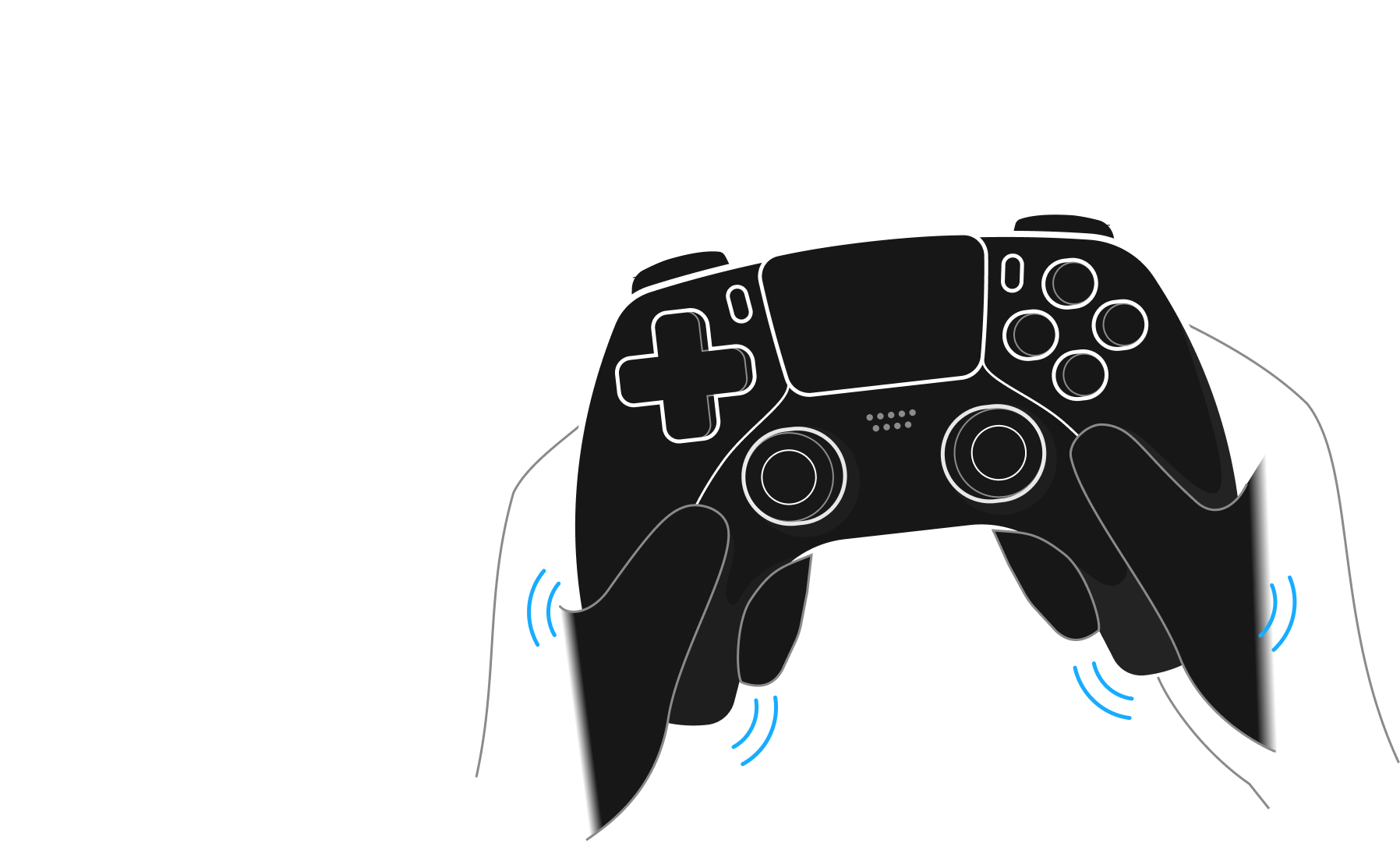
Examples that can be more immersive with haptic feedback include:
- Physically dramatic events, such as explosions or collisions.
- Events that require player attention, such as a doorbell ring or a new customer entering the shop.
- UI action notifications, such as scrolling to the end of a list or clicking on a disabled button.
HapticEffects also allow you to control the position and radius of vibrations for different purposes and to maintain the consistency with which actions trigger feedback. Design haptics carefully and avoid overuse, as players might find constant vibrations unpleasant and annoying.
Adapt progressive disclosure
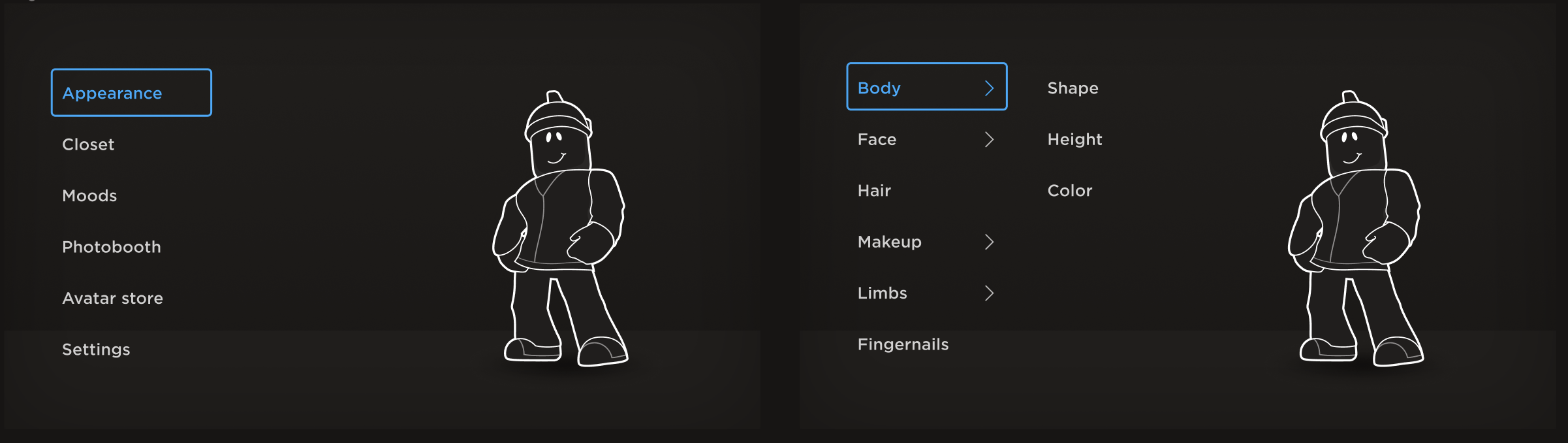
Progressive disclosure defers advanced or rarely used features to a secondary screen. It's one of the best ways to declutter your UI and make it easy to use. For the console UX, it's common and faster to have the player go in and out of screens rather than fitting everything onto one screen like designing for desktops.
Provide audio feedback
Unlike desktop or mobile interfaces, on which interactions are typically silent or rely on subtle haptic feedback, you can add sound effects to improve console interactions. When players navigate through the UI using a controller, consider incorporating sound effects to confirm selections or signal menu traversal, which can elevate the overall game.