
Source: Roblox Creator Hub · CC BY 4.0 · View source · Code samples: MIT Imported 2026-10-03. Formatting adapted for this site.
Properties and attributes
Making games interactive often means manipulating object properties and attributes:
Properties are part of the object class. For example, the
BasePart.Anchoredproperty controls physics for the part. In a track and field game, you might want to anchor a discus or javelin the instant it lands so that players have a visual indicator of how far it traveled.Attributes are essentially custom properties that you define. For example, the Plant reference project uses attributes to set the purchase price for seeds and the maximum plant size that a pot can hold.
Replication order
Before you begin retrieving and manipulating objects, you must have an understanding of replication order.
The Roblox Engine doesn't guarantee the order in which objects (and changes to objects) are replicated from the server to the client, which makes the Instance:WaitForChild() method essential for accessing objects in client scripts, particularly objects in the Workspace.
For example, if a server script changes a property of some instance in the Workspace and then calls RemoteEvent:FireAllClients(), the property change might replicate to the client before or after RemoteEvent.OnClientEvent fires. Use the available methods and events to detect changes rather than assuming a change has replicated. Changes of the same type, such as two attribute changes, generally do arrive in order.
When clients first launch a game, some aspects of replication and script execution are predictable:
The client loads the contents of
ReplicatedFirst, such as a loading screen, assets, and scripts.LocalScripts(andScriptswith aRunContextofClient) inReplicatedFirstrun. These scripts can safely get objects fromReplicatedFirstwithout usingInstance:WaitForChild():-- Safe local ReplicatedFirst = game:GetService("ReplicatedFirst") local LoadingScreen = require(ReplicatedFirst.LoadingScreen)These scripts can't safely get objects from other services, because they might not have loaded yet:
-- Not safe
local ReplicatedStorage = game:GetService("ReplicatedStorage")
local PickupManager = require(ReplicatedStorage.PickupManager)
You can use
WaitForChild()in these scripts to get objects from other services, but doing so negates the benefits of usingReplicatedFirst.The client continues loading the rest of the game.
When it finishes, the
Loadedevent fires andIsLoaded()returns true.LocalScriptsinPlayers.[Player].PlayerScripts(copied fromStarterPlayerScripts) run, as well as clientScriptsinReplicatedStorage. These scripts can safely get objects fromReplicatedStoragewithout usingWaitForChild().The player's
Charactermodel spawns in the game.LocalScriptsinWorkspace.[Character](copied fromStarterCharacterScripts) run.
If your game uses instance streaming (Workspace.StreamingEnabled), some or most objects might not have loaded into the workspace, so using WaitForChild() to access workspace objects becomes an even more important safety measure. In particular, see stream in and per-model streaming controls for additional information on loading and tuning streaming behavior.
Get objects
The first step to modifying object properties and attributes is to get a reference to the object. The simplest solution is to make the script a child of the object in the Explorer and use script.Parent to reference the object.

local sign = script.ParentThe more universal solution is to get the object from a service using methods like Instance:FindFirstChild() or Instance:WaitForChild().

local ReplicatedStorage = game:GetService("ReplicatedStorage")

local signsFolder = ReplicatedStorage:WaitForChild("Signs")
local sign = signsFolder:WaitForChild("InteractiveSign")
Modify properties
Properties are straightforward to access — just use a . after the object reference — although if you're working with a model, you might need to choose an individual part rather than the model itself.
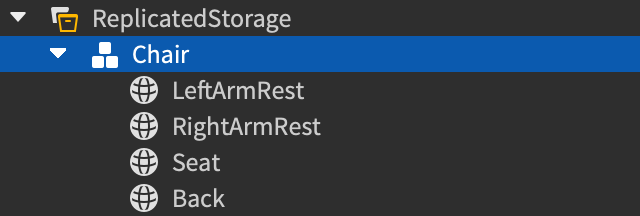
local ReplicatedStorage = game:GetService("ReplicatedStorage")
local chair = ReplicatedStorage:WaitForChild("Chair")

chair.LeftArmRest.Size = Vector3.new(10, 1, 10)
Create attributes
Although you can create attributes programmatically, the more common solution is to create them with default values in the Studio user interface. Then you can use scripts to modify their values in response to player actions.

For information on creating attributes in Studio, see instance attributes.
Set attributes
To modify an attribute's value, call Instance:SetAttribute() with a name and value.
local cabbage = script.Parent

cabbage:SetAttribute("Harvestable", true)
If the attribute doesn't already exist, this method creates it.
Get attribute values
To get the value of one existing attribute, call Instance:GetAttribute() on the instance.
local cabbage = script.Parent

cabbage:SetAttribute("Harvestable", true)

local isHarvestable = cabbage:GetAttribute("Harvestable")
print(isHarvestable) --> true
Similarly, you can get all attributes by calling Instance:GetAttributes(). This method returns a dictionary of key-value pairs.
local cabbage = script.Parent

local cabbageAttributes = cabbage:GetAttributes()

print(cabbageAttributes.GrowthRate) --> 2

for k, v in cabbageAttributes do
	print(k, v)
end
Delete attributes
To delete an attribute, set its value to nil.
local cabbage = script.Parent

cabbage:SetAttribute("GrowthRate", nil)
Detect changes
There are several ways to listen for changes to properties and attributes:
- The
Instance.AttributeChangedevent listens for changes to any attribute and passes the name of the changed attribute as a parameter. - The
Instance:GetPropertyChangedSignal()method lets you listen for changes to one property and passes no parameters. - The
Instance:GetAttributeChangedSignal()method lets you listen for changes to one attribute and passes no parameters.
Due to the minimal information that these events and methods pass as parameters, all of them are a good fit for anonymous functions, particularly Instance:GetPropertyChangedSignal() and Instance:GetAttributeChangedSignal(). To learn more about anonymous functions and working with events, see Events.
local cabbage = script.Parent

-- Local functions
local function onAnyPropertyChange(property)
	-- Ignore changes to attributes
	if property ~= "Attributes" then
		print(property) --> Name
		print(cabbage[property]) --> Cabbage1
	end
end

local function onAnyAttributeChange(attribute)
	print(attribute) --> Grow, GrowthRate
	print(cabbage:GetAttribute(attribute)) --> false, 3
end

-- Listen for changes and connect to local functions
cabbage.Changed:Connect(onAnyPropertyChange)
cabbage.AttributeChanged:Connect(onAnyAttributeChange)

-- Listen for changes and connect to anonymous functions
cabbage:GetPropertyChangedSignal("Name"):Connect(function()
	print(cabbage.Name) --> Cabbage1
end)
cabbage:GetAttributeChangedSignal("GrowthRate"):Connect(function()
	print(cabbage:GetAttribute("GrowthRate")) --> 3
end)

-- Fires Changed and GetPropertyChangedSignal()
cabbage.Name = "Cabbage1"

-- Fires Changed and AttributeChanged
cabbage:SetAttribute("Grow", false)

-- Fires Changed, AttributeChanged, and GetAttributeChangedSignal()
cabbage:SetAttribute("GrowthRate", 3)