
Source: Roblox Creator Hub · CC BY 4.0 · View source · Code samples: MIT Imported 2026-10-03. Formatting adapted for this site.
Get started as a rights holder
License Manager and Rights Manager are tools that let you manage your intellectual property (IP) on Roblox.
With License Manager, you can collaborate with creators to bring your IP to new audiences. By creating a license, you set the terms and conditions that determine how a creator can use your IP to build a game. You can specify content standards, revenue share requirements, and set eligibility criteria for the game, like maturity level and minimum number of daily active users.
Work with creators by finding existing games that already use your IP and offering those games a license, or by publishing your license to the Licenses catalog, where creators can directly request to use your IP.
Rights Manager helps you protect your IP by allowing you to report unauthorized use of your IP on Roblox and request the removal of games, avatar items, and assets hosted on the platform.
To start using these tools, register as a rights holder and create an IP family.
Note
For more information about IP and the Digital Millennium Copyright Act (DMCA), see intellectual property and Intellectual Property guidelines.
Note
For more information about IP terms, see the glossary.
Eligibility
To use IP tools, make sure you meet the eligibility requirements for each tool.
| Requirement | Rights Manager | License Manager |
|---|---|---|
| Valid ID | ✓ | ✓ |
| Verified email address | ✓ | ✓ |
| Exclusive copyright or an equally exclusive license to the IP | ✓ | |
| Worldwide rights to the IP | ✓ | |
| A commercialized IP portfolio of 5 or more works (not all need to participate on Roblox) **and/or** an existing license with an established Roblox creator | ✓ |
Ineligible IP types
- Shared or non-exclusive licenses
- Per-territory licenses
- Public-domain claimants
- Platform-exclusive licensees (for example, "Roblox-only" or "PC-only")
- AI-only works without recognized human authorship
Register as a rights holder
Note
If you plan on licensing your IP with the License Manager, you must register as a rights holder using a Roblox account that does not have published games that earn money.
Earnings from licenses are taxed as royalties, while earnings from games are taxed as services. If you use the same Roblox account to earn money from both licenses and games, all of your earnings will be taxed as royalties.
Before managing your intellectual property on Roblox, you must first register either as a rights holder or as their authorized representative. This allows Roblox to confirm your legal identity with the creations that you own or represent. You only need to register once.
To register your account as a rights holder or as their authorized representative:
- In the Creator Hub, go to Intellectual Property ⟩ Registration.
- Click Start Registration.
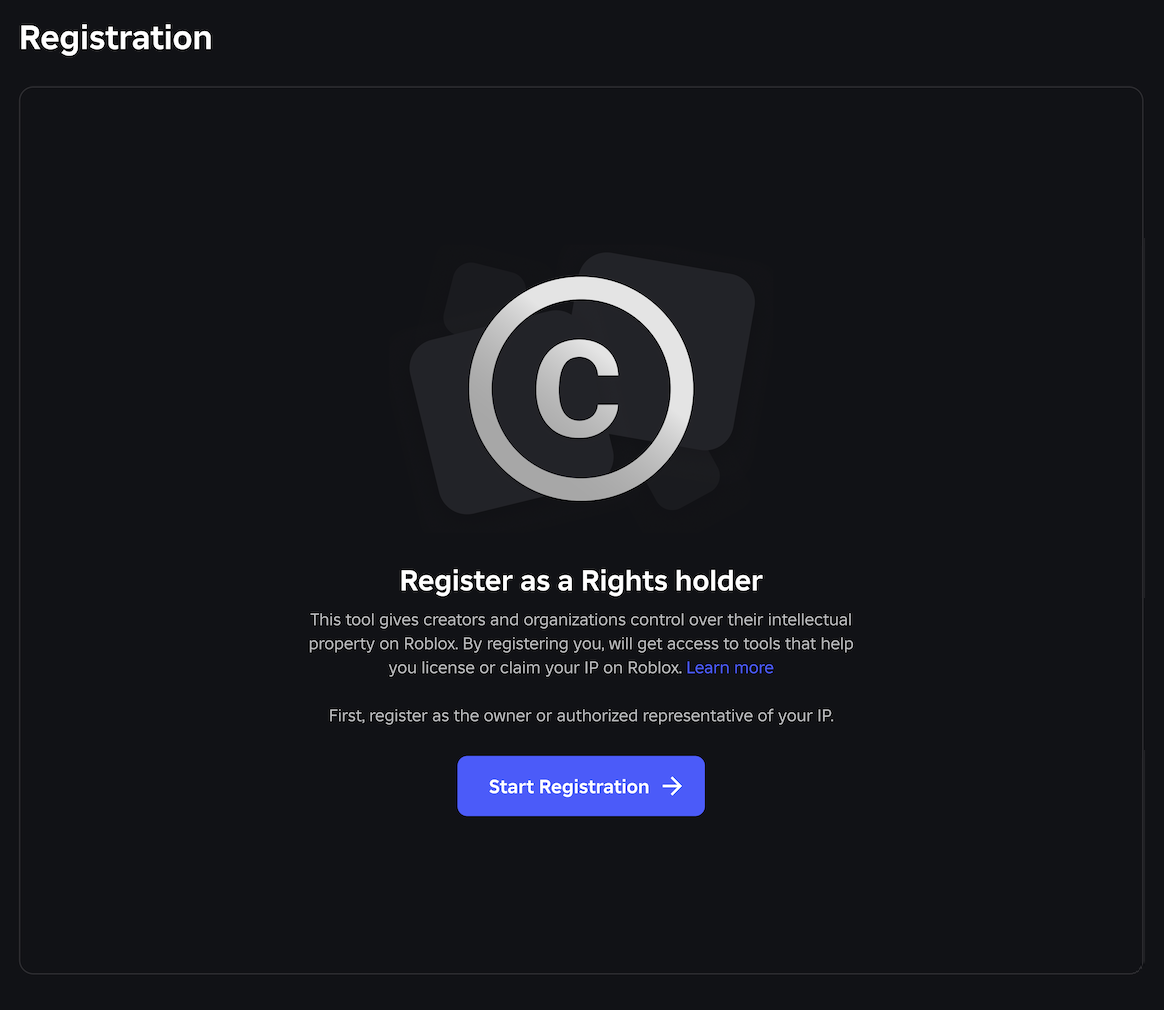
- Verify your ID and email address.
- Click Next.
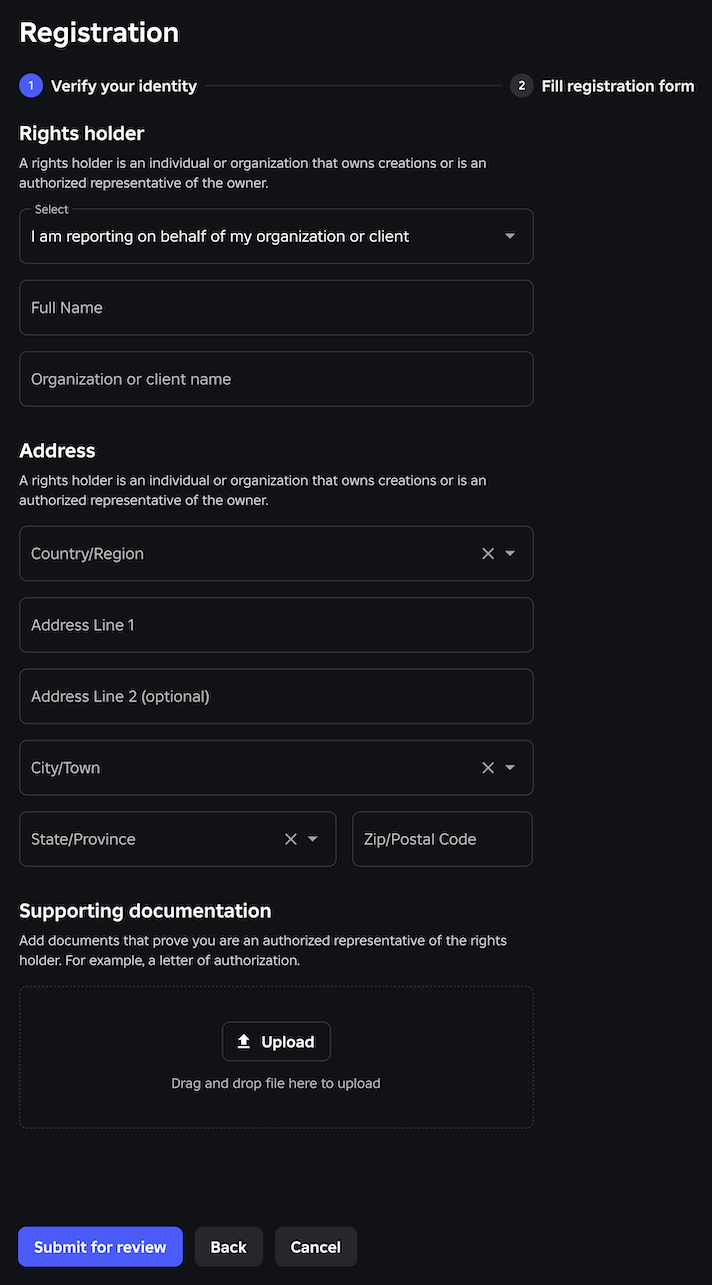
- Fill out the registration form.
- Under Rights holder:
- In the dropdown, select:
- I am the rights holder if you're registering on behalf of yourself.
- I am reporting on behalf of my organization or client if you're an authorized representative registering on behalf of someone else.
- Enter your full name.
- If you're an authorized representative, enter your organization or client name.
- In the dropdown, select:
- Under Address, enter your address.
- If you're an authorized representative, under Supporting documentation, upload documents that prove you're an authorized representative of the rights holder. See Supporting documentation for account registration for details.
- Under Legal agreements, confirm that your information is accurate, and agree to the Terms of Use and Privacy Policy.
- Under Signature, enter your full legal name as your electronic signature.
- Under Rights holder:
- Click Submit for review. Roblox will now review your information and register your rights holder account.
Create an IP family
An IP family is a folder inside your IP library that contains keywords and images that represent a particular IP. The keywords and images you add to your IP family are used by Roblox's scanning and search features to detect games across the platform that might match your IP.
To create an IP family, you must first verify ownership of your IP. After your ownership is verified, you can add official IP to that family.
Verify IP ownership
To verify ownership of your IP:
Go to Intellectual Property ⟩ IP Library.
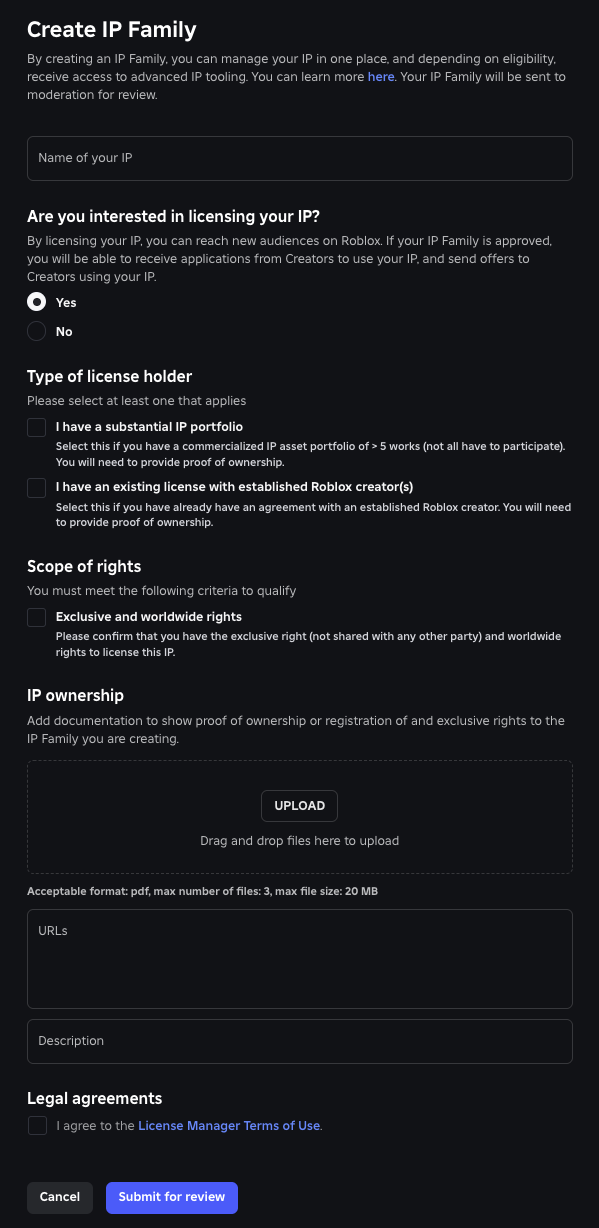
Click Create IP family.
Enter the name of your IP.
Under Are you interested in licensing your IP?, select:
Yes if you plan to both use IP enforcement features and enter license agreements with creators. This option gives you access to both License Manager and Rights Manager tools.
- Under Type of license holder, select one or both:
- I have a substantial IP portfolio if you have a commercialized IP asset portfolio of 5 or more works.
- I have an existing license with established Roblox creator(s) if you already have an agreement with a creator on the Roblox platform.
- Under Scope of rights, confirm that you hold Exclusive and worldwide rights to license this IP. You must not share these rights with any other party.
- Under Type of license holder, select one or both:
No if you only plan to use IP enforcement features. This option gives you access to Rights Manager tools only.
- Under Scope of Rights, confirm that you have either a Registered copyright for the IP, a Registered trademark for the IP, or both.
Under IP ownership:
- Upload documents to show proof of ownership of this IP. See Supporting documentation for IP ownership for details.
- (Optional) Enter links to official websites associated with the IP.
- (Optional) Enter any additional details you want to share about your IP family.
Under Legal agreements, agree to the Terms of Use. This step is only required the first time you set up an IP family.
Click Submit for review.
After you submit your verification of ownership, Roblox will review your submission and either approve or reject it. Your submission might be rejected if you don't meet the eligibility criteria or if Roblox is unable to verify your IP ownership.
Add IP to your IP family
Note
Keywords and images must be verifiable using citations to the supporting documentation you provide.
Note
To receive game matches, you must have at least 10 approved images in your IP family. If you have fewer than 10 approved images, you can still receive license requests from creators, but Roblox will not generate game matches for your IP.
To add IP to your IP family:
Go to Intellectual Property ⟩ IP Library.
Select the IP family you want to add to.
Click Add IP.
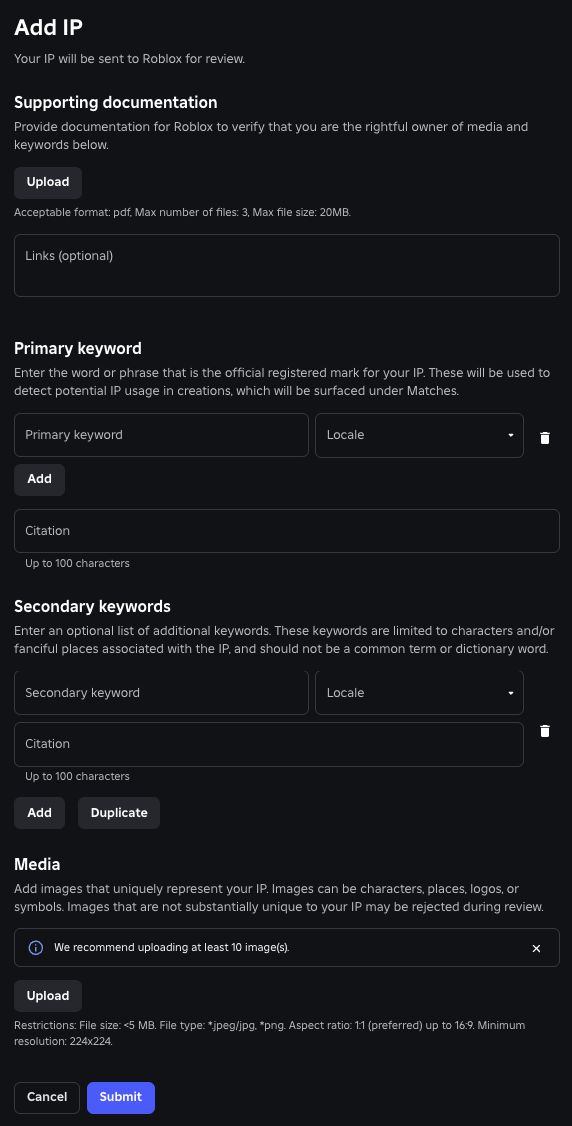
Under Supporting documentation:
- Upload documentation that proves you are the rightful owner of any keywords or media you want to add to your IP family. See Supporting documentation for IP ownership for details.
- (Optional) Enter links to official websites associated with the IP.
Under Primary keyword:
- Enter the word or phrase that is the official registered mark of your IP. This is usually the primary name of your copyrighted work and is used to find potential game matches across Roblox. You can only have one primary keyword per language.
- (Optional) Click Add translation to include translations of your IP name by country. This is important if your IP is registered under different names in different countries.
- Enter a citation for your primary keyword. Include the name of the document and the specific location where the keyword appears in your supporting documentation. See Citation guidelines for details.
(Optional) Under Secondary keywords:
- Enter additional words or phrases that represent characters, branded elements, or fictitious places associated with your IP. These keywords are combined with your primary keyword to find potential matches.
- (Optional) Click Add translation to include translations of your secondary keywords by country.
- Enter a citation for each secondary keyword. Include the name of each document and the specific location where the keyword appears in your supporting documentation. See Citation guidelines for details.
(Optional) Under Media:
- Upload images that are distinct to your IP. See Image requirements for details.
- Enter a citation for each image. Include the name of each document and the specific location where the image appears in your supporting documentation. See Citation guidelines for details.
Click Submit.
After you submit an IP family for approval, Roblox will review your submission and either approve or reject it. If your submission is rejected, you can go to IP Library and click View rejection reason under Status for more details. Usually, Roblox will ask for additional legal documentation, such as copyright or trademark registrations, to validate the ownership of elements in your IP library.
You can add more keywords or media to your IP family at any time by going to IP Library ⟩ [IP family name] and clicking Add IP media.
Additional information
Supporting documentation for account registration
If you're registering as the authorized representative of a rights holder, you must upload supporting documentation in the form of a letter of authorization. This letter must:
- Be on official company letterhead.
- Identify you as the individual authorized representative.
- Identify the company you work for.
- State whether you are authorized to act on the rights holder's entire IP portfolio or only on specific IP titles.
- State whether you can enforce the IP rights (for example, issue removal requests), enter into license agreements pertaining to the IP rights, or both.
- Be signed and dated. Digital signatures are allowed.
You can upload a maximum of 3 files.
Supporting documentation for IP ownership
Supporting documentation Roblox accepts as proof of IP ownership includes:
- A copyright registration certificate for the primary IP name.
- A trademark registration number or certificate for the primary IP name. For example, an international registration number for WIPO search.
- Rights-assignment agreements transfer documents that assign you full ownership of the IP rights.
- An exclusive license, sublicense, or product/distributor agreement granting sole rights (reproduction, distribution, adaptation, performance) to the entire work worldwide.
- Notarized statements of authorship or creation with date confirmation.
- A sworn affidavit or notarized declaration attesting to your exclusive ownership and detailing any territorial or media-type limits.
You can upload a maximum of 3 files.
Citation guidelines
Citations verify that your keywords and images match the supporting documentation you have provided. For example, "Work X can be found in Supporting Doc Y, Page 1, Section 2."
Citations should follow these guidelines:
- If citing a PDF, include:
- The name of the PDF document you uploaded as a supporting document
- The page number where the character or place first appears
- If citing a video, include:
- The URL to the official video (like a movie, TV episode, or game trailer)
- The timestamp showing the first appearance of the character or place
- If citing a press kit or a website, include:
- The URL to the official press kit or marketing page
- The specific section or text where the character or place appears
Image requirements
Note
All images must abide by Roblox's content moderation standards.
The images that represent your IP should meet these requirements:
File specifications:
- File size: under 5 MB
- File type: JPEG or PNG
- Aspect ratio: 1:1 (preferred), and up to 16:9 or 9:16
- Minimum resolution: 224 x 224 pixels
Content guidelines:
- Images must be limited to the subjects described by the secondary keywords in your IP family.
- Each IP family can include up to 50 approved or pending images. Archived images don't count toward the image limit.
- Avoid uploading images that are not distinct to your IP, like simple geometric shapes or common objects and locations.
- For best results, use color images with characters or logos shown individually on a plain background.
- Don't include composite images that contain smaller sub-images.
- Avoid overlays like text or speech bubbles, unless they're highly distinct to your IP.