
Source: Roblox Creator Hub · CC BY 4.0 · View source · Code samples: MIT Imported 2026-10-03. Formatting adapted for this site.
Assets
Almost everything in Roblox is represented as a cloud-based asset with a unique corresponding ID. This ID is typically in the form of rbxassetid://[ID], which gets applied to various instances as a property that's appropriate for that particular asset type. For example, Texture, MeshPart, and AudioPlayer instances reference image, mesh, and audio assets through their respective ColorMapContent, MeshId, and Asset properties.
	`rbxassetid://7229442422`
	<img src="https://prod.docsiteassets.roblox.com/assets/modeling/textures-decals/Texture-Example-Grafitti04.png" alt="A decal asset of a young woman with a button for an eye." width="90%" />


	`rbxassetid://6768917255`
	<img src="https://prod.docsiteassets.roblox.com/assets/modeling/meshes/Base-Mesh-In-Marketplace.png" alt="An untextured treasure chest MeshPart asset." width="90%" />


	`rbxassetid://9125402735`
	<audio controls><source src="https://prod.docsiteassets.roblox.com/assets/studio/general/Boom-Impact.mp3" type="audio/mpeg"></source></audio>
This cloud-based asset system allows you to store assets through Roblox and reuse them across the platform in various contexts, such as in different objects and places, without maintaining local copies as part of each saved Studio game. You can find millions of project assets in the Creator Store, equip avatar assets in the Marketplace, or you can create your own assets and import them directly into Studio through the asset management tools.
When you import assets, they must pass a moderation check before users can see and interact with them in published games. After Roblox approves imported assets, you can choose to retain ownership of their usage on the platform or make them publicly available as detailed in Asset permissions.
Asset types
All asset types available on the platform generally fall into one of three categories:
- Assets that map to project-level items. You can find and configure these assets for specific games on the Creator Dashboard.
- Assets that are objects, or that change the appearance or behavior of objects within places. You can import these assets or find them in the Creator Store.
- Assets that change the body, clothing, or animation of avatars and non-playable characters. You can find these assets in the Marketplace.
Every asset type works differently depending on where it lives on the platform. See the following sections for information on how to use each asset type for games, places, and avatars.
For games
There are three asset types that map to project-level items. These asset types are unique to the game that they map to, meaning they are non-transferable to other projects.
- Places — Every game has one or more places, or individual 3D worlds. Each place is represented by a data model that describes the place's 3D world and logic.
- Badges — A badges is a special award you can gift users when they meet a goal within a game, such as completing a difficult objective or playing for a certain amount of time.
- Passes — A pass is a monetization product that allows you to charge a one-time Robux fee in order for users to access special privileges within a game, such as entry to a restricted area, an in-game avatar item, or a permanent power-up.
For places
In general, there are two categories of asset types for places that you can either import or find in the Creator Store:
- Assets that exist as objects within the data model, such as models and meshes.
- Assets that you apply as an object's property, such as audio, images, fonts, and videos.
For more information on both types of these assets for places, such as where and how you can use them in Studio, reference the following table.
| Asset Type | Description |
|---|---|
| **Model** | A [`Model`](/docs/model) is a container object for geometric groupings such as [`BaseParts`](/docs/basepart), [`MeshParts`](/docs/meshpart), and other [`Model`](/docs/model) objects. Models can also contain objects such as [`Scripts`](/docs/script). Whenever you group objects together in Studio, they automatically become a [`Model`](/docs/model) object. For more information, see [models](/docs/roblox-parts-models). |
| **Mesh** | A [`MeshPart`](/docs/meshpart) is a type of part object that includes a physically-simulated custom mesh. For more information, see [meshes](/docs/roblox-parts-meshes). |
| **Audio** | An [`AudioPlayer`](/docs/audioplayer) instance loads and plays an audio file and passes the output through a [`Wire`](/docs/wire) to an [`AudioEmitter`](/docs/audioemitter) or [`AudioDeviceOutput`](/docs/audiodeviceoutput). For more information, see [audio assets](/docs/roblox-audio-assets) and [audio objects](/docs/roblox-audio-objects). |
| **Image** | Images are used in several ways within a place, including [textures/decals](/docs/roblox-parts-textures-decals) on parts, [image labels](/docs/roblox-ui-labels), [mesh textures](https://create.roblox.com/docs/parts/meshes#adding-textures), textures for [custom materials](/docs/roblox-parts-materials), textures for [special effects](https://create.roblox.com/docs/environment#special-effects), and more. |
| **Font** | [`TextButton`](/docs/textbutton), [`TextLabel`](/docs/textlabel), and [`TextBox`](/docs/textbox) objects display typography in a specific style when you apply a font asset ID. You cannot import fonts, but the [Creator Store][CreatorMarketplaceURL] offers over 80 different fonts for your use. |
| **Video** | A [`VideoFrame`](/docs/videoframe) object displays a video through its [`Video`](/docs/videoframe#videoframe-video) asset property. See [video frames](/docs/roblox-ui-video-frames) for more information. |
For avatars
There are three categories of asset types for avatars that you can find in the Marketplace and equip to avatars:
- Body Parts — Assets that represent sections of the avatar character model, such as its head, torso, or legs.
- Clothing and Accessories — Assets that represent clothing and accessories on top of body parts.
- Animations — Assets that animate the avatar character model, such as how it runs, jumps, or swims.
Every character model contains a HumanoidDescription object with asset IDs for the character's body parts, clothing, accessories, and animations. By default, a user's playable character references their personal Roblox avatar, but you can apply a custom HumanoidDescription if desired. For more information, see character appearance.
Packages
Within Studio, you can convert single assets or asset hierarchies into packages and reuse them in multiple games, letting you optimize asset management across your entire team or across multiple projects. When a package is updated, you or your team members can update specific copies to the most current version, update all copies across a game, or set specific copies to auto update.
For more information, see packages.
Asset URIs
Assets and other content stored outside of the current place are identified through Uniform Resource Identifiers (URIs) which are formatted strings that point to a file stored online, within the Roblox application package, or saved to the client's device.
The basic structure is a scheme followed by :// and a path that varies according to the scheme.
The Roblox Engine supports several custom URI schemes for referencing content stored on the platform.
rbxassetid
rbxassetid points to a user-uploaded asset on Roblox. This format is a common standard for properties such as Decal.ColorMapContent, ParticleEmitter.Texture, and AudioPlayer.Asset.
<br />
<img src="https://prod.docsiteassets.roblox.com/assets/modeling/textures-decals/Texture-Example-Grafitti04.png" alt="A decal asset of a young woman with a button for an eye." width="90%" />


<br />
<img src="https://prod.docsiteassets.roblox.com/assets/lighting-and-effects/particle-emitter/Texture-Indicated.jpg" alt="Three particle emitters emit red, blue, and yellow particles over jar assets that sit on top of a stone tower. The red particles are highlighted." width="90%" />


<br />
<audio controls>
rbxasset
rbxasset points to Roblox's content folder on the user's device, for example:
The content folder's location depends on the user's operating system:
Windows
`%LOCALAPPDATA%\Roblox\Versions\<version>\content`<br />
(alternatively `C:\Program Files (x86)\Roblox\Versions\<version>\content`)
Mac
`Applications/RobloxStudio.app/Contents/Resources/content`rbxthumb
rbxthumb points to a thumbnail image for the provided asset. Its string format takes a thumbnail type (type), an asset ID (id), and width/height (w/h).
| Type (`type`) | Expected `id` Value | Supported Sizes (`w`×`h`) |
|---|---|---|
| `Asset` | ID for a 2D or 3D asset | 150×150, 420×420 |
| `Avatar` | ID for a Roblox user ([`Player.UserId`](/docs/player#player-userid)) | 48×48, 60×60, 100×100, 150×150, 180×180, 352×352, 420×420, 720×720 |
| `AvatarBust` | ID for a Roblox user ([`Player.UserId`](/docs/player#player-userid)) | 50×50, 60×60, 75×75, 100×100, 150×150, 180×180, 352×352, 420×420 |
| `AvatarHeadShot` | ID for a Roblox user ([`Player.UserId`](/docs/player#player-userid)) | 48×48, 60×60, 100×100, 150×150, 180×180, 352×352, 420×420 |
| `BadgeIcon` | ID for a [badge](https://create.roblox.com/docs/production/publishing/badges#locating-badge-ids) | 150×150 |
| `BundleThumbnail` | ID for a [Marketplace][MarketplaceURL] bundle such as a [character](https://www.roblox.com/catalog?Category=17), [head](https://www.roblox.com/catalog?Category=4&Subcategory=66), or [shoes](https://www.roblox.com/catalog?Category=3&Subcategory=64) | 150×150, 420×420 |
| `FontFamily` | ID for a font in the [Creator Store](/docs/roblox-production-creator-store) or [Toolbox](/docs/roblox-projects-assets-toolbox) inventory | 1200×80 |
| `GameIcon` | ID for a game ([`DataModel.GameId`](/docs/datamodel#datamodel-gameid)); shows the game's [icon](/docs/roblox-production-publishing-experience-icons) | 50×50, 150×150 |
| `GamePass` | ID for a [pass](https://create.roblox.com/docs/production/monetization/passes#locating-pass-ids) | 150×150 |
| `GameThumbnail` | ID for a game ([`DataModel.PlaceId`](/docs/datamodel#datamodel-placeid)); shows the game's primary [thumbnail](/docs/roblox-production-publishing-thumbnails) | 256×144, 384×216, 480×270, 576×324, 768×432 |
| `GroupIcon` | ID for a [group](/docs/roblox-projects-groups) | 150×150, 420×420 |
| `Outfit` | ID gathered from an [`OutfitPages`](/docs/outfitpages) table | 150×150, 420×420 |
local Players = game:GetService("Players")

local player = Players.LocalPlayer
local playerGui = player.PlayerGui
local screenGui = Instance.new("ScreenGui")
screenGui.Parent = playerGui

local imageLabel = Instance.new("ImageLabel")
imageLabel.AnchorPoint = Vector2.new(0, 0)
imageLabel.Size = UDim2.new(0, 150, 0, 150)
imageLabel.Position = UDim2.new(0, 16, 0, 16)
imageLabel.BorderSizePixel = 0
imageLabel.BackgroundColor3 = Color3.new(0, 0, 0)
imageLabel.BackgroundTransparency = 0.8
imageLabel.Parent = screenGui

local success, content, isReady = pcall(function()
	return Players:GetUserThumbnailAsync(player.UserId, Enum.ThumbnailType.HeadShot, Enum.ThumbnailSize.Size352x352)
end)
if success then
	-- Apply thumbnail content to image label
	imageLabel.Image = content
	-- Crop thumbnail to circle
	local corner = Instance.new("UICorner")
	corner.CornerRadius = UDim.new(1, 0)
	corner.Parent = imageLabel
end
rbxgameasset
rbxgameasset points to an asset uploaded through the Asset Manager. It allows access to assets by a user‑friendly name instead of ID, so if you upload an image named Potion.png, you can reference it as:
In the above example, Images is the category/folder that appears in the Asset Manager and Potion is the asset name, minus its extension.
Note
rbxgameasset only works for the current game. If you paste a parent object that utilizes the asset into another game, the asset will not load (or will load a different asset if you've uploaded one with the same name to that other game). If you need an asset to work across multiple games, use rbxassetid instead of rbxgameasset.
rbxhttp
rbxhttp is shorthand for ContentProvider.BaseUrl, for example:
rbxtemp
rbxtemp allows you to refer Files. Use File:GetTemporaryId() to generate a valid rbxtemp URL. For example:
https / http
https or http points to the exact location of something on the internet. It only works on Roblox-approved domains and raises an error if you use it elsewhere.
Asset permissions
An asset's privacy status determines who has permission to use the asset within their games. By default, all assets are private when you or your group members import them into Studio. If you want to grant everyone access to the asset ID, you must distribute the asset to the Creator Store.
Note
Special privacy rules and workflows apply to audio and video assets. See asset privacy for details on sharing these asset types among friends and games.
Asset moderation
Roblox performs both human and automated asset moderation on a proactive and reactive basis to ensure assets adhere to the Community Rules, Terms of Use, and Intellectual Property guidelines. If any asset violates these moderation policies, such as including discriminatory or adult content, the Moderation team flags and removes the asset to protect users from harmful or non-compliant content. This process generally happens within a few hours after you import the asset.
If an asset is still in the moderation queue when you publish your game, users cannot see or interact with the asset until Roblox approves it. If the asset doesn't pass moderation, you will receive a notification explaining why the asset cannot be on the platform in its current state. For more information, see Working with Assets - Asset Moderation.
Note
To maintain community safety and civility, Roblox may take down games and/or terminate accounts that maliciously import or publish non-compliant assets.
Asset management
Roblox offers several tools to import, store, and publish your assets:
| Tool | Description |
|---|---|
| [Asset Manager](/docs/roblox-projects-assets-manager) | Imports and stores [images](/docs/roblox-parts-textures-decals), [meshes](/docs/roblox-parts-meshes), [audio](/docs/roblox-audio-assets), and more. Only displays assets that you've imported into the currently opened game. |
| [Toolbox](/docs/roblox-projects-assets-toolbox) | Stores every asset that you or your [groups](/docs/roblox-projects-groups) have ever imported into Studio, regardless of what game you currently have open. Also includes assets from the [Creator Store][CreatorMarketplaceURL], allowing you to quickly drop user-generated assets directly into your games. |
| [Importer](/docs/roblox-studio-importer) | Imports 3D models from third-party modeling tools as a custom [`Model`](/docs/model) instance. |
Archive assets
To further help with organization, you can archive most asset types in the Creations ⟩ Development Items section of the Creator Dashboard. To archive an item, hover over an asset's thumbnail, click the ⋯ button, and select Archive from the context menu.
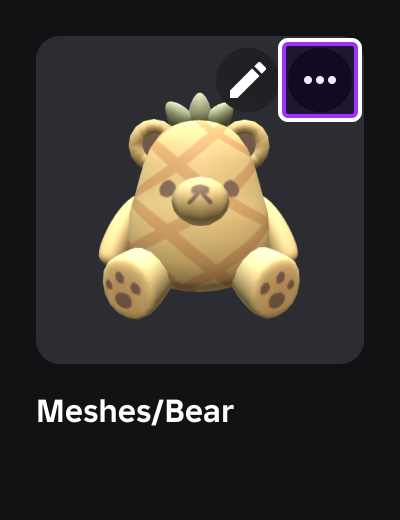
After you archive an asset, it disappears from the website and is no longer usable or visible in Roblox games, including your own.
Note
For more information on how archiving works with Marketplace items, see moderation.