
Source: Roblox Creator Hub · CC BY 4.0 · View source · Code samples: MIT Imported 2026-10-03. Formatting adapted for this site.
Intro to arrays
Data structures are how coders store and organize entire sets of data. In Luau, data structures are created with tables. Tables can hold any number of values.
This article covers using arrays, a specific table type, to create a talking character.
Tables
Tables are data types that can hold multiple values. Unlike other data types that store a single value, tables don't have a fixed size and can hold a mix of different value types. With tables, you can store items in a player's inventory or create a list of thousands of player names.
Arrays
There are different types of tables. One type is an array, which stores lists of values in a specific order. To create an array, create a variable and assign it curly brackets { }. Separate values within the brackets with commas like below:
local myArray = {"item1", "item2", 10, workspace.Part, myVariable}
Create a talking character
To explore arrays, you'll work with a non-playable character (NPC) that, when clicked, shows a different line of dialogue.
This project will use a pre-made NPC model, which includes a partial script and Prompt Detector but lacks dialogue.
Download the template NPC.
DownloadIn Explorer, import the NPC by right-clicking on Workspace ⟩ Insert From File and select the downloaded file.
Code a dialogue array
These steps use an array to store different phrases for the NPC to say when players interact with it.
In the Explorer, go to NPC ⟩ ProximityPrompt ⟩ ChatManager.
In ChatManager, where marked in the script, create an empty array to store dialogue options.
-- Cycles through chat dialogue when prompt is used

local Chat = game:GetService("Chat")

local prompt = script.Parent

local npc = prompt.Parent
local characterParts = npc.CharacterParts
local head = characterParts.Head

-- Add array here
local dialogueArray = {}

local function speak()
   local dialogue = "I've got one thing to say!"
   Chat:Chat(head, dialogue)
end

prompt.Triggered:Connect(speak)
Note
This lesson uses the legacy chat API and is strictly for demonstrating how to use arrays. In real games, use TextChatService.
Within the brackets
{}of the array just created, type at least three strings of dialogue, separated by commas.local dialogueArray = {"Hi!", "Do I know you?", "Goodbye!"}
Use array indexes
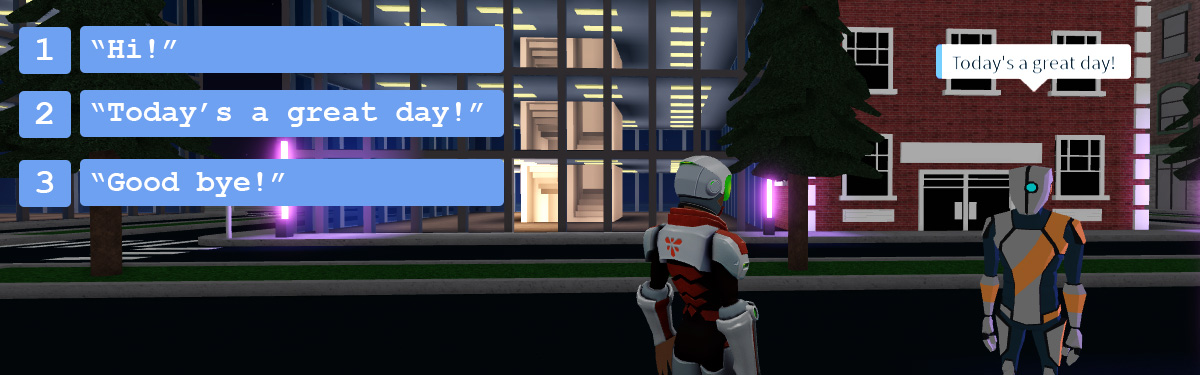
Each value in the array is assigned an index number. Indexes are assigned to values in the order in which the values are stored. The first value is at index 1, the second at index 2, and so forth.
Some coding languages, like Java, start indexes at 0.
In the array just created, "Hi" is at index 1, and "Goodbye!" is at index 3.
| Index | Value |
|---|---|
| 1 | Hi |
| 2 | Today's a great day! |
| 3 | Good bye! |
Use specific index values
Use index values to assign specific pieces of dialogue to the NPC. To use a value at a specific index, add the index in brackets directly after the array's name, like dialogueArray[1].
Replace the
dialoguevariable's default string value with index 2.local dialogueArray = {"Hi!", "Do I know you?", "Goodbye!"} local function speak() local dialogue = dialogueArray[2] Chat:Chat(head, dialogue) end
Note
If an index doesn't exist, a nil error will display in Output. For example, since this array only has three values, using dialogueArray[4] will result in an error.
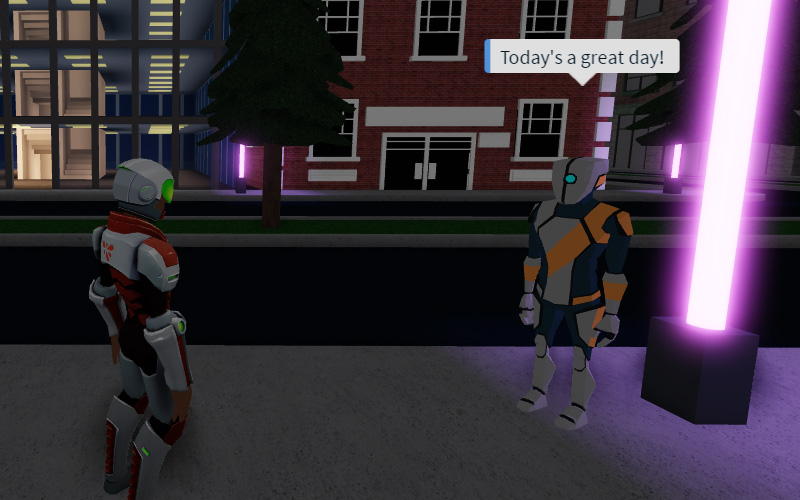
Playtest and click the NPC. The second array value should appear in the chat bubble. Try changing the code to test out each value in the table.
Change dialogue lines
When the player interacts with the NPC, the NPC will always say the same line. That's boring. Instead, use a variable to update which index value to use.
Whenever a player interacts with the NPC, increment the variable value by 1 to display the following line of dialogue.
To keep track of the current index, add a new variable named
dialogueIndex. Set the variable to 1 to start at the beginning of the array.local dialogueArray = {"Hi!", "Do I know you?", "Goodbye!"} local dialogueIndex = 1In
speak(), replace the index number indialogueArray[2]with the variable you just created.local function speak() local dialogue = dialogueArray[dialogueIndex] Chat:Chat(head, dialogue) endAt the bottom of the function, add 1 to
dialogueIndex. The next timespeak()is called, the dialogue will display the next string.local function speak() local dialogue = dialogueArray[dialogueIndex] Chat:Chat(head, dialogue) dialogueIndex += 1 endPlaytest and click the NPC to see each dialogue string from the array.
Notice there's an error in the Output window once the script reaches the end of the array.
You'll fix this in the next section so the dialogue restarts from the beginning after it shows the last string.
Array sizes
You can use the size of the array to know when to reset the desired index to 1. Find the size of an array by typing #, without spaces, before an array's name.
For example: #dialogueArray
Check the array's size against the variable's current value to know when it's time to start back at the beginning.
Restart the dialogue
Use the array size to check when it's time to cycle back to the first piece of dialogue.
Add an if statement and check if
dialogueIndexequals#dialogueArray, the total size of this array. If so, then setdialogueIndexto 1.local function speak() local dialogue = dialogueArray[dialogueIndex] Chat:Chat(head, dialogue) if dialogueIndex == #dialogueArray then dialogueIndex = 1 end dialogueIndex += 1 endIf
dialogueIndexisn't at the end, it should still add 1 todialogueIndex. MovedialogueIndex += 1under an else statement.local function speak() local dialogue = dialogueArray[dialogueIndex] Chat:Chat(head, dialogue) dialogueIndex = if dialogueIndex == #dialogueArray then 1 else dialogueIndex + 1 endPlay and confirm you can cycle through and restart the dialogue.
Summary
Data structures are how sets of data are stored. Luau uses tables to create data structures. Arrays are a type of table that can hold ordered lists of information. Each value within the array is assigned an index number, starting with index 1.
This script used an array to create a list of possible dialogue lines for a Non-Playable Character (NPC).
-- Cycles through chat dialogue when prompt is used
local Chat = game:GetService("Chat")
local prompt = script.Parent
local npc = prompt.Parent
local characterParts = npc.CharacterParts
local head = characterParts.Head
-- Add array here
 local dialogueArray = {"Hi!", "Do I know you?", "Goodbye!"}
 local dialogueIndex = 1
 local function speak()
   local dialogue = dialogueArray[dialogueIndex]
   Chat:Chat(head, dialogue)

   dialogueIndex = if dialogueIndex == #dialogueArray then 1 else dialogueIndex + 1
 end
prompt.Triggered:Connect(speak)Troubleshooting tips
If the character doesn't go through the array of dialogue, try the following troubleshooting tips.
- Check the if statement that
dialogueIndexis set back to 1. In the else statement, check thatdialogueIndexhas 1 added to itself. - When getting the array's size, ensure there are no spaces after the # in
#dialogueArray.
Optional challenges
Try one of the optional challenges below.
- Code the script so the NPC's dialogue goes backward through the array. The dialogue index should start at the array length and subtract each time instead of adding.
- Instead of showing dialogue in order, have the NPC show a random line of dialogue each time using
Random.new(). A sample script is included below to reference
   local randomGenerator = Random.new()

   -- Shows a new dialogue whenever the NPC is clicked
   local function speak()
      local randomIndex = randomGenerator:NextInteger(1, #dialogueArray)
      local dialogue = dialogueArray[randomIndex]
      Chat:Chat(head, dialogue)
   end