
Source: Roblox Creator Hub · CC BY 4.0 · View source · Code samples: MIT Imported 2026-10-03. Formatting adapted for this site.
Play on Roblox
Included in this training is creating an account and learning how to navigate within Roblox games. For the second part, there is the option of joining a training game specially created to familiarize you with Roblox mechanics.
By the end of this article, you will:
- Create and login into a Roblox account.
- Understand the layout of the Roblox platform and how to launch games.
- Learn basic skills in the Roblox client, such as avatar controls and camera manipulation.
Create your account
To play and create on Roblox, you need a free account.
- Create an account by signing up on the Roblox Home Page. Follow the prompts to create your account.
- To create an account, you may be asked to complete a CAPTCHA. These are timed challenges used to discourage people creating fake accounts. Challenges vary, but often ask you to find a specific object in an image.
Note
CAPTCHAs and students
Note that your students may have to accomplish CAPTCHA challenges when logging into accounts. Because of this, we encourage setting aside time for account log-ins at the start of class.
The Roblox home page
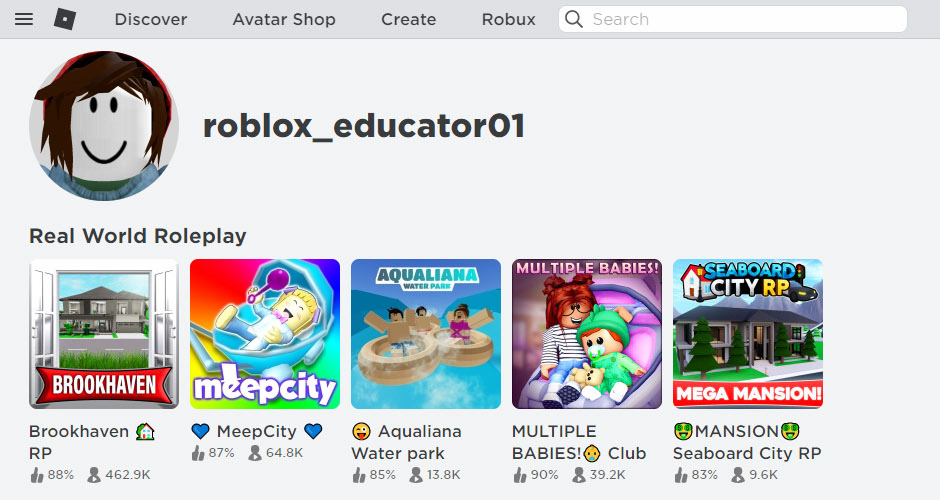
Once you've logged in, you'll see the Roblox home page. This includes recommended games and navigation options. Additionally, you'll see your username and a headshot of your avatar, your virtual representation in Roblox.
Note
Customize avatars
Many users enjoy customizing their avatar, changing it to be a realistic representation of themselves, or even becoming a fantasy character. Avatars are customized using avatar items in the Marketplace.
Before moving onto the training game, it's recommended you add an email to your account. This adds extra security to your account and ensures you don't get locked out if a password is forgotten.
On the Roblox home page, in the top right, click the gear icon and select Settings.

On your account screen, click Add Email. Type in your school or organization email. Follow prompts as needed to verify the email.

Note
While Roblox does its best to ensure accounts are safe, you're one of the best defenses against bad actors. Learn additional tips in Account Security.
Learn Roblox client
With an account created, you'll now launch your first Roblox game. The What is Roblox? - Training Game is designed by the Roblox team to introduce educators how to play Roblox and feel comfortable on the platform.
Alternatively, you can view the Roblox Platform Quick Start Guide, a handout summarizing the interface and controls instead of joining the game.
Game Pages
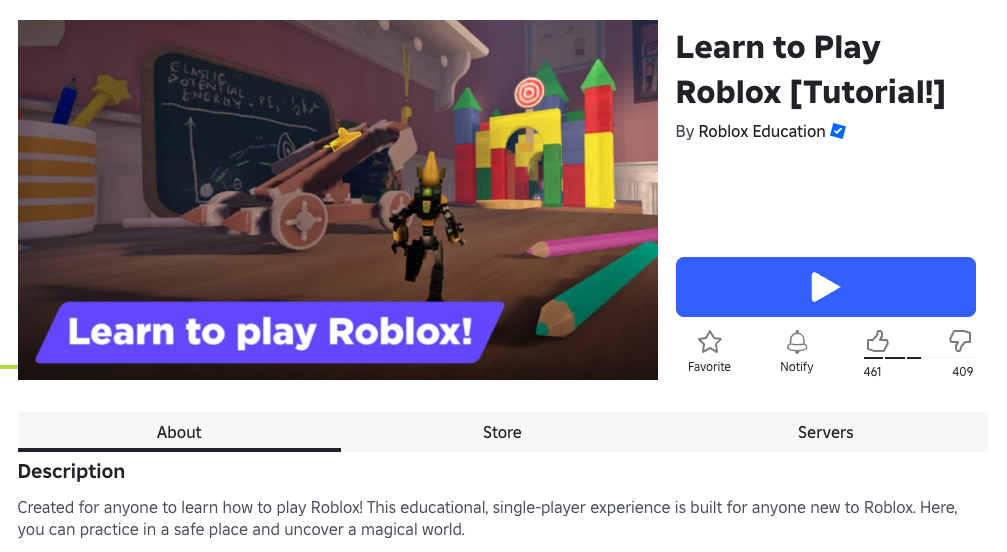
All Roblox games have their own page. This page includes a description and button used to open that specific game in the Roblox client.
A sample page is below.
Launch the game
To start, go to the Learn to Play Roblox game.
On that page, click the Play button. If you already have Roblox installed, it'll open the game. If not, permit Roblox to be installed onto your device.

With the Roblox client open, go through the game as instructed. This should take about 5–10 minutes. Come back to your web browser when you see a sign reading "Find new games!"
<img width="100%" img src="https://prod.docsiteassets.roblox.com/assets/education/legacy/module2-trainingExample.jpg" alt="" />
Example in-game
<img width="71%" img src="https://prod.docsiteassets.roblox.com/assets/education/legacy/module2-finishedTraining.jpg" alt="" />Finish screen
Desktop controls
While all controls are introduced in the game, here's a quick reference.
| **Move Forward** | W or ↑ |
| **Move Backward** | S or ↓ |
| **Move Left** | A |
| **Move Right** | D |
| **Jump** | Space |
Mobile controls
Roblox works easily on any mobile device. Whenever playing Roblox, we recommend holding the device with thumbs on the screen like below.
| **Move** | Tap and drag in the lower-left area of the screen |
| **Jump** | Press the jump button in the lower-right area of the screen |
| **Rotate Camera** | Tap and drag in the middle of the screen |