
Source: Roblox Creator Hub · CC BY 4.0 · View source · Code samples: MIT Imported 2026-10-03. Formatting adapted for this site.
Customize and share
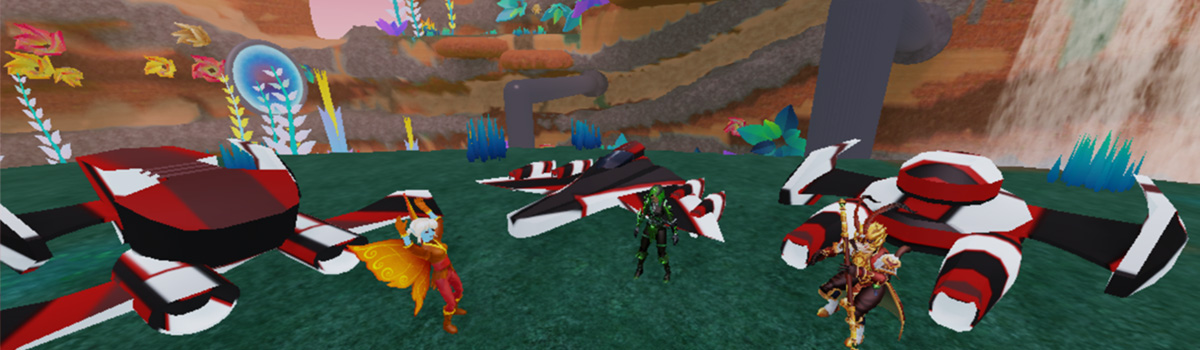
This last lesson is all about putting the final touches on the driftspeeder, such as making it faster or quicker to turn. Once finished, take flight and share your work with friends.
Modify the Engine
To change a driftspeeder's speed or how quickly it can turn, you'll open the Settings script. In Roblox, code is typed inside of scripts using the coding language Luau. Games often have separate scripts for each thing the game needs to do.
Click on your speeder.
In the Explorer window, look for the Garage folder and your driftspeeder.
Next to the driftspeeder's name, click the ▸ arrow to expand it. Then, find Body and click the ▸ to see the attached script.

Double-click the Settings script to open it.
The Settings script
In the script, you'll see words like DefaultSpeed or BoostSpeed. These words are variables. Variables are placeholders for information that can be changed as needed.
-- ================================================================================
-- Settings
-- ================================================================================

local Settings = {}

Settings.DefaultSpeed = 100		-- Speed when not boosted [Studs/second, Range 50-300]
Settings.BoostSpeed = 200		-- Speed when boosted [Studs/second, Maximum: 400]
Settings.BoostAmount = 10		-- Duration of boost in seconds
Settings.Steering = 5			-- How quickly the speeder turns [Range: 1-10]
-- ================================================================================

return Settings
Make your speeder the fastest on the track by increasing the default speed setting.
Change the number in the line
Settings.DefaultSpeed = 100to any number between50(slower) and300(faster).Settings.DefaultSpeed = 100 -- Speed when not boosted [Studs/second, Range 50-300] Settings.BoostSpeed = 200 -- Speed when boosted [Studs/second, Maximum: 400] Settings.BoostAmount = 10 -- Duration of boost in seconds Settings.Steering = 5 -- How quickly the speeder turns [Range: 1-10]Playtest and see how the change feels. Ask yourself if the speed fits the driftspeeder's design and if you'd be excited using it in a race.
<video controls src="https://prod.docsiteassets.roblox.com/assets/education/build-it-play-it-galactic-speedway/customize-and-share/speed50.mp4" width="100%"></video>
Settings.DefaultSpeed = 50
<video controls src="https://prod.docsiteassets.roblox.com/assets/education/build-it-play-it-galactic-speedway/customize-and-share/speed300.mp4" width="100%"></video>Settings.DefaultSpeed = 300
- Stop the playtest when finished. Remember, because you can't use your mouse while flying, press E to exit the speeder so you can stop the playtest.
Note
Making multiple speeders
If you make multiple speeders, make each one feel unique by giving them different strengths and weaknesses. One speeder might be slower normally, but have a faster boost. Another speeder might be very fast, but slow to turn.