
Source: Roblox Creator Hub · CC BY 4.0 · View source · Code samples: MIT Imported 2026-10-03. Formatting adapted for this site.
Voice Chat
Note
Voice Chat is currently available to all 13+ age-verified users in a specific set of countries. Review the Voice Chat FAQ to learn more. Users not in these countries should use ID verification to enable chat with voice. Once verified, eligible 13+ users can opt‑in to use this feature by visiting their account Settings page or from within a voice enabled game, allowing them to chat with voice in any Roblox game that supports it. Games with voice often see an uplift in engagement, DAU, and spending.
Voice Chat is a feature enabling real-time, spoken communication between yourself and other players. It is only available for places that support a maximum of 100 players.
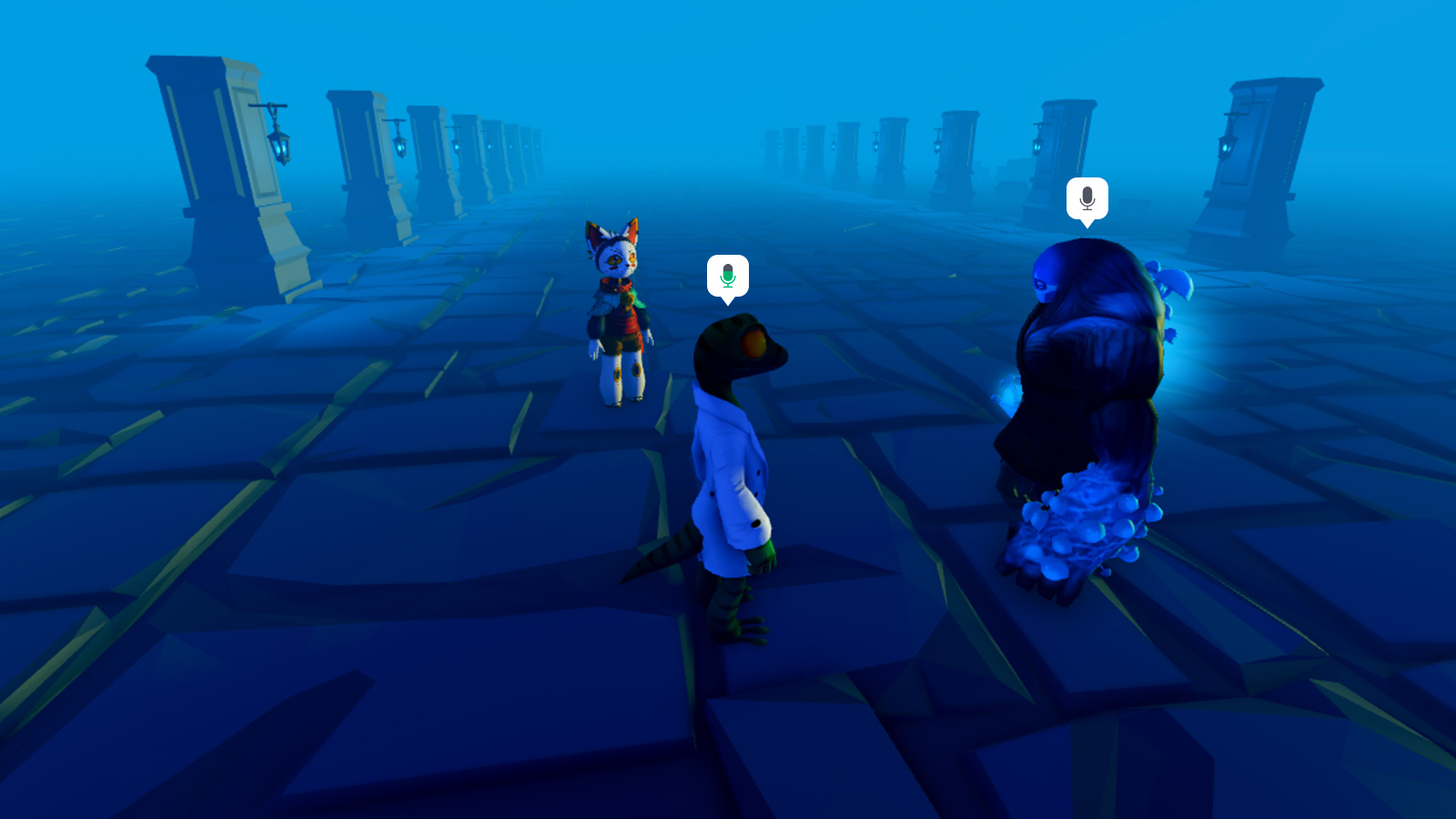
Enable Voice Chat
Voice Chat is enabled by default for verified 13+ users on all new games with a maximum of 100 players. Enabling Voice Chat is required to use the speech-to-text API.
To activate voice for existing games or disable it for new ones:
- Open your game in Studio.
- Open File ⟩ Experience Settings.
- Navigate to the Communication tab on the left side of the window.
- Toggle Enable Voice Chat to your desired setting.
For greater communication among players within your game, toggle on Enable Camera to allow eligible players to animate their avatar with their movement.
- Publish the place to save the changes.
Set maximum players
If you previously set the maximum number of players in a place to more than 100, you'll need to reduce it to support Voice Chat.
- Select the game on the Creator Dashboard and then navigate to Configure ⟩ Places.
- Select the desired place and then navigate to Access in the left column.
- For Maximum Visitor Count, enter a number less than or equal to 100.
- Click the Save Changes button.
When you update the maximum number of players in a place to fewer than 100, there may be servers already configured to a different, higher number. Since those servers won't support Voice Chat, it's recommended to restart servers.
Customize voice behavior
Voice Chat is proximity-based by default, adjusting the volume of participants based on how close they are to each other. However, you can set UseAudioApi to Enabled to take control over how voices are set up and used in your game.
If VoiceChatService does not appear already:
Right‑click in the Explorer window and select Show Services… from the context menu.
Select
VoiceChatServicein the popup window and click Insert. The service appears in the Explorer hierarchy.
With
VoiceChatServiceselected, ensure thatUseAudioApitoEnabledin the Properties window. This may already be done for you.
Team-based
To implement Team-based chat where only teammates can hear one another, you can use the following Script within ServerScriptService:
local Teams = game:GetService("Teams")

local function findAudioInput(forPlayer : Player) : AudioDeviceInput?
	-- Assumes there is only one AudioDeviceInput per player, parented to the Player object
	-- This is provided for you if VoiceChatService.EnableDefaultVoice is true
	-- May need to be reworked for generality if your place puts AudioDeviceInput objects elsewhere
	return forPlayer:FindFirstChildWhichIsA("AudioDeviceInput")
end

local function onTeamChanged(player : Player)
	local team = player.Team
	if not team then return end

	local device = findAudioInput(player)
	if not device then return end

	-- Only permit teammates to hear each other
	device.AccessType = Enum.AccessModifierType.Allow
	local allowed = {}
	for _, player : Player in team:GetPlayers() do
		table.insert(allowed, player.UserId)
	end

	device:SetUserIdAccessList(allowed)
end

local function onTeamAdded(team : Team)
	team.PlayerAdded:Connect(onTeamChanged)
	team.PlayerRemoved:Connect(onTeamChanged)
end

for _, team : Team in Teams:GetTeams() do
	onTeamAdded(team)
end

Teams.ChildAdded:Connect(function(child : Instance)
	if child:IsA("Team") then
		onTeamAdded(child)
	end
end)
Non-spatial
Depending on your game's needs, it might make more sense to hear others with equal volume, regardless of their geographic location. If you disable default Voice Chat, you can then implement non‑spatial Voice Chat through the following Script within ServerScriptService:
local Players = game:GetService("Players")
local Workspace = game:GetService("Workspace")

local function wireUp(source : Instance, target : Instance)
	local wire = Instance.new("Wire")
	wire.SourceInstance = source
	wire.TargetInstance = target
	wire.Parent = source
end

-- Set up a global volume slider for everybody's voice
local volumeSlider = Instance.new("AudioFader", Workspace)
local output = Instance.new("AudioDeviceOutput", Workspace)
wireUp(volumeSlider, output)

local function onPlayerAdded(player : Player)
	local device = Instance.new("AudioDeviceInput", player)
	device.Player = player
	-- Route each new player's microphone input to the global volume slider
	wireUp(device, volumeSlider)
end

for _, player in Players:GetPlayers() do
	onPlayerAdded(player)
end
Players.PlayerAdded:Connect(onPlayerAdded)
Note
The above script runs on the server, creating an AudioDeviceInput per‑player and connecting them all to a shared AudioFader. Taking this behavior as‑is allows players to hear all other players and themselves. Since hearing yourself can be quite distracting, you can place the following LocalScript in StarterPlayerScripts to remove the Wires that would otherwise ferry your own voice back to your own speakers.
local Players = game:GetService("Players")

local player = Players.LocalPlayer

local function onDescendantAdded(descendant : Instance)
	if descendant:IsA("Wire") then
		descendant:Destroy()
	end
end

for _, descendant in player:GetDescendants() do
	onDescendantAdded(descendant)
end
player.DescendantAdded:Connect(onDescendantAdded)
Disable per place
If you don't want to enable Voice Chat for every place within your game, you can disable it within specific places that would otherwise be voice‑eligible.
Note
If you're currently setting a place's Max Players to a value over 100 in order to disable Voice Chat, it's recommended to use this workflow instead.
To disable Voice Chat for a specific place within a game:
Right‑click in the Explorer window and select Show Services… from the context menu.
Select
VoiceChatServicein the popup window and click Insert. The service appears in the Explorer hierarchy. With
VoiceChatServiceselected, disableEnableDefaultVoicein the Properties window.Publish the place to save the changes and restart servers to ensure the change takes effect for all servers currently running your game.
Check status
You can check if a player has enabled Voice Chat by calling IsVoiceEnabledForUserIdAsync() in a LocalScript, or in a Script with RunContext set to RunContext.Client.
local Players = game:GetService("Players")
local VoiceChatService = game:GetService("VoiceChatService")

local localPlayer = Players.LocalPlayer

local success, enabled = pcall(function()
	return VoiceChatService:IsVoiceEnabledForUserIdAsync(localPlayer.UserId)
end)
if success and enabled then
	print("Voice Chat enabled!")
end