
Source: Roblox Creator Hub · CC BY 4.0 · View source · Code samples: MIT Imported 2026-10-03. Formatting adapted for this site.
Immersive ads
With the immersive ads system, you can insert ad units into your game that allow Roblox to programmatically serve ad content from advertisers to your active users.
The following ad formats can be served in your game:
- Billboards, which include:
- Video ads: A video up to 30 seconds long that users can watch in-game, which can either be click-to-play or autoplaying.
- Image ads: A static, non-clickable image within the 3D space.
- Portal ads: A static, non-clickable image with a door that teleports users into an advertiser's game.
Note
With portal ads, the advertiser's game must include a button that allows users to return to your game.
<iframe width="440" height="247" src="https://www.youtube-nocookie.com/embed/4P79zbwU9D8" title="YouTube video player" frameborder="0" allow="accelerometer; autoplay; clipboard-write; encrypted-media; gyroscope; picture-in-picture; web-share" allowFullScreen></iframe>Video ad format (autoplaying)
<iframe width="440" height="247" src="https://www.youtube-nocookie.com/embed/JVjkzGIgoak" title="YouTube video player" frameborder="0" allow="accelerometer; autoplay; clipboard-write; encrypted-media; gyroscope; picture-in-picture; web-share" allowFullScreen></iframe>Video ad format (click-to-play)
<img src="https://prod.docsiteassets.roblox.com/assets/monetization/immersive-ads/Overview-ImageAd.jpg" />Image ad format
<video controls src="https://prod.docsiteassets.roblox.com/assets/monetization/immersive-ads/Overview-PortalAd.mp4" width="90%"></video>Portal ad format
Ad content is specific to the user, meaning two users might simultaneously see different display ads or teleport to different advertiser games from the exact same ad unit. If a user is ineligible to see ads, ad units display either a customizable fallback image or the Roblox logo.
To illustrate this concept, see the following three images of the same ad unit showing different content depending on the user. User A sees an ad promoting The Mystery of Duvall Drive game while User B sees an ad promoting Beyond the Dark. User C doesn't see an ad at all from this ad unit because they are ineligible to see ads.
<img src="https://prod.docsiteassets.roblox.com/assets/monetization/immersive-ads/Overview-UserA.jpg" />User A
<img src="https://prod.docsiteassets.roblox.com/assets/monetization/immersive-ads/Overview-UserB.jpg" />User B
<img src="https://prod.docsiteassets.roblox.com/assets/monetization/immersive-ads/Overview-UserC.jpg" />User C
Publisher earnings from immersive ads
If your active users are eligible to see ads and meet the specific criteria from the advertiser, such as their country or device, you might be eligible to earn Robux according to how they interact with the ad content.
How publishers earn:
For video ads that are click-to-play, users must click on the ad to initiate the video to start playing. Advertisers bid on a "15 second view", so publishers earn whenever a user watches a video for at least 15 seconds. You can implement a reward mechanism with rewarded video ads to incentivize a user to watch the video for at least 15 seconds to drive earnings.
For video ads that are autoplay, the video starts playing when a user looks at the ad and pauses when the user looks away. Advertisers bid on a video impression, so publishers earn for each video impression. A video impression is when a user looks at the ad for at least 0.5 seconds, the ad occupies 1.5% of the viewport, the ad is viewed at an angle of up to 55 degrees, and at least 50% of the video ad pixels are visible.
Image ads are static, non-clickable images within the 3D space. Advertisers bid on an image impression, so publishers earn for each image impression. An image impression is when a user looks at the ad for at least 1 second, the ad occupies 1.5% of the viewport, the ad is viewed at an angle of up to 55 degrees, and at least 50% of the image ad pixels are visible.
Portal ads are static, non-clickable images with a door that teleports users into an advertiser's game. Advertisers bid on a teleport, so publishers earn for each successful teleport. A teleport is when a user enters the portal and arrives at the advertiser's game.
To learn more about how advertisers are billed, see Billing.
Roblox pays out earnings on the 25th of the following month from when you inserted ad units into your game. For example, if you insert ad units during the month of March, your payout date for the viewable impressions and successful teleports from those ad units is April 25. You can track your collective earnings from ads either through the My Transactions or the Group Transactions page. You can also analyze their overall performance through metrics graphs on the Creator Dashboard.
Note
Roblox has ad fraud systems in place to create a positive advertiser, publisher, and user experience. Per Roblox's Advertising Standards, if you engage in malicious practices to inflate impressions or teleports, Roblox might deduct Robux from your expected payout or reclaim the Robux you earned in a fraudulent way. Roblox might also suspend your game or your account.
Publisher eligibility
While anyone can insert ad units into their games, Roblox only serves ads into ad units if the game is eligible to serve ads. Eligibility does not guarantee Roblox will serve ads in your game, and nothing obligates Roblox to serve ads into your game.
For your game to be eligible to serve ads, your account and game must meet the following criteria:
- Your game must be public.
- You must be 13+ years of age.
- For group-owned games, this requirement applies to the owner of the group.
- Your account must be ID-verified and have 2-factor authentication (2FA) enabled.
- For group-owned games, this requirement applies to the owner of the group.
- This requirement is persistent. If you disable identity verification or 2FA, your game loses eligibility.
- You must complete the Maturity and Compliance Questionnaire for your game.
- The questionnaire must be reviewed and approved by Roblox before the game is eligible to serve ads. If the review status is Pending, you can request a re-review from the game's advertising eligibility page under Monetization ⟩ Ads ⟩ Eligiblity. You'll receive a response within 24 hours.
- Your game must maintain 2,000 unique visitors per month.
- This is calculated and updated monthly, based on visitor data. Bots are not included in visitor counts.
- You must comply with the Roblox terms of use, community standards, and publisher integrity requirements.
Note
Resubmitting your Maturity and Compliance Questionnaire will temporarily remove your ads eligibility while the questionnaire is under review. To avoid repeated interruptions, only resubmit the questionnaire when you publish a game update that changes your previous responses.
Note
If you don't comply with these requirements, you might lose your publisher eligibility temporarily or permanently. In some cases, you might lose some or all ad payouts and might have your content or account suspended.
User eligibility
Even if your game is eligible to serve ads, not all users are eligible to see ads, such as those outside of a campaign's audience selection. If a user is ineligible to see ads, ad units display a fallback image of the Roblox logo to those ineligible users. To remove these ad units, you can remove ad units for ineligible users.
Insert ad units
When you insert an ad unit into an eligible game, make sure to check each image ad surface to confirm whether or not it's valid and able to serve ads. For example, you can scale ad units to different sizes to match your game's aesthetics, but you can't make them too small or large, otherwise they become invalid and can't serve ads.
<img src="https://prod.docsiteassets.roblox.com/assets/monetization/immersive-ads/Inserting-ImageAd.jpg" width="80%" />This ad unit is valid and can serve ads
<img src="https://prod.docsiteassets.roblox.com/assets/monetization/immersive-ads/Inserting-PortalAd.jpg" width="80%" />This ad unit is invalid because it's too small; it cannot serve ads until you scale it to a valid size
Billboards
Billboards include video and image ads.
Video ads
Eligible users can see two types of video ads within Roblox games, depending on how the advertiser bids:
- A click-to-play video ad is served when an advertiser bids on users viewing at least 15 seconds of the ad. Users initiate a video ad by clicking on the ad unit, which prompts the video to play in full-screen with sound on. Publishers are paid each time a video ad is watched for at least 15 seconds.
- An autoplaying video ad is served when an advertiser bids on users seeing their ad, and starts playing with the sound off when a user looks at it. If they look away, the video pauses. The video ad includes controls to unmute and expand to full screen. Publishers are paid based on the number of impressions the ad receives.
To insert a video ad:
- From the Home or Model tab toolbar, insert a Block part into your game.
- Scale the part to at least 8 studs wide and 4.5 studs tall, but no more than 32 studs wide and 18 studs tall.
- In the Explorer window, add an AdGui object to the part. To do so, hover over the part and click the Add button, then insert an AdGui.
- In the Properties window, with the new AdGui selected, go to the Face property and choose a face. You can also keep the default face.
- Make sure to enable the EnableVideoAds checkbox to show video ads. If you leave this checkbox disabled, the part will only show image ads.
You can also implement a reward mechanism inside your game to incentivize users to watch click-to-play video ads with rewarded video ads.
Image ads
An image ad is a non-clickable static image that serves ads through an AdGui instance that you can place on block Part instances anywhere within the 3D space of a game as long as nothing obstructs the view of the ad from users. The aspect ratio of the image scales with the face of the block you choose to display the ad content.
In order for the ad unit to be valid and serve ads once you publish the game, you must ensure it meets the following criteria:
- The block is within the
Workspace. - The block is no smaller than 8 by 4.5 studs, and no larger than 32 by 18 studs.
- The block doesn't include another
AdGuiorSurfaceGuiobject on the same face of the ad.
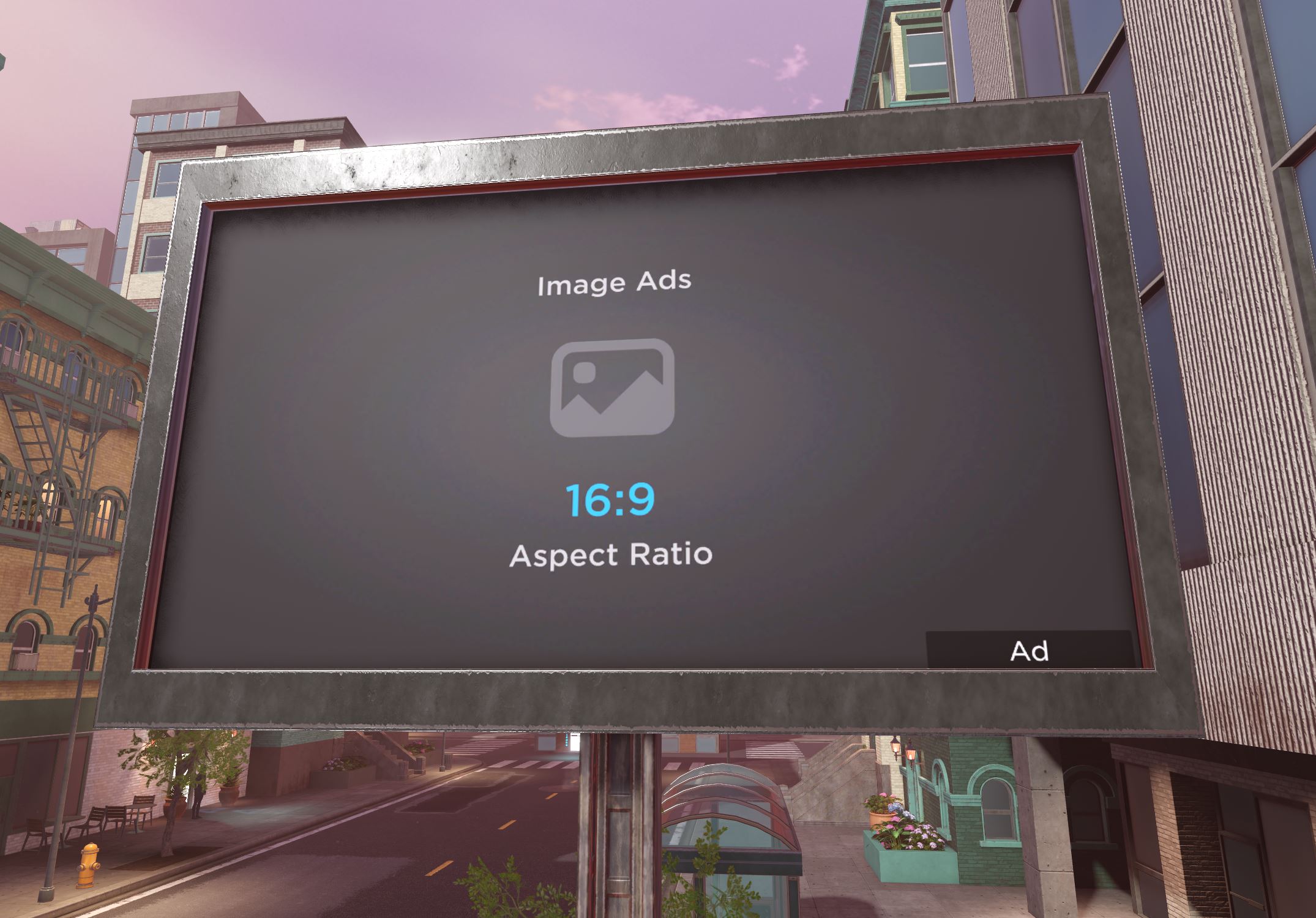
To insert an image ad:
- From the Home or Model tab toolbar, insert a Block part into your game.
- Scale the part to at least 8 studs wide and 4.5 studs tall, but no more than 32 studs wide and 18 studs tall.
- In the Explorer window, add an AdGui object to the part. To do so, hover over the part and click the Add button, then insert an AdGui.
- In the Properties window, go to the Face property and choose a face. You can also keep the default face.
Note
You can also insert an image ad package from the Creator Store, then customize it to fit your game as long as the ad unit continues to meet the validation criteria. For more information about how to insert ad units from the Creator Store, see Portal ads.
After you publish the game, users can see the ad unit in one of the following states:
| State | Description | Example |
|---|---|---|
| **Active** | The ad unit is able to serve ads, and is currently serving an ad to a user. |  |
| **Inactive** | The ad unit is able to serve ads, but it isn't currently serving an ad to a user because of one of the following reasons:
Roblox serves a default fallback image instead. |  |
| **Invalid** | The ad unit isn't able to serve ads because it didn't meet the validation criteria. |  |
Portal ads
A portal ad is made up of two core components:
- A static, non-clickable image.
- A door that teleports users to an advertiser's game.
The Creator Store includes portal ads that represent these core components through a BasePortal package. The only changes you can make to this package are to modify its scale, position, and rotation. Any other change you make invalidates the package and makes it unable to serve ads.
Portal ads also include a Decorative folder of both static and dynamic visual elements. You can customize these elements as long as the core components remain intact.
<img src="https://prod.docsiteassets.roblox.com/assets/monetization/immersive-ads/Portal-Ads-BasePortal.png" width="320" />


<img src="https://prod.docsiteassets.roblox.com/assets/monetization/immersive-ads/Portal-Ads-Decorative.png" width="320" />
For example, the following two portal ad packages have the exact same core components, but they include different visual elements you can customize to change how these ad units look and feel within your games.
<img src="https://prod.docsiteassets.roblox.com/assets/monetization/immersive-ads/PortalAds-Sample1.png" width="80%" />


<img src="https://prod.docsiteassets.roblox.com/assets/monetization/immersive-ads/PortalAds-Sample2.jpg" width="80%" />
To insert a portal ad:
Open the Creator Store.
- From Studio's Window menu or Home tab toolbar, open the Toolbox.
- Select the Creator Store tab.
In the Categories section, click the See All button. All categories display.

Click the Ads tile.

Click any of the Portal template packages.
Customize the visual elements that surround the ad unit by modifying elements within the package's Decorative folder.
Once you publish the game, users can see the ad unit in one of the following states:
| State | Description | Example |
|---|---|---|
| **Active** | The ad unit is able to serve ads, and is currently serving an ad to a user. |  |
| **Inactive** | The ad unit is able to serve ads, but it isn't currently serving an ad to a user because of one of the following reasons:
Roblox serves a default fallback image instead. |  |
| **Invalid** | The ad unit isn't able to serve ads because it didn't meet the validation criteria. The block surface that serves ads turns black, and the door becomes a concrete wall. |  |
Remove ad units for ineligible users
Per Roblox's Advertising Standards, you must either hide, replace, or block ad content from users who are ineligible to see ads. By default, immersive ad units handle this by replacing ads with a fallback image of the Roblox logo for users ineligible to see ads.
To hide or remove the ad units entirely, use GetPolicyInfoForPlayerAsync() to return an AreAdsAllowed boolean that determines the eligibility of each user who accesses your game to see ads, then include logic to modify ad visibility to ineligible users.
For example, the following code sample uses GetPolicyInfoForPlayerAsync() to check the eligibility of each user to see ads as they enter the game. If AreAdsAllowed is true for a user, portal ads remain visible, but if it's false, the script destroys all of them. While this is a great strategy to remove ad content from users who are ineligible to see ads, it's important to note that destroying ad units might change your game's gameplay if some users can see ad units while others can't.
local Players = game:GetService("Players")
local PolicyService = game:GetService("PolicyService")
local Workspace = game:GetService("Workspace")

local player = Players.LocalPlayer
-- Sample assumes a "Main Portal Template" model exists under Workspace
local mainPortal = Workspace:WaitForChild("Main Portal Template")

-- Get the policy info for the user
	local success, result = pcall(PolicyService.GetPolicyInfoForPlayerAsync, PolicyService, player)
	if success and result then
		if not result.AreAdsAllowed then
			-- Destroy the "Main Portal Template" instance on the user's client if ads are not allowed
			mainPortal:Destroy()
		end
	else
		print("Failed to get policy for player", player.Name, "| Exception:", result)
	end
View immersive ad metrics
After you insert ad units into your game, the Creator Dashboard generates different types of metrics graphs to help you analyze the overall performance of your ads.
After 48 hours of having ads running in your game, you can see how many video views, impressions, and teleports you're generating through your user base, how each ad unit format is performing, and how many Robux you're earning from individual ad units.
By tracking these trends over time, you can make strategic decisions on the number of ad units you include per place, which format of ad unit you want to prioritize, and where you can place individual ad units to generate video views, impressions, and teleports.
To view immersive ad metrics:
- Go to Creations and select a game.
- Go to Monetization ⟩ Ads.
Note
Metrics graphs that report impressions and teleports per ad unit use each ad unit's name in Studio.
Note
Roblox might make minor "over-delivery" adjustments to impressions or teleports for advertisers to account for potential invalid video views, impressions, or teleports. This can result in occasional changes in your Earnings per Mille or Earnings per Teleport metrics.