
Source: Roblox Creator Hub · CC BY 4.0 · View source · Code samples: MIT Imported 2026-10-03. Formatting adapted for this site.
Save player data with standard data stores
Data stores are a service you can use to save and load persistent player data across different player sessions. They store important information, like a player's progress or inventory, and allow you to retrieve it for the player next time they join your game. Without data stores, a player would lose all of their progress every time they left the game.
There are two types of data stores: standard and ordered. This tutorial uses standard data stores, which store data like numbers, strings, and tables that don't need to be ranked or sorted.
Using the Gold Rush data store tutorial - Start .rbxl file as a starting place and the Gold Rush data store tutorial - Complete .rbxl file as a reference, this tutorial gives you the foundation you need to save player progress and create more consistent games, including guidance on:
- Saving and loading the amount of gold a player has collected.
- Updating the UI to display the player's gold inventory.
- Automatically saving the player's gold inventory every 30 seconds.
- Saving the player's position when they leave the game.
- Restoring the player's position when they join the game again.
Note
The [Gold Rush data store tutorial - Start](https://www.roblox.com/games/116344152904993/Gold-Rush-save-data-tutorial-Start) starting place file already includes code that allows the player to collect gold and updates the UI with their gold score, but this data doesn't persist across sessions because the file lacks data stores. Without data stores, the player's score and position reset when they leave the game.By the end of this tutorial, you should have two scripts with data stores under ServerScriptService:
- An updated GoldManager script that tracks, loads, and automatically saves the player's gold.
- An updated PositionManager script that saves the player's position when they leave the game and restores their position when they come back to the game.
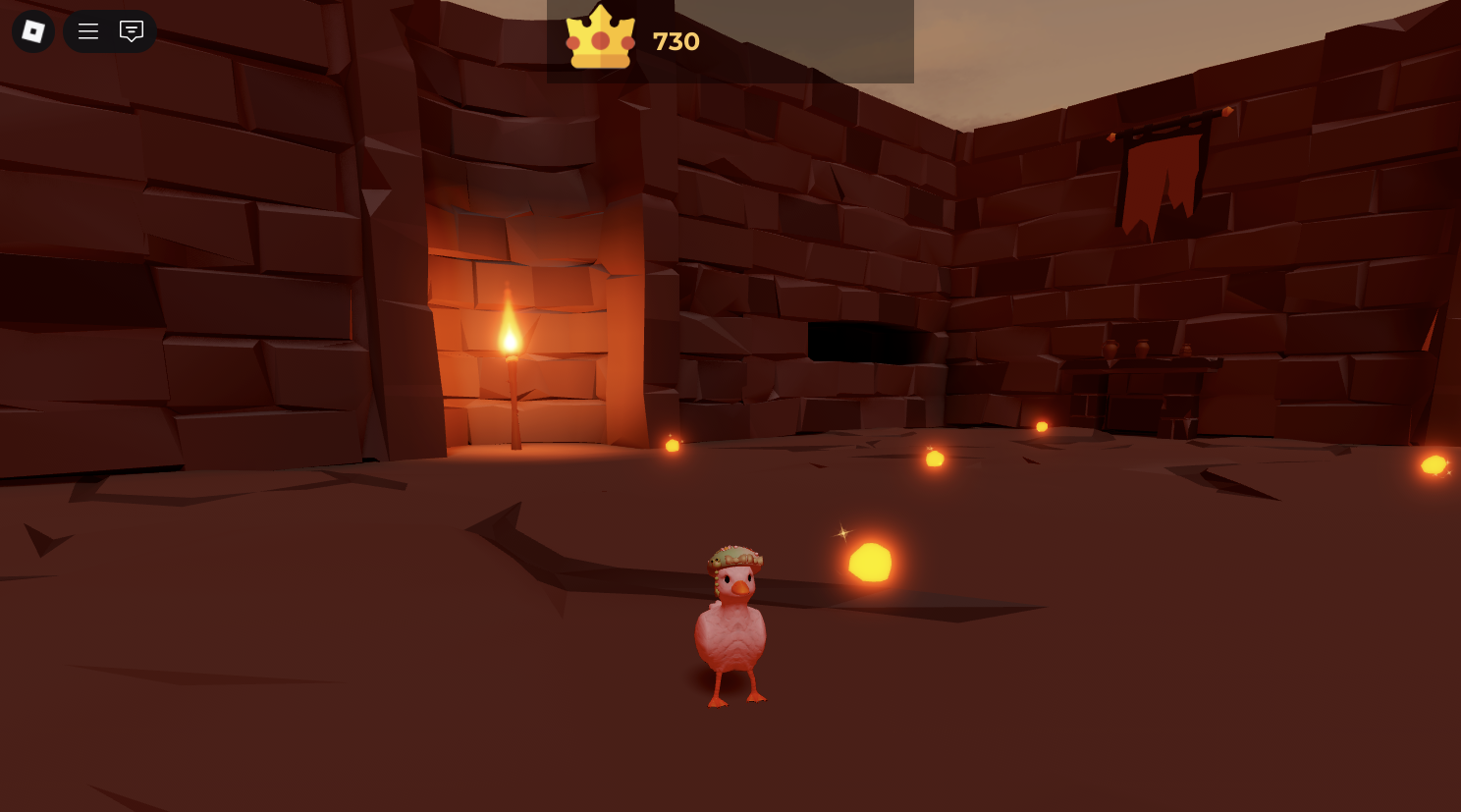
Enable Studio access to API services
Data stores aren't stored locally on your device, so your game relies on server-to-server communication with Roblox's backend in order to use them. By default, Studio restricts this communication to prevent abuse or accidental use. Access to API services in Studio is disabled until you explicitly enable it to make sure that only trusted games can read from and write to Roblox's backend servers.
To enable Studio access to API services so that you can use data stores:
- Open the Gold Rush data store tutorial - Start
.rbxlfile in Studio and create a local copy. - Publish your game.
- Back in Studio, go to File ⟩ Experience Settings ⟩ Security.
- Turn on Enable Studio Access to API Services.
- Save your changes.
Create a standard data store
When creating a data store, you should always call the DataStoreService from a server-side Script. Doing so is important because:
- Roblox blocks all data store access from the client so that only the server has permission to access and modify persistent player data.
- Server-side scripts run in a centralized environment, making sure that the data being read and written to your data store is accurate and valid.
- Since client-side scripts run on the player's device, any player could potentially exploit the game and steal or overwrite other players' data if the client had access to your data stores.
You should also give your data store a unique name to keep your data organized and to prevent it from overlapping or conflicting in different data stores. In this tutorial, the data store that saves and stores the player's gold inventory is called PlayerGold.
To create the PlayerGold data store:
Open the existing GoldManager script under ServerScriptService.

Under the other services at the top of the script, initialize the DataStoreService and call
GetDataStorewith the string "PlayerGold".local DataStoreService = game:GetService("DataStoreService") local goldStore = DataStoreService:GetDataStore("PlayerGold")
Save and load player data
Data stores are made up of keys, which identify data, and values, which store data.
| **Key** | **Value** | |
|---|---|---|
| **Description** | A key is a unique identifier you can use to access a specific piece of data. Keys let you organize your data so you can easily manage and debug it. | A value is the actual data you want to save or load, like a player's inventory or their settings. Values let you store progress between sessions, as well as retrieve player data next time they join your game. |
| **Allowed formats** | Can only be strings. | Can be numbers, strings, booleans, or tables. |
| **Examples** | `"Player_A"`, `"TopScore"`, `"GameSetting"` | `100`, `"Level_5"`, `true`, `{gold = 100, level = 5}` |
In this tutorial, the key is the player's userId and the value is the amount of gold they have collected. To use this key and value to save and load player data:
In the GoldManager script, add a helper function called saveGold to save the player's gold to the PlayerGold data store.
local function saveGold(userId, value)
   local success, err = pcall(function()
      -- `userId` is the unique ID of the player
      -- `value` is the amount of gold to save for that player
      goldStore:SetAsync(userId, value)
   end)
end
Add a warning to saveGold that prints the player's ID and an error message. While not mandatory, this step is good practice for easier debugging in case your function fails.
local function saveGold(userId, value)
   local success, err = pcall(function()
      -- `userId` is the unique ID of the player
      -- `value` is the amount of gold to save for that player
      goldStore:SetAsync(userId, value)
   end)
   if not success then
      warn("[SAVE ERROR] Could not save gold for", userId, ":", err)
   end
end
Modify the onPlayerAdded event to load the player's gold when they first join the game. The updated onPlayerAdded function:
- Tries to load the content inside the PlayerGold data store. It returns either the player's saved gold or a value of 0 if the player doesn't have any gold or hasn't played the game before.
- Provides you a debug log to help you debug your code more easily. This debug log includes the joining player's saved gold, or an error message if onPlayerAdded isn't able to access the data store.
- Updates the UI to display the player's saved gold on their screen.
local function onPlayerAdded(player)
   local userId = player.UserId

   local success, storedGold = pcall(function()
      return goldStore:GetAsync(userId)
   end)

   if success then
      local currentGold = storedGold or 0
      playerGold[userId] = currentGold

      uiEvent:FireClient(player, {
         gold = currentGold,
         doTween = false,
         showAlert = not success
      })
   else
      uiEvent:FireClient(player, { showAlert = true })
      warn("Could not load gold for", player.Name)
   end
end
Modify the onPlayerRemoving event to call the saveGold function you created earlier and save the player's gold when they leave the game.
local function onPlayerRemoving(player)
   local userId = player.UserId

   if playerGold[userId] then
      saveGold(userId, playerGold[userId])
   end
end
Automatically save player data
Automatically saving a player's data is good practice because it protects the player from losing their data. If you only save the player's data when they leave the game with onPlayerRemoving, you might lose their latest progress if they unexpectedly disconnect from the server.
Note
Make sure not to autosave too often to avoid throttling errors and request limits. A good autosave interval is anywhere between 30 to 120 seconds, depending on how often players gain valuable progress in your game.To autosave the player's data:
Create a new constant to determine how often you want your game to automatically save the player's data. A constant is a variable whose value does not change while the game is running. You can use this constant to refer to the autosave interval throughout your script and to easily adjust the autosaving frequency.
 -- This number is in seconds
local AUTOSAVE_INTERVAL = 30
Add an autosave coroutine to the existing onPlayerAdded function to create a background loop that runs while the player is inside the game. A coroutine is a function that runs asynchronously; it can pause at certain points, resume where it left off, and run in parallel with other parts of your script without blocking them.
In this script, the autosave coroutine background loop waits for the number of seconds in your AUTOSAVE_INTERVAL constant, then calls the saveGold function you created earlier.
coroutine.wrap(function()
   while player.Parent do
      task.wait(AUTOSAVE_INTERVAL)

      if playerGold[userId] then
         print("[AUTOSAVE] Saving", playerGold[userId], "gold for", player.Name)
         saveGold(userId, playerGold[userId])
      end
   end
end)()
Save and load player position
To save a player's position, work with their Character instead of the Player object itself. A player's Character represents their physical model in the 3D world and has the coordinates for their current position and orientation, while the Player object only represents the user account.
Because data stores can only save basic data types like numbers, strings, and tables, you can't directly store complex objects like Vector3 or CFrame values. To save a player's position, you need to split it into three separate numbers (the X, Y, and Z coordinates) and save them individually. When loading the position later, you can rebuild the Vector3 using the saved coordinates.
To save and load the character's position:
Open the existing PositionManager script under ServerScriptService.
At the top of the script, initialize the DataStoreService and call GetDataStore with the string "PlayerPosition".
local DataStoreService = game:GetService("DataStoreService")
local positionStore = DataStoreService:GetDataStore("PlayerPosition")
Add a helper function called savePosition that takes in a player's userId and a Vector3 position. Since you can't save Vector3 values directly, convert the position to a table of X, Y, Z numbers.
local function savePosition(player, position)
   local userId = player.UserId

   local success, err = pcall(function()
      positionStore:SetAsync(userId, {position.X, position.Y, position.Z})
   end)
end
Add a warning to savePosition that prints an error message and the name of the player you failed to save the position for. While not mandatory, this step is good practice for easier debugging in case your function fails.
local function savePosition(player, position)
   local userId = player.UserId

   local success, err = pcall(function()
      positionStore:SetAsync(userId, {position.X, position.Y, position.Z})
   end)

   if not success then
      warn("Could not save position for", player.Name, ":", err)
   end
end
Add another helper function called loadPosition to load the saved coordinates for a player in the PlayerPosition data store. Use
PivotToto restore the character's position in the world. Since the player's saved position is returned as a table, you have to rebuild a Vector3 and then convert it to a CFrame to move the character.local function loadPosition(userId, character) local userId = player.UserId local success, savedCoords = pcall(function() return positionStore:GetAsync(userId) end) if success and savedCoords then local pos = Vector3.new(savedCoords[1], savedCoords[2], savedCoords[3]) print("Restored position for", player.Name) character:PivotTo(CFrame.new(pos)) elseif not success then warn("Could not load position for", player.Name) end endModify the onPlayerAdded event to set up the position logic for each player that joins your game. Inside the updated onPlayerAdded function:
- CharacterAdded calls loadPosition to restore the character's last known location when a player's character spawns.
- CharacterRemoving calls savePosition to save the current position of the player's character if they're removed from the game.
GetPivotgets the character's exact location in the world at the time they're removed.
local function onPlayerAdded(player)
   local userId = player.UserId

   player.CharacterAdded:Connect(function(character)
      loadPosition(player, character)
   end)

   player.CharacterRemoving:Connect(function(character)
      local pos = character:GetPivot().Position
      savePosition(player, pos)
   end)
end

Player.PlayerAdded:Connect(onPlayerAdded)
Final code
See the following code snippets for the complete GoldManager and PositionManager scripts. You can paste and run them directly in the Gold Rush save data tutorial - Start .rbxl file in Studio.
GoldManager
-- Get services
-- Get services
local Players = game:GetService("Players")
local ReplicatedStorage = game:GetService("ReplicatedStorage")
local CollectionService = game:GetService("CollectionService")
local DataStoreService = game:GetService("DataStoreService")

-- Remote event to update the UI
local uiEvent = ReplicatedStorage:WaitForChild("UIEvent")

-- Data store for saving the player's gold chunks
local goldStore = DataStoreService:GetDataStore("PlayerGold")

-- Table to store the player's gold chunks for a single session
local playerGold = {}

-- Constants
local GOLD_VALUE = 10           -- How much each gold chunk is worth
local GOLD_REGEN_DELAY = 2      -- The delay before a chunk respawns (in seconds)
local AUTOSAVE_INTERVAL = 30    -- How often the player's chunks are saved (in seconds)

-- Function to handle the player collecting a gold chunk
local function processGoldTouch(chunk, player)
	-- Hide the chunk when the player collects it
	chunk.Parent = nil

	-- Add the chunk to the player's session gold score
	local userId = player.UserId

	playerGold[userId] = (playerGold[userId] or 0) + GOLD_VALUE
	print(player.Name, "now has", playerGold[userId], "gold")

	-- Update the UI to reflect the new gold score for this session
	uiEvent:FireClient(player, {
		gold = playerGold[userId],
		doTween = true,
		showAlert = false
	})

	-- Wait a bit and then respawn the gold chunk that was just collected
	task.delay(GOLD_REGEN_DELAY, function()
		chunk.Parent = workspace.GoldChunks
	end)
end

-- Loop through all parts tagged with "Gold" and connect them to touch detection
for _, chunk in ipairs(CollectionService:GetTagged("Gold")) do
	chunk.Touched:Connect(function(otherPart)
		local player = Players:GetPlayerFromCharacter(otherPart.Parent)
		if player then
			processGoldTouch(chunk, player)
		end
	end)
end

-- Function to save the player's gold to the data store
local function saveGold(player, value)
	local userId = player.UserId

	local success, err = pcall(function()
		goldStore:SetAsync(userId, value)
	end)
	if not success then
		warn("Could not save gold for", player.Name, ":", err)
	end
end

-- Function to handle the player joining the game
local function onPlayerAdded(player)
	local userId = player.UserId

	print(player.Name, "has joined the game")

	-- Try to load the player's gold from the data store
	local success, storedGold = pcall(function()
		return goldStore:GetAsync(userId)
	end)

	if success then
		-- Set the current session gold score using the data store value for the player
		local currentGold = storedGold or 0
		playerGold[userId] = currentGold

		-- Update the UI with the data store value for the player
		uiEvent:FireClient(player, {
			gold = currentGold,
			doTween = false,
			showAlert =  false
		})
		print("Loaded", currentGold, "gold for", player.Name)

	else

		-- Notify the player their gold couldn't be loaded
		uiEvent:FireClient(player, { showAlert = true })
		warn("Could not load gold for", player.Name)
	end

	-- Start the autosave coroutine to save the player's gold every 30 seconds
	coroutine.wrap(function()
		while player.Parent do
			task.wait(AUTOSAVE_INTERVAL)
			if playerGold[userId] then
				saveGold(player, playerGold[userId])
				print("Autosaving", playerGold[userId], "gold for", player.Name)
			end
		end
	end)()
end

-- Function to handle the player leaving the game
local function onPlayerRemoving(player)
	local userId = player.UserId
	print(player.Name, "has left the game")

	-- Check if the player's gold was tracked
	if playerGold[userId] then
		-- Save the player's gold to the data store before they leave
		saveGold(player, playerGold[userId])
	end
end

-- Connect the joining and leaving player events
Players.PlayerAdded:Connect(onPlayerAdded)
Players.PlayerRemoving:Connect(onPlayerRemoving)
PositionManager
-- Get services
local Players = game:GetService("Players")
local DataStoreService = game:GetService("DataStoreService")

-- Data store for saving the player's position
local positionStore = DataStoreService:GetDataStore("PlayerPosition")

-- Function to save the player's position as a table of {X, Y, Z}
local function savePosition(player, position)
	local userId = player.UserId

	local success, err = pcall(function()
		positionStore:SetAsync(userId, {position.X, position.Y, position.Z})
	end)
	if not success then
		warn("Could not save position for", player.Name, ":", err)
	end
end

-- Function to load the player's last saved position and move their character
local function loadPosition(player, character)
	local userId = player.UserId

	local success, savedCoords = pcall(function()
		return positionStore:GetAsync(userId)
	end)

	if success and savedCoords then
		local pos = Vector3.new(savedCoords[1], savedCoords[2], savedCoords[3])
		print("Restored position for", player.Name)
		character:PivotTo(CFrame.new(pos))
	elseif not success then
		warn("Could not load position for", player.Name)
	end
end

-- Function to handle the player joining the game
local function onPlayerAdded(player)
	local userId = player.UserId

	-- Try to load the player's position when their character spawns
	player.CharacterAdded:Connect(function(character)
		loadPosition(player, character)
	end)

	-- Save the player's position when their character is removed
	player.CharacterRemoving:Connect(function(character)
		local pos = character:GetPivot().Position
		savePosition(player, pos)
	end)
end

Players.PlayerAdded:Connect(onPlayerAdded)