
Source: Roblox Creator Hub · CC BY 4.0 · View source · Code samples: MIT Imported 2026-10-03. Formatting adapted for this site.
Creator Store
The Creator Store is a marketplace that features millions of assets made by Roblox and independent creators for others to use within their game development. It includes many different types of assets, such as 3D model asset packs, materials, Studio plugins, gameplay scripts, UI elements, and sound effects.
You can find the Creator Store both on the Creator Hub and directly inside Studio's Toolbox. Both access points allow you to find and save assets to your inventory so that you can reuse the assets in any of your projects.
Creator Hub View

Studio View

In addition to using or distributing free assets on the Creator Store, you can become a seller and monetize models or plugins for United States Dollars (USD). This monetization method lets you earn 100% of net proceeds on transactions, bypassing platform fees and DevEx rates.

Asset categories
The Creator Store offers many asset categories for creators to use as they search for assets for their projects. When you narrow down your search to a specific category, additional sub-categories display to help you further filter your results for distinct gameplay objects.
For more information on any high-level asset category, click through the following tabs.
3D Assets
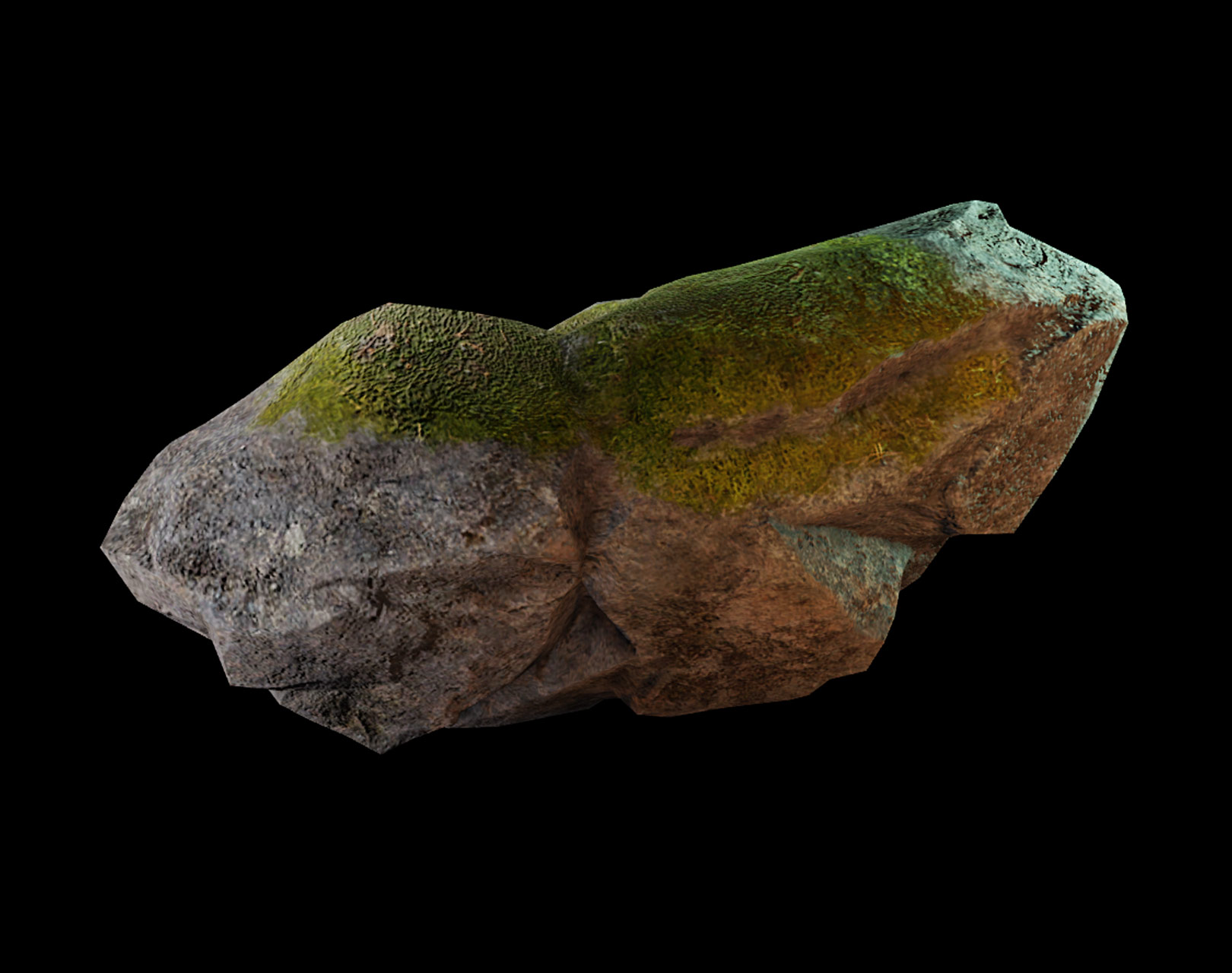
The 3D Assets category features three-dimensional assets that help bring your game's environment and characters to life. Models in this category contain 3D geometry, such as parts and meshes, as well as collections of other visual or auditory objects that immerse players within the game, such as physics and audio objects.

Visual Effects
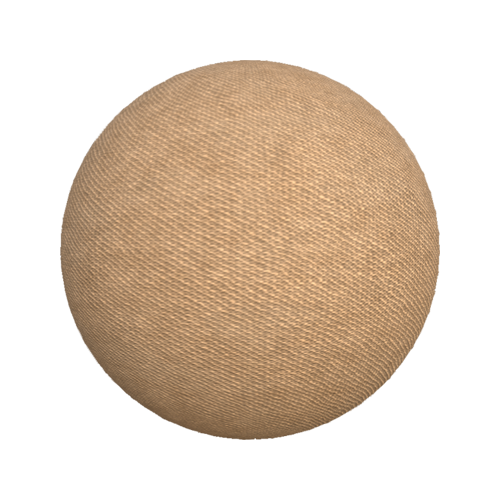
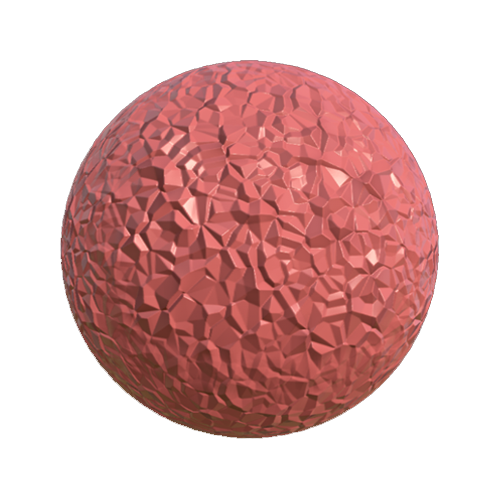
The Visual Effects category features custom materials, particle emitters, skybox, and lighting objects that elevate your game's aesthetics. Models in this category often contain physically-based rendering (PRR) textures that allow you to represent realistic shading and lighting in the 3D space, as well as custom particle emitters, trails, light sources, and skyboxes.

2D Assets
The 2D Assets category features two-dimensional assets that personalize your game's environment and UI elements. This category primarily contains decals, videos, and unique fonts that aren't available in Studio's default settings.


Gameplay
The Gameplay category features core systems and scripts that help drive gameplay logic and player interaction. Models in this category often contain scripts, packages, and custom tooling that streamline feature development.


Plugins
The Plugins category features Studio extensions that enhance workflows and speed up the creative process. Plugins in this category add additional features and functionality to Studio for unique design and gameplay requirements.


Audio
The Audio category features a sound library of music and sound effects that fit any game's mood or atmosphere. This category primarily contains audio objects, sometimes with additional effects that modify or enhance audio streams.
Find assets
In addition to asset categories, the Creator Store offers an Advanced Filter button with specialty filters to further narrow your search results so that you can find the exact assets that you're looking for. When you select the Advanced Filter button, you can:
- Sort by relevance or rating.
- Filter creators by verification status and username.
- Set price parameters.
- Specify that you only want to see results that contain specific asset types.
Advanced Filter button

Advanced Filter Options

When you find an asset of interest, hover over the asset's thumbnail and click the magnifying glass icon to open the asset's details page. Every asset's details page includes:
- The name of the account that's distributing the asset.
- A button to either acquire or purchase the asset.
- Video preview and up to five images that highlight the asset's appearance or functionality.
- The asset type, when it was created, and when it was last updated.
- A description of the asset.
- Technical details, such as the asset's triangle, vertice, and script count.
- A ratings score and reviews from other creators.
Inspect Asset button

Asset Details Page

If you are looking at the asset's details page on the Creator Hub, you can click the Try in Roblox button to test the asset in a custom demo game, if available, or click the main blue button at the top-right corner to acquire or purchase the asset and add it to your inventory.
If you are looking at the asset's details page while in Studio, you can also insert it directly to your game:
- If the asset is a model, mesh, decal, video, or audio asset, click it or drag‑and‑drop it into the 3D viewport. The asset displays in the Explorer window and any applicable 3D content displays in the 3D viewport.
- If the asset is a plugin, click it and use the Install button to add it to the mezzanine's Plugins tab.
- If the asset is a font, click it and use the Install button to add it to your font library. The font becomes available for user interface elements such as text labels or buttons.
Note
Some assets include scripts that perform specific actions, such as animating at runtime or triggering a sound. If you want to use an asset without allowing any of its scripts to run, right‑click the object in the Explorer window, then select Disable Scripts from the contextual menu.
Distribute and sell assets
When you are ready, you can distribute and sell assets on the Creator Store for others to use within their own game development. Specifically, as long as you and your assets meet Creator Store requirements, you can:
- Distribute and make freely available any
Model,Plugin,MeshPart,Decal, or audio asset that you have created and uploaded to your inventory. - Sell a
ModelorPluginand earn 100% of net proceeds on transactions. Roblox offers a market-leading revenue share for these sales, as only taxes and payment processing fees are deducted.
You may also distribute composite assets which contain Open Use dependencies that were created by others, but you cannot distribute assets with Restricted dependencies that were not uploaded by you. For more information on Open Use and Restricted dependencies, see Asset Privacy.
Note
In order to set any USD prices and sell your assets, you must have a seller account. Roblox administers seller accounts through Stripe, a third-party payments provider.
Before you import an asset to distribute and sell on the Creator Store, it's highly recommended to enable Asset Privacy so that any image, mesh, or decal is created as Restricted by default. When an asset is Restricted, Roblox always checks its permissions when it loads into a game or when a creator takes an action on the asset, such as inserting it into Studio, sharing it with another creator, or listing it on the Creator Store.
Note
If a creator or game doesn't have your explicit permission to use an asset, it cannot load in Studio or at runtime.
For more information on how to distribute assets on the Creator Hub or inside Studio, click through the following tabs.
On the Creator Hub
To distribute an asset through the Creator Hub:
- In the horizontal navigation, select Development Items. All assets you have previously imported display within their respective category.
- Select the asset that you want to distribute. The asset's Configure page displays.
- Configure settings for your asset's details page.
- Fill out the Name and Description fields.
If you are ID or phone verified, add up to one video and 5 thumbnail images that showcase your asset's appearance or functionality. 1. In the Try in Roblox section, choose the default Roblox game or provide a custom game for customers to test your asset.
- In the Distribution section, toggle on Distribute on Creator Store.
- If you have a seller account and want to sell a plugin or model, set a price in USD for the asset in the USD Pricing field. If you keep the default value of Free, the asset displays on the Creator Store as free to all creators.
- Click the Save Changes button. After a few moments, the asset becomes public and visible on the Creator Store.
Note
If you are distributing an audio asset for the first time, you must also enable all legal agreements, then click the Submit button.
Inside Studio tab
To distribute an asset inside Studio:
- If the asset is already in your inventory,
- Navigate to the Toolbox, then select the Creations tab. All assets you have previously imported display within the chosen category.
- Right-click the asset you'd like to distribute and select Edit Asset. The Asset Configuration window opens.
- Confirm asset details, such as its name and description.
- Click the Save button. Once the asset finishes uploading to the cloud, click the dashboard link formatted as
https://create.roblox.com/dashboard/creations/store/.../configure. - In the browser window that opens, follow the Creator Hub instructions.
- If the asset is in Studio but not in your inventory,
- In the Explorer window, right-click the asset you'd like to distribute, then in the contextual menu, select Save / Export ⟩ Save to Roblox.... The Asset Configuration window opens.
- Provide a name and description.
- Set Content Type to Development Item.
- Set Asset Category to Model.
- Click the Save button. Once the asset finishes uploading to the cloud, click the dashboard link formatted as
https://create.roblox.com/dashboard/creations/store/.../configure. - In the browser window that opens, follow the Creator Hub instructions.
Asset requirements
Every asset that you distribute and sell on the Creator Store must adhere to the Community Rules, Terms of Use, and Intellectual Property guidelines regarding copyright. If any asset breaks these rules, the asset and your account may be subject to moderation.
There are limits on the number of assets you can distribute per 30 days, depending on whether you've verified your account. You can verify your account by passing an age check or using a government ID, but you cannot verify with a phone number.
| Mesh assets | Image assets | Model assets | Audio assets | Plugins | |
|---|---|---|---|---|---|
| Verified account | 200 | 200 | 200 | 100 | 10 |
| Unverified account | 10 | 10 | 10 | 10 | 2 |
In addition, the Creator Store restricts use of the following practices to ensure asset safety:
- Obscuring engine features within scripts, including LuaVMs,
LuaGlobals.getfenv(), andLuaGlobals.setfenv(). - Requiring remote assets, including
RobloxGlobals.require(assetId),LuaGlobals.loadstring(),InsertService:LoadAsset(),AssetService:LoadAssetAsync(), andModuleScript.LinkedSource. Assets that may look useful on the surface could load another "virus" asset at runtime. - Including obfuscated code. For publicly-shared assets, it's important for creators to understand what they are putting into their games. If code is obfuscated, creators cannot trust that the script is only doing what it should be doing.
- Extremely large scripts. Assets with unnecessarily large scripts, including multiple repeat lines or large strings that are unused, especially if they cause rendering issues in editors.
Note
If you discover or purchase an asset that you believe violates Roblox's policies, report it using the Report Item option on the asset's detail page.
Account requirements
Distributor Requirements
In order to share assets to the Creator Store, you must meet the following eligibility requirements:
- Your Roblox account must be at least 2 days old.
- Your Roblox account must not have been recently banned for any reason.
- Your Roblox account must be verified by passing an age check or using a government ID. You cannot verify with a phone number.
In addition, in order to set any USD prices and sell your models and plugins, you must have a valid seller account. To create a seller account, you must meet the previous eligibility requirements in addition to the following:
- You must be either 18 years of age or older, or 13-17 years of age with parental consent. A parent/guardian (18+) must review and agree to the Creator Store terms, and parent/guardian information must be entered on the Stripe form.
- You must secure your Roblox account with 2-Step verification.
- You must reside in one of the countries supported by our third-party payments provider.
Note
Due to restrictions, selling on the Creator Store is only available within certain regions. Seller onboarding is not yet supported in countries such as Brazil, China, India, or Russia.
If you violate any of these requirements after you create your seller account, your account will be suspended, your assets will be taken off sale, and payouts will be frozen. If you believe your account was incorrectly suspended, you can appeal the applicable violation.
Note
You can only sell assets that you own from an individual user account. Group-owned assets are ineligible. If you want to sell a group-owned asset, consider re‑uploading them under individual ownership.
Customer Requirements
Only individual user accounts may purchase assets for USD on the Creator Store. Groups are ineligible to purchase models or plugins at this time.
Transactions between any individual customer and seller are capped per month for safety purposes. If you're buying a lot of assets from one seller in a single month, any purchase over the limit will be prohibited until the following month. This includes any purchases between alternate accounts for either the customer or seller.
Seller account setup
All prospective sellers on the Creator Store must complete an application form through Stripe to create their seller account, set USD prices, and receive payouts. This process applies even if you have previously sold plugins for Robux on the Creator Store.
You are limited to one Stripe account per Roblox account. If your Roblox account meets all eligibility criteria on the Seller Onboarding page, Roblox provides a link to an application form through Stripe so that you can apply for a seller account. This application form collects your personal information in order to process your case.
To avoid any delays in the application process, ensure you have the following details ready before you start filling out the form:
- Banking information, such as account number and sort code.
- Name and home address.
- Contact information, including your phone number and email address.
- Tax identification numbers (TIN), if applicable. This may differ depending on your country of residence.
- A W8 / W9 form.
Note
You do not need to fill in the 'statement descriptor' and 'website' fields. If you do provide a custom statement descriptor, Roblox automatically overrides this.
After you fill out the application form, you'll receive an email acknowledging your submission, and Roblox will send you a notification when there are updates on your application. It can take up to 7 days to review your information and create your seller account.
Note
Once Stripe accepts your application, you cannot change the country associated with your seller account due to tax limitation. Ensure your information is correct when you fill out the form.
You can check the status of your application at any time by revisiting the Seller Onboarding page. Your approval status can be in any of the following states:
- Pending - Your information is being reviewed.
- Failed - Your seller account has not been created, either because of an error or because your information was incorrect.
- Information Needed - Stripe requires more information from you before they can confirm your seller account.
- Success - Your seller account has been successfully created. You can set prices and sell assets.
- Rejected - You cannot create a seller account due to fraudulent or malicious activity.
Note
If you edit any information after you have been approved, you return to the Pending state until Stripe reviews and confirms your changes. This temporarily freezes payouts. If you need to update your banking information or address, it's best to wait until just after your next payout.
Earnings
Once Stripe confirms your information and creates your seller account, you can start setting USD prices for your model and plugin assets on the Creator Dashboard:
- Plugins have a minimum price of $4.99 and maximum price of $249.99.
- Models have a minimum price of $2.99 and maximum price of $49.99.
When a customer buys one of your assets, the money from the sale enters a 30 day escrow period. At the end of that period, the money will get added to your Stripe account balance and will get deposited in your linked bank account in the next payout cycle.
Note
If your seller account is denominated in a non-USD currency, the currency conversion will happen as each sale's proceeds are transferred into your balance. For more information, see Stripe's Supported currencies documentation.
You can find a record of all your Creator Store transactions on the Transactions page of the Creator Dashboard, including
- Incoming Payments (sales)
- Outgoing Payments (purchases)
- Available Balance that you will be paid in the next payout
- Pending Revenue that's currently being held in a 30-day escrow

Your earnings automatically pay out once a month to the bank associated with your seller account. This occurs on the first of every month. You cannot access your earnings outside of the payout schedule.
For some countries and currencies, there is a non-zero minimum payout amount. These minimums are documented in the Stripe minimum payouts table and Stripe cross-border minimum payout amounts table—the effective minimum is the greater number. ISK, HUF, TWD and UGX currencies have special conditions.
Note
If your seller eligibility is suspended, either due to a change of seller information or moderation consequences, payouts are frozen until you can restore your eligibility. To see the status of your account, see the Seller Onboarding page.
Reimbursements
Reimbursements for customers are deducted from the seller's account. This may occur if:
- A customer requests a refund or chargeback for an asset.
- An asset is moderated after customers have already purchased it, and the moderation decision is not successfully appealed within 5 days. Uploading a new version of the moderated asset will not prevent reimbursements.
When a refund occurs, Roblox removes the asset from the customer's inventory. If a very high proportion of sales for an asset come from accounts with an exceptional history of chargebacks, the asset is taken off sale and your payouts are frozen. If you have grounds to appeal this action, you can file a request with Roblox support.
FAQ
Seller FAQ
Can I sell models for Robux?
No, the real-world pricing model does not support Robux. You can only price assets on the Creator Store in USD.
My country currently is not supported, how can I sell my models?
Due to regional restrictions, the Creator Store has limited support for some buyers and sellers. In order to become a seller, you must reside in a country that Roblox's third-party payments provider supports. For more information, see Stripe's Cross-border payouts documentation.
Can I sell my existing models?
If your existing models contain child image or mesh assets that you created before opting into the Asset Privacy beta, they were set to Open Use by default, meaning that they are freely available for anyone to use on Roblox if they have their assetIDs. To protect access to your content, it's recommended to:
- Opt-in to the Asset Privacy beta.
- Only sell newly-uploaded or versioned models with all child assets set to Restricted.
If you don't opt-in to Asset Privacy beta and set your newly uploaded image and mesh assets to Restricted, anyone will be able to easily access and use them in their projects.
Note
You can only sell models and plugins that you own from an individual account. You cannot sell group-owned assets or assets owned by someone else.
Can I directly share my own assets with others, even if I'm selling them on the Creator Store?
Yes. You can freely share assets that were created by you with other creators, groups, or games through the Creator Hub's asset permissions page.
Can I sell something I edited, but originally bought from someone else on the Creator Store?
No, you cannot sell or distribute composite models that contain Restricted assets that you didn't create, with the exception of Audio and Video that is also available on the Creator Store. You can share these models directly with your collaborators, but Roblox will not allow you to list assets you did not create on the Creator Store.
Is asset privacy a form of Digital Rights Management (DRM)? Does it prevent others from sharing my paid models with others?
No, the asset privacy feature controls how creators can purchase and load your assets on Roblox, it is not a form of DRM. If you suspect a rights violation involving your asset, you can submit the content for removal using the Rights Manager.
Will my paid models be used to train Roblox's AI?
You can configure your data-sharing preferences through the Creator Hub. Paid models are only used for AI-enhancement purposes if you choose to opt-in to data sharing. If you opt-in an asset, default for free assets on the Store, and then later opt-out:
- Roblox will remove it from the training dataset within 30 days.
- Any AI Models that were trained using your data will be updated within 365 days.
For more information, see AI data sharing.
Customer FAQ
Can I buy models with Robux?
No, the real-world pricing model does not support Robux. You can only purchase assets on the Creator Store in USD.
Why do I have free models in my game that aren't also in my Inventory?
Free assets you inserted into your game but did not acquire won't appear in your inventory unless you acquire it. If you are browsing the Creator Store in Studio, you can insert most assets into your games without needing to acquire the assets.
This can be helpful for creators who want to test out models, but we strongly recommend acquiring assets you wish to use in all of your projects. Cross-publishing works with models you previously inserted, but copy-paste workflows do not work.
Can I put a model I purchased into a group or collaborative game?
Yes, but there are a few restrictions and workflows which may not work as expected.
Copy and paste workflows
If you insert a Model you purchased into a shared game, your collaborators may be prevented from copying and pasting it into another game unless they or the destination game already have access to it. Note that inserting a model that you own will automatically grant that game permission to use the model.
Cross-publishing between games is supported with individual and group-owned games. However, because of current limitations with asset ownership, copy and paste flows will be broken for collaborators across group-owned games who do not own the model.
Local place workflows
You need to ensure that games have permissions to the model in Creator Hub. Attempting to load a paid model's Restricted child image and mesh assets without permission will result in errors in the output window.
Can I put a model I purchased into an un-copylocked game?
Yes, but for people forking the game, none of the model's Restricted child image and mesh assets will load unless that person has also purchased the model.
Can I dynamically load a paid model in a game?
This will only work if the game is owned by someone who bought the asset or if the game itself has permission, which you can grant on the asset's permissions page. It will not work for:
- Group games, unless the model was inserted into the game before publish time.
- Collaborative games where the game owner does not also own it.
How do I report an asset?
If you discover or purchase an asset that you believe violates Roblox policies, report it using the Report Item option on the asset's detail page.