
Source: Roblox Creator Hub · CC BY 4.0 · View source · Code samples: MIT Imported 2026-10-03. Formatting adapted for this site.
Surface Art
Players often enjoy feeling like they're a part of constructing the space they're in. The SurfaceArt developer module lets players literally leave their mark in a game.
Note
By default, a player can place 2 pieces of art across all of the tagged surfaces in the workspace. All of a player's art will be removed when they leave the game.
Module Usage
Installation
To use the SurfaceArt module in a game:
From Studio's Window menu or Home tab toolbar, open the Toolbox and select the Creator Store tab.
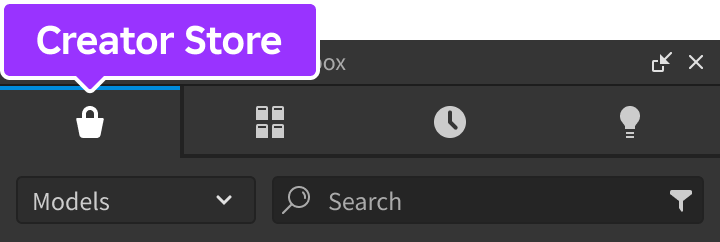
Make sure the Models sorting is selected, then click the See All button for Categories.

Locate and click the Packages tile.
Locate the Surface Art module and click it, or drag-and-drop it into the 3D view.

In the Explorer window, move the entire SurfaceArt model into
ReplicatedStorage. Upon running the game the module will begin running.
Positioning the Canvas
The module comes with one SurfaceCanvas model that you can position in the 3D world. This model is what players will interact with to place art on its surface.
Locate the SurfaceCanvas mesh inside the Workspace folder of the module's main folder.

Move it into the top-level Workspace hierarchy and position it where desired.

Upon publishing/running a test session, players will be able to interact with the object via a
ProximityPromptand place art on the defined surface.
Note
It is not required that you use the packaged mesh for placing art. The module uses [`CollectionService`](/docs/collectionservice) to locate parts tagged as `SurfaceCanvas` and make them operate as canvases. Any tagged canvas must be a [`BasePart`](/docs/basepart) and it should have an [attribute](/docs/roblox-studio-properties#instance-attributes) defining the surface face as outlined in [Changing the Canvas Face](#changing-the-canvas-face).Changing the Canvas Face
Under the hood, the module uses a SurfaceGui to display art items. To configure which surface the art appears on:
Select the SurfaceCanvas mesh.
At the bottom of the Properties window, locate the SurfaceCanvasFace attribute with a default value of Right.

Click the attribute and enter one of six values that describe a
NormalId.
| Attribute Value | Corresponding Normal ID |
|---|---|
| **Front** | [`NormalId.Front`](/docs/enum-normalid#front) |
| **Back** | [`NormalId.Back`](/docs/enum-normalid#back) |
| **Right** | [`NormalId.Right`](/docs/enum-normalid#right) |
| **Left** | [`NormalId.Left`](/docs/enum-normalid#left) |
| **Top** | [`NormalId.Top`](/docs/enum-normalid#top) |
| **Bottom** | [`NormalId.Bottom`](/docs/enum-normalid#bottom) |
Using Custom Art Assets
Note
Currently, the surface art module only supports using the same set of assets for all tagged canvases.
To better fit the theme of your game, you may use your own set of custom assets instead of the defaults. This can be done via the configure function, called from a Script in ServerScriptService.
local ReplicatedStorage = game:GetService("ReplicatedStorage")

local SurfaceArt = require(ReplicatedStorage.SurfaceArt)

local customAssets = {
	CustomAsset1 = {
		name = "Custom Asset 1",
		assetId = "rbxassetid://7322508294",
	},
	CustomAsset2 = {
		name = "Custom Asset 2",
		assetId = "rbxassetid://7322547665",
	},
}

SurfaceArt.configure({
	assets = customAssets,
})
Clearing All Canvases
To remove all existing art from all canvases in the world, call the removeAllArt function from a Script.
local ReplicatedStorage = game:GetService("ReplicatedStorage")

local SurfaceArt = require(ReplicatedStorage.SurfaceArt)

SurfaceArt.removeAllArt()
Showing Custom Effects
There may be cases where you'd like to include additional visual effects when an artwork is placed. This module exposes an event called artChanged on the client that you can connect to and add your own logic.
local ReplicatedStorage = game:GetService("ReplicatedStorage")

local SurfaceArt = require(ReplicatedStorage.SurfaceArt)

local function createParticleEmitter(canvas, position)
	local attachment = Instance.new("Attachment")
	attachment.Position = canvas.CFrame:PointToObjectSpace(position)
	attachment.Axis = Vector3.new(0, 0, 1)
	attachment.SecondaryAxis = Vector3.new(1, 0, 0)
	attachment.Parent = canvas

	local particleEmitter = Instance.new("ParticleEmitter")
	particleEmitter.Speed = NumberRange.new(50)
	particleEmitter.Rate = 50
	particleEmitter.Color = ColorSequence.new(Color3.fromRGB(128, 254, 7))
	particleEmitter.SpreadAngle = Vector2.new(35, 35)
	particleEmitter.Parent = attachment

	return attachment
end

SurfaceArt.artChanged:Connect(function(canvas, spot, spotPosition, artId, ownerId)
	if artId then
		-- Show some sparkles for 3 seconds
		task.spawn(function()
			local emitterAttachment = createParticleEmitter(canvas, spotPosition)
			task.wait(3)
			emitterAttachment:Destroy()
		end)
	end
end)
API Reference
Types
SurfaceArtAsset
Images to be used as art for the canvas are represented by a table with two values.
| Key | Description |
|---|---|
| `name` | Metadata display name. |
| `assetId` | Asset ID of the image to include. |
Functions
configure
configure(config: table)
Overrides default configuration options through the following keys/values in the config table. This function can only be called from a Script.
General
| Key | Description | Default |
|---|---|---|
| `enabled` | Toggles the module's functionality on or off. | true |
| `assets` | List of [SurfaceArtAsset](#surfaceartasset) types. | (see code below) |
| `quotaPerPlayer` | Maximum number of art pieces that can be placed by each player. | 2 |
Appearance
| Key | Description | Default |
|---|---|---|
| `rowsPerCanvas` | Number of rows in the canvas grid. | 2 |
| `colsPerCanvas` | Number of columns in the canvas grid. | 5 |
| `itemsPerPage` | Number of items to skip when paging left and right. | 3 |
| `canvasPaddingLeft` | Left padding for the surface canvas ([`UDim`](/docs/udim)). | (0, 8) |
| `canvasPaddingRight` | Right padding for the surface canvas ([`UDim`](/docs/udim)). | (0, 8) |
| `canvasPaddingTop` | Top padding for the surface canvas ([`UDim`](/docs/udim)). | (0, 8) |
| `canvasPaddingBottom` | Bottom padding for the surface canvas ([`UDim`](/docs/udim)). | (0, 8) |
| `promptImage` | Icon shown in the proximity prompt to enter art selection view. | "rbxassetid://8076723774" |
| `leftArrowPageImage` | Image for the left arrow to flip to the previous page. | "rbxassetid://6998633654" |
| `leftArrowItemImage` | Image for the left arrow to select the previous art item. | "rbxassetid://8072765021" |
| `rightArrowPageImage` | Image for the right arrow to flip to the next page. | "rbxassetid://6998635824" |
| `rightArrowItemImage` | Image for the right arrow to select the next art item. | "rbxassetid://8072764852" |
Interaction
| Key | Description | Default |
|---|---|---|
| `promptKeyCode` | Keyboard shortcut used to activate the prompt to enter art selection ([`KeyCode`](/docs/enum-keycode)). | [`E`](/docs/enum-keycode) |
| `promptRequiresLineOfSight` | Boolean value that determines if the proximity prompt has to be in line of sight between user and canvas. | true |
| `promptMaxActivationDistance` | Maximum distance a player's character can be from the canvas for the prompt to appear. | 10 |
| `promptExclusivity` | [`ProximityPromptExclusivity`](/docs/enum-proximitypromptexclusivity) specifying which prompts can be shown at the same time. | [`OnePerButton`](/docs/enum-proximitypromptexclusivity) |
| `usePageHotkeys` | Whether page hotkeys are used. If true, `nextPageKey` and `prevPageKey` are used to cycle between pages. | true |
| `nextPageKey` | Key used to cycle to the next page of artwork ([`KeyCode`](/docs/enum-keycode)). | [`E`](/docs/enum-keycode) |
| `nextItemKey` | Key used to cycle to the next item of artwork ([`KeyCode`](/docs/enum-keycode)). | [`Right`](/docs/enum-keycode) |
| `prevPageKey` | Key used to cycle to the previous page of artwork ([`KeyCode`](/docs/enum-keycode)). | [`Q`](/docs/enum-keycode) |
| `prevItemKey` | Key used to cycle to the previous item of artwork ([`KeyCode`](/docs/enum-keycode)). | [`Left`](/docs/enum-keycode) |
local ReplicatedStorage = game:GetService("ReplicatedStorage")

local SurfaceArt = require(ReplicatedStorage.SurfaceArt)

SurfaceArt.configure({
	quotaPerPlayer = 4,
	promptKeyCode = Enum.KeyCode.T,
	promptMaxActivationDistance = 8,
})
getCanvases
getCanvases(): table
Returns all of the canvases tagged with the SurfaceCanvas tag.
local ReplicatedStorage = game:GetService("ReplicatedStorage")

local SurfaceArt = require(ReplicatedStorage.SurfaceArt)

local canvases = SurfaceArt.getCanvases()
placeArt
placeArt(player: Player, canvas: BasePart)
Places an art piece programmatically on behalf of a player. Note that the canvas object must be tagged with the SurfaceCanvas tag when the server is initialized. It is recommended to use this only with a canvas returned from getCanvases.
local ReplicatedStorage = game:GetService("ReplicatedStorage")

local SurfaceArt = require(ReplicatedStorage.SurfaceArt)

local remoteEvent = ReplicatedStorage:WaitForChild("SurfaceArtRemoteEvent")

remoteEvent.OnServerEvent:Connect(function(player)
	-- Place the Bloxy Award from default art assets into the first canvas
	local canvases = SurfaceArt.getCanvases()
	SurfaceArt.placeArt(player, canvases[1], "BloxyAward")
end)
removeAllArt
removeAllArt()
Removes all artwork from all surfaces.
local ReplicatedStorage = game:GetService("ReplicatedStorage")

local SurfaceArt = require(ReplicatedStorage.SurfaceArt)

SurfaceArt.removeAllArt()
Events
artChanged
Fires when an artwork is changed at a particular location on a canvas. When an artwork is removed, artId will be nil. Note that a Vector3 value is passed as the third parameter to the event handler so that you can position a custom effect at the exact position where the artwork is placed. This event can only be connected in a LocalScript.
| Parameters | |
|---|---|
| canvas: [`BasePart`](/docs/basepart) | Canvas upon which the artwork was changed. |
| spot: [`Frame`](/docs/frame) | Internal [`Frame`](/docs/frame) that contains the artwork [`ImageLabel`](/docs/imagelabel). |
| spotPosition: [`Vector3`](/docs/vector3) | Exact position where the artwork was placed. |
| artId: [`string`](/docs/string) | Asset ID of the new artwork. |
| ownerUserId: `number` | [`UserId`](/docs/player#player-userid) of the player who placed the art. |
local ReplicatedStorage = game:GetService("ReplicatedStorage")

local SurfaceArt = require(ReplicatedStorage.SurfaceArt)

SurfaceArt.artChanged:Connect(function(canvas, spot, spotPosition, artId, ownerId)
	print("Art placed at:", spotPosition)
	print("Art asset ID:", artId)
	print("Art placed by:", ownerId)
end)
promptShown
Fires when a canvas interaction prompt is shown to a player. The connected function receives the canvas upon which the prompt is showing. This event can only be connected in a LocalScript.
| Parameters | |
|---|---|
| canvas: [`BasePart`](/docs/basepart) | Canvas upon which the prompt is showing. |
local ReplicatedStorage = game:GetService("ReplicatedStorage")
local Players = game:GetService("Players")

local SurfaceArt = require(ReplicatedStorage.SurfaceArt)

SurfaceArt.promptShown:Connect(function(canvas)
	print(Players.LocalPlayer, canvas)
end)
promptHidden
Fires when a canvas interaction prompt is hidden. The connected function receives the canvas upon which the prompt was showing. This event can only be connected in a LocalScript.
| Parameters | |
|---|---|
| canvas: [`BasePart`](/docs/basepart) | Canvas upon which the prompt was showing. |
local ReplicatedStorage = game:GetService("ReplicatedStorage")
local Players = game:GetService("Players")

local SurfaceArt = require(ReplicatedStorage.SurfaceArt)

SurfaceArt.promptClosed:Connect(function(canvas)
	print(Players.LocalPlayer, canvas)
end)
selectorShown
Fires when the surface art selector UI is shown to a player. This event can only be connected in a LocalScript.
local ReplicatedStorage = game:GetService("ReplicatedStorage")
local Players = game:GetService("Players")

local SurfaceArt = require(ReplicatedStorage.SurfaceArt)

SurfaceArt.selectorShown:Connect(function()
	print(Players.LocalPlayer, "opened surface art selector")
end)
selectorHidden
Fires when the surface art selector UI is hidden for a player. This event can only be connected in a LocalScript.
local ReplicatedStorage = game:GetService("ReplicatedStorage")
local Players = game:GetService("Players")

local SurfaceArt = require(ReplicatedStorage.SurfaceArt)

SurfaceArt.selectorHidden:Connect(function()
	print(Players.LocalPlayer, "closed surface art selector")
end)