
Source: Roblox Creator Hub · CC BY 4.0 · View source · Code samples: MIT Imported 2026-10-03. Formatting adapted for this site.
Input
Every game needs to receive user input for players to interact and view their environment. Roblox supports nearly all forms of input, including mouse/keyboard, touch, gamepads, and VR.
Cross-platform input
Roblox is inherently cross‑platform, as players can discover and join games on their phone or tablet, then later continue where they left off on their PC or console. Input is especially important as part of your cross‑platform development plan.
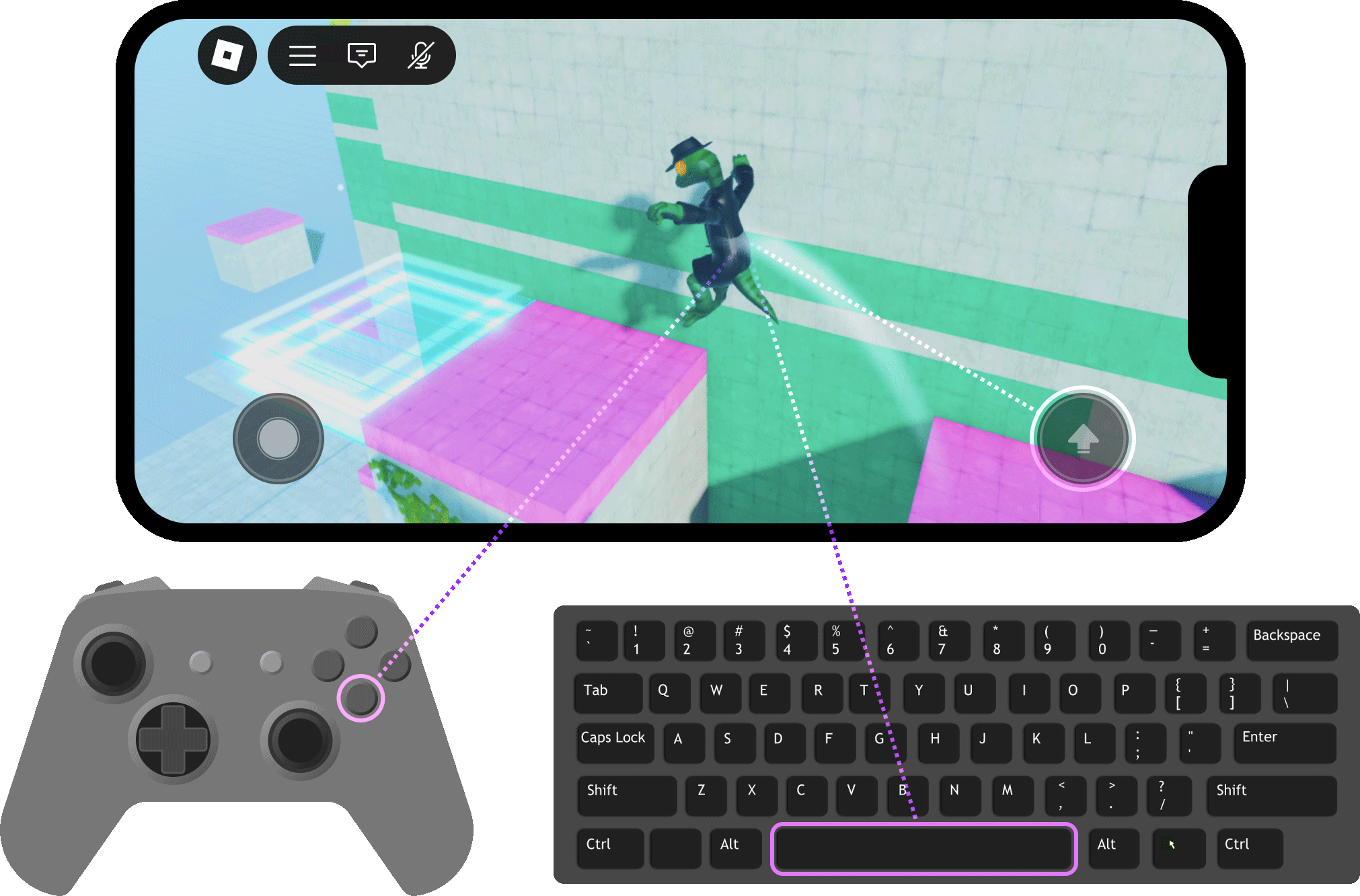
To simplify this process, Roblox provides the Input Action System to define actions such as "jump," "sprint," or "shoot" and set up bindings for multiple hardware inputs to drive those actions. This frees you from thinking of all the technical aspects of hardware inputs and allows you to simply define which inputs perform which actions.
Input type detection
In cross‑platform development, it's important that you determine and respond to the primary input type a player is using, normally to ensure that UI elements like on‑screen buttons and menus work elegantly across devices.
For example, a touch‑enabled device assumes touch is the default input and that touch buttons may appear for actions, but if a player connects an additional bluetooth keyboard/mouse or gamepad, you can assume they want to switch to that as the primary input type and possibly use touch as a backup input for on‑screen UI. The read‑only UserInputService.PreferredInput property is a convenient way to test for and adapt to multiple input types across multiple device types, based on anticipated player behavior.
Behavior
The value of PreferredInput changes based on built‑in device inputs and the player's most recent interaction with a connected gamepad or keyboard/mouse. Examples include:
| Real-World Scenario | `PreferredInput` |
|---|---|
| Player is using a phone with no other connected input devices; no possibility of an input type change. | [`Touch`](/docs/enum-preferredinput) |
| Player is using a mobile device with a bluetooth keyboard & mouse connected, but no gamepad is connected. | [`KeyboardAndMouse`](/docs/enum-preferredinput) |
| Player is using a tablet with a bluetooth gamepad connected, but no keyboard or mouse is connected. | [`Gamepad`](/docs/enum-preferredinput) |
| Player is using an Xbox or PlayStation with a bluetooth keyboard & mouse connected and has most recently interacted with the keyboard or mouse. | [`KeyboardAndMouse`](/docs/enum-preferredinput) |
| Player is on a Windows or Mac PC with a gamepad connected and has most recently interacted with the gamepad. | [`Gamepad`](/docs/enum-preferredinput) |
Benefits
Importantly, the PreferredInput property overcomes the following issues related to UserInputService.TouchEnabled and UserInputService:GetLastInputType(), both traditionally used to detect input types.
TouchEnabledistrueon laptops with touch screens, so it is not a proper "is mobile" check.- UI layouts for gamepad or keyboard/mouse may be more appropriate even if a device has touch capability, for example a mobile device with a bluetooth gamepad connected.
- Multiple
GetLastInputType()values may represent the same input device, requiring compoundorlogic in scripts. For example,MouseWheel,MouseMovement, andMouseButton1all represent a mouse. GetLastInputType()frequently thrashes betweenMouseMovementandKeyboardwhich may cause code to run more often than expected. Similarly, thrashes betweenTouchandGamepad[]may cause on‑screen UI to flicker between layouts.GetLastInputType()may return confusing values such asTextInput,Focus, andInputMethod.
Note
For advanced workflows or control schemes that rely on detecting and responding to the player's specific most recent UserInputType, you can continue using UserInputService:GetLastInputType() and UserInputService.LastInputTypeChanged.
The following LocalScript is a template for initially detecting the preferred input and responding to changes during gameplay.
local UserInputService = game:GetService("UserInputService")

local function preferredInputChanged()
	local preferredInput = UserInputService.PreferredInput

	if preferredInput == Enum.PreferredInput.Touch then
		-- Player is on touch-enabled device with no other input types available/connected
		print("Touch")
	elseif preferredInput == Enum.PreferredInput.Gamepad then
		-- Player has connected or most recently interacted with a gamepad
		print("Gamepad")
	elseif preferredInput == Enum.PreferredInput.KeyboardAndMouse then
		-- Player has connected or most recently interacted with a keyboard or mouse
		print("KeyboardAndMouse")
	end
end

preferredInputChanged()

UserInputService:GetPropertyChangedSignal("PreferredInput"):Connect(function()
	preferredInputChanged()
end)
Default bindings
Roblox provides default input bindings for movement, camera control, and basic environment interaction — Roblox players are familiar with these controls, so you should only override them in specific cases. Also note that the reserved inputs cannot be overridden and will always operate with their intended purpose.
Roblox Reserved
| Action | Mouse/Keyboard | Gamepad | Touch |
|---|---|---|---|
| Open Roblox menu | Esc | Start button ([`ButtonStart`](/docs/enum-keycode)) | N/A |
| [Developer Console](/docs/roblox-studio-developer-console) | F9 | N/A | N/A |
| Fullscreen mode (Windows) Show desktop (Mac) | F11 | N/A | N/A |
| Record video (Windows) | F12 | N/A | N/A |
| Take screenshot | PrintScreen | N/A | N/A |
Character
| Action | Mouse/Keyboard | Gamepad | Touch |
|---|---|---|---|
| Move forward | W ↑ | Press up on primary thumbstick | Press up on virtual thumbstick |
| Move backward | S ↓ | Press down on primary thumbstick | Press down on virtual thumbstick |
| Move left | A | Press left on primary thumbstick | Press left on virtual thumbstick |
| Move right | D | Press right on primary thumbstick | Press right on virtual thumbstick |
| Jump | Space |   | Tap virtual jump button |
Interface / Inventory
Note
The following action inputs are reserved unless you disable the respective feature.
| Action | Mouse/Keyboard | Gamepad | Touch |
|---|---|---|---|
| Open text chat | / | N/A | N/A |
| Show/hide players list | Tab | N/A | N/A |
| Toggle backpack | ` | N/A | N/A |
| Equip/unequip tools | 0-9 | Swap between tools using front‑left and front‑right triggers ([`ButtonL1`](/docs/enum-keycode#buttonl1) and [`ButtonR1`](/docs/enum-keycode#buttonr1)) | Tap on-screen tool icons |
| Use equipped tool | Click left mouse button | Back‑right trigger ([`ButtonR2`](/docs/enum-keycode#buttonr2)) | Tap on screen |
| Drop equipped tool | Backspace | N/A | N/A |
| Toggle **UI selection** mode¹ | \ | Select button ([`ButtonSelect`](/docs/enum-keycode#buttonselect)) | N/A |
| Navigate among interactive UI elements while in **UI selection** mode | ↑ ↓ ← → W S A D | Primary thumbstick ([`Thumbstick1`](/docs/enum-keycode#thumbstick1)) or D‑pad ([`DPadUp`](/docs/enum-keycode#dpadup); [`DPadDown`](/docs/enum-keycode#dpaddown); [`DPadLeft`](/docs/enum-keycode#dpadleft); [`DPadRight`](/docs/enum-keycode#dpadright)) | |
| Activate an interactive UI element while in **UI selection** mode | Enter | Back‑right trigger ([`ButtonR2`](/docs/enum-keycode#buttonr2)) | |
| Scroll up/down/left/right in selected [`ScrollingFrame`](/docs/scrollingframe) while in **UI selection** mode | PageUp PageDown Home End | Secondary thumbstick ([`Thumbstick2`](/docs/enum-keycode#thumbstick2)) |
¹ If GuiNavigationEnabled is enabled (default)
Camera
| Action | Mouse/Keyboard | Gamepad | Touch |
|---|---|---|---|
| Move camera view around | While holding right mouse button | Move secondary thumbstick | Touch-drag around screen |
| Zoom camera in/out | Mouse scroll wheel I/O | Press secondary thumbstick | Pinch in/out on screen |
| Rotate camera left or right | ← → | N/A | N/A |
| Toggle mouse lock² | Shift | N/A | N/A |
² If EnableMouseLockOption is enabled (default)