
Source: Roblox Creator Hub · CC BY 4.0 · View source · Code samples: MIT Imported 2026-10-03. Formatting adapted for this site.
Create a custom leaderboard with ordered data stores
Data stores are a service you can use to save and load persistent player data across different player sessions. They store important information, like a player's progress or inventory, and allow you to retrieve it for the player next time they join your game. Without data stores, a player would lose all of their progress every time they left the game.
There are two types of data stores: standard and ordered. This tutorial uses ordered data stores, which store data that you can rank and sort numerically and retrieve in ascending or descending order based on the stored numerical values.
Using the Gold Rush create leaderboard tutorial - Start .rbxl file as a starting place and the Gold Rush create leaderboard tutorial - Complete .rbxl file as a reference, this tutorial gives you the foundation you need to create a custom player leaderboard, including guidance on:
- Storing gold scores in an ordered data store.
- Fetching and sorting the top scores globally across all servers.
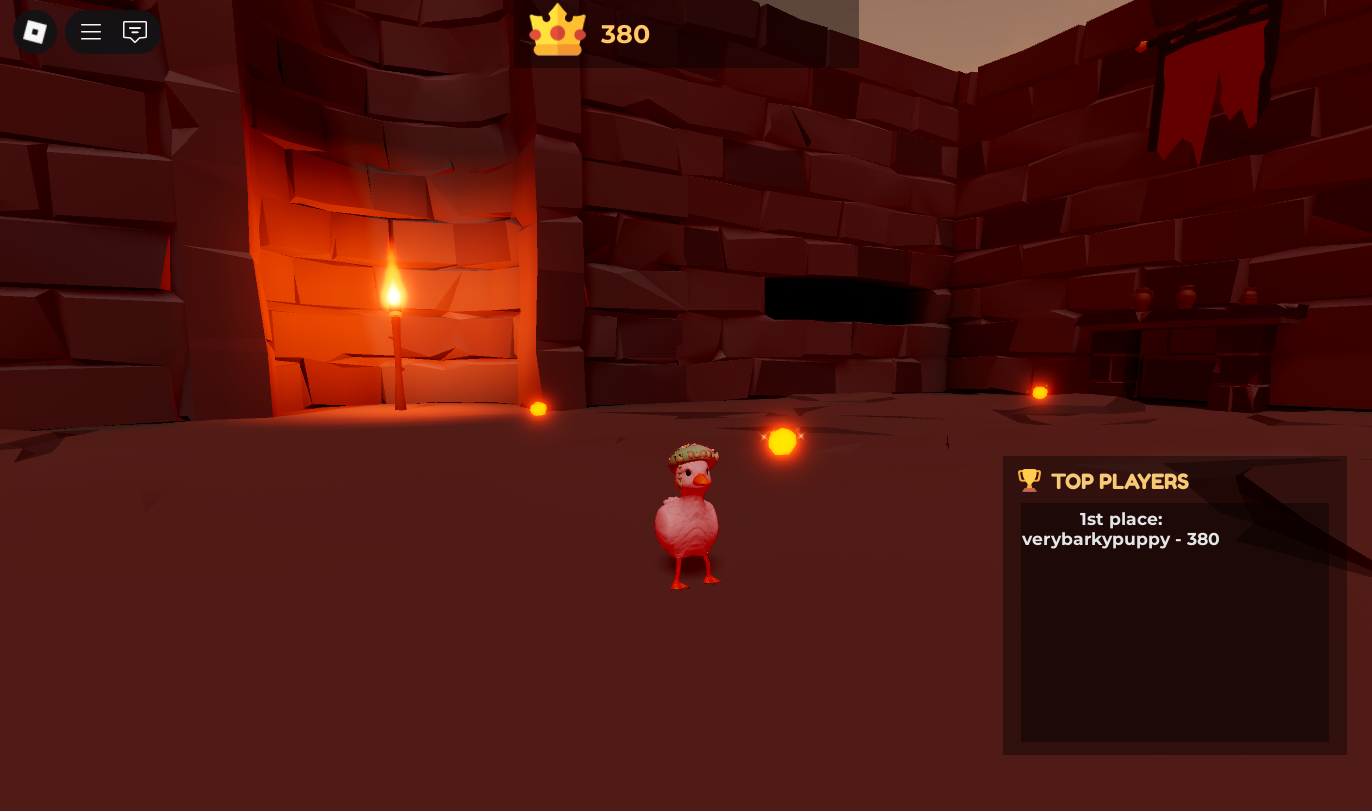
- Displaying the top scores in a custom leaderboard in the UI.
- Automatically refreshing the custom leaderboard every few seconds.
By the end of this tutorial, you should have the following:
- Under
ServerScriptService:- An updated GoldManager script that saves the player's score to an ordered data store for the leaderboard.
- A new LeaderboardRemoteHandler module script that fetches and returns the sorted list of top scores from the leaderboard.
- A new LeaderboardManager script that responds to the leaderboard data requests from the client, acting as a bridge between the client in LeaderboardGuiScript and the server in LeaderboardManager.
- Under
StarterGui, a new LeaderboardGuiScript local script that renders the leaderboard UI for the player.
Enable Studio access to API services
Data stores aren't stored locally on your device, so your game relies on server-to-server communication with Roblox's backend in order to use them. By default, Studio restricts this communication to prevent abuse or accidental use. Access to API services in Studio is disabled until you explicitly enable it to make sure that only trusted games can read from and write to Roblox's backend servers.
To enable Studio access to API services so that you can use data stores:
- Open the Gold Rush create leaderboard tutorial - Start file in Studio. This starting place file already includes the code from the Save player data tutorial and the UI skeleton for the player leaderboard.
- Publish your game.
- Back in Studio, go to File ⟩ Experience Settings ⟩ Security.
- Turn on Enable Studio Access to API Services.
- Save your changes.
Create an ordered data store
When creating a data store, you should always call the DataStoreService from a server-side Script. Doing so is important because:
- Roblox blocks all data store access from the client so that only the server has permission to access and modify persistent player data.
- Server-side scripts run in a centralized environment, making sure that the data being read and written to your data store is accurate and valid.
- Since client-side scripts run on the player's device, any player could potentially exploit the game and steal or overwrite other players' data if the client had access to your data stores.
You should also give your data store a unique name to keep your data organized and to prevent it from overlapping or conflicting in different data stores. In this tutorial, the data store for the leaderboard is called GlobalLeaderboard.
To create the GlobalLeaderboard ordered data store:
Open the existing GoldManager script under ServerScriptService.

Under the existing PlayerGold data store, call
GetOrderedDataStorewith the string "GlobalLeaderboard". This creates an ordered data store to save the player's score when they earn gold.local leaderboardStore = DataStoreService:GetOrderedDataStore("GlobalLeaderboard")
After creating a data store, you're able to reference this same data store across different scripts. For example, you can call GetOrderedDataStore in both the GoldManager script and the LeaderboardManager module script that you will create later in this tutorial. Referencing the same data store in two places doesn't mean you're duplicating data; it just means that two scripts are accessing the same centralized storage, like two teammates using one folder to share information.
Send player data to the leaderboard
Data stores are made up of keys, which identify data, and values, which store data. Unlike standard data stores, ordered data stores let you sort data by value, which makes them ideal for creating things like leaderboards.
Each entry in an ordered data store is stored under a unique key that you can rank and sort numerically, and then retrieve in ascending or descending order based on the stored numerical values. This means that you can use ordered data stores to, for example, show a top 3 list that updates in real time as players in your game collect more gold.
| **Key** | **Value** | |
|---|---|---|
| **Description** | A key is a unique string identifier you can use to access a specific piece of data, like a player's user ID. Keys let you organize your data so you can easily manage and debug it. | A value is the actual numeric data you want to save or load, like a player's score. Values let you store progress between sessions, as well as retrieve player data next time they join your game. |
| **Allowed formats** | Can only be strings. If you're using numbers, like a user ID, convert them to a string using `tostring()`. | Can only be numbers. |
| **Examples** | `"Player_A"`, `"TopScore"`, `"123456"` (userIs as string) | `100`, `3.14`, `0`, `-25` |
Now that you have created your GlobalLeaderboard ordered data store, update the existing saveGold function in the GoldManager script to send the player's gold score to your custom leaderboard with SetAsync:
local function saveGold(player, value)
  local userId = player.UserId

  local success, err = pcall(function()
    goldStore:SetAsync(userId, value)

    leaderboardStore:SetAsync(tostring(userId), value)
  end)
  if not success then
    warn("Could not save gold for", player.Name, ":", err)
  end
end
You can think of the ordered data store GlobalLeaderboard like a shared folder: SetAsync adds content to the folder, while GetSortedAsync (which you'll create later in the LeaderboardManager module script) reads the folder's content and sorts it by score.
Fetch the leaderboard scores
To fetch the leaderboard scores, you should use a ModuleScript. Module scripts let you organize and reuse your code across multiple scripts. Instead of copying the same logic into different places, you can write it once in a module script and call it from anywhere that needs it.
When you store your leaderboard logic in a module, both the UI handler and the server scripts can use the same function to fetch the top player scores. If you ever need to, for example, update how usernames are fetched or how scores are sorted, you only have to change the code in one place. After you update the module, all scripts that use it also automatically get the udpated behavior.
You custom leaderboard uses the following ordered data store methods to share data across different servers:
SetAsync(from the GoldManager script) to send player scores to the GlobalLeaderboard ordered data store.GetSortedAsync(in the module script) to fetch the top scores from all servers from the same data store. TheGetSortedAsyncmethod is exclusive to ordered data stores and can retrieve multiple sorted keys based on a specific sorting order, page size, and minimum and maximum values.
Note
As long as each server updates the **GlobalLeaderboard** ordered data store when a player collects gold, and each client retrieves this data from the server, everyone inside your game will see the same leaderboard with the same top scores.To fetch the leaderboard scores:
Under ServerScriptService, create a new
ModuleScriptcalled LeaderboardManager.At the top of the module script, call
GetOrderedDataStorewith the string "GlobalLeaderboard". Referencing the same ordered data store that you created in the GoldManager script will allow the leaderboard UI to fetch and sort the top player scores later.local DataStoreService = game:GetService("DataStoreService") local Players = game:GetService("Players") local leaderboardStore = DataStoreService:GetOrderedDataStore("GlobalLeaderboard")Prepare a module table to hold all functions and data you want to expose to other scripts.
local leaderboardManager = {}Create a function called GetTopScores to get the top player scores. This function:
- Calls
GetSortedAsyncto fetch thelimitnumber of top scores in descending order. If the call fails, an empty list is returned to prevent the rest of your code from crashing. - Loops through the leaderboard to get a table of entries with
GetCurrentPageand player usernames withGetNameFromUserIdAsync. - Adds each result to a final list and builds a leaderboard table with player usernames and their scores.
- Returns the final list of players and sends the leaderboard data back to any script that calls this
leaderboardManager.GetTopScoresfunction.
function leaderboardManager.GetTopScores(limit) local success, pages = pcall(function() return leaderboardStore:GetSortedAsync(false, limit) end) if not success or not pages then return {} end local results = {} for _, entry in ipairs(pages:GetCurrentPage()) do local userId = tonumber(entry.key) local score = entry.value local username = "Unknown" local ok, name = pcall(function() return Players:GetNameFromUserIdAsync(userId) end) if ok then username = name end table.insert(results, { Username = username, Score = score }) end return results end- Calls
Make the module usable by returning the module table you created earlier. Whenever you create a module script, you must return the module table so that other scripts can access it and call the functions inside it.
return leaderboardManager
Request leaderboard data from the server
In order for the client UI to display the leaderboard scores, the server has to respond when the client asks for data. A RemoteFunction allows the client to request information from the server and wait for a reply.
To request leaderboard data from the server:
- Under ReplicatedStorage, insert a RemoteFunction called LeaderboardRemote. This remote function acts as the bridge between the UI script on the client and the leaderboard logic on the server.
- Under ServerScriptService, create a script called LeaderboardRemoteHandler. In this script:
Call
ReplicatedStorage(the shared space between client and server),ServerScriptService(which holds the leaderboard module), andleaderboardRemote(the remote function that the client will call to ask for the leaderboard data).local ReplicatedStorage = game:GetService("ReplicatedStorage") local ServerScriptService = game:GetService("ServerScriptService") local leaderboardRemote = ReplicatedStorage:WaitForChild("LeaderboardRemote")Load the LeaderboardManager module that you created earlier, which includes the function that gets the top scores from the ordered data store.
local leaderboardManager = require(ServerScriptService:WaitForChild("LeaderboardManager"))Set the behavior for when the client calls
InvokeServer. The server responds by fetching the top 3 scores and sending the result back to the client.leaderboardRemote.OnServerInvoke = function(player) return leaderboardManager.GetTopScores(3) end
Display data in the custom leaderboard UI
Note
Because of backend caching, the scores in your custom leaderboard can take a few extra seconds to update. To get instant, real-time updates across servers, you can use [memory stores](/docs/roblox-cloud-services-memory-stores).After setting up the server-side scripts, create a local script to fetch the top 3 players every 3 seconds and display the results in a global UI leaderboard inside the game.
To display data in your custom leaderboard:
Under StarterGui ⟩ LeaderboardGui, create a local script called LeaderboardGuiScript.
At the top of the script, connect to the remote function. Call
ReplicatedStorageto get access to shared objects between the server and client, then callleaderboardRemoteto allow the client to request the leaderboard data from the server.local ReplicatedStorage = game:GetService("ReplicatedStorage") local leaderboardRemote = ReplicatedStorage:WaitForChild("LeaderboardRemote")Reference the existing leaderboard UI elements under LeaderboardGui.
local gui = script.Parent
local leaderboardFrame = gui:WaitForChild("LeaderboardFrame")
local entriesFrame = leaderboardFrame:WaitForChild("EntriesFrame")
local template = entriesFrame:WaitForChild("LeaderboardEntry")
Create a function called clearEntries to clear old leaderboard entries. This function loops through all children of
entriesFrame, which contains the leaderboard rows, and makes sure the leaderboard is fully refreshed before displaying new data.local function clearEntries() for _, child in ipairs(entriesFrame:GetChildren()) do if child:IsA("TextLabel") and child.Name:match("^Row%d+$") then child:Destroy() end end endCreate a function called renderLeaderboard to insert and display player data in the leaderboard rows. The
dataobject is a table returned by the server that contains entries with the player usernames and scores.local function renderLeaderboard(data) clearEntries() for i, entry in ipairs(data) do local row = template:Clone() row.Name = "Row" .. i row.Visible = true row.LayoutOrder = i row.Text = string.format("%d%s place: %s - %d", i, i == 1 and "st" or i == 2 and "nd" or i == 3 and "rd" or "th", entry.Username, entry.Score) row.Parent = entriesFrame end endCreate a loop to periodically fetch the leaderboard data. Every 3 seconds, the loop runs and calls the server using the
InvokeServerfunction you created earlier in the LeaderboardRemoteHandler script. If the call is successful, the UI refreshes with the updated scores.while true do local success, data = pcall(function() return leaderboardRemote:InvokeServer() end) if success and data then renderLeaderboard(data) end task.wait(3) end
Final code
See the following code snippets for the complete GoldManager, LeaderboardManager, LeaderboardRemoteHandler, and LeaderboardGuiScript scripts. You can paste and run them directly in the Gold Rush create leaderboard tutorial - Start .rbxl file in Studio.
GoldManager
The GoldManager script creates an ordered data store to manage leaderboard updates.
-- Get services
local Players = game:GetService("Players")
local ReplicatedStorage = game:GetService("ReplicatedStorage")
local CollectionService = game:GetService("CollectionService")
local DataStoreService = game:GetService("DataStoreService")

-- Remote event to update the UI
local uiEvent = ReplicatedStorage:WaitForChild("UIEvent")

-- Data store for saving the player's gold chunks
local goldStore = DataStoreService:GetDataStore("PlayerGold")

-- Ordered data store to save gold to the leaderboard
local leaderboardStore = DataStoreService:GetOrderedDataStore("GlobalLeaderboard")

-- Create a random number generator for positioning gold chunks
local random = Random.new()

-- Table to store the player's gold chunks for a single session
local playerGold = {}

-- Constants
local GOLD_VALUE = 10                  -- How much each gold chunk is worth
local GOLD_REGENERATION_BOUNDS = {     -- Area bounds used to reposition gold chunks randomly
  minX = -72,
  maxX = 72,
  minZ = -72,
  maxZ = 72
}
local GOLD_REGEN_DELAY = 2             -- The delay before a chunk respawns (in seconds)
local AUTOSAVE_INTERVAL = 30           -- How often the player's chunks are saved (in seconds)

-- Function to handle the player collecting a gold chunk
local function processGoldTouch(chunk, player)

  -- Hide the chunk when the player collects it
  chunk.Parent = nil

  -- Add the chunk to the player's session gold score
  local userId = player.UserId
  playerGold[userId] = (playerGold[userId] or 0) + GOLD_VALUE
  print(player.Name, "now has", playerGold[userId], "gold")

  -- Update the UI score bar to reflect the new gold score for this session
  uiEvent:FireClient(player, {
    gold = playerGold[userId],
    doTween = true,
    showAlert = false
  })

  -- Wait a bit and then respawn the gold chunk that was just collected in a random location
  task.delay(GOLD_REGEN_DELAY, function()

    -- Respawn the gold chunk at a new random position
    local nextPositionX = random:NextInteger(GOLD_REGENERATION_BOUNDS.minX, GOLD_REGENERATION_BOUNDS.maxX)
    local nextPositionZ = random:NextInteger(GOLD_REGENERATION_BOUNDS.minZ, GOLD_REGENERATION_BOUNDS.maxZ)
    chunk.CFrame = CFrame.new(nextPositionX, 50, nextPositionZ) -- Move chunk to new position
    chunk:SetAttribute("DropCollided", false)  -- Reset any collision flags
    chunk.Parent = workspace.GoldChunks
  end)
end

-- Loop through all parts tagged with "Gold" and connect them to touch detection
for _, chunk in ipairs(CollectionService:GetTagged("Gold")) do
  chunk.Touched:Connect(function(otherPart)
    local player = Players:GetPlayerFromCharacter(otherPart.Parent)
    if player then
      processGoldTouch(chunk, player)
    end
  end)
end

-- Function to save the player's gold to both standard and ordered data stores
local function saveGold(player, value)
  local userId = player.UserId
  local success, err = pcall(function()
    goldStore:SetAsync(userId, value)
    leaderboardStore:SetAsync(tostring(userId), value)
  end)
  if not success then
    warn("Could not save gold for", player.Name, ":", err)
  end
end

-- Function to handle the player joining the game
local function onPlayerAdded(player)
  local userId = player.UserId
  print(player.Name, "has joined the game")

  -- Try to load the player's gold from the data store
  local success, storedGold = pcall(function()
    return goldStore:GetAsync(userId)
  end)

  -- Set the current session gold score using the data store value for the player
  local currentGold = if success and storedGold then storedGold else 0
  playerGold[userId] = currentGold

  -- Update the UI with the data store value for the player
  uiEvent:FireClient(player, {
    gold = currentGold,
    doTween = false,
    showAlert =  not success
  })
  if success then
    print("Loaded", currentGold, "gold for", player.Name)
  else

    -- Notify the player their gold couldn't be loaded
    uiEvent:FireClient(player, { showAlert = true })
    warn("Could not load gold for", player.Name)
  end

  -- Start the autosave coroutine to save the player's gold every 30 seconds
  coroutine.wrap(function()
    while player.Parent do
      task.wait(AUTOSAVE_INTERVAL)
      if playerGold[userId] then
        saveGold(player, playerGold[userId])
        print("Autosaving", playerGold[userId], "gold for", player.Name)
      end
    end
  end)()
end

-- Function to handle the player leaving the game
local function onPlayerRemoving(player)
  local userId = player.UserId
  print(player.Name, "has left the game")

  -- Check if the player's gold was tracked
  if playerGold[userId] then

    -- Save the player's gold to the data store before they leave
    saveGold(player, playerGold[userId])
  end
end

-- Connect the joining and leaving player events
Players.PlayerAdded:Connect(onPlayerAdded)
Players.PlayerRemoving:Connect(onPlayerRemoving)
LeaderboardManager
The LeaderboardManager module script:
- Calls
GetSortedAsync()on the GlobalLeaderboard ordered data store. - Converts userIds into usernames using
GetNameFromUserIdAsync. - Returns a list of
{ Username, Score }tables for the top-ranked players. - Is called by LeaderboardRemoteHandler whenever a client requests leaderboard data.
-- Get services
local Players = game:GetService("Players")
local DataStoreService = game:GetService("DataStoreService")

-- Ordered data store to save leaderboard scores
local leaderboardStore = DataStoreService:GetOrderedDataStore("GlobalLeaderboard")

-- Table to store the leaderboard scores
local leaderboardManager = {}

-- Function to return the top scores
function leaderboardManager.GetTopScores(limit)
	-- Try to retrieve a sorted page of leaderboard entries from the data store
	local success, pages = pcall(function()
		-- false = descending (highest scores first)
		return leaderboardStore:GetSortedAsync(false, limit)
	end)

	-- If the call fails or returns nothing, log a warning and return an empty table
	if not success or not pages then
		warn("Failed to get leaderboard data")
		return {}
	end

	-- Create a table to store top player data
	local topPlayers = {}

	-- Loop through each entry on the current page of leaderboard results
	for _, entry in ipairs(pages:GetCurrentPage()) do
		local userId = tonumber(entry.key)   -- Convert the entry key to a number (userId was stored as a string)
		local score = entry.value            -- The value is the player's score (amount of gold)
		local username = "Unknown"           -- A default name in case lookup fails

		-- Try to get the player's username from their userId
		local ok, name = pcall(function()
			return Players:GetNameFromUserIdAsync(userId)
		end)

		-- If lookup succeeds, store the real username
		if ok then
			username = name
		end

		-- Add this player and their score to the list
		table.insert(topPlayers, {
			Username = username,
			Score = score
		})
	end

	-- Return the full list of top players with their usernames and scores
	return topPlayers
end

-- Return the LeaderboardManager module so other scripts can use it
return leaderboardManager
LeaderboardRemoteHandler
The LeaderboardRemoteHandler script fetches and returns the top 3 scores to the calling client.
-- Get services
local ServerScriptService = game:GetService("ServerScriptService")  -- Access server-side modules
local ReplicatedStorage = game:GetService("ReplicatedStorage")      -- Shared client-server communication objects

-- Wait for the RemoteFunction that the client uses to request leaderboard data
local leaderboardRemote = ReplicatedStorage:WaitForChild("LeaderboardRemote")

-- Load the LeaderboardManager module that contains the GetTopScores function
local leaderboardManager = require(ServerScriptService:WaitForChild("LeaderboardManager"))

-- Set up a handler for when the client invokes the leaderboard RemoteFunction
leaderboardRemote.OnServerInvoke = function(player)
	-- Call the leaderboard module to get the top 3 scores and return them to the client
	return leaderboardManager.GetTopScores(3)
end
LeaderboardGuiScript
The LeaderboardGuiScript local script:
- Requests leaderboard data from the server every 3 seconds using
InvokeServer. - Uses a hidden LeaderboardEntry template to display each leaderboard row.
- Formats each row as "1st place: Username - Score".
- Manages the creation, display, and layout of leaderboard rows using
UIListLayout.
-- Get shared storage for RemoteFunction access
local ReplicatedStorage = game:GetService("ReplicatedStorage")

-- Get the RemoteFunction used to request leaderboard data from the server
local leaderboardRemote = ReplicatedStorage:WaitForChild("LeaderboardRemote")

-- UI references
local gui = script.Parent                                           -- The LocalScript under the ScreenGui
local leaderboardFrame = gui:WaitForChild("LeaderboardFrame")       -- Main container for the leaderboard
local entriesFrame = leaderboardFrame:WaitForChild("EntriesFrame")  -- Frame where leaderboard entries appear
local template = entriesFrame:WaitForChild("LeaderboardEntry")      -- Hidden template TextLabel used to create rows

-- Function to remove old leaderboard rows (but not the template)
local function clearEntries()
	for _, child in ipairs(entriesFrame:GetChildren()) do
		-- Only destroy labels named "Row1", "Row2", etc (leave the template untouched)
		if child:IsA("TextLabel") and child.Name:match("^Row%d+$") then
			child:Destroy()
		end
	end
end

-- Function to display leaderboard data on screen
local function renderLeaderboard(data)
	-- Remove old rows first
	clearEntries()

	for i, entry in ipairs(data) do
		local row = template:Clone()           -- Clone the hidden template
		row.Name = "Row" .. i                  -- Give it a unique name
		row.Visible = true                     -- Make it visible
		row.LayoutOrder = i                    -- Let UIListLayout order it properly

		-- Leaderboard format: "1st place: Username - 123"
		row.Text = string.format("%d%s place: %s - %d",
			i,
			i == 1 and "st" or i == 2 and "nd" or i == 3 and "rd" or "th",
			entry.Username,
			entry.Score
		)

		-- Add the data to the UI
		row.Parent = entriesFrame
	end
end

-- Main loop: update the leaderboard every 3 seconds
while true do
	-- Ask the server for leaderboard data
	local success, data = pcall(function()
		return leaderboardRemote:InvokeServer()
	end)

	if success and data then
		-- Show results on leaderboard
		renderLeaderboard(data)
	else
		warn("Failed to fetch leaderboard data")
	end

	-- Wait 3 seconds before updating again
	task.wait(3)
end