
Source: Roblox Creator Hub · CC BY 4.0 · View source · Code samples: MIT Imported 2026-10-03. Formatting adapted for this site.
include
Modern phones take advantage of the entire screen but typically include notches, cutouts, and other elements that occupy screen space. Every Roblox game also includes the top bar controls for quick access to the main menu, chat, leaderboard, and more.
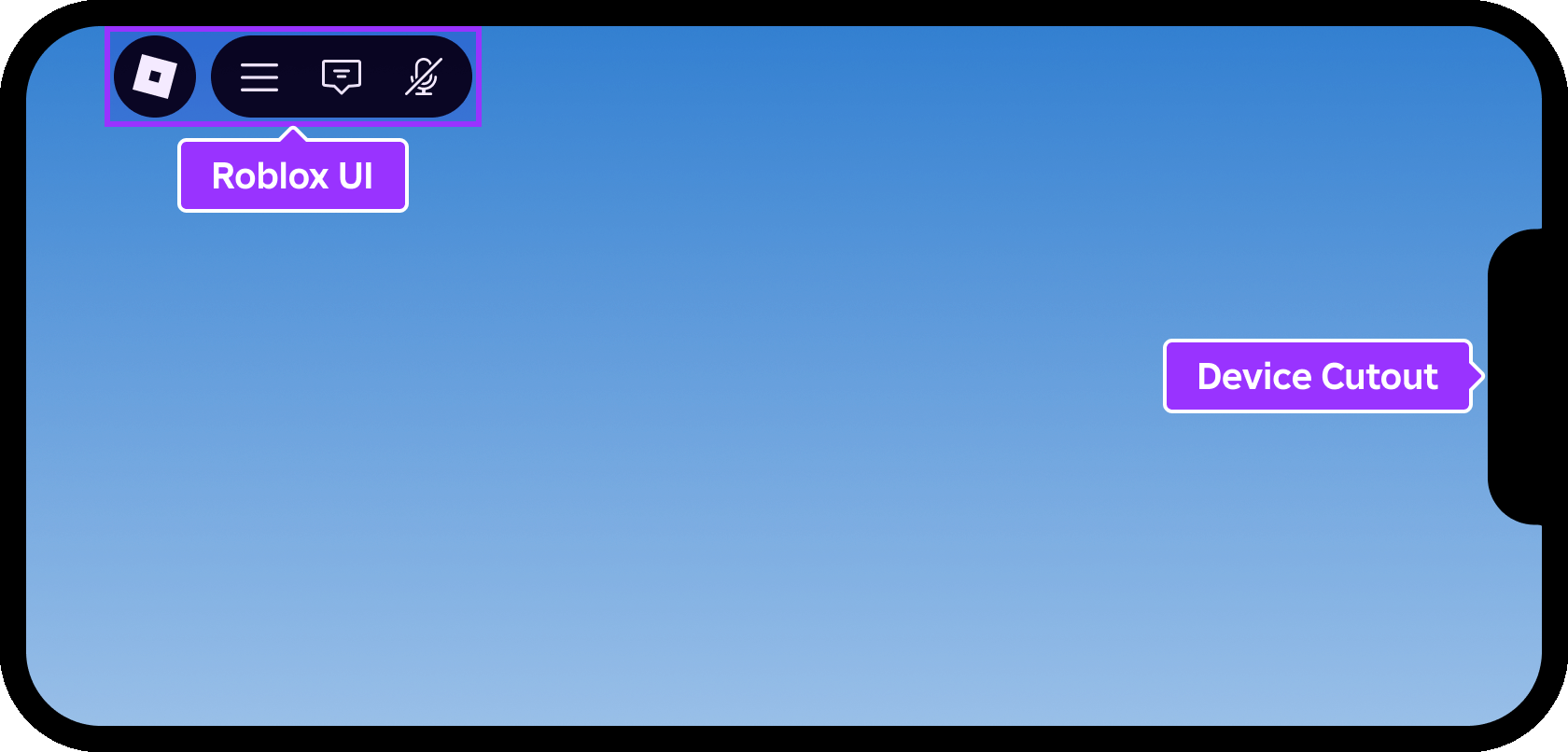
To ensure players can see and access all UI easily and without obstruction, Roblox provides the ScreenInsets property which controls the safe area insets for the contents of a ScreenGui.
CoreUISafeInsets
The default of CoreUISafeInsets keeps all descendant GuiObjects inside the core UI safe area, clear of the top bar buttons and other screen cutouts. This setting is recommended if the ScreenGui contains interactive UI elements.
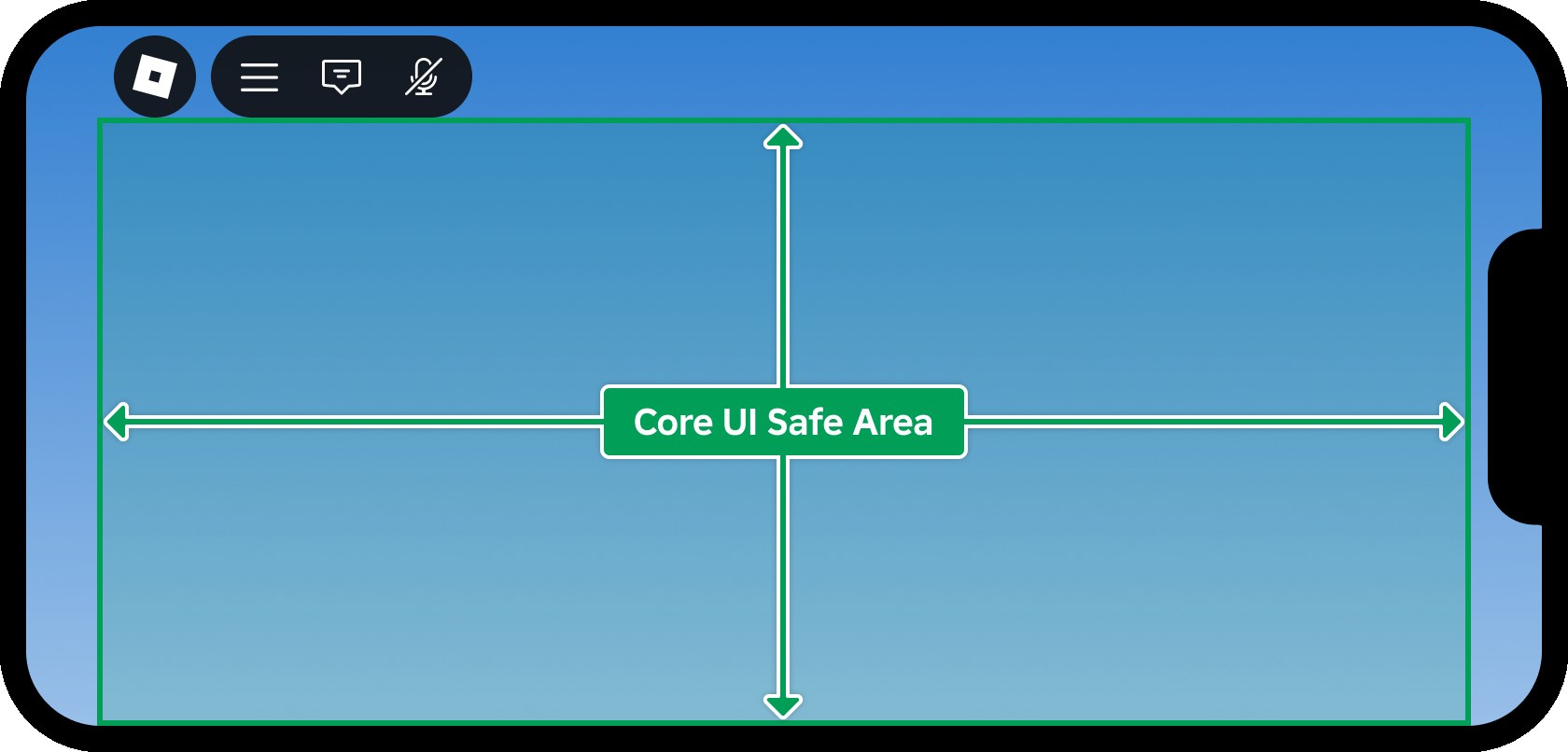
DeviceSafeInsets
A setting of DeviceSafeInsets guarantees that no descendant GuiObjects are occluded by any device screen cutouts such as the camera notch, although no inset is added for Roblox core UI elements like the top bar buttons.

TopbarSafeInsets
A setting of TopbarSafeInsets keeps all descendant GuiObjects between the top bar controls and the right edge of the device safe area. The ScreenGui will then automatically flex in horizontal size based on the top bar's content.

None
No insets are added to the fullscreen area. This mode may result in UI that is obscured or completely hidden by device notches and cutouts, so you should only use it for a ScreenGui that contains non‑interactive content like background images.
