
Source: Roblox Creator Hub · CC BY 4.0 · View source · Code samples: MIT Imported 2026-10-03. Formatting adapted for this site.
Add voice chat
Voice chat is a proximity-based chat feature that simulates realistic communication by adjusting the volume of players speaking as they move closer or further from one another in the 3D space. By letting players talk to each other with their microphones, they are able to socialize and strategize together in real time across the globe to complete your game's objectives.
Using the Gingerbread Island - Voice Chat .rbxl file as a reference, this tutorial shows you how to incorporate different forms of voice chat into your gameplay, including guidance on:
- Sorting players into teams that can only use voice chat with their teammates.
- Allowing players to temporarily activate their microphone while they're pushing a specific button on their device.
- Configuring time periods where voice chat is either enabled or disabled.
As you review the following sections alongside the sample, you can adjust each code sample to better meet the needs of your own voice chat requirements.
Note
Voice chat is only available to players who are at least 13 years of age and have verified their account through either a phone number or government issued ID, depending on their country. For a full list of country verification requirements, see Voice chat.
Configure settings
In order for team chat, push to chat, or time-based chat to work appropriately, you must configure your voice chat setup to enable voice chat and create the appropriate audio objects necessary for picking up and emitting audio within the 3D environment.
When players join your game, your voice chat setup now:
- Allows voice-eligible players to use their microphones.
- Creates and parents an
AudioDeviceInputobject under each voice-eligiblePlayerobject. - Creates and parents an
AudioEmitterobject under each voice-eligiblePlayer.Character. - Creates and parents an
AudioListenerunder theWorkspace.CurrentCamera.
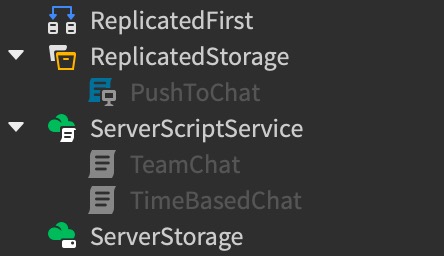
The following sections detail three unique voice chat configurations using these settings. As you follow along with the sample Gingerbread Island - Voice Chat place file, you can enable the corresponding disabled script in the Explorer window to test their behavior. To ensure that each one works properly, make sure to disable the script again before moving on to the next configuration.
Add team chat
Team chat is a voice chat configuration in which only players on the same team can speak or hear one another in a game. Integrating team chat into your gameplay is useful when you want players to collaborate and strategize together to solve problems in the game, such as coordinating information for enemy team positions, resources, and assignments.
To recreate the team voice chat in the sample Gingerbread Island - Voice Chat place file:
In the Explorer window, insert a Script into ServerScriptService.
Rename the script TeamChat, then paste the following code into the script:
local Teams = game:GetService("Teams")
local Players = game:GetService("Players")

local redTeam = Instance.new("Team", Teams)
redTeam.TeamColor = BrickColor.new("Bright red")
redTeam.AutoAssignable = true
redTeam.Name = "Red Team"

local blueTeam = Instance.new("Team", Teams)
blueTeam.TeamColor = BrickColor.new("Bright blue")
blueTeam.AutoAssignable = true
blueTeam.Name = "Blue Team"

local function getUserIds(team : Team) : {number}
    local userIds = {}
    for _, player : Player in team:GetPlayers() do
        table.insert(userIds, player.UserId)
    end
    return userIds
end

local function getDevices(team : Team) : {AudioDeviceInput}
    local devices = {}
    for _, player : Player in team:GetPlayers() do
        local device : AudioDeviceInput = player:FindFirstChild("AudioDeviceInput")
        if not device then
            continue
        end
        table.insert(devices, device)
    end
    return devices
end

local function updateTeam(team : Team)
    local users = getUserIds(team)
    for _, device in getDevices(team) do
        device.AccessType = Enum.AccessModifierType.Allow
        device:SetUserIdAccessList(users)
    end
end

local function onDeviceAdded(device : AudioDeviceInput)
    local player : Player = device.Parent
    if player.Team then
        updateTeam(player.Team)
    end
end

local function onPlayerAdded(player : Player)
    local device = player:FindFirstChild("AudioDeviceInput")
    if device then
        onDeviceAdded(device)
    end
    player.ChildAdded:Connect(function(child)
        if child.Name == "AudioDeviceInput" then
            onDeviceAdded(child)
        end
    end)
end

updateTeam(blueTeam)
updateTeam(redTeam)

for _, player in Players:GetPlayers() do
    onPlayerAdded(player)
end

Players.PlayerAdded:Connect(onPlayerAdded)
blueTeam.PlayerAdded:Connect(function() updateTeam(blueTeam) end)
blueTeam.PlayerRemoved:Connect(function() updateTeam(blueTeam) end)
redTeam.PlayerAdded:Connect(function() updateTeam(redTeam) end)
redTeam.PlayerRemoved:Connect(function() updateTeam(redTeam) end)
Code explanation
  The script starts by getting the [`Teams`](/docs/teams) and [`Players`](/docs/players) services so that it can use their out-of-the-box functionality to sort players into teams as soon as they join the game. For example, without any additional scripting effort, the [`Teams`](/docs/teams) service handles actions like:

  - Sorting and balancing players evenly into each team.
  - Grouping players under their team on the leaderboard.
  - Tinting player names in the 3D space to their corresponding team color.

  Using this service, the script creates two distinct [`Team`](/docs/team) objects with different [`Color`](/docs/team) properties values to represent each team: **bright red** for one team and **bright blue** for the other.

  The script then defines three functions where the bulk of the work occurs for setting up the team voice chat configuration:

  - `getUserIds` - Returns an array of userIDs for all players in a team.
  - `getDevices` - Returns an array of [`AudioDeviceInput`](/docs/audiodeviceinput) objects for all players in a team. Every Class.`AudioDeviceInput` object represents a player's **physical microphone** in the real world.
  - `updateTeam` - Retrieves all userIDs from `getUserIds`, iterates over the [`AudioDeviceInput`](/docs/audiodeviceinput) objects from `getDevices`, sets their [`AccessModifierType`](/docs/enum-accessmodifiertype) property to **Allow** so that only the userIDs in each team are permitted to hear from the microphones of their teammates, then updates the `SetUserIdAccessList` with the userIDs from the team.

  The remainder of the script controls how these functions and event listeners work together:

  - When a new player joins the game, the script verifies if the player has a microphone and updates their team.
  - When the script detects a new [`AudioDeviceInput`](/docs/audiodeviceinput) object, it calls `updateTeam` for their respective red or blue team.
- As players join or leave the game, the script connects to the `PlayerAdded` and `PlayerRemoved` events to update each team's settings.- Playtest the game with a couple friends to verify that teammates from each team can only hear each other through voice chat.
Add push to chat
Push to chat is a voice chat configuration in which players are only able to activate their microphone within a game while they press and hold a specific button on their device. Integrating push to chat into your gameplay is useful when you want players to have more privacy and control when they want to be heard over other players and ambient noise.
To recreate the push to voice chat in the sample Gingerbread Island - Voice Chat place file:
In the Explorer window, insert a Script into ReplicatedStorage.
In the Properties window, set RunContext to Client so that the script only controls the local player's microphone.
Rename the script PushToChat, then paste the following code into the script:
local Players = game:GetService("Players")
local UserInputService = game:GetService("UserInputService")

local audioIn: AudioDeviceInput = Players.LocalPlayer:WaitForChild("AudioDeviceInput")
local pushToTalkKey = Enum.KeyCode.V

audioIn.Muted = true

UserInputService.InputBegan:Connect(function(input: InputObject)
    if input.KeyCode == pushToTalkKey then
        audioIn.Muted = false
    end
end)

UserInputService.InputEnded:Connect(function(input: InputObject)
    if input.KeyCode == pushToTalkKey then
        audioIn.Muted = true
    end
end)
Code explanation
  The script starts by getting:

  - The [`Players`](/docs/players) service so that it can reference all players within the game.
  - The [`UserInputService`](/docs/userinputservice) service so that it can check when a player presses buttons on their device.
  - The local player's [`AudioDeviceInput`](/docs/audiodeviceinput) object, or physical microphone on their device.

  The script then:

  - Sets the `V` key to be the button the player needs to press and hold in order to speak into their microphone.
  - Mutes the player's microphone.

The remainder of the script sets up two event listeners for `InputBegan` and `InputEnded` from [`UserInputService`](/docs/userinputservice). When they press down the `V` key, the `InputBegan` event unmutes the player's microphone, and when they release the `V` key, the `InputEnded` event mutes their microphone again.- Playtest the game to verify that players can only hear each other through voice chat when they are pressing the
Vkey.
Add time-based chat
Time-based chat is a voice chat configuration in which players are only able to speak and hear one another during a set period of time. Integrating time-based chat into your gameplay is useful when you want players to carefully plan how they communicate with each other during specific phases, such as during round-based discussions or after cutscenes.
To recreate the time-based voice chat in the sample Gingerbread Island - Voice Chat place file:
In the Explorer window, insert a Script into ServerScriptService.
Rename the script TimeBasedChat, then paste the following code into the script:
local Players = game:GetService("Players")
local muteAll = false

local function toggleMuteAll()
    muteAll = not muteAll
    for _, player in Players:GetPlayers() do
        local device : AudioDeviceInput = player:FindFirstChild("AudioDeviceInput")
        if not device then
            continue
        end
        device.Muted = muteAll
    end
end

while true do
    task.wait(15) -- every 15 seconds
    toggleMuteAll() -- either allow people to speak, or prevent them from speaking
end
Code explanation
  This script starts by getting the [`Players`](/docs/players) service so it can reference its functionality to manage all players in the game. It then sets a flag `muteAll` to **false**, which the following `toggleMuteAll` function uses to toggle voice chat on and off.

  Let's review the `toggleMuteAll` function:

  - It starts by looping through all players in the game using [`Players.GetPlayers`](/docs/players#players-getplayers).
  - For each player, it checks to see if it has a child [`AudioDeviceInput`](/docs/audiodeviceinput) object, or physical microphone on their device.
  - If they do, the function sets the [`AudioDeviceInput`](/docs/audiodeviceinput) object's [`Muted`](/docs/audiodeviceinput#audiodeviceinput-muted) property to the value of `muteAll`. For example, if `muteAll` is **true**, the player's microphone is disabled, and if `muteAll` is **false**, the player's microphone is enabled.

The script then enters an infinite loop, waiting 15 seconds to mute and unmute all [`AudioDeviceInput`](/docs/audiodeviceinput) objects.- Playtest the game to verify that players can only hear each other through voice chat in 15 second increments.