
Source: Roblox Creator Hub · CC BY 4.0 · View source · Code samples: MIT Imported 2026-10-03. Formatting adapted for this site.
Analytics
Roblox offers a variety of analytics features to help you chart your game's growth, technical performance, track user behavior and retention, and find opportunities for optimization. You can use analytics to understand what actions you can take to grow your game.
If this is your first time engaging with analytics on Roblox, see Get started with analytics.
Grow your game with analytics
Analytics is primarily used to understand your users engagement with your game. Consider following this 3-step plan to use analytics to grow your game:
Step 1: Optimize retention, engagement, and monetization
Before driving too many new users to your game, grow the following metrics to a level that's comparable to or above the benchmarks for similar games:
  1.  **D1 (day 1) retention** and **average session time** are key metrics to focus on first because they measure if new users are enjoying and coming back to your game. For more information on improving this metric, see [Retention](/docs/roblox-production-analytics-retention) and [Engagement](/docs/roblox-production-analytics-engagement).

  2.  **D7 (day 7)** and **D30 (day 30) retention** measure if users are making progress in your game and returning long-term. For more information on improving this metric, see [Retention](/docs/roblox-production-analytics-retention).

  3.  **Payer conversion rate** and **ARPPU (average revenue per paying user)** measure the effectiveness of your user monetization. It's important to be thoughtful about monetization from the start. For more information on improving this metric, see [Monetization](/docs/roblox-production-analytics-monetization).


<img src="https://prod.docsiteassets.roblox.com/assets/analytics/overview/step1.png" width="100%"/>
Comparing D1 retention to similar games.
Step 2: Drive new user acquisition
After you have optimized your retention, engagement, and monetization, use your Acquisition page to understand:
- Where new users are coming from by source.
- How well home recommendations are converting.
You can use the following chart to track the percent of users who played your game after viewing it in recommendation. Test different game icons, titles, and descriptions to see how they impact your play through rate.
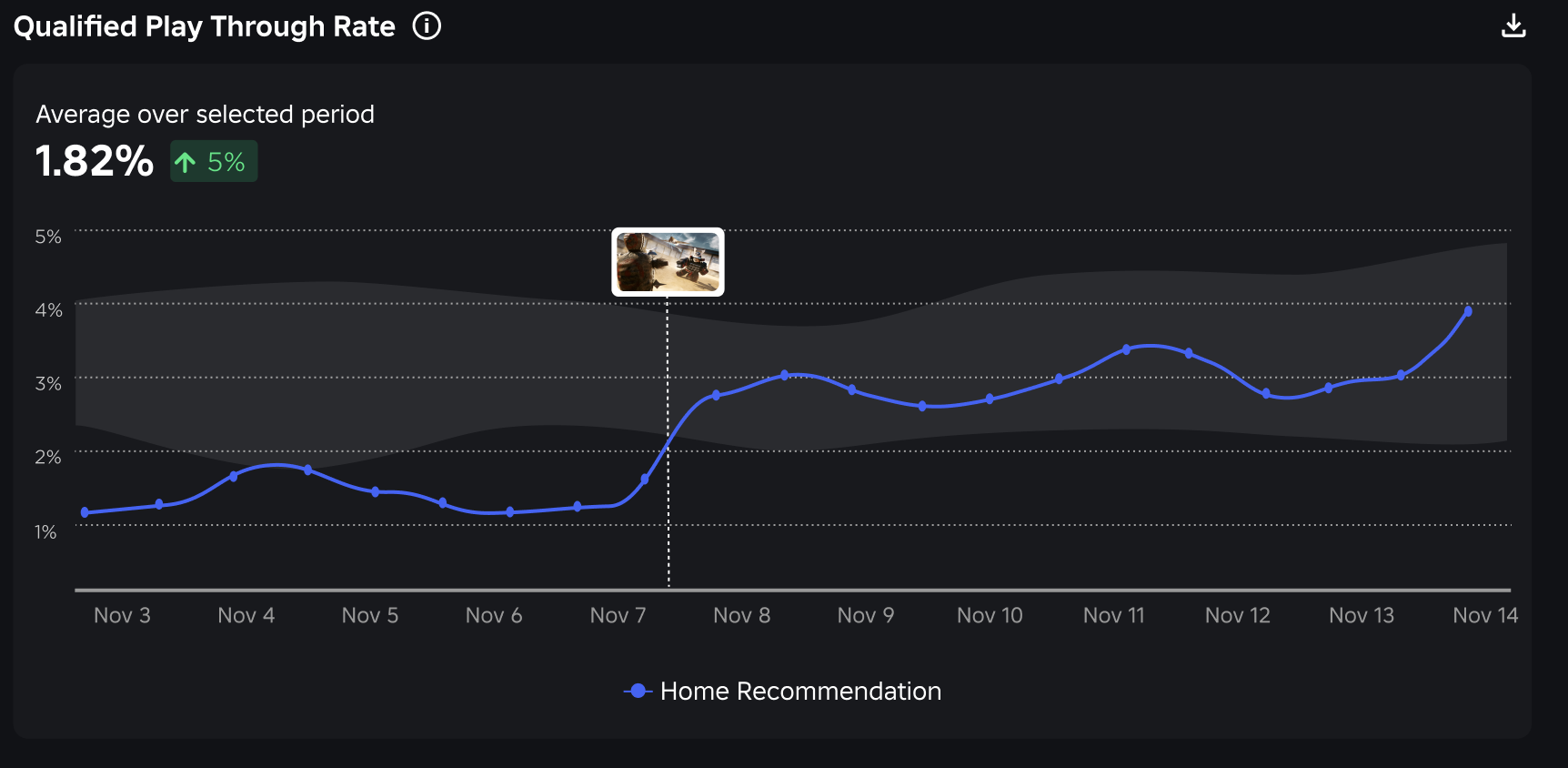
Roblox games are inherently social, and users love trying them out with their friends. Consider using features like experience events and player invite prompts to invite users to bring their friends to your game.
Step 3: Monitor metrics after each game update
After you update your game, visit analytics to understand how the update impacted the following metrics:
- Retention: D1 and D7 retention.
- Engagement: Average session time.
- Monetization: Payer conversion, ARPPU, and revenue.
- Acquisition: New users and play through rate.
You can monitor major weekly changes and benchmark movement on your game overview page. Insights highlights large movements in key metrics such as DAU, new users, and revenue.
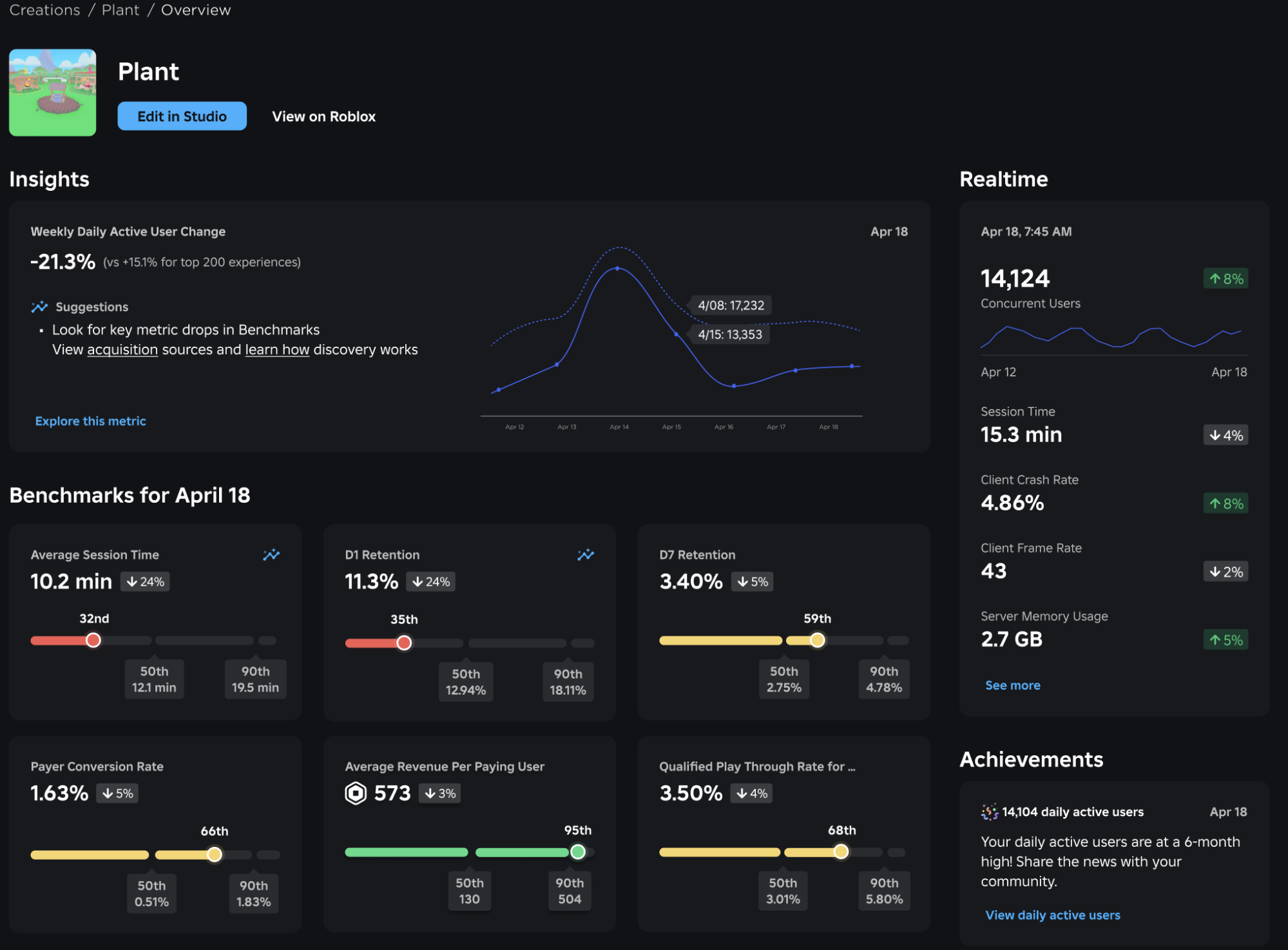
If you have 100+ DAU, you can compare how your game is performing against similar games using the benchmark scorecards. Your benchmark scorecards help you focus on the right metrics to improve compared to similar games.
For example, in the scorecard below, engagement (average session time and D1 retention) looks to be the problem. As a result, you may consider using funnel analytics to improve your onboarding funnel.
Your similar game benchmarks are updated daily. Roblox does not use these benchmarks as a direct signal in the discovery algorithm. Instead, these benchmarks give you a point of comparison as you work on improving your engagement, monetization, and acquisition. For more information on how users find new games, see Discovery.
<img src="https://prod.docsiteassets.roblox.com/assets/analytics/overview/Benchmarks-Similar.png" width="100%"/>Analytics Home
Analytics Home is the highest-level entry point for creator analytics and is located in the left navigation of Creator Hub. Analytics Home enables you to:
- Monitor the analytics of multiple games at once
- Track avatar item sales and revenue
- Track user acquisition through off-platform share links
Monitor games
You can monitor the analytics of up to nine Roblox games by putting them into a watchlist. If you have analytics permissions for the game, your watchlist provides the following analytics at a glance:
- Daily Active Users (DAU): Number of unique players who joined the game at least once in the given day.
- New Users: Number of DAUs who are first-time users.
- Session Time: Total play time divided by number of individual sessions each day.
- Day 1 Retention: Percentage of new users who played again after their first session ended.
- Daily Revenue: Total amount of Robux earned by the game in a day.
If you add a game to your watchlist that you don't have analytics permissions for, the card only populates publicly viewable stats. These include:
- Like Ratio
- CCU
- Updated Date
- Title
- Owner
Watchlists are applied on the account level, are private, and persist when toggling between groups. To add a game to your watchlist, paste the Experience URL or add it from your Experience Table, which is a list view of all the games owned by your account or selected group.
<img src="https://prod.docsiteassets.roblox.com/assets/analytics/overview/watchlist.png" width="100%"/>Game watchlist on Analytics Home.
Clicking on a game you're monitoring takes you to the game overview page. If applicable, analytics insights offer direction on next steps and redirect you to applicable documentation and relevant analytics.
Track avatar sales and revenue
Avatar items you've sold automatically appear within the Avatar Items tab. Here, you can:
View top performing items: See your top selling and grossing avatar items over a selected time period.
Analyze overall sales and revenue: Showcase up to eight top items on a time-series graph.
Monitor your catalog: Examine a table with up to 200 items, filterable by item category and sales types, and sortable by sales and total revenue.
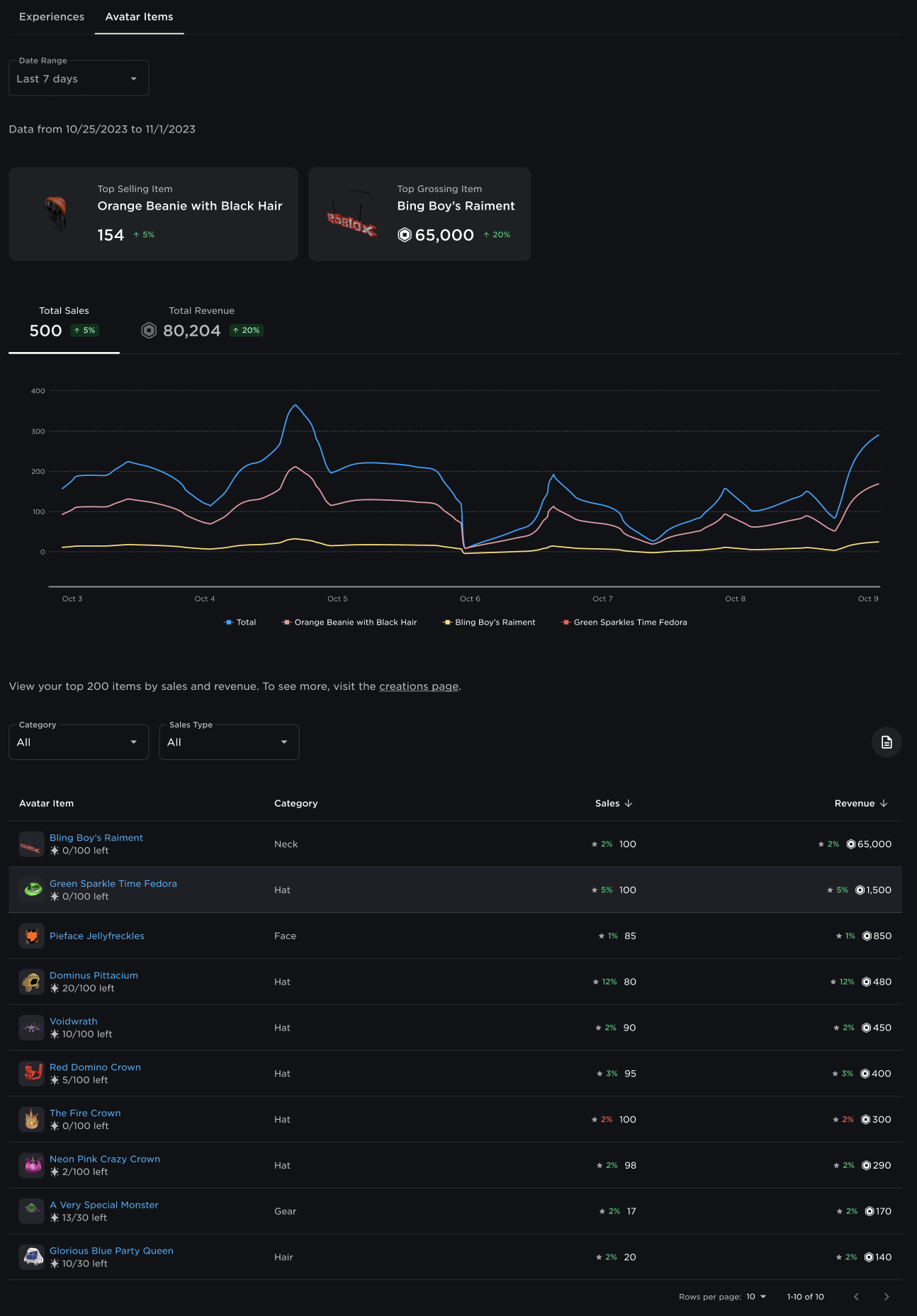
Avatar Items on Analytics Home.
Track user acquisition
The Share Links tab provides information about the Link Visits metric, which tracks how many users have arrived on your game details page by clicking on the share link you created.
Access analytics in-game
The AnalyticsService:GetPlayerSegmentsAsync() method lets you query player analytics data directly in your game at runtime. This enables you to tailor gameplay, onboarding, and monetization opportunities for each individual player based on characteristics, or segments, such as their spending behavior or overall length of time spent in your game.
By retrieving a player's segment information in-game, you can dynamically adjust UI, offers, and gameplay systems to better match the player's profile and stage of engagement. For example, you can:
Adjust store offerings by payer status - Present store items that better match a player's purchase history and stage of progression. For example, players who haven't spent Robux yet might see lower-cost items that support early gameplay, while players who have previously purchased may see bundle options or broader upgrades.
Adapt onboarding and progression using account age - Newer players, such as those within their first 30 days of playing your game, can receive additional tutorials, tooltips, and simplified content. You can also direct more experienced players toward advanced systems such as events, PvP areas, or end-game content.
For implementation details, code samples, and the full list of available segment dimensions, see AnalyticsService:GetPlayerSegmentsAsync.