
Source: Roblox Creator Hub · CC BY 4.0 · View source · Code samples: MIT Imported 2026-10-03. Formatting adapted for this site.
Asset Manager
The Asset Manager, accessible from Studio's Window menu or Home tab, lets you manage places and bulk import assets into your game, including images, meshes, packages, audio, and models.
Inventory sorting
Assets are sorted by various inventories as selected through the collapsible menu on the left side of the window. If you don't see the sorting list, click the expand/collapse button in the lower‑left area of the window.
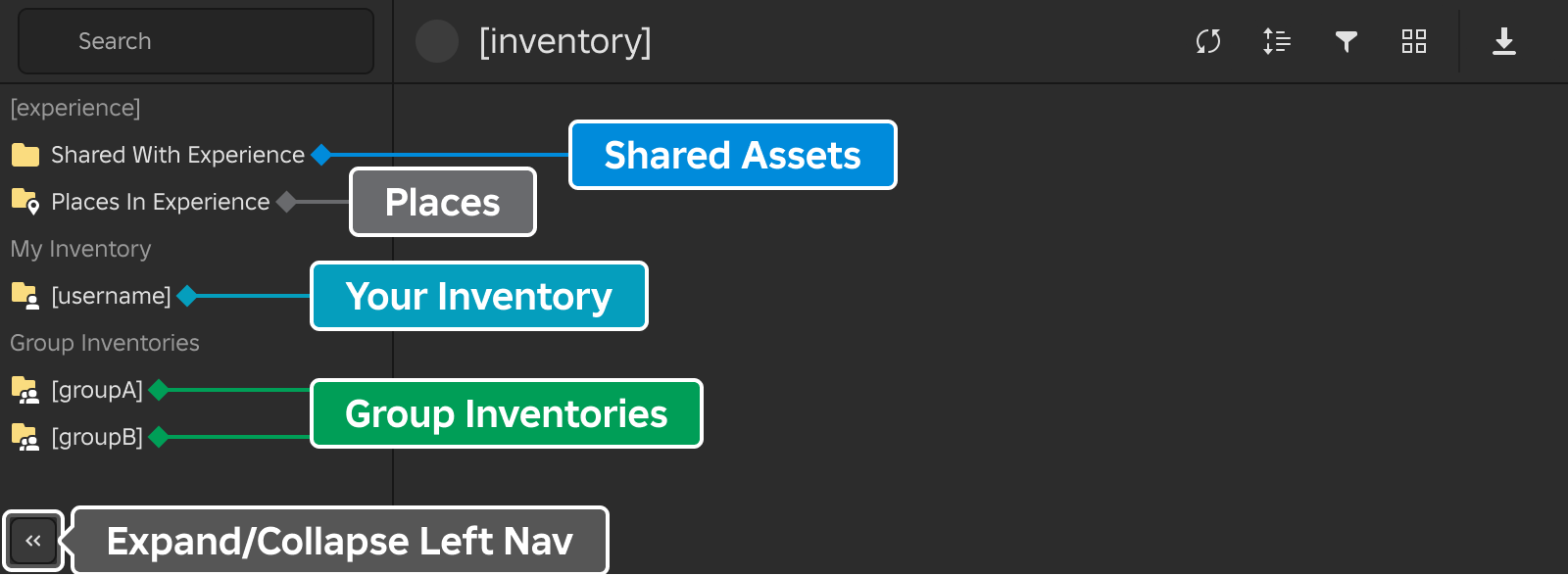
**
** — The open game's inventory, displayed by its name, with assets shared with the game listed under Project.Places In Experience — The game's places.
My Inventory — Assets imported to your own user account, shared with you, or acquired from the Creator Store.
Group Inventories — Assets imported into groups you own or groups you belong to (assuming you have sufficient permissions within the group), or assets shared with the groups. Right‑clicking over a group reveals a context menu with the following options:
**Hide Group** Hides the group from the sidebar. **Customize Groups** Allows you to choose the groups which appear in the sidebar and search filter options. **Refresh Groups** Refreshes the list of groups that you're eligible to show or hide.
Folders
Folders let you organize assets and other folders into a hierarchy within an inventory. You can create folders inside My Inventory, inside Group Inventories that support folder operations, and inside an open game's inventory under Project.
Folders have the following limits:
- Up to 50,000 folders per account or root inventory.
- Up to 100 child folders in any single folder or root inventory.
- Up to 20,000 assets per folder.
- Up to 20 levels of folder nesting.
Note
The first time folders are initialized for an account, a brief setup period may apply. If folder operations aren't yet available, the sidebar shows a warning icon next to the affected account; click it to refresh readiness. Setup typically completes within a few minutes.
Create, rename, and delete
Right-click in the sidebar or main view to access folder actions.
| Action | Description |
|---|---|
| **Create Folder** | Creates a new empty folder in the current location. A new entry appears with an inline name field; type a name and press Enter to confirm or Esc to cancel. |
| **Group Selection as Folder** | Available when one or more assets are selected. Creates a new folder and moves the selected assets into it. |
| **Rename** | Replaces the folder's name with an inline editable field pre-filled with the current name. Press Esc to cancel without committing changes. |
| **Delete Folder** | Removes the folder. Folders must be empty before they can be deleted; move or delete the contents first. When multiple empty folders are selected, the menu shows **Delete Folders**. |
Folder names cannot contain \, /, :, *, ?, ", <, >, or |, and cannot end with a period. Names beginning with a period (for example, .hidden) are allowed.
Navigate
You can navigate the folder hierarchy from either panel:
- Sidebar — Use the expand arrow to reveal subfolders, or single-click a folder to open it.
- Main view — Double-click a folder to drill into it. Click the parent entry in the sidebar, or use the back arrow, to return.
Move items
You can move both assets and folders, but only within the same inventory. Cross-inventory moves (for example, from My Inventory into a group inventory) aren't supported.
| Method | Description |
|---|---|
| **Drag and drop** | Drag selected items onto a destination folder in either the main view or the sidebar tree. Valid drop targets highlight while you hover. |
| **Move dialog** | Right-click a selection and choose **Move** to open a folder picker. Use the drill-in arrow or double-click to enter a folder, **Back** to go up a level, then select a destination and click **Move**. **Refresh** re-fetches the folder list from the server. |
You can move multiple items at once. Moving a folder into itself or into one of its own descendants is blocked, and invalid destinations are not highlighted as drop targets or are grayed out in the Move dialog.
Search and folders
When you type a search query, results include a separate Folders section listing matching folders alongside asset results. Double-click a folder result to exit search mode and navigate into that folder.
Note
Drag-and-drop and the Move dialog are disabled while viewing search results. Navigate to a folder or inventory first, then reorganize.
Unsupported scopes
Folder operations aren't available in the following views:
- Places In Experience — Places can't be organized into folders.
- Recent Uploads — Read-only for organizational purposes.
Asset display options
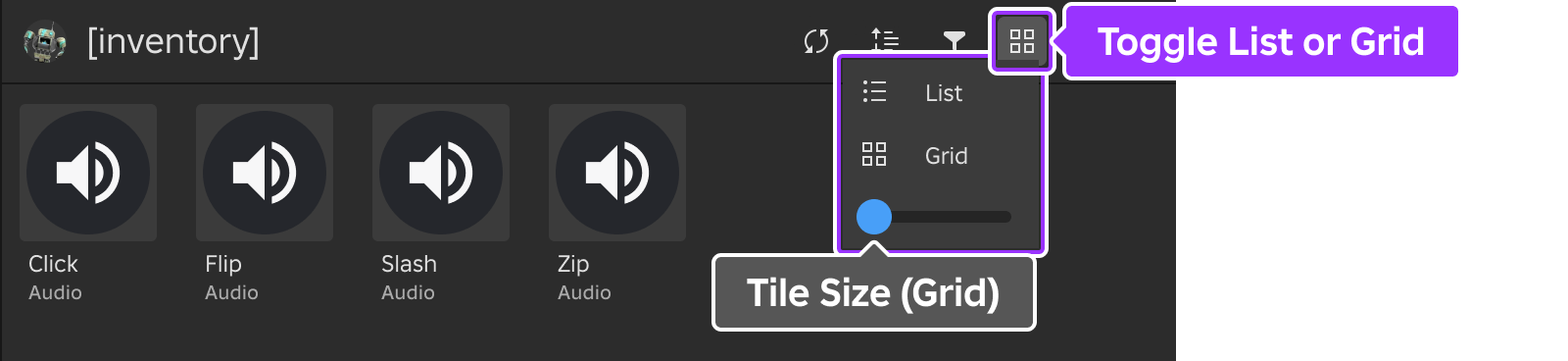
In the main panel, assets for the selected inventory are displayed. To toggle the view type, click on the view type button and select either List or Grid. While in grid view, asset tiles can be resized through the slider widget.
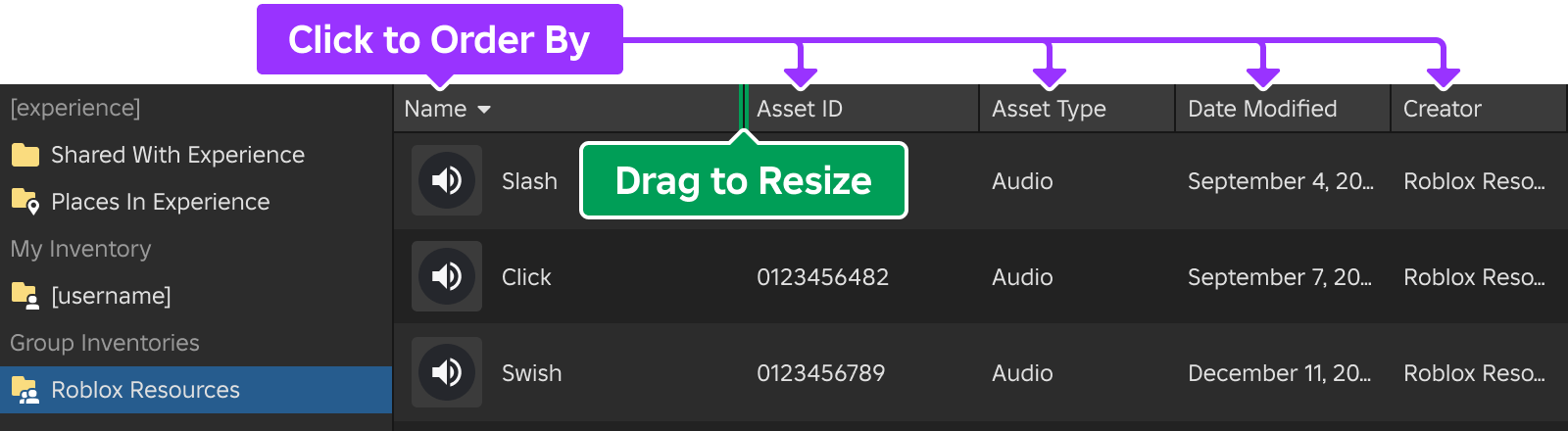
In List view, click on a column header to order assets by that detail and resize columns by dragging the separator bar between them.
Note
Columns can be toggled on or off by right‑clicking in the header bar region. While columns cannot be reordered by dragging, you can toggle any column off and then toggle it back on to add it as the furthest column to the right.
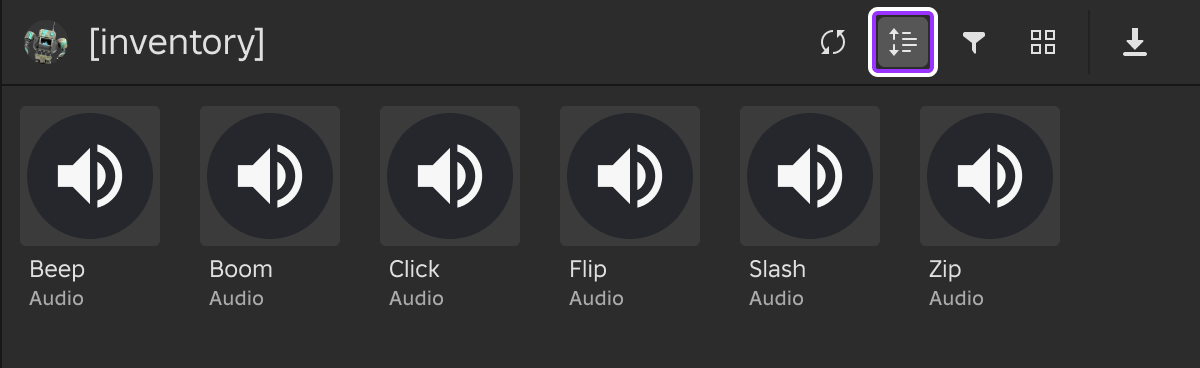
In Grid view, ordering is controlled through the sort button:
Asset type filters
The filter items button lets you control which assets are displayed.

| Filter Type | Options |
|---|---|
| **Asset Type** | **Animation** | **Audio** | **Decal** | **FontFamily** | **Image** | **Mesh** | **MeshPart** | **Model** | **Place** | **Plugin** | **Video** |
| **Creator** | |
| **Source** | **Creator Store** | **Shared With Me** | **Uploaded** |
| **Is Package** | |
| **Only Archived** |
Asset import
The asset import button lets you import one or more assets of any asset type. Imported assets enter the moderation queue and, upon approval, are added to the inventory of the user/group that owns the game.
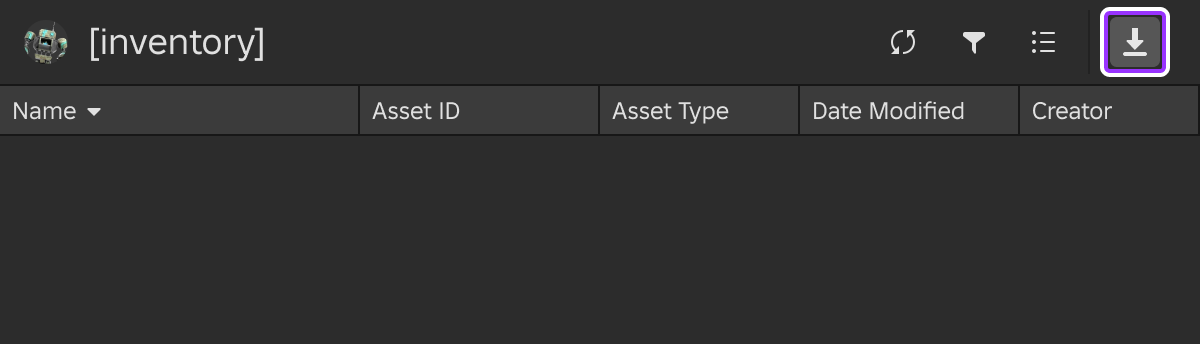
For more information on supported file types and other features, see Importer.
Insert and quick actions
Quick actions are accessible by right‑clicking an asset name/tile and selecting an option from the context menu. Note that places offer unique actions versus other assets.
General
| Action | Description |
|---|---|
| **Insert** | Lets you select from either **Insert at Camera** or **Insert at Asset Position** for spatial 3D assets (non‑spatial assets like audio are simply inserted into the [`Workspace`](/docs/workspace) or the currently selected [Explorer](/docs/roblox-studio-explorer) instance). Does not appear for **FontFamily** or **Plugin** assets. |
| **Edit Asset** | Opens the asset configuration window to edit details such as the asset title, description, and more. Does not appear for **FontFamily** or **Plugin** assets. |
| **Move** | Opens the [Move dialog](#move-items) to relocate the asset into a folder within the same inventory. Disabled while viewing search results. |
| **Copy Asset ID** | Copies the asset ID to the clipboard, convenient for pasting the ID into an object's property value such as [`AudioPlayer.AssetId`](/docs/audioplayer#audioplayer-assetid) or [`MeshPart.MeshId`](/docs/meshpart#meshpart-meshid). |
| **View in Browser** | Opens your browser to the asset's page. |
| **Install** / **Update** / **Report** | Applicable only for **Plugin** assets. Installs, updates, or reports the plugin, respectively. |
Places
| Action | Description |
|---|---|
| **Open** | Opens the place in another Studio session if it's not the currently open place. |
| **Rename** | Lets you enter a new name for the place. |
| **View History** | Opens the place version history, letting you view previous commits (publish actions) and their date/time. If desired, you can roll back to a previous version by selecting it and clicking the **Open** button. |
| **Remove From Experience** | Completely removes the place from the game. Not applicable to the [starting place](/docs/roblox-production-publishing-publish-games-and-places#change-start-place). |
| **Copy Asset ID** | Copies the place's [`PlaceId`](/docs/datamodel#datamodel-placeid) to the clipboard. |
| **View in Browser** | Opens your browser to the place's page. |
Search query language
Use the search query language to refine how you find assets in your Asset Manager inventory. You can combine keywords, operators, and tags to filter, prioritize, or exclude results.
Note
When combining multiple features, search terms are processed in the following order (highest to lowest priority): Exact search → Excluded terms → Optional terms → Asset ID tag → Created before → Created after → Updated before → Updated after → Creator name → Creator ID → Group name → Group ID → Numeric asset ID → Audio type.
Query features
The following features can be combined in a single query:
| Feature | Syntax | How it works |
|---|---|---|
| Exact search | "..." | Matches a phrase exactly. Exact matches take the highest priority and bypass other tag processing. Use quotes to search for text that looks like a tag (for example, "asset_id:123"). You can mix quoted phrases with regular terms and include multiple quoted phrases in one query. |
| Exclude terms | -termexclude:term | Excludes results containing specific terms. You can use multiple - prefixes and exclude tags in the same query, or mix both syntaxes. |
| Optional terms | term?term!optional:term | By default, all terms are required. Optional terms boost matching results without excluding results that don't contain them. You can use ?, !, or the optional tag, and mix these syntaxes. |
| Asset ID search | asset_id:123456assetId:123456123456 | Pins matching assets to the top of the results. A standalone number is treated as an asset ID if it matches one. Multiple IDs are supported and are merged automatically. |
| Date filters | created_beforecreated_afterupdated_beforeupdated_after | Filters results by creation or update date. Dates use the US format (MM/DD/YYYY) and must be wrapped in brackets if they include spaces. Natural language dates (for example, "yesterday") are not supported. Each tag also supports a camelCase alternative: createdBefore, createdAfter, updatedBefore, updatedAfter. |
| Creator filters | creator_namecreator_idgroup_namegroup_id | Filters results by the creator user or creator group based on their name or ID. When multiple creator or group filters are provided, results matching any of them are included. Each tag also supports a camelCase alternative: creatorName, creatorId, groupName, groupId.Names that contain spaces must be wrapped in brackets (for example, group_name:[Group With Space]). If a provided name or ID is invalid, only that specific filter is ignored; other valid creator or group filters in the same query are still applied. |
| Audio type | musicsfxsound effects | Filters audio assets by type. To restrict results to a specific audio type, append the type at the end of your query. To search for the literal word instead of filtering, wrap the word in quotes. |
Tags
Tags modify how search works, but they are not treated like search terms themselves. They only filter or rank your results. If a tag has a typo or an invalid date, it's treated as a regular search term instead.
Tags can use the formats tag:value or tag=value, and are not case-sensitive.
Some tags accept multiple values when you use brackets. For example, exclude:[rusty, broken] and asset_id:[123, 456].
Date formats
Date filters support the following formats:
| Format | Example |
|---|---|
| ISO 8601 | `2026-03-10` |
| ISO with time | `2026-03-10T14:30:00Z` |
| US format | `03/10/2026` |
| Long form (requires brackets) | `[March 10, 2026]` |
| With time (requires brackets) | `[03/10/2026 2:30 PM]` |
Example queries
"wooden crate" asset_id:99887766 created_after:2023-06-01 -damaged optional:painted: Exactly matches "wooden crate", pins a specific asset by ID, filters by date, excludes "damaged", and ranks "painted" results higher.explosion sfx -loop created_before:[December 31, 2023]: Filters sound effects named "explosion", excludes looping variants, and limits the results by date.125447393891114 sword glowing? -rusty: Pins a specific asset by ID, searches for "sword", boosts "glowing", and excludes "rusty".tree creator_name:buildmaster group_id:9876543: Searches for "tree", filtered to assets by creator "buildmaster" or the group with ID 9876543.sword creator_id:1000001,2000002 group_name:[Studio Builders]: Searches for "sword", filtered to assets by creators with IDs 1000001 or 2000002, or the group "Studio Builders".