
Source: Roblox Creator Hub · CC BY 4.0 · View source · Code samples: MIT Imported 2026-10-03. Formatting adapted for this site.
Photo Booth
Taking a photo is a perfect way to commemorate a great game. The PhotoBooth developer module is an easy-to-use photo staging tool which lets the players strike a unique pose with a background that represents their experience.
Module usage
Installation
To use the PhotoBooth module in a game:
From Studio's Window menu or Home tab toolbar, open the Toolbox and select the Creator Store tab.
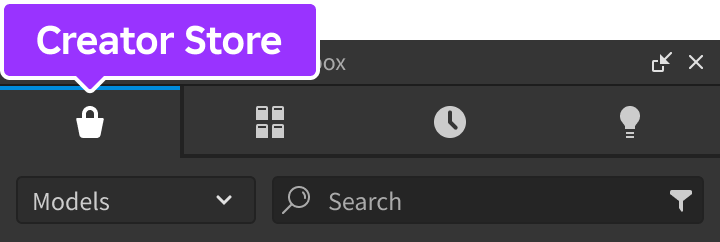
Make sure the Models sorting is selected, then click the See All button for Categories.

Locate and click the Packages tile.
Locate the Photo Booth module and click it, or drag-and-drop it into the 3D view.

In the Explorer window, move the entire PhotoBooth model into
ReplicatedStorage. Upon running the game the module will begin running.
Position the booth
The module comes with one PhotoBooth model that you can position in the 3D world. This model is what players will interact with to set up a photo.
Locate the PhotoBooth mesh inside the Workspace folder of the module's main folder.

Move it into the top-level Workspace hierarchy and position it where desired.

Note
It is not required that you use the packaged mesh for triggering photo printouts. The module uses [`CollectionService`](/docs/collectionservice) to locate parts tagged as `PhotoBooth` and make them operate as photo booths. If desired, the [`CollectionService`](/docs/collectionservice) tag name to search for can be changed by setting a different value for `photoboothTag` in a [configure](#configure) call.Configuration
The module is preconfigured to work for most use cases, but it can be easily customized through the configure function. For example, to change the default message at the bottom of the photo:
In StarterPlayerScripts, create a new
LocalScriptand rename it to ConfigurePhotoBooth.
Paste the following code into the new script.
local ReplicatedStorage = game:GetService("ReplicatedStorage")

local PhotoBooth = require(ReplicatedStorage.PhotoBooth)

PhotoBooth.configure({
    frameMessage = "First Photo Booth Capture!",
})
Connect to events
Every time the photo booth displays a new screen to a local client, a corresponding event is fired. These events can be connected in a LocalScript so that you can respond with your own custom logic.
local ReplicatedStorage = game:GetService("ReplicatedStorage")

local PhotoBooth = require(ReplicatedStorage.PhotoBooth)

PhotoBooth.countdownStarted:Connect(function()
	print("The countdown has started")
end)

PhotoBooth.printoutShown:Connect(function()
	print("The printout is showing")
end)

PhotoBooth.promptShown:Connect(function()
	print("The camera prompt is showing")
end)
GUI visibility
By default, the photo booth hides all ScreenGuis and CoreGuis when a photo is staged. If you want to override this auto-hiding behavior and programmatically decide which GUIs should remain visible, include the hideOtherGuis and showOtherGuis callbacks and respond with your own custom logic.
local Players = game:GetService("Players")
local ReplicatedStorage = game:GetService("ReplicatedStorage")
local StarterGui = game:GetService("StarterGui")

local PhotoBooth = require(ReplicatedStorage.PhotoBooth)

local player = Players.LocalPlayer
local playerGui = player:WaitForChild("PlayerGui")
local hiddenInstances = {}

-- Create a screen GUI that will not be hidden
local specialGuiInstance = Instance.new("ScreenGui")
-- Draw the screen GUI above the photo booth GUI
specialGuiInstance.DisplayOrder = 1
specialGuiInstance.Parent = playerGui
-- Set attribute on screen GUI to prevent hiding
specialGuiInstance:SetAttribute("ShowInPhotoBooth", true)
-- Add text label to the GUI
local specialLabel = Instance.new("TextLabel")
specialLabel.Size = UDim2.fromScale(1, 0.1)
specialLabel.Text = "Remains visible when taking a photo"
specialLabel.Font = Enum.Font.GothamMedium
specialLabel.TextSize = 24
specialLabel.Parent = specialGuiInstance

PhotoBooth.hideOtherGuis(function()
	-- Hide all developer-defined screen GUIs except those marked with attribute
	local instances = playerGui:GetChildren()
	for _, instance in instances do
		if instance:IsA("ScreenGui") and not instance:GetAttribute("ShowInPhotoBooth") and instance.Enabled then
			instance.Enabled = false
			table.insert(hiddenInstances, instance)
		end
	end
	-- Hide specific core GUIs
	StarterGui:SetCoreGuiEnabled(Enum.CoreGuiType.PlayerList, false)
end)

PhotoBooth.showOtherGuis(function()
	-- Show all developer-defined screen GUIs that were hidden
	for _, instance in hiddenInstances do
		instance.Enabled = true
	end
	hiddenInstances = {}
	-- Show specific core GUIs that were hidden
	StarterGui:SetCoreGuiEnabled(Enum.CoreGuiType.PlayerList, true)
end)
API reference
Functions
configure
configure(config: table)
Overrides default configuration options through the following keys/values in the config table. This function can only be called from a LocalScript.
Appearance
| Key | Description | Default |
|---|---|---|
| `frameMessage` | Message that is shown at the bottom of the photo. Its duration can be controlled via the `fadeUiDelay` property. | "Use your device to take a screenshot and share!" |
| `fadeUiDelay` | Time to show the frame message before it fades out, in seconds. Set to a negative number to never fade. | 3 |
| `closeButtonImage` | Image to use for the close photo button, placed overtop the `closeButtonBackgroundImage` image. | "rbxassetid://7027440823" |
| `closeButtonBackgroundImage` | Background image to use for the close photo button. | "rbxassetid://7027440891" |
| `cameraLandscapePosition` | Distance of the photo booth's camera, in front and upward from the character, when taking a photo in landscape mode ([`Vector2`](/docs/vector2)). | (5, 2) |
| `cameraPortraitPosition` | Distance of the photo booth's camera, in front and upward from the character, when taking a photo in portrait mode ([`Vector2`](/docs/vector2)). | (10, 1) |
| `countdownFont` | Font to use for the numbers in the countdown ([`Font`](/docs/enum-font)). | [`GothamBlack`](/docs/enum-font) |
| `countdownTextColor` | Color of the numbers in the countdown ([`Color3`](/docs/color3)). | [255, 255, 255] |
| `printoutCharacterPosition` | Position of the character on the screen when the printout is showing ([`UDim2`](/docs/udim2)). | (0.5, 0, 0.5, 0) |
| `printoutCharacterSize` | Amount of screen space the character takes up in the printout ([`UDim2`](/docs/udim2)). | (1, 0, 1, 0) |
| `characterAnimation` | Asset ID of the animation the character takes in the photo, paused at its starting frame. | "rbxassetid://6899663224" |
| `filterImage` | Image to apply over the photo as a filter. If `nil`, a default filter that darkens the image edges will be used. | `nil` |
Behavior
| Key | Description | Default |
|---|---|---|
| `maxActivationDistance` | Maximum distance, in studs, a player's character can be from the photo booth for the prompt to appear. | 10 |
| `countdownBeepSound` | Asset ID of the [`Sound`](/docs/sound) to play for each number shown in the countdown. | "rbxassetid://7743999789" |
| `countdownFlashSound` | Asset ID for the [`Sound`](/docs/sound) to play when the flash effect is shown. | "rbxassetid://7744000850" |
| `countdownSeconds` | Number of seconds to count down for. | 3 |
| `photoboothTag` | Tag used by [`CollectionService`](/docs/collectionservice) to find all "booths" in the place. | "PhotoBooth" |
local ReplicatedStorage = game:GetService("ReplicatedStorage")

local PhotoBooth = require(ReplicatedStorage.PhotoBooth)

PhotoBooth.configure({
	frameMessage = "What a cool pose!",
	fadeUiDelay = 5,
	maxActivationDistance = 5,
	printoutCharacterSize = UDim2.fromScale(1.5, 1.5),
})
setBackgrounds
setBackgrounds(backgrounds: table)
Overrides the default backgrounds provided by the photo booth. Background images should be at 16:9 aspect ratio (1024×576) for an optimal experience and their asset IDs should be included in the backgrounds array. 1–4 (inclusive) backgrounds can be provided.
local ReplicatedStorage = game:GetService("ReplicatedStorage")

local PhotoBooth = require(ReplicatedStorage.PhotoBooth)

PhotoBooth.setBackgrounds({
    "rbxassetid://7018713114",
    "rbxassetid://950538356",
})
Events
countdownStarted
Fires when the countdown starts. This event can only be connected in a LocalScript.
local ReplicatedStorage = game:GetService("ReplicatedStorage")

local PhotoBooth = require(ReplicatedStorage.PhotoBooth)

PhotoBooth.countdownStarted:Connect(function()
	print("The countdown has started")
end)
printoutShown
Fires when the printout is shown to the user. This event can only be connected in a LocalScript.
local ReplicatedStorage = game:GetService("ReplicatedStorage")

local PhotoBooth = require(ReplicatedStorage.PhotoBooth)

PhotoBooth.printoutShown:Connect(function()
	print("The printout is showing")
end)
promptShown
Fires when the printout is closed and the camera button is showing again. This event can only be connected in a LocalScript.
local ReplicatedStorage = game:GetService("ReplicatedStorage")

local PhotoBooth = require(ReplicatedStorage.PhotoBooth)

PhotoBooth.promptShown:Connect(function()
	print("The camera prompt is showing")
end)
Callbacks
hideOtherGuis
hideOtherGuis(callback: function)
This callback runs immediately before the printout is displayed, letting you disable entire ScreenGuis or elements within them before the printout is shown. GUIs used by the photo booth have the attribute ShowInPhotoBooth set to true. See GUI Visibility for details and sample code.
showOtherGuis
showOtherGuis(callback: function)
This callback runs after the printout has been closed, letting you reenable entire ScreenGuis or elements within them. GUIs used by the photo booth have the attribute ShowInPhotoBooth set to true. See GUI Visibility for details and sample code.