
Source: Roblox Creator Hub · CC BY 4.0 · View source · Code samples: MIT Imported 2026-10-03. Formatting adapted for this site.
Text chat overview
Roblox offers text-based messaging between players in live sessions through TextChatService, a singleton class responsible for managing the overall chat system, including chat message filtering, moderation, and user permissions. This service has its standard functionality and also provides a set of methods and events for extending and customizing chat, such as delivering messages based on customized requirements, adding special permissions or moderation to specific players, and creating custom commands to execute specific actions.
UI configuration
TextChatService provides a default UI that can be customized to fit your game's needs. Disable any of these configurations to hide its associated UI element. If desired, you can also replace these UI elements with custom interfaces:
For more information, see Chat window and Bubble chat.
Channels, messages, and commands
TextChannel— Text channels pass user-sent messages from the client to the server, which then displays them to other users based on permissions. Text channels must be parented toTextChatServicein order to function.
Note
If [`TextChatService.CreateDefaultTextChannels`](/docs/textchatservice#textchatservice-createdefaulttextchannels) is set to `true`, the service automatically creates two text channels, `RBXGeneral` and `RBXSystem`. You can manually create additional [`TextChannel`](/docs/textchannel) instances and parent them to [`TextChatService`](/docs/textchatservice), as well.Note
Having multiple [`TextChannels`](/docs/textchannel) with the same name can cause unintended behavior with the default [chat window](/docs/roblox-chat-chat-window).TextSource— A user in aTextChannel. Text sources are directly parented to theTextChannelwhenAddUserAsync()is called. Text sources contains detailed permissions of a user in the channel, such as their ability to send messages. If a single user is in multiple text channels, they are associated with multiple text sources.TextChatMessage— A message in a text channel. Chat messages contain basic information such as the sender of the message, the original message, the filtered message, and the creation timestamp.TextChatCommand— Lets users invoke specific actions or behaviors by sending messages that match thePrimaryAliasorSecondaryAliasproperties. Chat commands must be parented toTextChatServicein order to function.
Note
If [`TextChatService.CreateDefaultCommands`](/docs/textchatservice#textchatservice-createdefaultcommands) is set to `true`, default chat commands will be created automatically. You can manually create additional [`TextChatCommand`](/docs/textchatcommand) instances and parent them to [`TextChatService`](/docs/textchatservice), as well.Chat flowchart
Text chat uses the client‑server model, with a sending client, the server, and receiving clients.
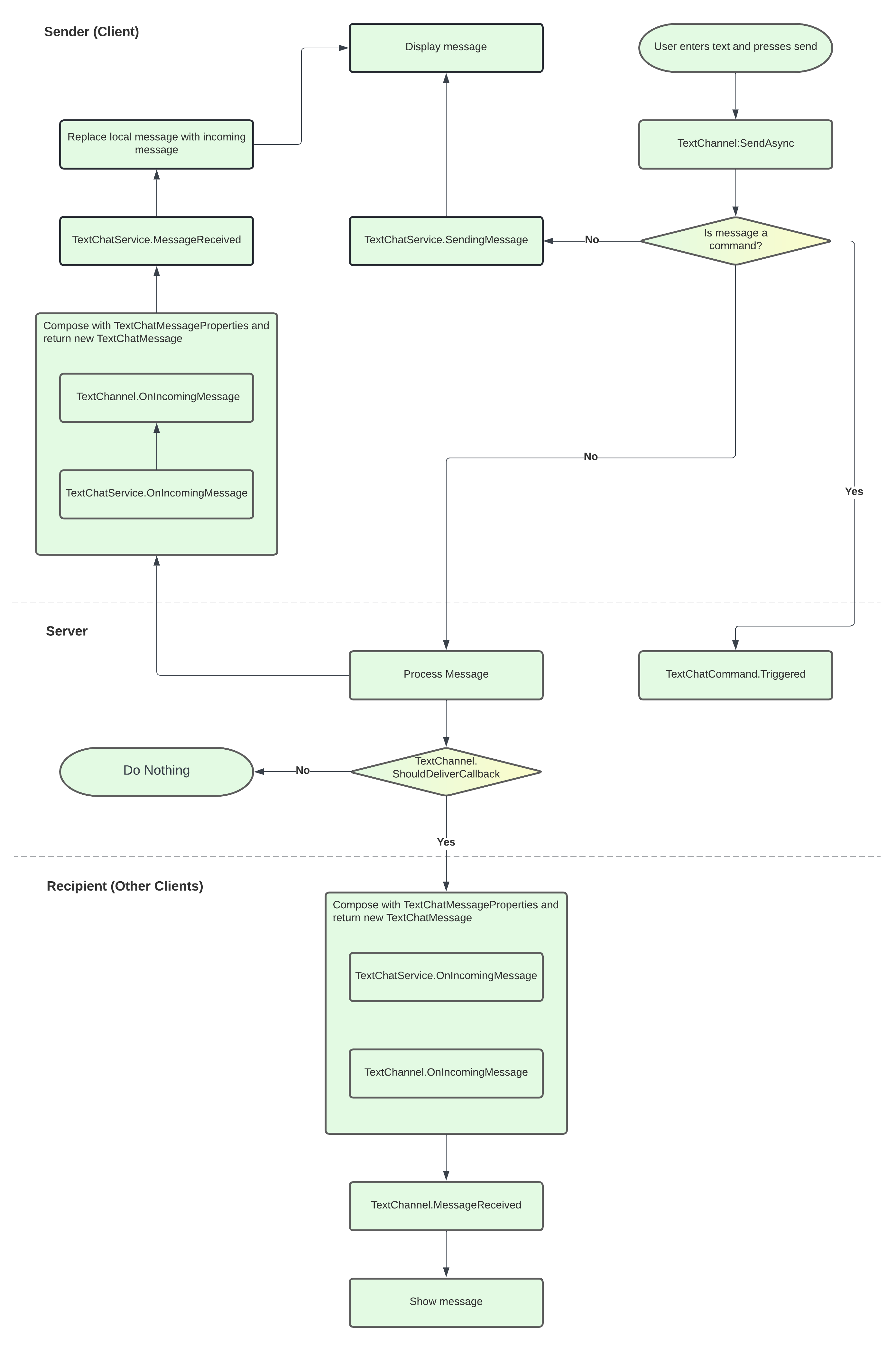
A player sends a message from their local device, triggering the
TextChannel:SendAsync()method. This method processes the message and determines whether it's a chat command or a regular chat message.If the message is a chat command, it fires the
TextChatCommand.Triggeredevent to perform the defined action. No further steps are required.If the message is a regular chat message, it fires the
TextChatService.SendingMessageevent to display the message to the sender on the sending client. At the same time,TextChannel:SendAsync()passes the message to the server.
The server fires
TextChannel.ShouldDeliverCallbackto determine whether to deliver the message to other players based on permissions and Roblox community filtering requirements.If
TextChannel.ShouldDeliverCallbackdetermines that message is eligible to deliver to other players, the server applies any filters and firesTextChannel.OnIncomingMessagetwice:The first time is on the sending client and signals that the server is processing the message through the
TextChatService.MessageReceivedevent. This event replaces the local message on the sending client with the processed message from the server. The message is identical if the original didn't require filtering.The second time is on the receiving clients, which triggers the
TextChatService.MessageReceivedevent to display the message to other players.
Text chat hooks and callbacks
The TextChatService API encourages a clear separation on the appearance and delivery of chat messages. Multiple instances of the text chat system provide hooks and callbacks to format in centralized, clear locations.
Note
All callbacks are expected to be non-yielding functions. Yielding or waiting for a response in a callback blocks the chat system and can cause unexpected behavior.
Conditionally deliver messages
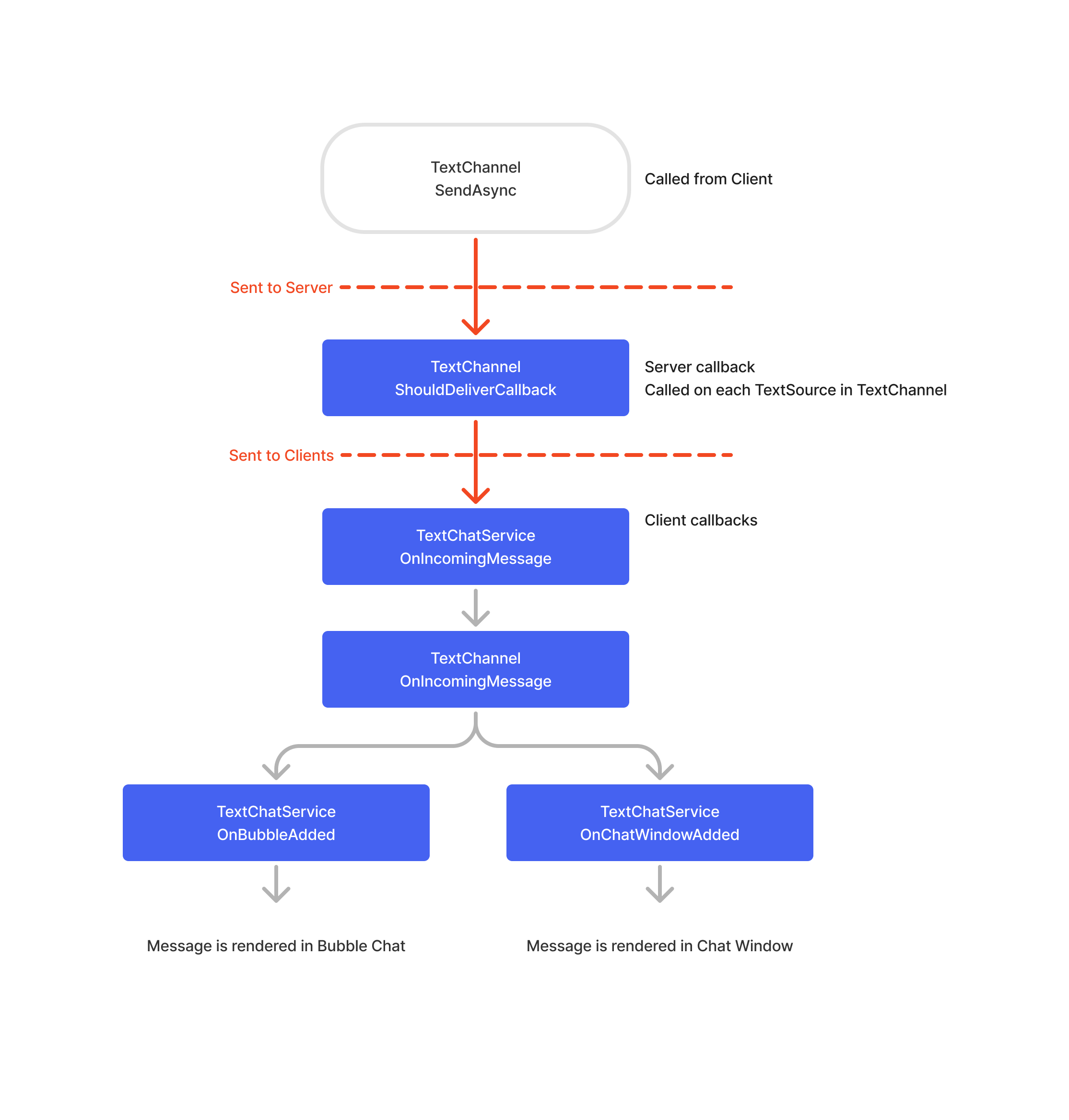
The TextChannel.ShouldDeliverCallback callback should be defined on the server only. The callback is fired for each TextSource child of the text channel when a message is sent to determine whether the message should be delivered. This callback can be used to implement custom message delivery logic that may depend on additional gameplay context, such as:
- Proximity-based chat where users can only send messages to those close to them.
- Preventing users with certain attributes from sending messages to others.
Customize message display
The default TextChatService UI relies on rich text to format and customize how messages are displayed. You can use the following callbacks to format messages before they are displayed to users, for example to add colors or chat tags to user names or format message content.
The following callbacks are called on every TextChatMessage that is about to be displayed, which lets you customize chat window appearance based on the TextChannel, TextSource, or TextChatMessage content. When a client sends a message, these callbacks are called once when the message is sent to the server and the TextChatMessage.Status value will be TextChatMessageStatus.Sending. Once the message is received by the server and is being delivered to other users, the sender client receives the message again with an updated TextChatMessageStatus value.
TextChatService.OnIncomingMessage— This callback should be defined on the client only. The callback is fired when a message is received, either from the server or if the local client has just sent a message. The callback is called on everyTextChatMessagereceived from allTextChannelinstances and is the first to process the message before it is displayed to the user.TextChannel.OnIncomingMessage— This callback should be defined on the client only. The callback is fired when a message is received from the server. The callback is called on everyTextChatMessagereceived from theTextChannel. DefaultTextChannelinstances created fromTextChatService.CreateDefaultTextChannelshave this callback defined and can be overwritten.TextChatService.OnBubbleAdded— This callback should be defined on the client only. Use it to customize the appearance of chat bubbles independent of the appearance of the message in the chat window UI.TextChatService.OnChatWindowAdded— This callback should be defined on the client only. Use it to customize the appearance of chat messages in the chat window UI independent of the appearance of the message in chat bubbles.
Migrate from legacy chat
This section assists you in migrating from the legacy chat system by providing alternative methods for implementing common chat functionalities and behaviors using TextChatService.
In the Explorer window, select
TextChatService.In the Properties window, find the
ChatVersiondropdown and selectTextChatService.
Basic functionalities
Though both systems share the same basic chat functionalities, TextChatService implementations are in general more sustainable and easier to iterate on.
| Functionality | Legacy chat | TextChatService | Differences |
|---|---|---|---|
| Send a chat message | [`Players:Chat()`](/docs/players#players-chat) | [`TextChannel:SendAsync()`](/docs/textchannel#textchannel-sendasync) | The [`SendAsync()`](/docs/textchannel#textchannel-sendasync) method supports more advanced chat features, such as rich text formatting and message priority. It also includes built-in filtering to help prevent inappropriate messages from being sent. |
| Implement messaging callbacks | [`Chat:InvokeChatCallback()`](/docs/chat#chat-invokechatcallback) [`Chat:RegisterChatCallback()`](/docs/chat#chat-registerchatcallback) | [`TextChatService.SendingMessage`](/docs/textchatservice#textchatservice-sendingmessage) [`TextChatService.OnIncomingMessage`](/docs/textchatservice#textchatservice-onincomingmessage) | The legacy chat system binds a function to chat system events for delivering messages. The two methods of `TextChatService` offer better flexibility and customization. |
| Add custom chat commands | `ChatService/ChatCommand` module | [`TextChatCommand`](/docs/textchatcommand) | `TextChatService` has a dedicated class for text commands rather than using a legacy chat module. |
| Display a system message | [`StarterGui:SetCore()`](/docs/startergui#startergui-setcore) using `ChatMakeSystemMessage` | [`TextChannel:DisplaySystemMessage()`](/docs/textchannel#textchannel-displaysystemmessage) | The [`TextChannel.OnIncomingMessage`](/docs/textchannel#textchannel-onincomingmessage) callback can return a [`TextChatMessageProperties`](/docs/textchatmessageproperties) instance to customize the message appearance. |
| Disable chat | `ChatWindow/ChatSettings` module for hiding the chat window | [`ChatWindowConfiguration.Enabled`](/docs/chatwindowconfiguration#chatwindowconfiguration-enabled) |
Message filtering
TextChatService automatically filters chat messages based on each player's account information, so you don't need to manually implement text filtering for all kinds of chat messages.
| Functionality | Legacy chat | TextChatService |
|---|---|---|
| Filter chat message for individual player | [`Chat:FilterStringAsync()`](/docs/chat#chat-filterstringasync) | Automatic |
| Filter broadcasting messages | [`Chat:FilterStringForBroadcast()`](/docs/chat#chat-filterstringforbroadcast) | Automatic |
Window and bubble chat
Both the chat window and bubble chat behavior and customization options of TextChatService are identical to those of the legacy chat system. As the legacy chat system only allows customization using chat modules or the Players container, the service provides dedicated classes (ChatWindowConfiguration and BubbleChatConfiguration) to manage all chat window and bubble chat properties. Additionally, you can easily adjust and preview your bubble chat appearance and behavior properties using Studio settings instead of having to script them all.
| Functionality | Legacy chat | TextChatService |
|---|---|---|
| Enable Chat Window | [`Chat.LoadDefaultChat`](/docs/chat#chat-loaddefaultchat) [`Players.ClassicChat`](/docs/players#players-classicchat) | [`ChatWindowConfiguration.Enabled`](/docs/chatwindowconfiguration#chatwindowconfiguration-enabled) |
| Enable Bubble Chat | [`Chat.BubbleChatEnabled`](/docs/chat#chat-bubblechatenabled) [`Players.BubbleChat`](/docs/players#players-bubblechat) | [`BubbleChatConfiguration.Enabled`](/docs/bubblechatconfiguration#bubblechatconfiguration-enabled) |
| Set Chat Window Properties | [`Players:SetChatStyle()`](/docs/players#players-setchatstyle) | [`ChatWindowConfiguration`](/docs/chatwindowconfiguration) |
| Set Bubble Chat Properties | [`Chat:SetBubbleChatSettings()`](/docs/chat#chat-setbubblechatsettings) [`Chat.BubbleChatSettingsChanged()`](/docs/chat) [`Players.BubbleChat`](/docs/players#players-bubblechat) [`Players:SetChatStyle()`](/docs/players#players-setchatstyle) | [`BubbleChatConfiguration`](/docs/bubblechatconfiguration) |
| Enable NPC Bubbles | [`Chat:Chat()`](/docs/chat#chat-chat) | [`TextChatService:DisplayBubble()`](/docs/textchatservice#textchatservice-displaybubble) |
Migrate speaker "extra data"
The legacy Lua chat system allowed developers to use SetExtraData on the Speaker class. This data was used to format the name color, chat color, or to apply name tags for a given speaker.
-- An example of setting extra data on a speaker in the legacy chat system
ChatService.SpeakerAdded:Connect(function(playerName)
	local speaker = ChatService:GetSpeaker(playerName)
	speaker:SetExtraData("NameColor", Color3.fromRGB(255, 255, 55))
	speaker:SetExtraData("ChatColor", Color3.fromRGB(212, 175, 55))
	speaker:SetExtraData("Tags", {{TagText = "YourTagName", TagColor = Color3.fromRGB(0, 255, 0)}, {TagText = "OtherTagName", TagColor = Color3.fromRGB(255, 0, 0)}})
end)
TextChatService does not have a direct equivalent to SetExtraData. Instead, use callbacks such as OnWindowAdded to customize the appearance of messages using rich text based on the TextSource of the message.
The following is an example of emulating legacy Lua chat's "extra data" by accessing attributes on Player objects:
local Players = game:GetService("Players")

Players.PlayerAdded:Connect(function(player)
	player:SetAttribute("NameColor", Color3.fromRGB(255, 255, 55))
	player:SetAttribute("ChatColor", Color3.fromRGB(212, 175, 55))
	player:SetAttribute("isYourTag", true)
	player:SetAttribute("isOtherTag", true)
end)
Then you can use the OnChatWindowAdded callback to customize the appearance of the chat window based on the attributes set on the player:
local TextChatService = game:GetService("TextChatService")
local Players = game:GetService("Players")

TextChatService.OnChatWindowAdded = function(textChatMessage)
	local textSource = textChatMessage.TextSource
	if textSource then
		local player = Players:GetPlayerByUserId(textSource.UserId)
		if player then
			local overrideProperties = TextChatService.ChatWindowConfiguration:DeriveNewMessageProperties()
			overrideProperties.PrefixText = textChatMessage.PrefixText
			overrideProperties.Text = textChatMessage.Text

			local nameColor = player:GetAttribute("NameColor")
			if nameColor and typeof(nameColor) == "Color3" then
				overrideProperties.PrefixTextProperties.TextColor3 = nameColor
			end

			local chatColor = player:GetAttribute("ChatColor")
			if chatColor and typeof(chatColor) == "Color3" then
				overrideProperties.TextColor3 = chatColor
			end

			local isYourTag = player:GetAttribute("isYourTag")
			if isYourTag == true then
				overrideProperties.PrefixText = `<font color='rgb(0, 255, 0)'>[YourTag]</font> {overrideProperties.PrefixText}`
			end

			local isOtherTag = player:GetAttribute("isOtherTag")
			if isOtherTag == true then
				overrideProperties.PrefixText = `<font color='rgb(255, 0, 0)'>[OtherTag]</font> {overrideProperties.PrefixText}`
			end

			return overrideProperties
		end
	end

	return nil
end