
Source: Roblox Creator Hub · CC BY 4.0 · View source · Code samples: MIT Imported 2026-10-03. Formatting adapted for this site.
Explorer window
The Explorer window, accessible from Studio's Window menu or Home tab toolbar, shows a hierarchical list of every instance inside a game. At the highest level of the hierarchy are the services; Workspace, for example, is where visible 3D content such as parts are stored.

Parent-child hierarchy
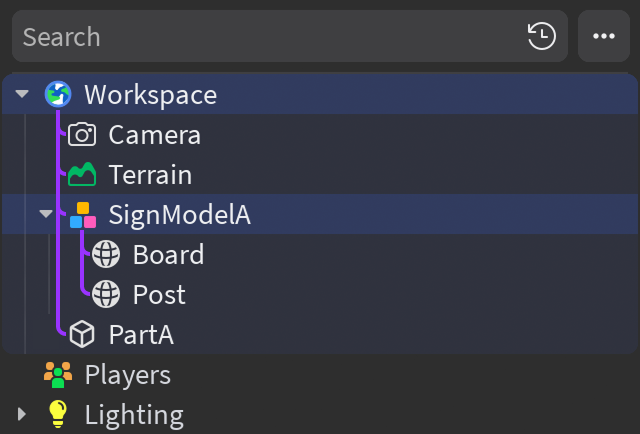
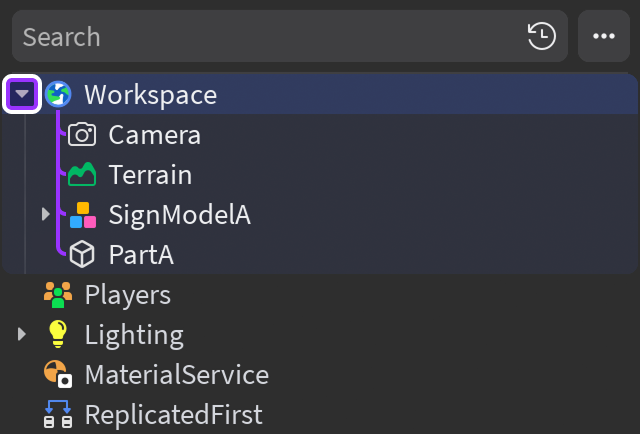
All children of a parent object appear under its branch when expanded. Click the arrow next to a parent branch — or press the →/← arrow keys when a parent is selected — to expand/collapse only that branch.
Note
To expand or collapse all branches within a multi‑nested hierarchy, hold Shift when clicking the expand/collapse arrow.
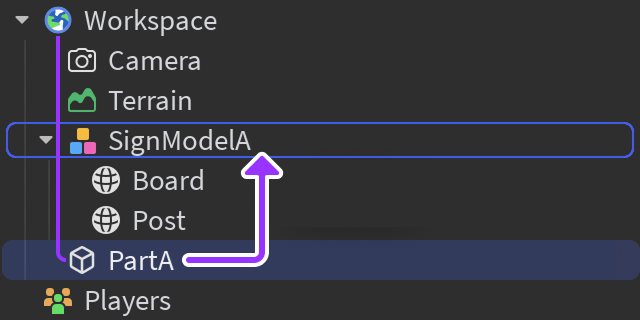
To change the parent of one or more children (reparent), simply drag and drop them onto the new parent.
Object insertion
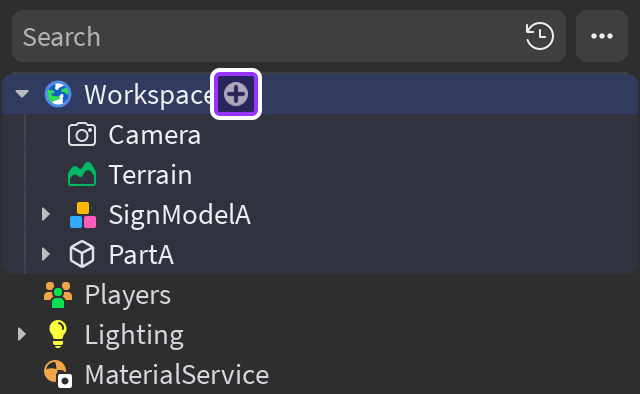
While primitive parts can be inserted from the Home or Model tab toolbars, you can select from a full array of objects by hovering over the intended parent and clicking the ⊕ button (shortcut of CtrlI on Windows or ⌘I on Mac).
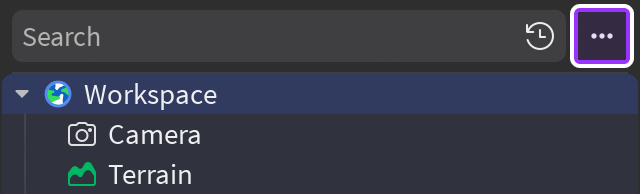
You can further customize insertion behavior by clicking the ⋯ button to the right of the search field:
| Option | Description |
|---|---|
| **Increment names for new instances** | When enabled, inserted/pasted/duplicated instances of the same type will have numbered names for differentiation. |
| **Expand hierarchy when selecting** | When enabled, inserting/pasting an instance or selecting an object in the [3D viewport](/docs/roblox-studio-ui-overview#3d-viewport) will expand the **Explorer** hierarchy to reveal that instance. When disabled, the top‑level parent within the hierarchy will be highlighted, but it won't expand to reveal the selected instance. |
Note
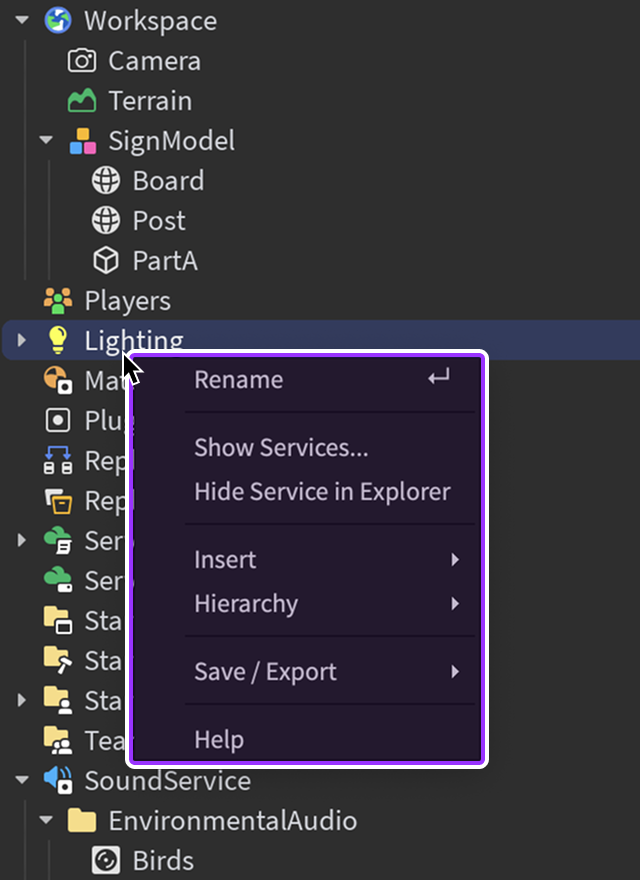
To keep the hierarchy cleaner, services such as VoiceChatService are hidden by default. You can show hidden services by right‑clicking in the window and selecting Show Services… from the context menu. Similarly, you can hide a visible service by right‑clicking it and selecting Hide Service in Explorer.
Duplicate and paste
Objects can be quickly duplicated into the same branch, while items copied to the clipboard can be pasted into the top‑level Workspace or directly into one or more existing parents.
| Action | Windows | Mac | Description |
|---|---|---|---|
| **Duplicate** | CtrlD | ⌘D | Duplicates the selected objects into the same branch. |
| **Paste** | CtrlV | ⌘V | Pastes the clipboard contents into the top‑level [`Workspace`](/docs/workspace) branch. |
| **Paste Into** | CtrlShiftV | ⌘ShiftV | Pastes the clipboard contents into the selected object(s). Using this action on multiple selected objects is a convenient way to paste the same clipboard items into multiple parents, such as a common [`Texture`](/docs/texture) into several different [`Parts`](/docs/part). |
Note
When pasting 3D objects copied to the clipboard, you can maintain their original CFrame position by right‑clicking the target parent instance in the hierarchy and selecting Paste Options ⟩ Paste Into At Original Location.
Contextual options
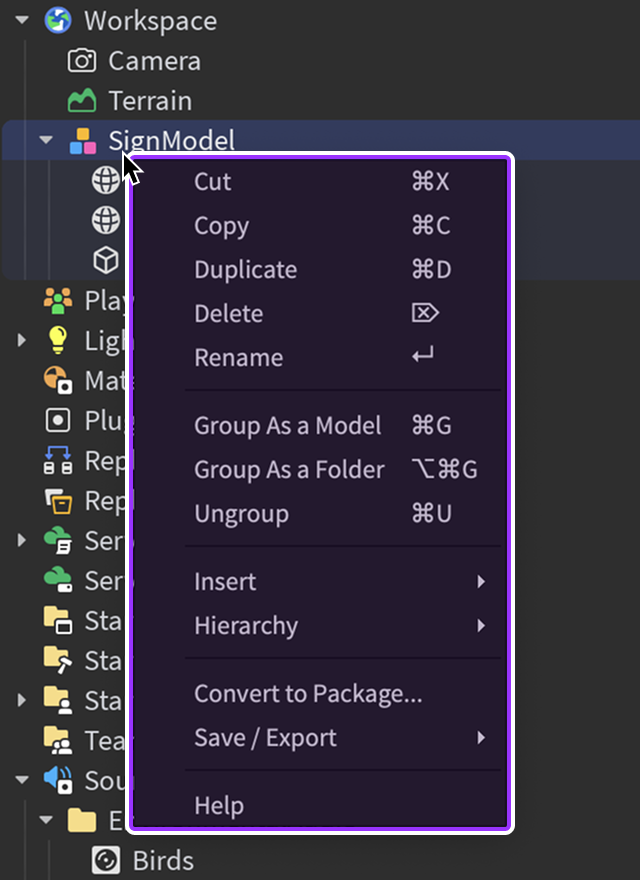
Right-clicking on an instance opens the options menu, contextually adjusted for the object type. For example, right‑clicking a Model reveals standard options like Copy and Duplicate, and also options specific to Models like Ungroup. In contrast, right‑clicking a service like Lighting reveals a more concise menu of actions valid for services.
Folder organization
Like directories/folders on a computer, the Folder object is a useful way to organize objects. For instance, if you want to store all environmental audio assets in a logical place, you can create a folder and place multiple AudioPlayer objects within it.
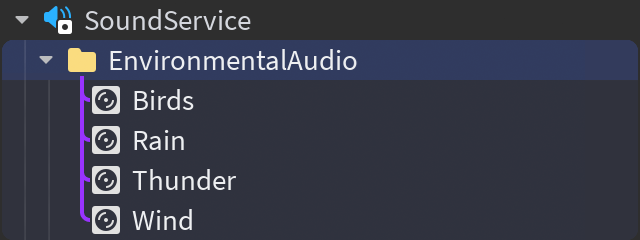
You can organize objects into folders as follows:
Create a
Folderinstance through a standard insertion method, then drag and drop existing objects into it.Select multiple objects, right-click them, and then select Group As a Folder from the context menu (shortcut of AltCtrlG on Windows or ⌥⌘G on Mac).
Search methods
Through the search input near the top of the window, you can find instances by name, property, class/subclass/tag bespoke queries, and ancestry queries. You can also combine parameters for advanced logical searches. Quickly access this input by pressing CtrlShiftX (Windows) or ⌘ShiftX (Mac).
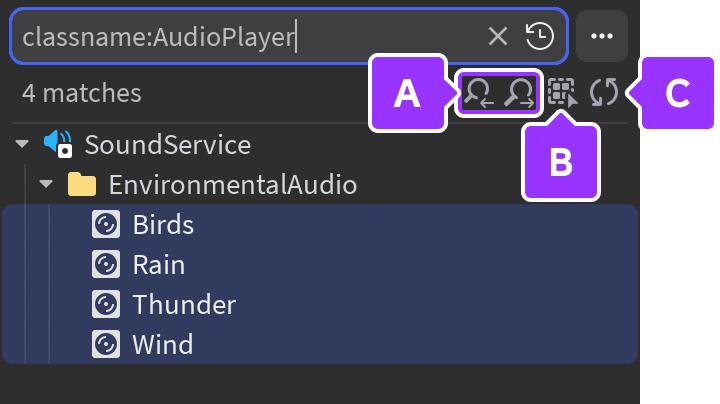

Navigate up and down through search results
Select all search results (<kbd>Ctrl</kbd><kbd>A</kbd> on Windows or <kbd>⌘</kbd><kbd>A</kbd> on Mac)
Refresh search resultsNote
A name is a sequence of characters that are alphanumeric, _, -, or ..
In all of the following search methods, exercise caution when searching for instances whose names contain spaces, as the search logic may confuse spaces for a combined search. When searching for names with spaces, you should surround the full name with double quotes, for example
tag:"Light Source"
to search by the full tag name of
Light Source
.
Name search
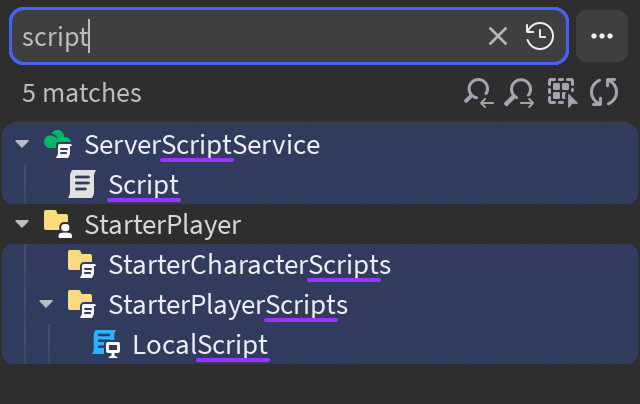
Typing in a basic string yields name matched instances, case‑insensitive. For example, searching by the keyword script finds all instances containing it, such as ServerScriptService and LocalScript.
Property search
You can filter by property equality or value comparisons. Most properties are supported, it works with partial matches, ignores spacing, and is case‑insensitive.
Equality
Property equality is searched through the operators = or ==.
| Example | Result |
|---|---|
| `ClassName = Decal` | All instances of class [`Decal`](/docs/decal). |
| `Locked = true` | [`BaseParts`](/docs/basepart) with [`Locked`](/docs/basepart#basepart-locked) set to `true`. |
| `Material == plas` | [`BaseParts`](/docs/basepart) with [`Material`](/docs/basepart#basepart-material) of either [`Plastic`](/docs/enum-material) or [`SmoothPlastic`](/docs/enum-material). |
Value Comparisons
Property value comparisons are searched through the operators ~=, >, <, <=, or >=.
| Example | Result |
|---|---|
| `Health > 50` | Every [`Humanoid`](/docs/humanoid) with [`Health`](/docs/humanoid#humanoid-health) more than `50`. |
| `Transparency ~= 0.5` | [`BaseParts`](/docs/basepart) with [`Transparency`](/docs/basepart#basepart-transparency) **not** equal to `0.5`. |
Individual Fields
Property types such as Vector3 and Color3 support searching by individual fields. This works either for exact equality or for value comparisons.
| Example | Result |
|---|---|
| `Position.X = 1` | Objects with an `X` position of exactly `1`. |
| `Color.R > 120` | Objects with a red (`R`) color channel value greater than `120`. |
Complete Units
Property types such as Vector3 and Color3 support searching as a complete unit, with the unit surrounded by quotes. This works either for exact equality, or with comparison operators in which every value is compared against the comparator.
| Example | Result |
|---|---|
| `Size > "20, 5, 20"` | Objects with an `X`, `Y`, and `Z` size greater than `20`, `5`, `20`, respectively. |
| `Color = "255, 0, 0"` | Objects with an RGB color value of exactly `[255, 0, 0]` . |
Bespoke search
Classes, and subclasses, and tags are searched through various bespoke queries, including:
is:[Class]finds everything that is of class[Class]. For example,is:Partfinds everything that is aPart.is:[SubClass]finds everything that is a subclass of[SubClass]. For example,is:BasePartfinds everything that is a subclass ofBasePart, such asPartandMeshPart.tag:[TagName]finds everything with aCollectionServicetag of[TagName]. For example,tag:LightSourcefinds everything that is taggedLightSource. You can add tags using the Tags section of an instance's properties and tag names will autocomplete.
Ancestry search
You can search within a specific scope using the . operator, chain operators together for highly specific searches, or use * as a wildcard.
[Parent].[Child]finds named children inside a named parent. For example,workspace.Modelfinds instances namedModelinside instances namedworkspace, similar to scripting.Chaining
.operators adds specificity. For instance,Animals.Dog.Tailfinds objects namedTailinsideDoginsideAnimals.*acts as a wildcard, for instance:Example Result `Cart.*` All children of an object named `Cart`. `Cart.Barrier.*` All children of `Barrier`, itself a child of `Cart`. `Cart.*.*` All grandchildren of `Cart`, excluding direct children of `Cart`. `Cart.*.Trim` All grandchildren of `Cart` that are named `Trim`. [Parent].**finds all descendants of a parent. For example,CarModel.**finds all descendants ofCarModel.
Combined
For advanced logical searches, you can combine queries through unions and grouping.
Multiple queries separated by spaces or
andoperate on all of the conditions.Example Result `Anchored=true CanCollide=true` Every [`BasePart`](/docs/basepart) that is anchored and can collide. `Cart.*.* Transparency < 1` All grandchildren of `Cart` that are not fully transparent. `Anchored=false and CanCollide=false` Every [`BasePart`](/docs/basepart) that isn't anchored and can't collide. The
orconjunction operates just like theoroperator in code. Groups within parentheses, conjoined byor, find everything within multiple combined queries.Example Result `Cat or Dog` Everything that has `Cat` or `Dog` in its name. `(Anchored=true CanCollide=true) or (Anchored=false CanCollide=false)` Every [`BasePart`](/docs/basepart) that either is anchored and can collide, **or** isn't anchored and can't collide.
Selection methods
Within a searched hierarchy, certain key shortcuts and mouse operations behave differently than they do within a non‑searched hierarchy.
Select all
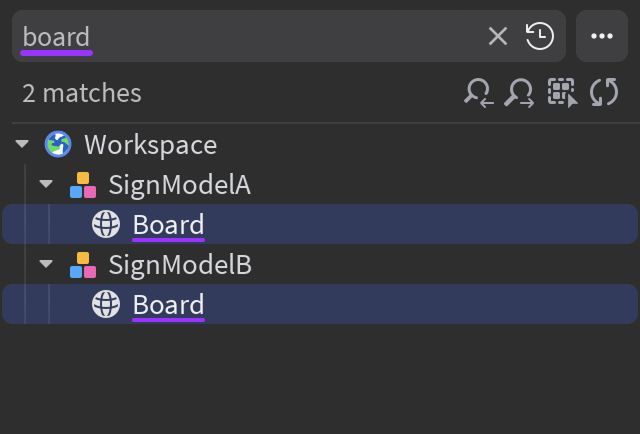
Within a non‑searched hierarchy, pressing CtrlA on Windows or ⌘A on Mac selects all instances. Within a searched hierarchy, the same shortcut or the select all button selects only the query‑matching objects, for example all objects matching Board in a hierarchy searched for board.
Shift-select
Clicking an object and Shift-clicking another object behaves differently within a non‑searched hierarchy versus a searched hierarchy.
Non-Searched Hierarchy
Within a non-searched hierarchy, Shift-clicking two objects at the same hierarchy level selects both of them and every object between which is also at the same hierarchy level, as shown in image 🅰 where LeftFoot is initially clicked, LeftLowerArm is Shift‑clicked, and LeftHand at same hierarchy level is also selected. Duplicating, copying, or pasting the selected objects will result in a deep copy of those objects and all children.
If the first Shift-clicked object and the second Shift-clicked object are at different hierarchy levels, all objects in between them will be selected, as shown in image 🅱 where LeftFoot is initially clicked, LeftHand is Shift‑clicked, and everything between is also selected.
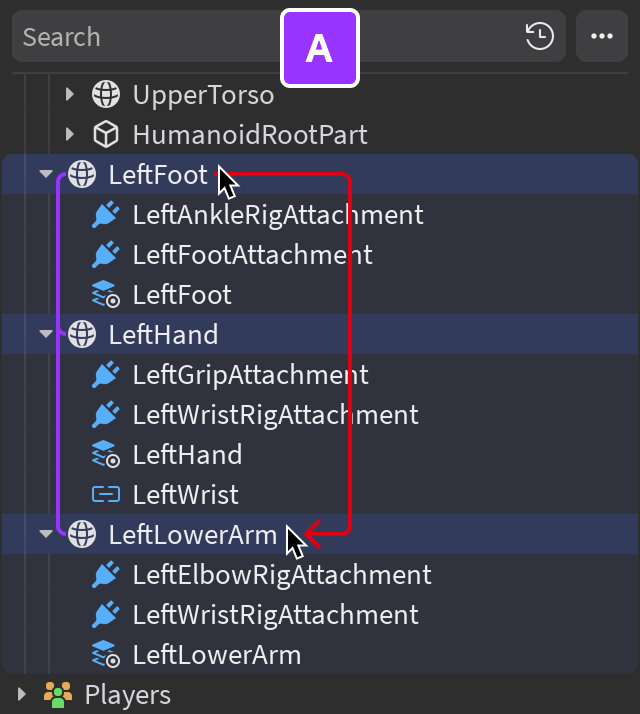
Shift-click at same hierarchy level
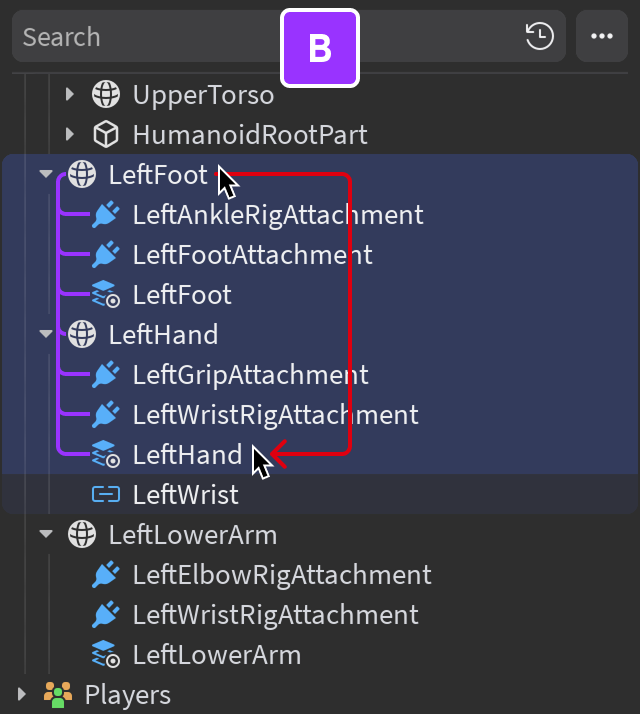
Shift-click at different hierarchy level
Searched Hierarchy
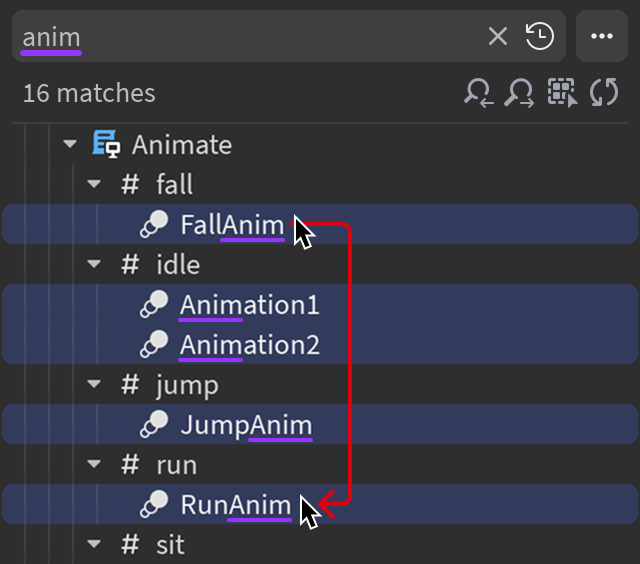
Within a searched hierarchy, if both the initially‑clicked object and the Shift‑clicked object match the query, only query‑matching objects between are selected. For example, in the following image with a hierarchy searched for anim, FallAnim is initially clicked, RunAnim is Shift‑clicked, and every object matching anim between is also selected.
Drag select
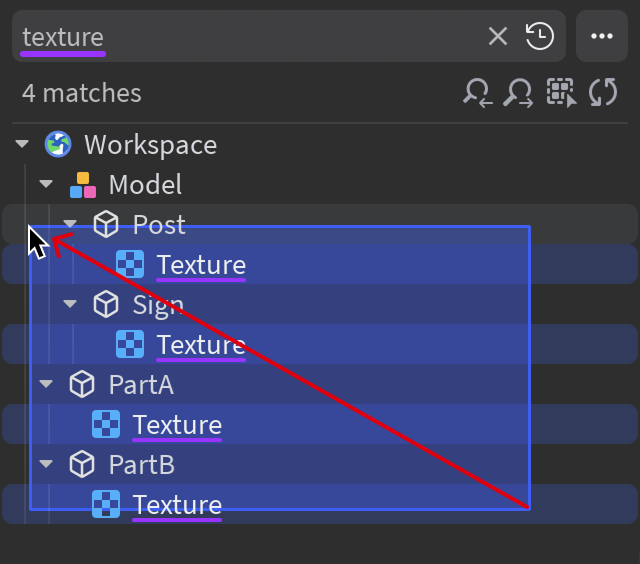
Clicking and dragging from an empty region of the window initiates a selection box. Within a non‑searched hierarchy, everything inside the box is selected. Within a searched hierarchy, only query‑matching objects inside the box are selected.
Key shortcuts
| Shortcut | Description |
|---|---|
| → | With a collapsed branch selected, expands that branch. When pressed again, selects the **first child** immediately under the parent node. |
| ← | With any child of a branch selected, moves selection back to the parent node. When pressed again, collapses the entire branch. |
| Home | Selects the topmost object in the hierarchy ([`Workspace`](/docs/workspace)). |
| End | Selects the bottommost object in the hierarchy. |
| PageUp | Selects the object in the hierarchy that's above the topmost **visible** hierarchy item. |
| PageDown | Selects the object in the hierarchy that's below the bottommost **visible** hierarchy item. |
| CtrlShiftX ⌘ShiftX |
Jump to the [search input](#search-methods) near the top of the window. |