
Source: Roblox Creator Hub · CC BY 4.0 · View source · Code samples: MIT Imported 2026-10-03. Formatting adapted for this site.
Start learning with tutorials
Roblox offers both short and long-form tutorials to help you learn various creation processes and techniques for the platform. There are three common areas of creation:
- Games - 3D worlds that you can create and publish using Roblox Studio.
- Avatars - Character models with many specialized features that allow players to interact with games and express themselves.
- Avatar items - Clothing and accessories that players can use to customize their avatars.
While many creators focus on a single area, the following tutorials walk you through the fundamentals of each process.
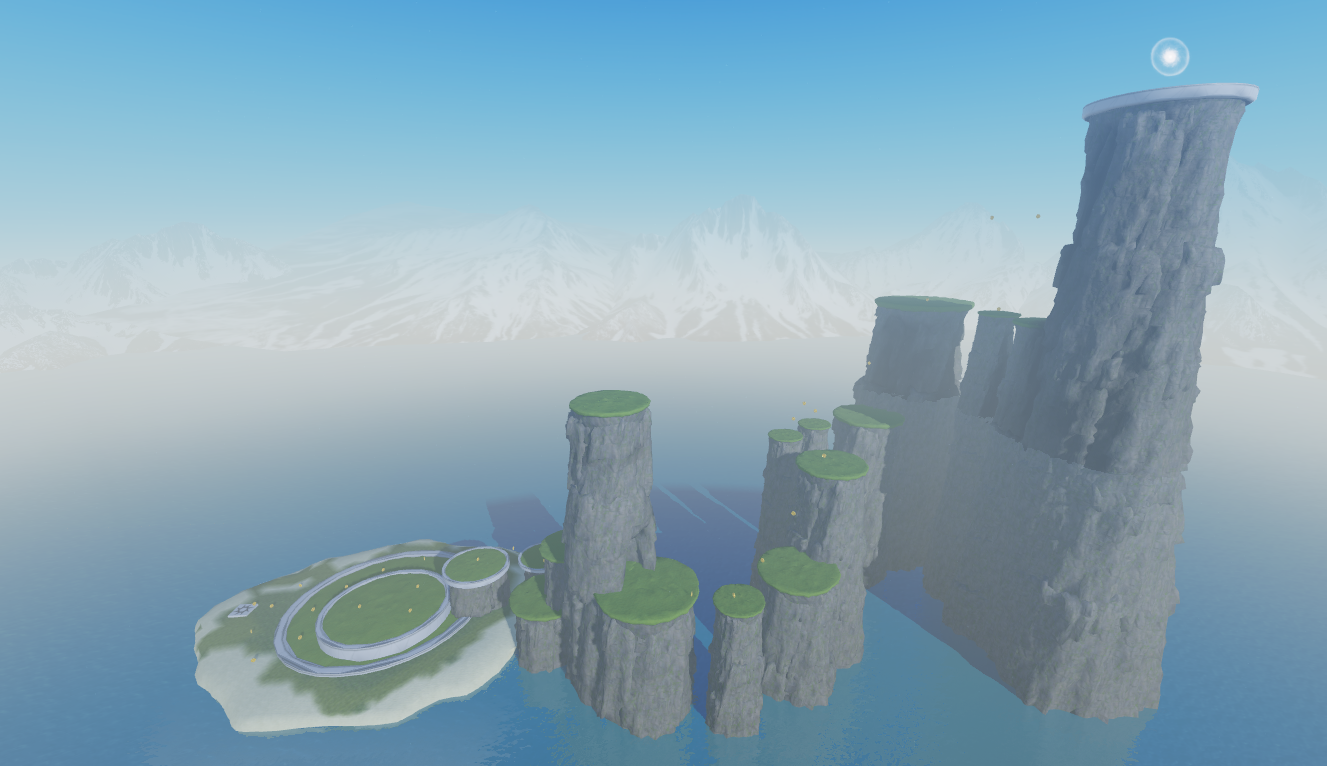
Create your first game
Learn about important concepts for developing on Roblox by recreating a simple 3D platformer game where players collect coins to trade for jump power.
 <a underline="none" href="/docs/roblox-tutorials-first-experience">
 Get started
 </a>
Create your first avatar character
Learn how to create your own custom avatar character using Blender and one of Roblox's downloadable template models.
 <a underline="none" href="/docs/roblox-art-characters-creating">
 Get started
 </a>
Create your first avatar item
Learn how to convert a mesh object in Blender to either a publishable accessory item or an equipable and layerable clothing item for avatars.
 <a underline="none" href="/docs/roblox-art-accessories-creating-rigid">
 Accessories
 </a>
 <a underline="none" href="/docs/roblox-art-accessories-creating">
 Clothing
 </a>
Use case tutorials
Use case tutorials focus on a specific task that you can complete in order to learn about various aspects of developing in Studio. In addition to teaching you how to use collections of related features to recreate common components for games, this short-form type of structured learning highlights techniques you can use to achieve effects for a variety of design requirements.
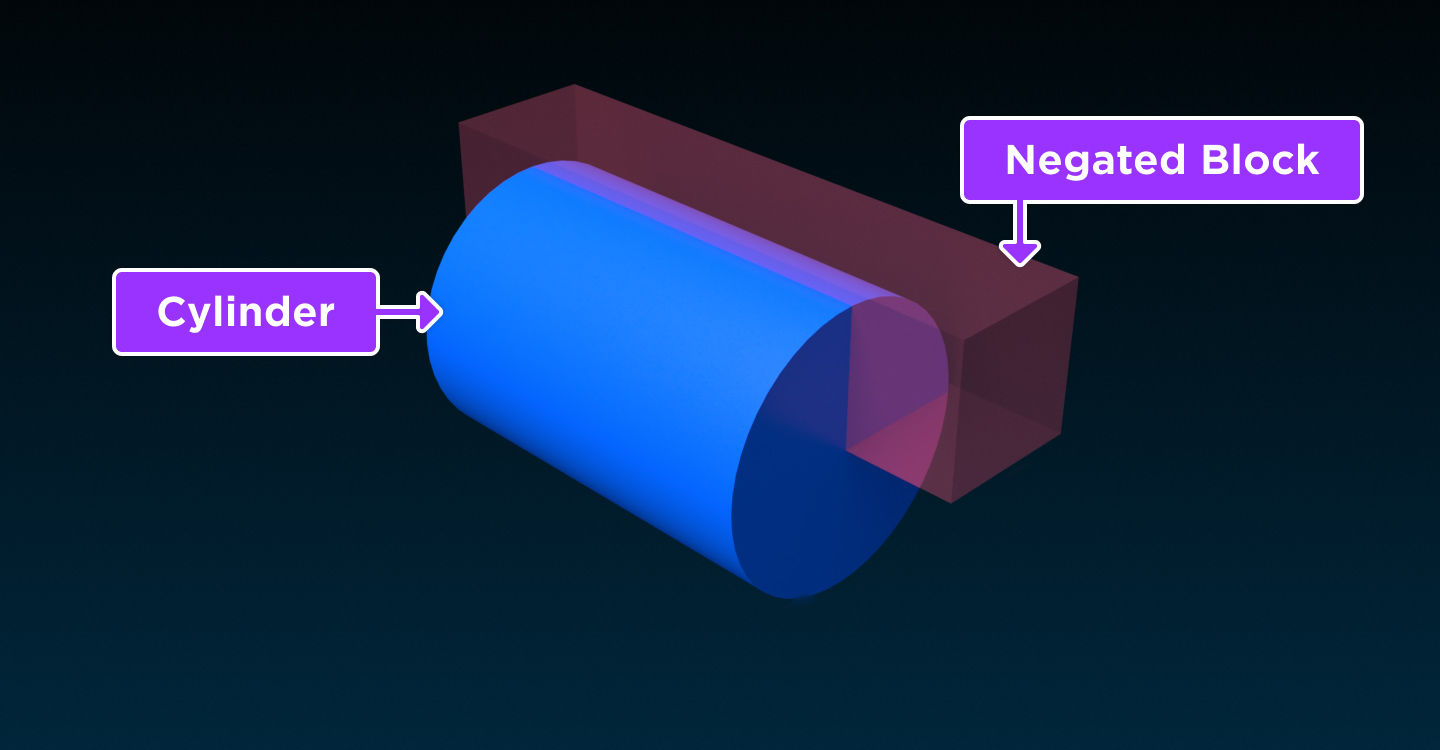
Modeling
 <ul>
 <li>Learn the basics of <a href="/docs/roblox-tutorials-use-case-tutorials-modeling-create-neon-signs">solid modeling</a> in Studio</li>
 <li>Learn how to <a href="/docs/roblox-art-modeling-rig-a-simple-mesh">rig</a> and <a href="/docs/roblox-art-modeling-skin-a-simple-mesh">skin</a> a simple mesh in Blender</li>
 <li>Learn how to <a href="/docs/roblox-art-modeling-rig-a-humanoid-model">rig</a> and <a href="/docs/roblox-art-modeling-skin-a-humanoid-model">skin</a> a humanoid model in Blender</li>
 </ul>
Environments
 <ul>
 <li>Learn how to set global and local lighting properties to enhance <a href="/docs/roblox-tutorials-use-case-tutorials-lighting-enhance-indoor-environments">indoor</a> and <a href="/docs/roblox-tutorials-use-case-tutorials-lighting-enhance-outdoor-environments">outdoor</a> environments</li>
 <li>Learn how to play <a href="/docs/roblox-tutorials-use-case-tutorials-audio-add-3d-audio">positional</a> and <a href="/docs/roblox-tutorials-use-case-tutorials-audio-add-2d-audio">non-positional</a> audio for player immersion</li>
 <li>Learn how to generate <a href="/docs/roblox-tutorials-use-case-tutorials-audio-add-text-to-speech">audio from text</a> using an artificial voice</li>
 <li>Learn how to integrate different <a href="/docs/roblox-tutorials-use-case-tutorials-audio-add-voice-chat">voice chat</a> configurations into your gameplay</li>
 <li>Learn how to <a href="/docs/roblox-tutorials-use-case-tutorials-modeling-assemble-modular-environments">assemble modular assets</a> that snap together in numerous configurations</li>
 </ul>
Effects
 <ul>
 <li>Learn how to use <a href="/docs/roblox-tutorials-use-case-tutorials-vfx-laser-traps-with-beams">beams</a> for player hazards</li>
 <li>Learn how to customize <a href="/docs/roblox-tutorials-use-case-tutorials-vfx-use-particles-for-explosions">particle emitters</a> for explosions</li>
 <li>Learn how to <a href="/docs/roblox-tutorials-use-case-tutorials-vfx-create-waterfalls">combine VFX objects</a> to emulate real-world physical behavior</li>
 </ul>
UI
 <ul>
	 <li>Learn how to combine UI objects with scripts to create a [custom health meter](/docs/roblox-tutorials-use-case-tutorials-ui-create-hud-meters)</li>
	 <li>Learn how to make [interactive UI objects](/docs/roblox-tutorials-use-case-tutorials-ui-interactive-ui) hooked to in‑game behavior and state transitions</li>
 <li>Learn how to create [interactive prompts](/docs/roblox-tutorials-use-case-tutorials-ui-proximity-prompts) that only appear as players approach 3D objects</li>
 </ul>
Physics
 <ul>
 <li>Learn how to <a href="/docs/roblox-tutorials-use-case-tutorials-physics-create-moving-objects">move</a> and <a href="/docs/roblox-tutorials-use-case-tutorials-physics-create-spinning-objects">spin</a> objects in a way that emulates real-world physical behavior</li>
 <li>Learn how to <a href="/docs/roblox-tutorials-use-case-tutorials-physics-create-moving-objects">move objects</a> to transport players linearly from point A to B</li>
 <li>Learn how to use <a href="/docs/roblox-tutorials-use-case-tutorials-physics-build-a-hinged-door">constraints</a> for mechanical connections, such as door hinges, rope, and welds</li>
 </ul>
Animation
 <ul>
 <li>Learn the basics of <a href="/docs/roblox-tutorials-use-case-tutorials-animation-create-an-animation">creating animations</a> using the built-in **Animation Editor**</li>
 <li>Learn how to <a href="/docs/roblox-tutorials-use-case-tutorials-animation-play-character-animations#change-default-animations">swap default avatar animations</a> with your own creations</li>
 <li>Learn how to <a href="/docs/roblox-tutorials-use-case-tutorials-animation-play-character-animations#trigger-animations">trigger avatar animations</a> from gameplay interactions</li>
 </ul>
Scripting
 <ul>
 <li>Learn how to script the gameplay logic for player hazards, such as <a href="/docs/roblox-tutorials-use-case-tutorials-scripting-basic-scripting-deadly-lava">deadly lava</a> and <a href="/docs/roblox-tutorials-use-case-tutorials-scripting-basic-scripting-fading-trap">fading traps</a></li>
 <li>Learn how to script the gameplay logic for player information, such as their <a href="/docs/roblox-tutorials-use-case-tutorials-scripting-basic-scripting-score-points">score</a>, <a href="/docs/roblox-tutorials-use-case-tutorials-scripting-intermediate-scripting-create-a-health-pickup">health</a>, and <a href="/docs/roblox-tutorials-use-case-tutorials-scripting-intermediate-scripting-save-data">data</a> that needs to persist between sessions</li>
 </ul>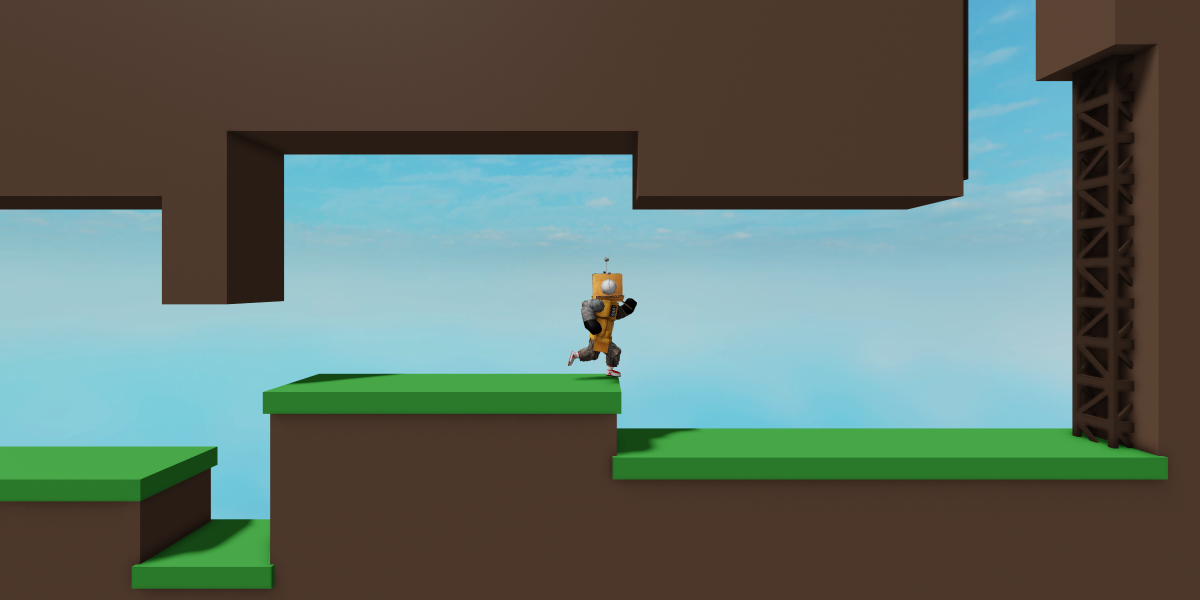
Input and camera
 <ul>
 <li>Learn how to create a <a href="/docs/roblox-tutorials-use-case-tutorials-input-and-camera-control-the-users-camera#create-a-first-person-camera">first-person camera</a>, <a href="/docs/roblox-tutorials-use-case-tutorials-input-and-camera-control-the-users-camera#create-a-side-scrolling-camera">side-scrolling camera</a>, or <a href="/docs/roblox-tutorials-use-case-tutorials-input-and-camera-control-the-users-camera#create-an-isometric-camera">isometric camera</a> to suit your specific gameplay</li>
 <li>Learn how to <a href="/docs/roblox-tutorials-use-case-tutorials-input-and-camera-detect-user-input">detect user input</a> to trigger unique actions in your games</li>
 </ul>
Curriculum paths
Curriculum paths provide a comprehensive overview of the various skills you need for different development areas after you familiarize yourself with Studio's core functionality. In addition to demonstrating how to use Studio features for each creative discipline, this long-form type of structured learning shows you how to examine and solve common design problems within your own games.
Environmental art
Learn how to recreate a high-quality environment for a first-person laser tag game.
   <a underline="none" href="/docs/roblox-tutorials-curriculums-environmental-art">
   Get started
   </a>
Gameplay scripting
Learn how to organize and implement the gameplay logic for a large, complex project.
   <a underline="none" href="/docs/roblox-tutorials-curriculums-gameplay-scripting">
   Get started
   </a>
UI design
Learn how to design and implement UI components for unique user flows.
   <a underline="none" href="/docs/roblox-tutorials-curriculums-user-interface-design">
   Get started
   </a>