
Source: Roblox Creator Hub · CC BY 4.0 · View source · Code samples: MIT Imported 2026-10-03. Formatting adapted for this site.
Use particles for actions
With arrows finished, first-time players can follow the path to their goal, making their initial introduction clearer and less likely that they get lost and quit. To further enhance the user experience, let players know they've successfully completed their task with an appealing particle effect.
In the example below, a celebratory burst of ticket-shaped particles emits whenever players interact with the booths.
Note
Giving multiple forms of feedback is also another way of improving a player's user experience. A player with the sound down or one who is hearing impaired may rely more on visual cues. Other players may be low vision and paying more attention to sound.
Create particles
When creating a particle, it needs to be inserted into a part or attachment. In this example, you'll place particles in the TestPlayer object used earlier.
In TestPlayer, create a ParticleEmitter named Burst. Default particles will start emitting from the TestPlayer object. You'll customize the emitter to create a burst effect.
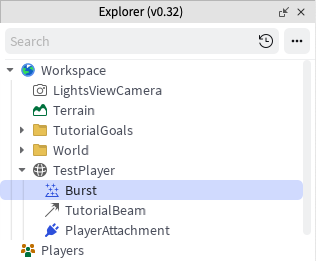
An example is shown below.

Note
Particles must be named exactly since a script will be looking for the name later.
With Burst selected, go to the Properties window and find the Texture property. Copy and paste one of the texture IDs supplied below, or use your own, into the texture field and press Enter.
<img src="https://prod.docsiteassets.roblox.com/assets/education/build-it-play-it-mansion-of-wonder/using-particles-for-actions/potion.png" />
6772766862
<img src="https://prod.docsiteassets.roblox.com/assets/education/build-it-play-it-mansion-of-wonder/using-particles-for-actions/energy.png" />6772766551
<img src="https://prod.docsiteassets.roblox.com/assets/education/build-it-play-it-mansion-of-wonder/using-particles-for-actions/heart.png" />5857851618
<img src="https://prod.docsiteassets.roblox.com/assets/education/build-it-play-it-mansion-of-wonder/using-particles-for-actions/paw.png" />6803084085
<img src="https://prod.docsiteassets.roblox.com/assets/education/build-it-play-it-mansion-of-wonder/using-particles-for-actions/star.png" />6772783963
<img src="https://prod.docsiteassets.roblox.com/assets/education/build-it-play-it-mansion-of-wonder/using-particles-for-actions/leaf.png" />6703369286
<img src="https://prod.docsiteassets.roblox.com/assets/education/build-it-play-it-mansion-of-wonder/using-particles-for-actions/ticket.png" />6749057157
<img src="https://prod.docsiteassets.roblox.com/assets/education/build-it-play-it-mansion-of-wonder/using-particles-for-actions/gem.png" />6772766413
If using the ticket texture, it will look like below.

Note
Custom textures can be any image that you have. Learn to upload them in the [Asset Manager](/docs/roblox-projects-assets-manager) article.In the Explorer window, select TestPlayer, then in the Properties window, find and change the Color and Size properties to something appropriate for your game. For example, the following image includes particles with the following settings:
- Color =
255, 178, 44 - Size =
0.6

- Color =
Create a burst effect
Different properties can be changed so that the particles look more like a quick burst rather than a gentle stream. After designing the particle, you'll disable the emitter so that it only plays when activated by a script.
Make particles spread
The ParticleEmitter sends out particles along two planes controlled by the property, SpreadAngle.
- To make the particles fly out in all directions like the example, set the SpreadAngle X and Y to 360.
Different burst properties
After adding the recommended values under the video, the particles will look like they are quickly bursting from the player like a firework.
<video controls src="https://prod.docsiteassets.roblox.com/assets/education/build-it-play-it-mansion-of-wonder/using-particles-for-actions/before-after-particle-settings.mp4"></video>- To get a burst motion, set the following properties to these values to make the particles explode and then quickly fade out.
Property Value Rationale **LightEmission** 0.4 Adds a faint glow. Note the maximum is 1. **Drag** 8 More drag causes the particles to quickly lose speed. **Lifetime** 0.6, 1 Makes particles exist for between .6 and 1 seconds. **Rate** 50 How many particles are emitted per second. **Speed** 40 How fast the particles are going when first emitted.
Note
Try adding some randomized numbers to make particles feel less repetitive. Some properties, such as **Lifetime** and **Rotation** add randomization by allowing for a minimum and a maximum value.Lastly, the particle should only play when the script (which you'll see in the next lesson) tells it to. Find the Enabled property and toggle it off.
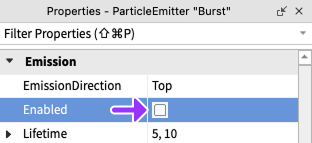
Note
This page only covered a few properties. For more, see the Particle Emitters reference article.