
Source: Roblox Creator Hub · CC BY 4.0 · View source · Code samples: MIT Imported 2026-10-03. Formatting adapted for this site.
Verify attachment placement
Attachment points are non-rendered objects of your avatar where rigid accessories attach to. Each template includes the required attachments at their expected locations ending with _Att. Before exporting, it's important to verify the attachment position and, if necessary, adjust the location if you made any changes to the shape of your model.
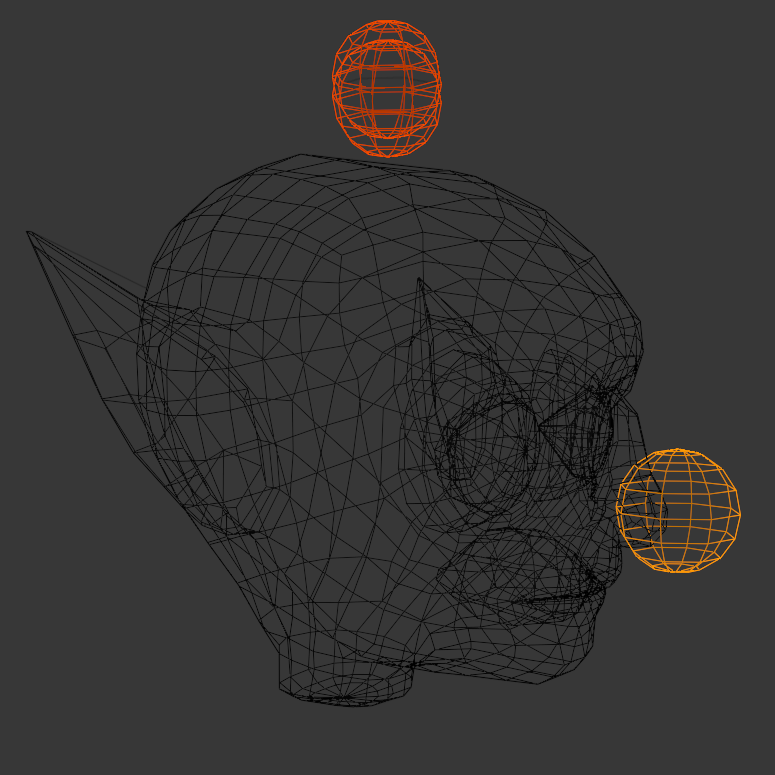 Original template attachment positions
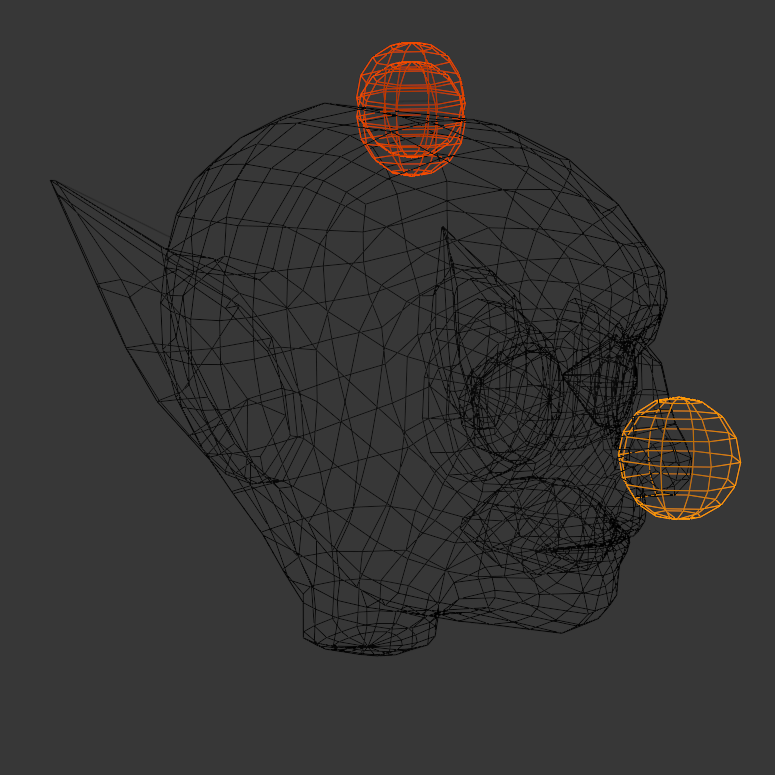 Attachments after adjustment
Center attachment points at their respective locations. Each attachment should overlap approximately halfway with the character's mesh.
This tutorial only changes the head of your model, so you only need to adjust the Hat, Hair and FaceFront attachments. To enable visibility and verify your head attachment point:
If you haven't already, enable disabled objects in your Outliner.
In the Outliner, find the
Jointsparent object.Hold Shift and click the Hide icon for the
Jointsobject to hide everything.Expand the
Jointsobject's hierarchy and unhideHead_Geo,Hat_Att,Hair_Att, andFaceFront_Att.- If required, disable Disable In Viewport
 next to the _Att objects.
- If required, disable Disable In Viewport
In the viewport, verify the placement of the attachments. The goblin's head is shorter than the starting template, so the attachments require minor vertical adjustment.
Select the attachments, then switch to Edit mode.
Using the Grab tool, position the attachments vertically along the y-axis until they are about halfway embedded in the head.