
Source: Roblox Creator Hub · CC BY 4.0 · View source · Code samples: MIT Imported 2026-10-03. Formatting adapted for this site.
Align tool
The Align tool, accessible from Studio's Model tab toolbar or the Window ⟩ 3D menu, lets you align objects or groups of objects along the X, Y, or Z axes.

Primary benefits include:
- Aligning the center or edge of multiple objects in one action.
- Aligning entire
Modelsor parts within them relative to other parts, all while keeping the model intact. - Dynamically previewing the point of alignment before confirming.
Mode
You can set the alignment mode to either Min, Center, or Max.
<img src="https://prod.docsiteassets.roblox.com/assets/studio/align-tool/Icon-Min.png" width="80" alt="The Min icon in the toolbar." />
<center>
Min
<img src="https://prod.docsiteassets.roblox.com/assets/studio/align-tool/Icon-Center.png" width="80" alt="The Center icon in the toolbar." />
<center>
Center
<img src="https://prod.docsiteassets.roblox.com/assets/studio/align-tool/Icon-Max.png" width="80" alt="The Max icon in the toolbar." />
<center>
Max
Min
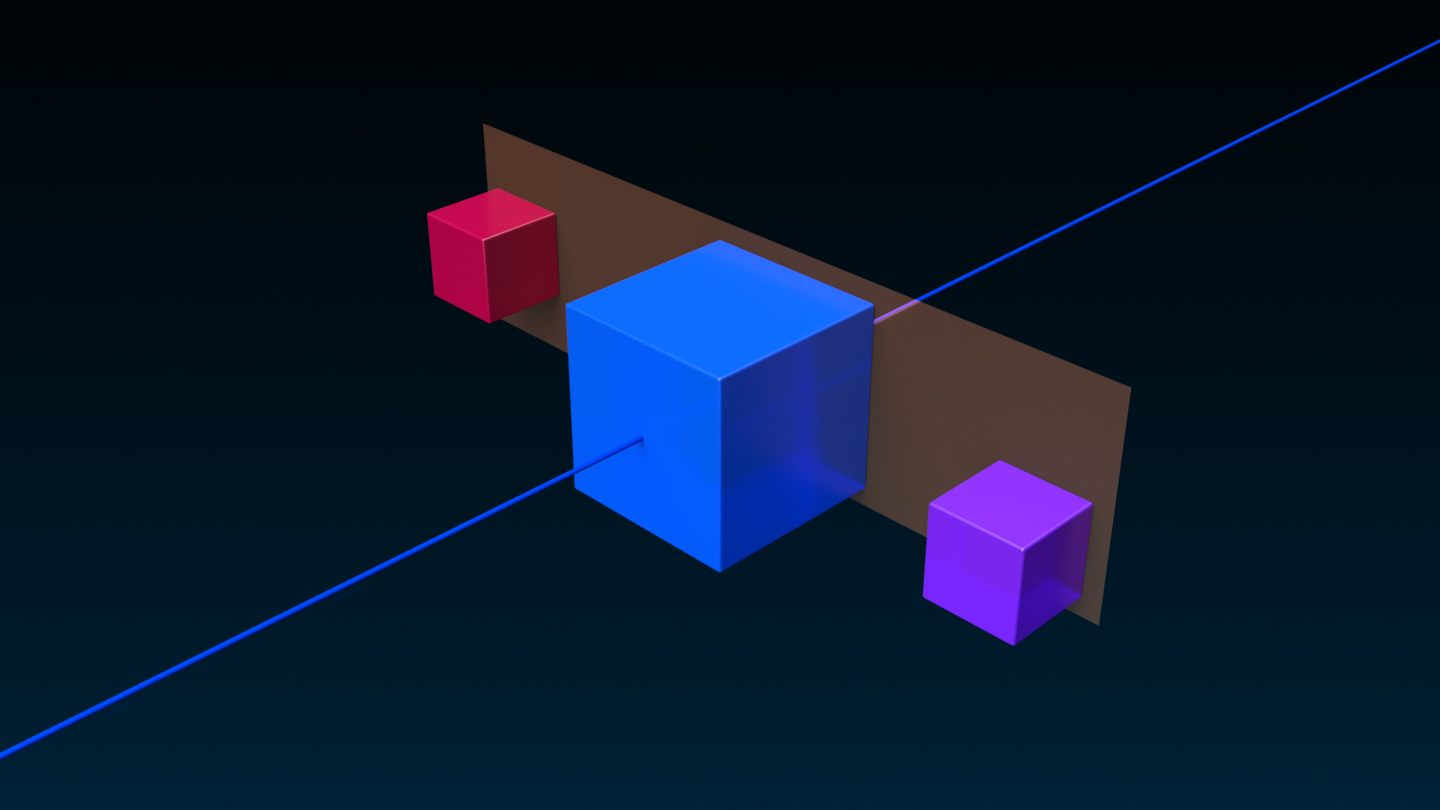
Center

Max

Align In
The World or Local option specifies which relative coordinates to align on. This is especially useful for aligning parts which don't share the same orientation or rotation.
The X, Y, and Z checkboxes let you select which axes to align on. Note that you can select multiple axes in a single alignment operation.
Before Alignment
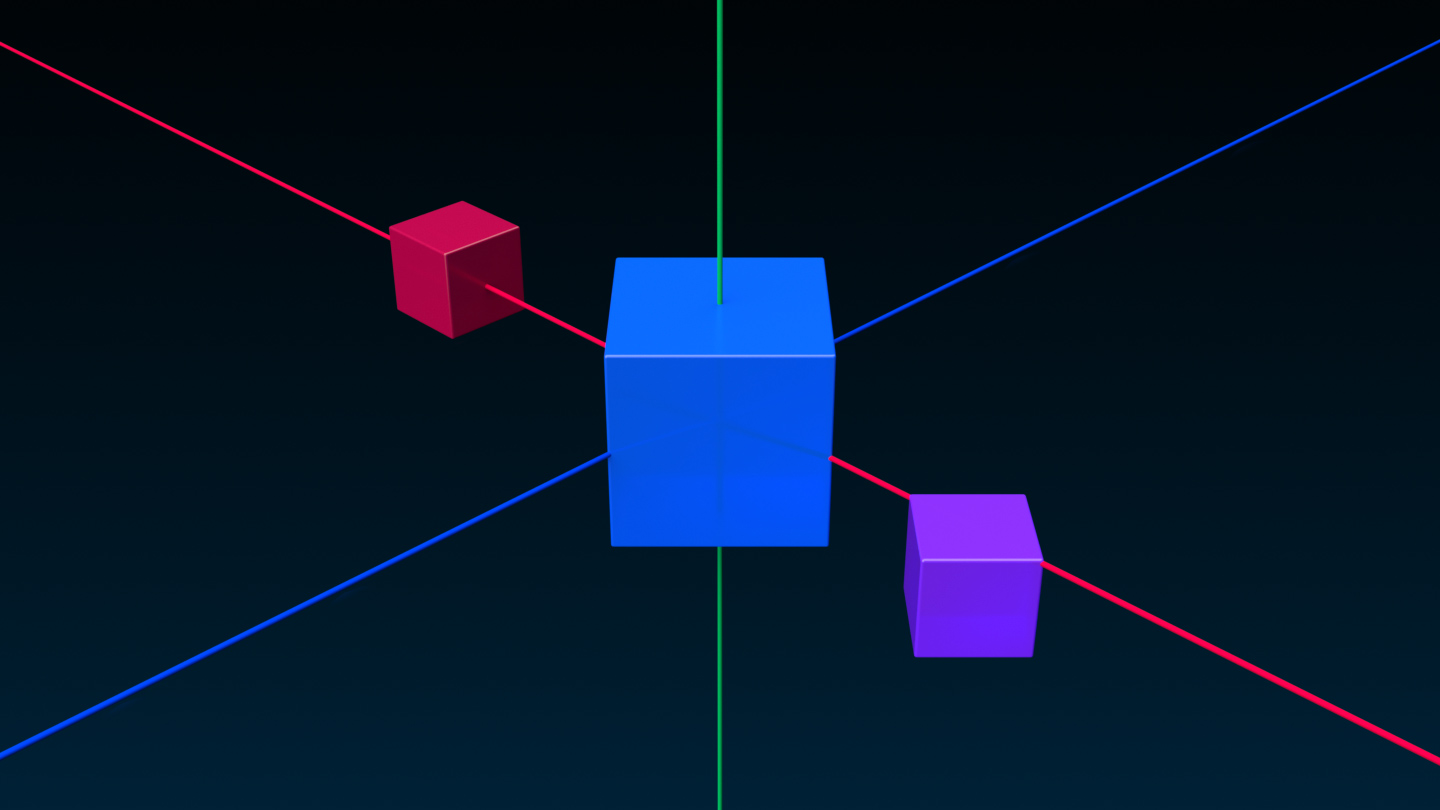
Max / World Z

Max / Local Z

Relative To
An alignment operation can be relative to either the Selection Bounds or the Active Object.
Selection Bounds
Selection Bounds aligns the selected objects relative to the bounding box around them.
Before Alignment
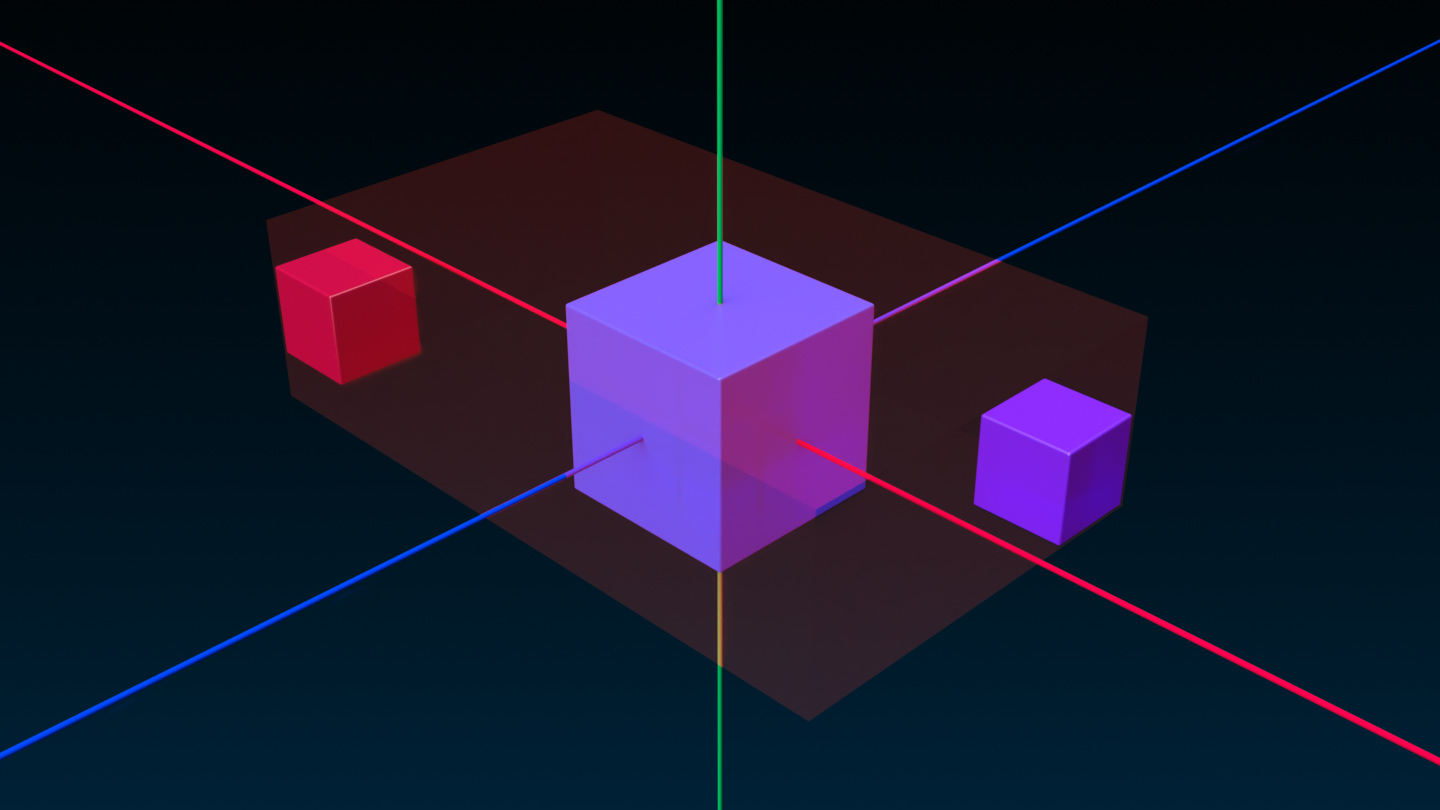
Min / World X

Max / World X

Active Object
Active Object aligns the objects relative to the last selected object. This object is outlined in orange and it will not move during the operation. While parts are selected, you can switch the active object by clicking on a different object.
Before Alignment
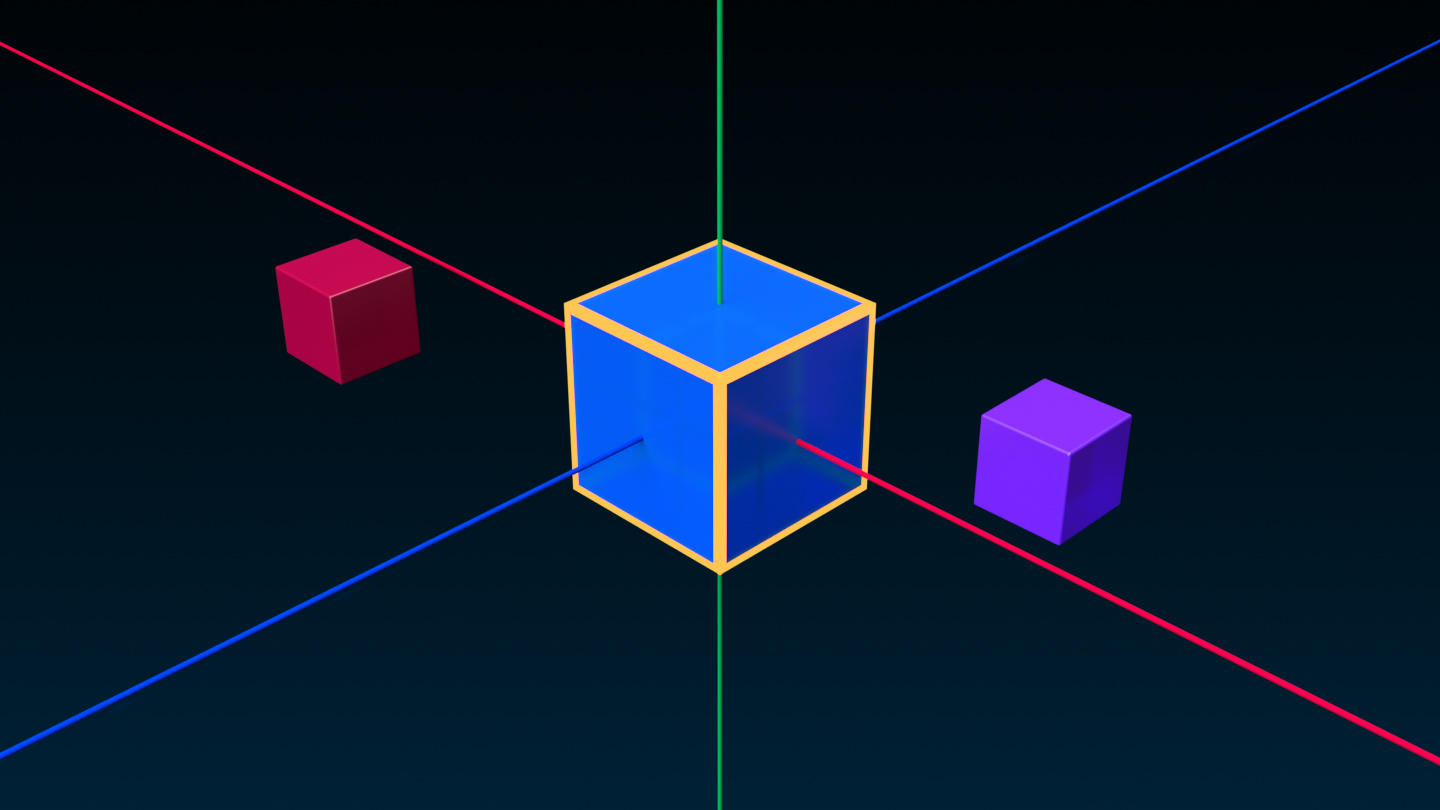
Min / World X

Max / World X
