
Source: Roblox Creator Hub · CC BY 4.0 · View source · Code samples: MIT Imported 2026-10-03. Formatting adapted for this site.
Colors and textures

Give your driftspeeders a new paint job with updated texture files. Your speeders can now be stylishly jade, rusty orange, or even a classic blue.
Download a texture
To change the texture of your driftspeeder, start by downloading one or more of the textures below.
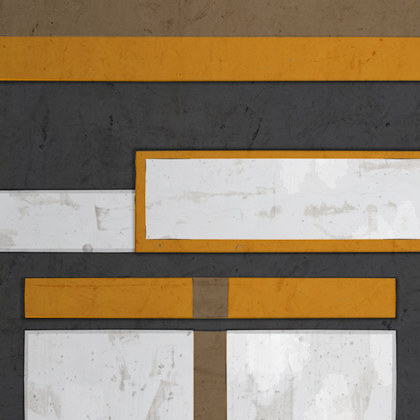 |
Note
Creating your own textures
Make your own designs by bringing any one of these textures into a tool like Photoshop (paid) or Krita (open-source). Try variations like changing the color or adding new designs.
Import a texture
To use textures, they must be imported into your game. Make sure your game has been published before moving on.
To find the texture import option, select a part in your driftspeeder model. Do this by selecting the speeder and expanding it in the Explorer.

In the Properties, click the box next to TextureID.

To upload a new texture, click Add Image.

Note
If you can't see the Add Image button, make sure that your game has been published.
Click Choose File and pick a downloaded texture.

Finish by clicking Create.
 You should see the updated texture on the ship. Continue to customize your speeder by adding more textures.
Original texture
<img src="https://prod.docsiteassets.roblox.com/assets/education/build-it-play-it-galactic-speedway/colors-and-textures/new-texture.jpeg" />With new texture
Note
Changing multiple textures at a time
Select multiple parts in the Explorer and follow the same process of changing a single part's texture.
Select Individual Parts: Ctrl‑click or ⌘‑click
Selecting Groups: Click on one part. Then, Shift‑click on a part below to select all parts between them.
Take the challenge

Test your knowledge to earn the Scrappers Backpack avatar item and As Many Colors as Stars badge by clicking the button below to open a Roblox quiz game.
Play Quiz GameOnce you're done, be sure to follow the game to get updates on when new prizes and lessons come out!