
Source: Roblox Creator Hub · CC BY 4.0 · View source · Code samples: MIT Imported 2026-10-03. Formatting adapted for this site.
VR guidelines
Roblox VR uses OpenXR as a backend for all VR devices. That means the implementation is platform agnostic, allowing games to work interchangeably on Quest and PC VR headsets. Testing on a PC VR headset should be valid for the Quest 2. At minimum, Oculus drivers require an NVidia GTX1060 graphics card or equivalent.
Graphics quality mode
When running Roblox on standalone VR headsets such as Quest 2 or Quest Pro, maintaining a comfortable performance level is crucial, as frame rate drops can cause discomfort for the user. To achieve this, an Auto Quality Mode setting is available on Quest which aims to maintain a minimum of 72 frames per second by automatically scaling the rendering detail based on performance data.
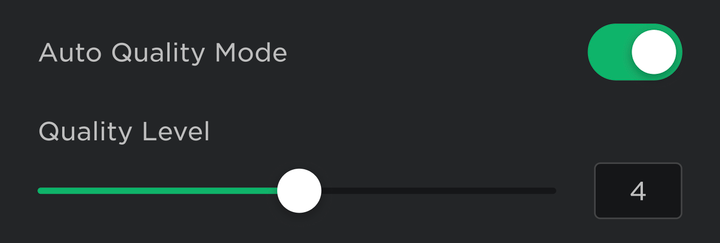
If you test a game on the Quest 2 and are not pleased with the visuals when Auto Quality Mode is turned on, it's recommended that you attempt to optimize your game further.
Comfort settings
When users experience VR, movement of their camera/position can cause some discomfort due to the disconnect between what they see and the lack of motion detected by their body and inner ear. Roblox provides multiple settings to help users of all sensitivity levels, so everyone can enjoy an immersive and comfortable VR game while playing. In addition to Comfort, Default, and Expert modes, the user may choose Custom to individually turn the following settings on and off:
- Vignette — An overlay is displayed during motion which restricts the user's peripheral vision during motion and conceals camera teleports.
- Stepped Rotation — The camera uses stepped rotation (teleporting to the next rotated position) for 1st-person and 3rd-person camera modes, versus the smooth rotation mode when rotating the camera with the controller.
- 3rd Person Fixed Camera - The camera is fixed in space and does not closely follow the player. The camera will teleport in order to keep the player in view.
Additional information can be found at VR Menus and Settings.
Camera modes
When developing a VR-first game, you can take advantage of the default camera scripts or implement your own custom scripts.
Default cameras
Roblox provides an array of default camera options, including a third-person comfort camera, a first person camera, and a vehicle camera. These camera modes are implemented as child scripts of CameraModule within PlayerScripts. Support for the comfort menu options and future "immersion" features will be included with the default scripts.
By utilizing the default scripts provided by Roblox, you benefit from ongoing updates and improvements that ensure compatibility with all new features and devices. This will likely provide an easier and more sustainable development process going forward.
Custom camera
As a developer, you have the flexibility to customize the default camera scripts by replacing them with your own VR camera implementation. This lets you achieve your own vision with an immersive VR-first view, but doing so opts your game out of future script updates and you'll need to manually merge changes and improvements to the default scripts as they become available.
If you have existing games that use a custom camera or other custom PlayerScripts, it's likely that you do not have the most recent camera scripts that support VR. If you test your game in VR and the camera is not working properly, it's recommended that you either merge the most current VR camera scripts or switch to the default scripts.
Performance tips
Untethered mobile VR devices like the Quest 2 target a high frame rate and resolution while rendering two separate images on a low-power chipset. To achieve stable and solid performance levels, the draw distance may be scaled down and light computation might get disabled through auto graphics quality.
The following best practices may help you reach 72 frames per second with a higher graphic setting:
- Enable instance streaming so that content is streamed in and out dynamically on the device.
- Be careful to not overuse CPU-heavy computations like raycasting.
- Avoid the usage of
task.wait()overRunServiceframe updates.task.wait()will not give you precise results compared to connecting toRunService.Heartbeat. - Mobile VR is sensitive to a high number of draw calls. Build your environments efficiently, adding high detail where it really matters and lower detail elsewhere while being conservative with the number of objects used in the scene.
- When creating custom 3D meshes, always strive to use as little geometry as possible for maximum runtime efficiency.
- Minimize the number of semi-transparent objects and textures with partial transparency such as
Decalsor theGlassmaterial. - Numerous and complex
SurfaceGuiscan be costly, both on the rendering and CPU side. - Avoid writing platform-dependent code such as actions that rely on keyboard presses. Instead, use objects like
InputActionwhich supports input bindings from multiple sources. - Test and iterate often to make sure you're getting the anticipated performance and visual quality. If possible, invest in a Quest 2 headset.