
Source: Roblox Creator Hub · CC BY 4.0 · View source · Code samples: MIT Imported 2026-10-03. Formatting adapted for this site.
Build one half
With the SpawnLocations done, it's time to design the city. Designing will follow these steps:
Add buildings, which come in large and medium sizes, each giving different points when destroyed.
Place props to make the city more visually interesting.
Paint terrain like mountains, rivers, and hills.
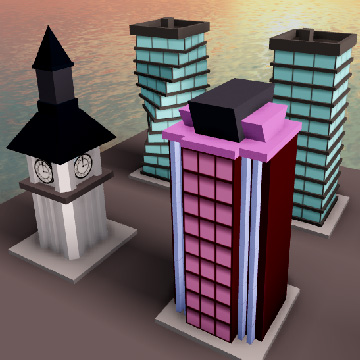
Buildings
<img src="https://prod.docsiteassets.roblox.com/assets/education/build-it-play-it-create-and-destroy/buildingExamples_props.jpg" />Props
<img src="https://prod.docsiteassets.roblox.com/assets/education/build-it-play-it-create-and-destroy/show-terrain-360px.jpg" />Terrain
Start building
To build the city, you'll duplicate buildings from the of objects on the right side of the game world.
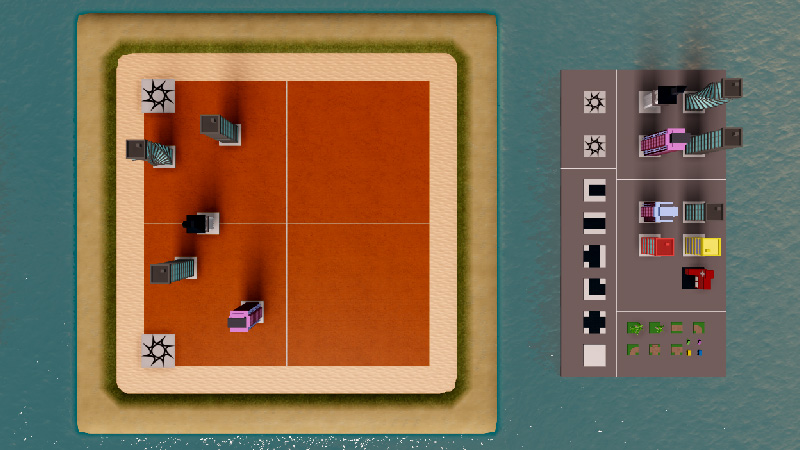
Duplicate the first building
- Select a large building from the palette and duplicate it (CtrlD or ⌘D). Nothing obvious will happen. With collisions off, the new building will overlap the original.
Note
To avoid errors in your game, always duplicate buildings and props, not copy and paste. Duplicate puts the new object into the same folder, copy and paste moves the new object outside of the folder.
<img src="https://prod.docsiteassets.roblox.com/assets/education/build-it-play-it-create-and-destroy/PlacedHalfMap.jpg" width="100%" />- Select the Move tool and use the arrows to drag the duplicate to the half of the map you're working on. Use the white grid lines to help you position the buildings halfway between the two SpawnLocations and to make sure you're keeping to one half of the map.
Check all the angles
As you work, make sure that you're not accidentally moving the buildings upwards off the ground. Take a moment to check the building you just placed by rotating the camera to get a better look from different angles. Start by checking the building from the side.
Select the building, and press F to focus the camera on it.
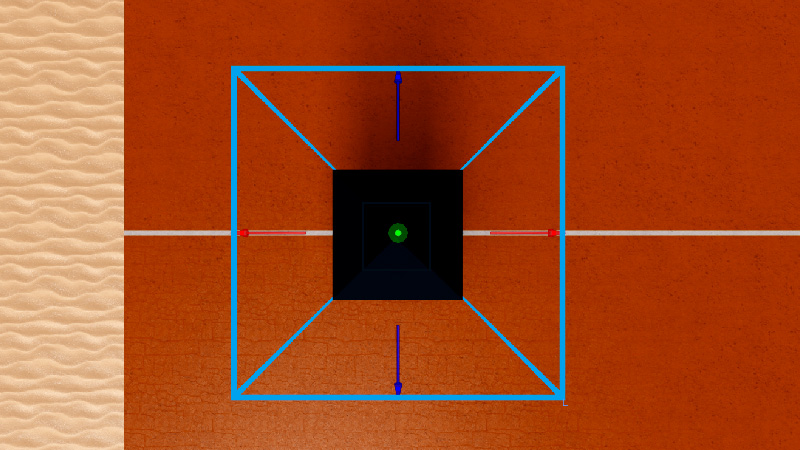
Use the small arrows on the View Selector (top right) to change to the side view. If you can't find the View Selector, find it's button in the View tab.
Use the camera controls to get a good view of the building.
Below are camera controls.
Action Control Move W A S D or arrow keys Rotate Hold the right mouse button and look around. Pan Hold the middle mouse button to drag your camera around. Get back to the top view by using the arrows, or by clicking areas of the View Selector.
Place additional large buildings
Duplicate and place 3 - 5 additional large buildings on the same half of the map. Remember that you will be duplicating this half to make the rest of the map.
Your map doesn't have to look like the example, but each player should be able to reach the same amount of buildings. Here, every player has an equal chance of reaching three of the four buildings.
Troubleshooting tips
While designing the map, if you notice buildings don't snap in place, try the following below.
- In the Model tab, check that your Snap to Grid settings for Move is set to 4 studs. If not, your buildings may snap incorrectly.
- To get the most accurate snapping, it's recommended to work from the top view and to always move objects using the arrows, not by dragging.
- If an object won't snap correctly, restart by deleting the building and then duplicating a new one from the palette.