
Source: Roblox Creator Hub · CC BY 4.0 · View source · Code samples: MIT Imported 2026-10-03. Formatting adapted for this site.
include
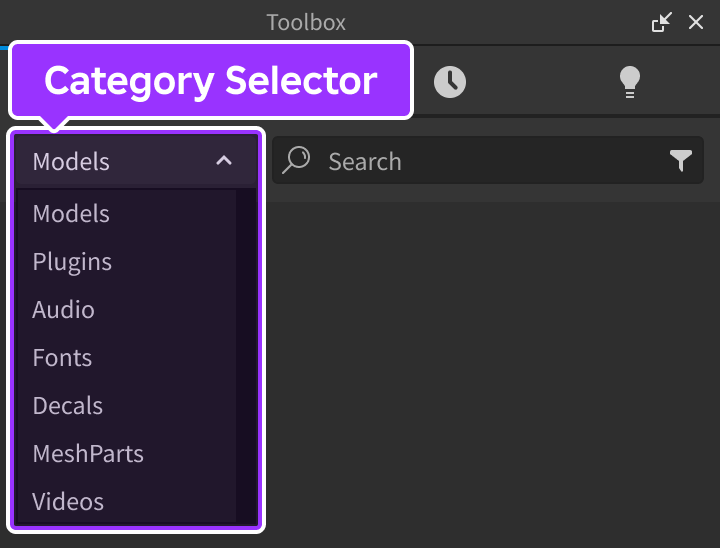
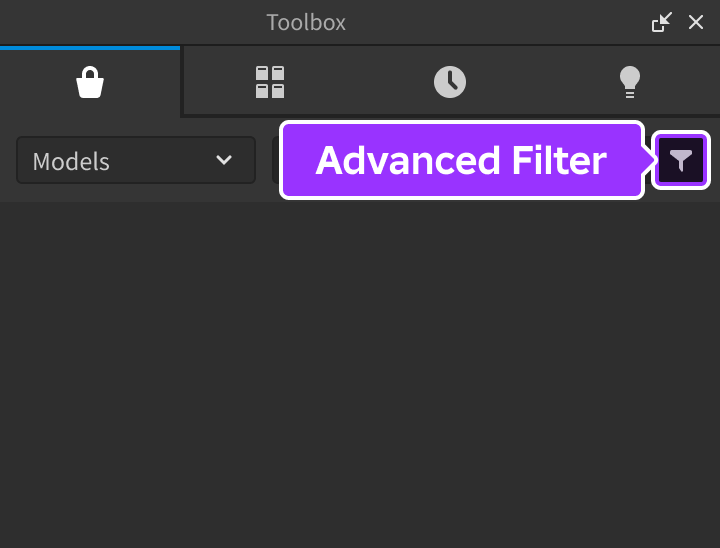
In the top-left corner, click the category selector dropdown and choose an asset category. Optionally click the advanced filter button to filter results by verified creator status, a specific creator, the sale price for plugins, and file length for audio assets.
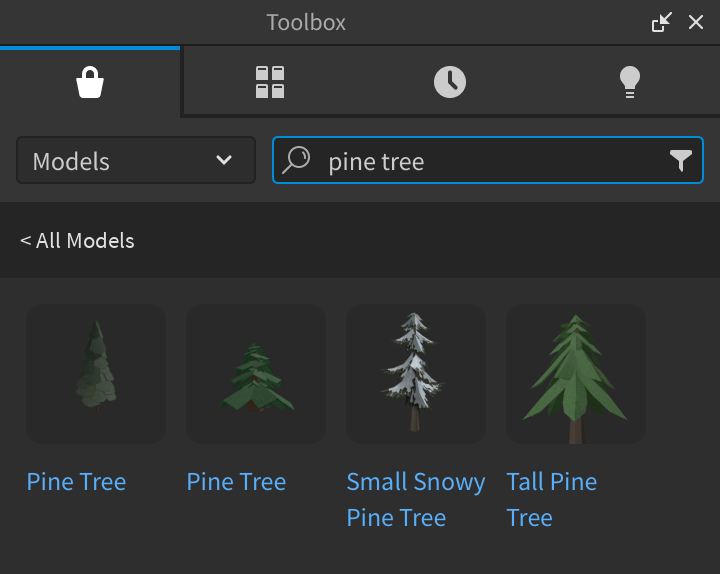
In the search field, type what you want to find and press Enter. The view curates a selection of assets according to your query.
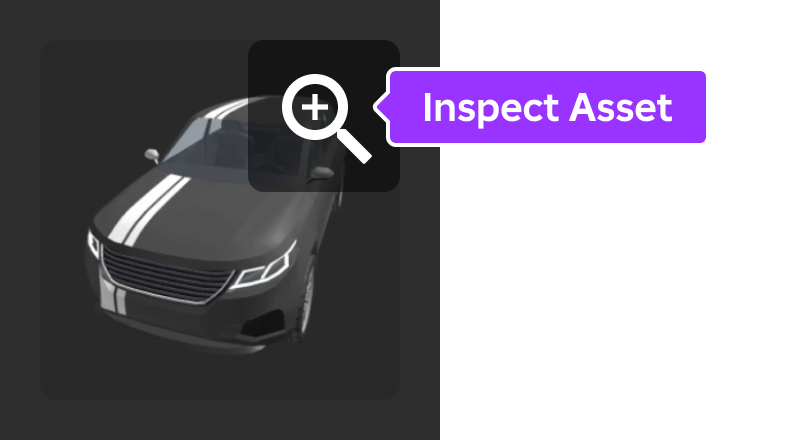
Hover over an asset thumbnail and click the magnifying glass icon to closely inspect the asset's community rating, description, and more.
To add an asset to a game:
- If the asset is a model, mesh, decal, video, or audio asset, click it or drag‑and‑drop it into the 3D viewport. It then inserts into the Explorer hierarchy, and assets with 3D content display in the viewport.
- If the asset is a plugin, click it and use the Install button to add it to the mezzanine's Plugins tab.
- If the asset is a font, click it and use the Install button to add it to your font library. It then becomes available for user interface elements such as text labels or buttons.
Note
Some assets include scripts that perform specific actions, such as animating at runtime or triggering a sound. If you want to use an asset without allowing any of its scripts to run, right‑click the object in the Explorer window and select Disable Scripts from the context menu.