Source: Roblox Creator Hub · CC BY 4.0 · View source · Code samples: MIT Imported 2026-10-03. Formatting adapted for this site.
UGC Homestore
The UGC Homestore is a user-friendly template that avatar item creators can use to showcase and sell their marketplace items. This template is ideal for creators with an existing UGC catalog who want a dedicated space to promote their assets. Creators who sell their own avatar items from their own game also benefit from a larger commission split.
The homestore template provides the following features that you can quickly customize with minimal scripting:
- Mannequins — 3D displays that can showcase avatar items. Users can interact with mannequins and purchase the showcased items.
- Integrated shop — Conveniently located shop button at the bottom of the screen opens a catalog where users can view and purchase items.
- Modular Building Parts — Customizable building components for creating a unique and personalized shopfront.
You can find the UGC Homestore Template in Roblox Studio's start screen. To access Studio's provided templates at any time, select File ⟩ Open from Roblox and select Templates.
Customize Homestore
You can modify the features of the homestore to showcase and sell your assets as well as add your own distinct theme and design. If the place is unpublished, the homestore showcases Roblox-created assets on the mannequins and shop as reference.
Mannequins
Each mannequin includes custom attributes that allow you to add avatar items, display different poses, use different skin tones, and more.
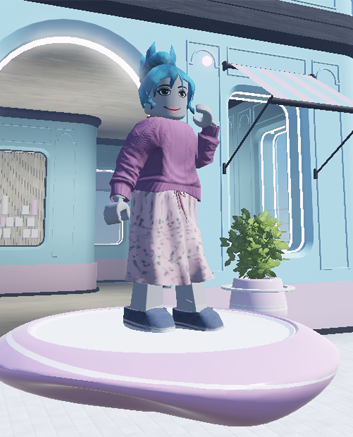
When playtesting, the mannequin loads all the accessories and settings defined in its Attributes properties.
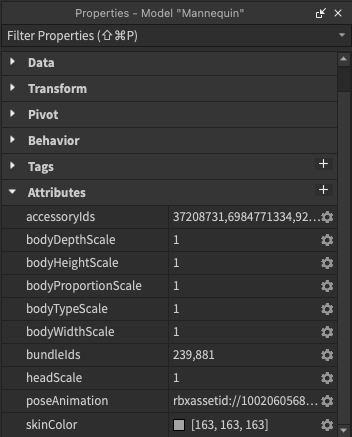
Custom Attributes properties allow you to edit accessories, body types, and other configurations.
To customize a mannequin:
- Select an existing mannequin object.
- In Properties Panel ⟩ Attributes, modify the following fields:
accessoryIds— Comma separated list of accessory IDs that display on mannequin.bundleIds— Comma separated list of bundle IDs that display on the mannequin.- To add shoes, you must set them as a bundle to include the right and left shoe.
poseAnimation— Animation ID for the mannequin, can be still or looped.skinColor— Sets color tone for the surface skin of the mannequin.
Note
If scripting mannequin behavior, each mannequin includes the Mannequin tag for easy referencing.
Shop
The template includes a shop button at the bottom of the screen visible for all users. When selected, a catalog interface opens displaying all available catalog items from the creator.
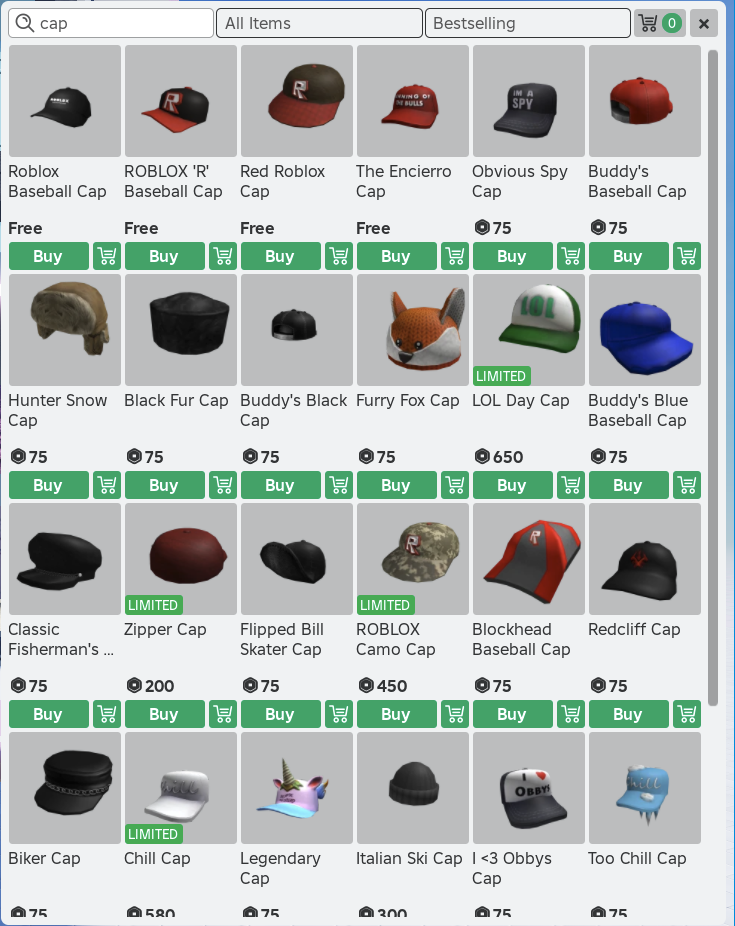
By default, the catalog applies the following behavior:
- If the place is unpublished, such as during initial playtesting, the catalog displays Roblox's marketplace items as reference.
- If the place is published, the catalog automatically displays the current game owner's available marketplace items.
- If the current game owner doesn't have any available marketplace items, the catalog doesn't display any items.
- You can set a different creator's catalog as the default by modifying
ReplicatedStorage.Settings.
Specify another creator's catalog
To set the catalog to use another creator's marketplace items:
In the Security section of File ⟩ Experience Settings, enable Allow Third Party Sales.

Ensure that the marketplace items have their sale location set to
Marketplace and All Experiencesor have specified this specific game as a valid sale location.- If the game is added as a unique sale location, the game owner must enable the specific asset for sale using the Creator Dashboard.
Note
Failure to properly link and enable a third-party asset means that users can only see the added items, but can't purchase them.In ReplicatedStorage, open the Settings ModuleScript object.

Modify DEFAULT_CREATOR_NAME to the name of the creator.
- If empty, the shop displays the entire Marketplace catalog from all creators.
Set FETCH_CREATOR_NAME to
false. This sets the catalog to always reference the DEFAULT_CREATOR_NAME instead of the game owner.
Building
Each building component is designed to be modular and extendible. You can quickly duplicate pieces, rotate, and rearrange them to create larger and more intricate structures. For more information on working with modular environments, see Assembling Modular Environments.
Advanced customizations
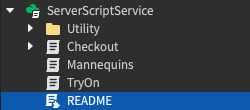
For an advanced technical breakdown of the template project, including descriptions of various scripts, components, and behaviors, navigate to ServerScriptService and open the README ModuleScript. This content is intended for creators who intend to modify the underlying scripts and behaviors of the template project.