
Source: Roblox Creator Hub · CC BY 4.0 · View source · Code samples: MIT Imported 2026-10-03. Formatting adapted for this site.
Economy events
Economy events let you track your in-game economy, such as:
- Top sinks — What do users spend in-game resources on?
- Top sources — Where do users earn resources?
- Average wallet balance — How much resources are users holding?
Once your game begins tracking Economy events, you'll unlock the Economy page of the Analytics dashboard on the Creator Hub.
Track economy events
To unlock the Economy dashboard, you need to track some economy events in your game. Start by identifying where users source (i.e. gain) and sink (i.e. spend) resources in your game. These are represented in code by AnalyticsEconomyFlowType, which can be either Source or Sink.
Note
Events can only be sent from the server and in published games. Events can't be sent from the client or Studio.
Transaction types
Each source and sink event requires a transaction type, encoded with AnalyticsEconomyTransactionType. By default, the options are:
IAP(source) - In-app purchases exchanging Robux for resources, e.g. starter pack.TimedReward(source) - Earn resources on a schedule, e.g. daily bonus.Onboarding(source) - Get resources when getting started, e.g. welcome bonus.Shop(source or sink) - Trade resources in the shop, e.g. item purchase.Gameplay(source or sink) - Earn or spend resources from gameplay, e.g. quest completion.ContextualPurchase(sink) - Spend resources on a context-specific impulse, e.g. extra lives.
These types appear on the dashboard. It's a good idea to start with the default categories, but if you need to you can also provide your own transaction type names when logging an event.
Track sources
The following sample uses AnalyticsService.LogEconomyEvent to log two different economy events when users complete the first and second levels in the game and earn some coins.
local AnalyticsService = game:GetService("AnalyticsService")

-- After level 1 completion
AnalyticsService:LogEconomyEvent(
    player,
    Enum.AnalyticsEconomyFlowType.Source,
    "Coins", -- Currency name
    50, -- Amount earned
    50, -- Current balance
    Enum.AnalyticsEconomyTransactionType.Gameplay.Name -- Transaction type
)

-- After level 2 completion
AnalyticsService:LogEconomyEvent(
    player,
    Enum.AnalyticsEconomyFlowType.Source,
    "Coins", -- Currency name
    50, -- Amount earned
    100, -- Balance after transaction
    Enum.AnalyticsEconomyTransactionType.Gameplay.Name -- Transaction type
)
The following sample tracks a Robux purchase of a 1000-coin bundle, using the IAP (in-app purchase) transaction type, this time with an itemSKU, your unique identifier for the item. itemSKU is optional. If you don't specify it, the Economy dashboards display N/A in the sources and sinks table.
local AnalyticsService = game:GetService("AnalyticsService")

AnalyticsService:LogEconomyEvent(
    player,
    Enum.AnalyticsEconomyFlowType.Source,
    "Coins",
    1000, -- How many coins are in the bundle
    1020, -- Balance after transaction
    Enum.AnalyticsEconomyTransactionType.IAP.Name,
    "1000CoinBundle" -- Unique item SKU identifier of the coin bundle
)
In this example, if you have many coin bundles, you might also want to add a custom field to track the coin bundle category against other categories.
Track sinks
The following sample logs an event when users spend coins to buy a DoubleJumpUpgrade. Note the Sink flow type and the Shop transaction type when compared to the source tracking samples.
Keep in mind that the amount (cost) should always be a positive number regardless of whether the event is a source or a sink. The economy dashboard charts will automatically show sinks as negative numbers.
local AnalyticsService = game:GetService("AnalyticsService")

-- After level 2 completion
AnalyticsService:LogEconomyEvent(
    player,
    Enum.AnalyticsEconomyFlowType.Sink,
    "Coins", -- Currency name
    80, -- Cost
    20, -- Balance after transaction
    Enum.AnalyticsEconomyTransactionType.Shop.Name,
    "DoubleJumpUpgrade" -- Item SKU
)
For information on AnalyticsService limitations, see Event tracking limitations.
Use custom fields
Economy events also allow breaking down on custom fields to support easier comparison between segments. For example, you can provide quest names to each event to see which ones users are making the most money from, or attach store locations to see if users prefer one location over another.
You can breakdown by custom fields by using the breakdown selector.
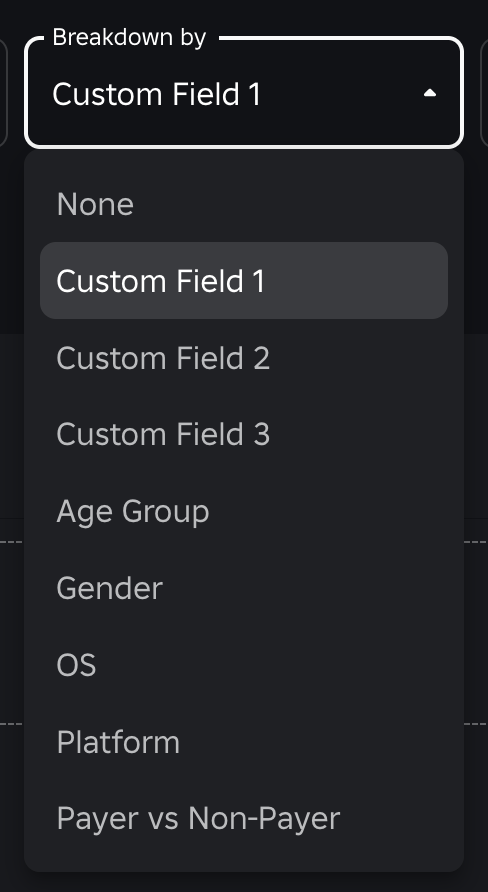
For more information, see Custom fields.
Use economy to grow your game
The Economy dashboard includes five charts to help you take action to grow your revenue. You can add up to five currencies of resources, and all charts can be filtered by various user categories (gender, age, platform, etc.) and up to three custom fields specific to your game.
Total sources and sinks by category - Use this chart to balance your in-game economy. Total sources subtract total sinks should be close to zero. You can also see your top sources and sinks by category. If your net total is growing, consider adding more sinks.

Average wallet balance - Use this chart to see how many resources users, payers, and non-payers hold on average. If average balance is growing, especially for payers, consider adding new sinks.

Top sources and sinks - Use this to identify where your users gain and spend their resources. If users are not sourcing resources from in-app purchases, consider reducing prices or offering new options. If users are not spending enough of a given resource, consider adding new sinks for that resource.

All sources and sinks - Use this to get a combined view by category for the selected date range.

For more tips on how to balance your in-experience economy, see Balance virtual economies.