
Source: Roblox Creator Hub · CC BY 4.0 · View source · Code samples: MIT Imported 2026-10-03. Formatting adapted for this site.
Pickup system
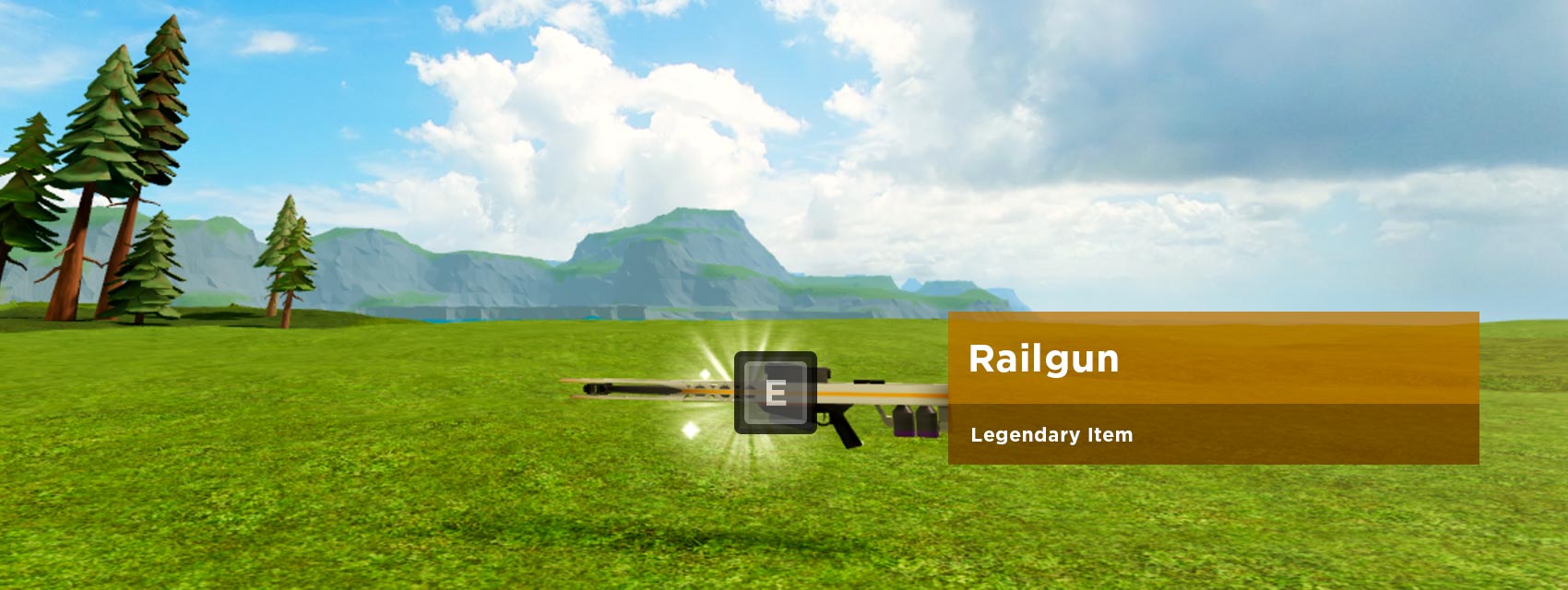
The Roblox Battle Royale pickup system lets players pick up different kinds of objects, although it's currently only used for weapon pickups. In game, weapons are spawned around the game map and — when players get close enough — an on-screen key/action/button prompt appears along with the weapon name and description.
Note
Roblox Battle Royale uses the Weapons Kit, so please consult its documentation for details and customization options.
Structure
There are several important folders related to the pickup system. Make sure that these folders are set up correctly in your project:
Workspace/PickupSpawners— Contains pickup spawnerPartswhich tell the system where to place visual pickupModels(see the next point). Note that these spawners are not required to be in this folder since the system looks for parts tagged with the PickupSpawner tag instead of the folder path.
Note
Pickup spawners can be placed at any physical location in the game, but they will choose a weapon **randomly** from `ReplicatedStorage/Assets/Weapons` and use the name-matched pickup model as a visual representation.ReplicatedStorage/Assets/Weapons— Contains the weapons (functionalTools) that the pickup system grants when a weapon pickup is activated.
ReplicatedStorage/Assets/Pickups— Contains the pickupModelsthat the system will place at pickup spawners in the game world. These should be visual models only, not functional weapon Tools.
Add new pickups
As noted above, pickups require both a functional Tool and a visual Model that will be spawned in the game world.
Tool
Create a
Tooland give it a unique name. You can create new weapons based upon those in the Weapons Kit or take tools from the Toolbox.Place the
ToolinReplicatedStorage/Assets/Weapons.
Model
Create a
Modelfor the visual pickup and give it the same name as you gave theTool.Through the Tags section of its properties, apply the following tags to the model:
- Action
- Pickup
- WeaponPickup
- WeaponSystemIgnore
- One of the rarity tags as outlined in Rarity.
Place the model in
ReplicatedStorage/Assets/Pickups.
Rarity
Pickup rarity is not defined by any mathematical formula, but you can associate an on-screen GUI like those pictured below to suggest an item's rarity.
Open the
ReplicatedFirst/Configurations/RarityConfigurationscript. This script contains tables for each rarity category, each of which includes a color value (Color) for the pickup's particle effect and an asset ID (Image) for the on-screen GUI background. For each GUI:- The item name will appear as the model/weapon name.
- The description will appear as the rarity name (such as Epic) plus Item.
The default rarities are as follows, but feel free to define your own.
Rarity GUI Common 
Uncommon 
Rare 
Epic 
Legendary 
Special 
For the pickup
Modelyou created previously (located inReplicatedStorage/Assets/Pickups), assign one of the tags you've defined in theRarityConfigurationscript.