
Source: Roblox Creator Hub · CC BY 4.0 · View source · Code samples: MIT Imported 2026-10-03. Formatting adapted for this site.
Add particle emitters
While testing, you may have noticed that the magic blasts are a bit bland. The white sparks you see right now are just a starting point; you'll make them much cooler by customizing a ParticleEmitter object.
Particle emitters make special effects in Roblox Studio. If you've seen effects like smoke, fire, or even magic portals in other Roblox games, you've definitely seen ParticleEmitters.
Find the blast
The template has two customizable particle emitters: one for the magic blast that flies through the air and another for the explosion when it hits an enemy. Start first with the blast, and in a later tutorial, you'll work on the explosion.
Using the camera controls (see below for instructions), move the camera to get a good view of the magic blast, a ball with white sparkles.

Below are controls on using the camera in Studio.
Action Control Move W A S D or arrow keys Rotate **Computer Mouse:** Hold the right mouse button and move the mouse to look around. **Laptop Trackpad:** Hold down two fingers and click with another. Zoom **Computer Mouse:** Use the mouse scroll wheel. **Laptop Trackpad:** Slide two fingers up or down. In the top-right box in Roblox Studio, find the Explorer window. This has all of the pieces of the project, such as code, decorations, and the blast you'll personalize.
Note
If you don't see it the Explorer window, open it from Studio's Window menu.
You'll need to find the magic blast's particles in the Explorer window to work with it. In the Explorer window's search bar, type BlastParticles, then select the object found.
Change the color
Start personalizing the magical blast by giving it a new color.
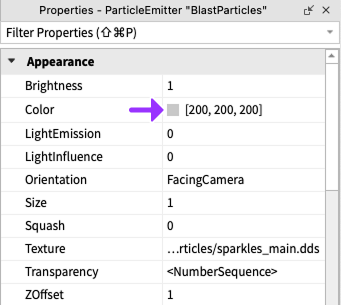
You can make changes to particle emitters in the Properties window. Find it on the bottom right of Studio, under the Explorer window.
In the Properties window, find the Color property, then double-click the light grey box to its right. A pop-up Colors window displays.
In the Colors window, select a color and then click the OK button. For example, if you set the Color property to
202, 210, 20, you will then have a particle that looks like the example below.