
Source: Roblox Creator Hub · CC BY 4.0 · View source · Code samples: MIT Imported 2026-10-03. Formatting adapted for this site.
Use case tutorials
Modeling
Modeling is the process of crafting 3D objects for props, environments, and characters within your games. This process is important because it allows you to create both the visual and interactive content that encourages players to explore and engage with the 3D space.
Studio modeling
Use solid modeling operations directly in Studio to form complex shapes by unioning and negating basic parts.
Intro to world building
   <a underline="none" href="https://www.youtube.com/watch?v=SgPU84AqpkY&t=74s">
   Get started
   </a>
Create neon signs with solid modeling
   <a underline="none" href="/docs/roblox-tutorials-use-case-tutorials-modeling-create-neon-signs">
   Get started
   </a>
Assemble modular environments
   <a underline="none" href="/docs/roblox-tutorials-use-case-tutorials-modeling-assemble-modular-environments">
   Get started
   </a>
Blender modeling
Use third-party modeling tools like Blender to create meshes, then import them into Studio using the Importer.

Box modeling 101
   <a underline="none" href="https://devforum.roblox.com/t/modeling-101-in-blender-box-modeling">
   Get started
   </a>
Vertex coloring meshes
   <a underline="none" href="https://devforum.roblox.com/t/vertex-colored-meshes-using-blender-and-studio/3023162">
   Get started
   </a>
Related docs
- Parts
- Solid modeling
- Meshes
- Texture and decals
- Mesh specifications
- Texture specifications
- Export requirements
- Roblox Blender plugin
User interfaces
User interfaces (UI) are visual or interactive elements that either provide essential gameplay information or teach players how to complete unique user flows within your games. Strategically implementing UI in key locations on-screen and in the 3D space is important because UI communicates what players need to know to be successful and to have a positive user experience, such as information about their main objective or their location in the overall map.

Create HUD meters
   <a underline="none" href="/docs/roblox-tutorials-use-case-tutorials-ui-create-hud-meters">
   Get started
   </a>
Create interactive UI
   <a underline="none" href="/docs/roblox-tutorials-use-case-tutorials-ui-interactive-ui">
   Get started
   </a>
Create proximity prompts
   <a underline="none" href="/docs/roblox-tutorials-use-case-tutorials-ui-proximity-prompts">
   Get started
   </a>
Create score bars
   <a underline="none" href="/docs/roblox-tutorials-use-case-tutorials-ui-create-a-score-bar">
   Get started
   </a>
Related docs
- On-screen UI
- In-game UI
- Labels
- Buttons
- Frames
- UI appearance modifiers
- Proximity prompts
- Position and size UI objects
Audio
Audio is sound that either increases a player's enjoyment of a game, or delivers feedback for their actions, gameplay status, or events. While often overlooked, audio is important because it immerses players within your environments, makes 3D worlds feel realistic, and provides information that helps players meet their goals.

Add 2D audio
   <a underline="none" href="/docs/roblox-tutorials-use-case-tutorials-audio-add-2d-audio">
   Get started
   </a>
Add 3D audio
   <a underline="none" href="/docs/roblox-tutorials-use-case-tutorials-audio-add-3d-audio">
   Get started
   </a>
Add voice chat
   <a underline="none" href="/docs/roblox-tutorials-use-case-tutorials-audio-add-voice-chat">
   Get started
   </a>
Add text-to-speech
   <a underline="none" href="/docs/roblox-tutorials-use-case-tutorials-audio-add-text-to-speech">
   Get started
   </a>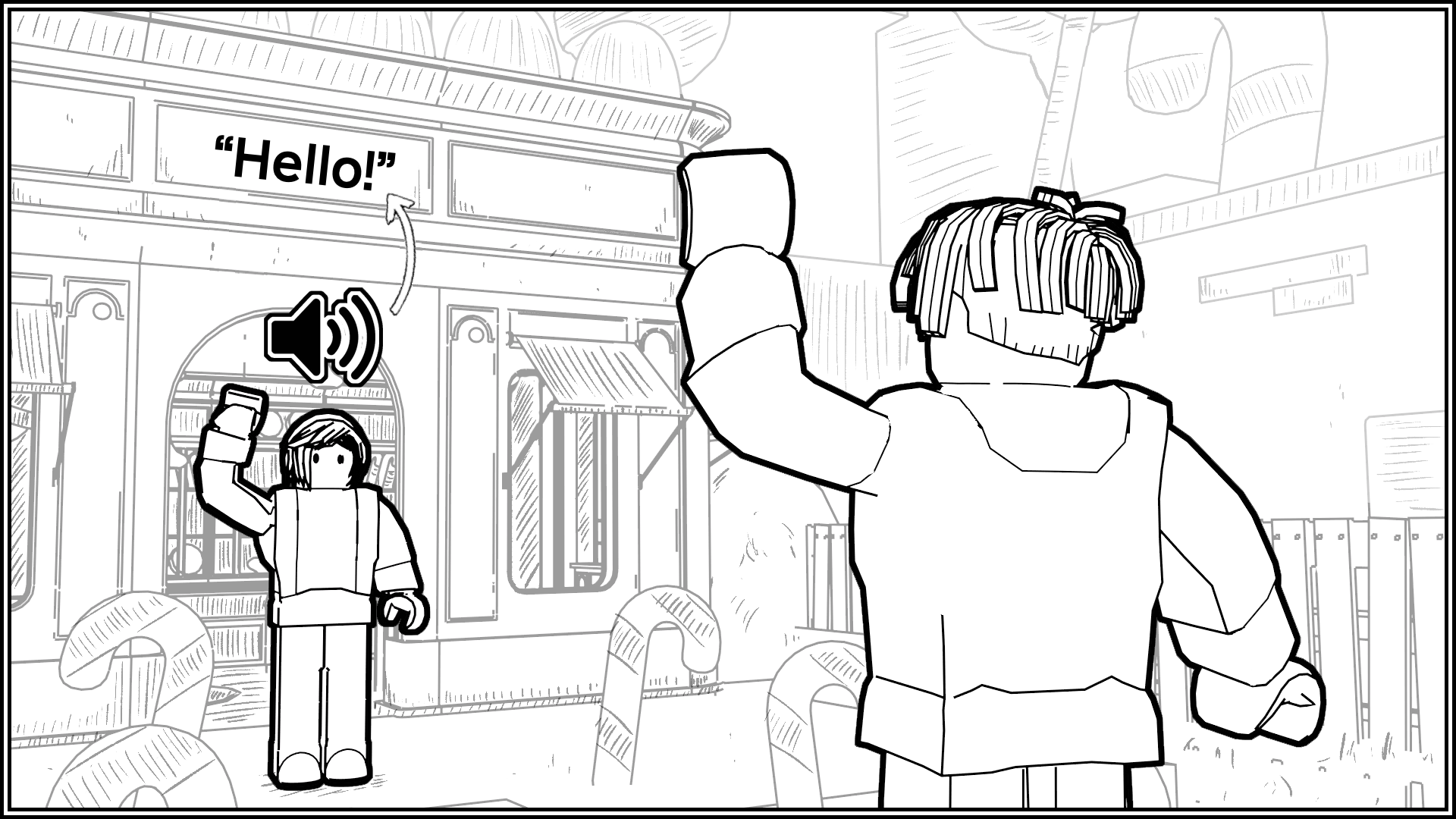
Add speech-to-text
   <a underline="none" href="/docs/roblox-tutorials-use-case-tutorials-audio-speech-to-text">
   Get started
   </a>
Related docs
Lighting
Lighting is luminescence within the 3D space that allows players to see and interact with objects in your games. Adding and customizing light sources to meet the needs of your game is important because lighting establishes mood, highlights important objects, and immerses players in either realistic or stylized environments.

Enhance indoor environments
   <a underline="none" href="/docs/roblox-tutorials-use-case-tutorials-lighting-enhance-indoor-environments">
   Get started
   </a>
Enhance outdoor environments
   <a underline="none" href="/docs/roblox-tutorials-use-case-tutorials-lighting-enhance-outdoor-environments">
   Get started
   </a>
Related docs
VFX
Visual Effects (VFX) are elements that enhance the player's user experience by either improving the environment with aesthetics that have real-world or custom physical behavior, or providing visual feedback on gameplay actions, such as casting a spell or interacting with a hazard. Designing environments and workflows with VFX in mind is important because VFX adds dynamic movement to scenes that would otherwise be static, and it can provoke emotions like joy or fear from players at key narrative moments.

Create laser beams
   <a underline="none" href="/docs/roblox-tutorials-use-case-tutorials-vfx-laser-traps-with-beams">
   Get started
   </a>
Create waterfalls
   <a underline="none" href="/docs/roblox-tutorials-use-case-tutorials-vfx-create-waterfalls">
   Get started
   </a>
Create volcanoes
   <a underline="none" href="/docs/roblox-tutorials-use-case-tutorials-vfx-create-volcanoes">
   Get started
   </a>
Related docs
Physics
Physics in Studio is the simulation of real-world physical systems like gravity, aerodynamics, and friction. Understanding how Roblox emulates physics in real time is important because it allows you to create realistic and intuitive behavior in your games that's familiar and intuitive to players.
Physics 101
   <a underline="none" href="https://www.youtube.com/watch?v=9mXvhYSv7fc&t=96s">
   Get started
   </a>
Create moving objects
   <a underline="none" href="/docs/roblox-tutorials-use-case-tutorials-physics-create-moving-objects">
   Get started
   </a>
Creating spinning objects
   <a underline="none" href="/docs/roblox-tutorials-use-case-tutorials-physics-create-spinning-objects">
   Get started
   </a>
Related docs
Animation
Animation is the process of creating motion for your characters, objects, and environments using internal rigs that you can pose between keyframes. Designing models with rigging and skinning data is important because it allows you to create engaging, dynamic, and expressive objects that bend and flex naturally.
Studio animation
Use the Animation Editor directly in Studio to create animations for models or meshes with rigging and skinning data.

Create character animations
   <a underline="none" href="/docs/roblox-tutorials-use-case-tutorials-animation-create-an-animation">
   Get started
   </a>
Play character animations
   <a underline="none" href="/docs/roblox-tutorials-use-case-tutorials-animation-play-character-animations">
   Get started
   </a>
Blender animation
Use third-party modeling tools like Blender to create meshes with rigging and skinning data, then import them into Studio using the Importer.

Rig and skin a simple mesh
 <a underline="none" href="/docs/roblox-art-modeling-rig-a-simple-mesh">
 Rig
 </a>
 <a underline="none" href="/docs/roblox-art-modeling-skin-a-simple-mesh">
 Skin
 </a>
Rig and skin a humanoid model
 <a underline="none" href="/docs/roblox-art-modeling-rig-a-humanoid-model">
 Rig
 </a>
 <a underline="none" href="/docs/roblox-art-modeling-skin-a-humanoid-model">
 Skin
 </a>
Related docs
Scripting
Scripting in Studio is the use of the Luau programming language to add custom, dynamic behavior to your games so that they are engaging and fun to play. Understanding how programming works on Roblox is important because it allows you to write and organize your scripts that control things like logic, movement, events, and interactions between objects in the 3D space in a way that improves performance and optimization.

Script types and locations
   <a underline="none" href="/docs/roblox-scripting-locations">
   Get started
   </a>
Services
   <a underline="none" href="/docs/roblox-scripting-services">
   Get started
   </a>
Properties and attributes
   <a underline="none" href="/docs/roblox-scripting-attributes">
   Get started
   </a>
Events
   <a underline="none" href="/docs/roblox-scripting-events">
   Get started
   </a>
Related docs
Camera and input
Camera is the object that determines what the player is able to see in the 3D space, and input is the method or device in which players access and interact with your game, such as a mobile device or gamepad. Designing gameplay around your camera configuration and which input types players can use to access your game is important because your design decisions directly impact accessibility, user experience, and how players can engage with objects.

Create a first-person camera
   <a underline="none" href="/docs/roblox-tutorials-use-case-tutorials-input-and-camera-control-the-users-camera#create-a-first-person-camera">
   Get started
   </a>
Create a side-scrolling camera
   <a underline="none" href="/docs/roblox-tutorials-use-case-tutorials-input-and-camera-control-the-users-camera#create-a-side-scrolling-camera">
   Get started
   </a>
Create an isometric camera
   <a underline="none" href="/docs/roblox-tutorials-use-case-tutorials-input-and-camera-control-the-users-camera#create-an-isometric-camera">
   Get started
   </a>
Detect user input
   <a underline="none" href="/docs/roblox-tutorials-use-case-tutorials-input-and-camera-detect-user-input">
   Get started
   </a>
Related docs
Data storage
Data stores are a service you can use to save and load persistent player data across different player sessions. They store important information, like a player's progress or inventory, and allow you to retrieve it for the player next time they join your game. Without data stores, your players would lose all of their progress every time they left the game.
Save player data
   <a underline="none" href="/docs/roblox-tutorials-use-case-tutorials-data-storage-save-player-data">
   Get started
   </a>
Create a custom leaderboard
   <a underline="none" href="/docs/roblox-tutorials-use-case-tutorials-data-storage-create-leaderboard">
   Get started
   </a>
Related docs