
Source: Roblox Creator Hub · CC BY 4.0 · View source · Code samples: MIT Imported 2026-10-03. Formatting adapted for this site.
Friends Locator
It can be challenging to locate friends in-game. The FriendsLocator developer module lets players easily find and teleport to their friends inside a place.
Module usage
Installation
To use the FriendsLocator module in a game:
From Studio's Window menu or Home tab toolbar, open the Toolbox and select the Creator Store tab.
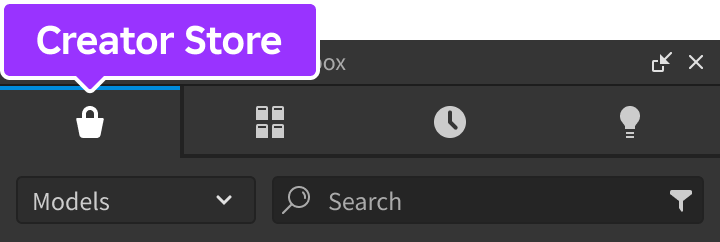
Make sure the Models sorting is selected, then click the See All button for Categories.

Locate and click the Packages tile.
Locate the Friends Locator module and click it, or drag-and-drop it into the 3D view.

In the Explorer window, move the entire FriendsLocator model into
ReplicatedStorage. Upon running the game the module will begin running.
Test in Studio
To test the module in Studio, the FriendsLocator module must be run in a multi-client simulation, since no friends will be present in a solo playtest.
In StarterPlayerScripts, create a new
LocalScriptand rename it ConfigureFriendsLocator.
Paste the following code into the new ConfigureFriendsLocator script. The
showAllPlayerssetting within the configure function ensures that locators are shown for all users while testing in Studio, but not in a published place.local RunService = game:GetService("RunService") local ReplicatedStorage = game:GetService("ReplicatedStorage") local FriendsLocator = require(ReplicatedStorage.FriendsLocator) FriendsLocator.configure({ showAllPlayers = RunService:IsStudio(), -- Allows for debugging in Studio })From Studio's mezzanine, start a multi-client simulation with 2 clients. Three new instances of Studio will open; one simulated server and two simulated clients.

Go into either of the client Studio instances, move a distance of 100 studs away from the other character, and you should see a locator icon appear over its head.

Note
Due to the way user IDs are handled in Studio, avatar images will not appear on the locator icons during testing.
Note
By default, clicking/tapping a friends's icon will teleport your character to that character's location. If you keep this default behavior and you find that streaming pause is occurring under the instance streaming architecture, you may want to request area streaming around the teleport location as shown in the clicked event code sample.
Connect to events
The FriendsLocator module exposes events so that you can introduce custom behaviors when users interact with a locator icon.
Make sure that you've created the ConfigureFriendsLocator script outlined in testing in Studio.
Add lines 8 and 11-13 to the script:
local RunService = game:GetService("RunService")
local ReplicatedStorage = game:GetService("ReplicatedStorage")

local FriendsLocator = require(ReplicatedStorage.FriendsLocator)

FriendsLocator.configure({
    showAllPlayers = RunService:IsStudio(), -- Allows for debugging in Studio
    teleportToFriend = false, -- Prevent teleport on icon click/tap
})

FriendsLocator.clicked:Connect(function(player, playerCFrame)
    print("You clicked on locator icon for", player.DisplayName)
end)
Conduct a multi-client test and click on another character's locator icon. Notice that your character does not teleport to that location, and the event triggers to allow for custom handling of icon clicks.
Custom locator UI
If the default style does not fit your game, you can replace the default avatar portrait UI with your own UI.
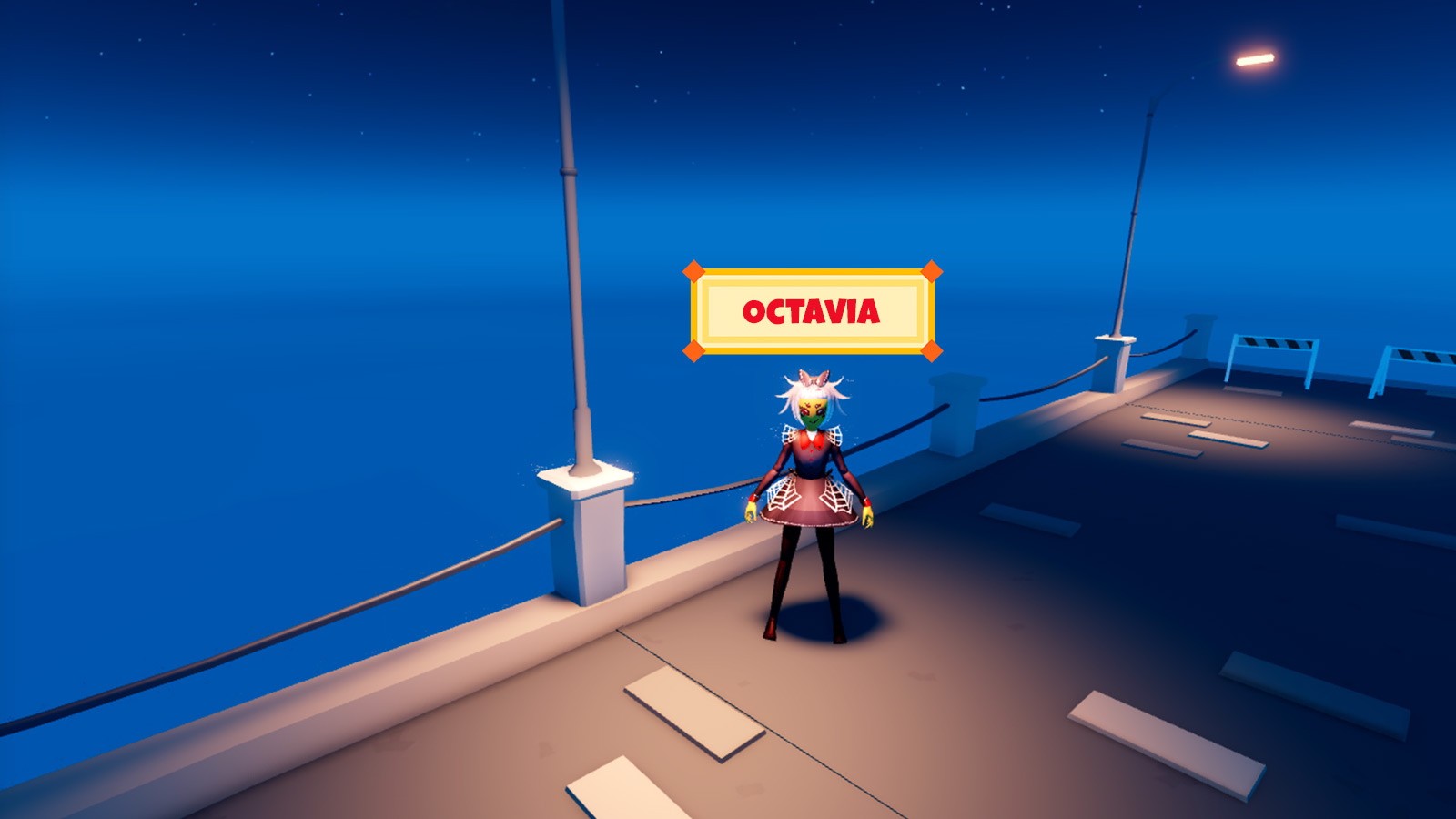
To replace the default UI:
Create a new
ScreenGuiinstance inside the StarterGui container.
Create a
Frameinstance named FriendLocator as a child of the newScreenGui, then add elements likeImageLabels,TextLabelsto design your custom UI.
When finished, disable the parent
ScreenGuiso that the module doesn't show the custom locator UI until needed.
If you want the friend's avatar portrait and DisplayName to show up somewhere in the custom UI, you can place the following instances inside the FriendLocator frame.
- An
ImageLabelof the name Portrait. - A
TextLabelof the name DisplayName.

The module will look for these items and display the friend's avatar portrait and/or display name respectively.
API reference
Functions
configure
configure(config: table)
Overrides default configuration options through the following keys/values in the config table.
| Key | Description | Default |
|---|---|---|
| `alwaysOnTop` | If `true`, shows locator icons on top of everything, preventing them from being blocked by 3D world objects. | true |
| `showAllPlayers` | If `true`, shows locations for all players, not just friends; this can help verify the module's functionality in Studio. | false |
| `teleportToFriend` | Teleports player character to the friend's location when their locator icon is clicked or tapped. | true |
| `thresholdDistance` | Camera distance threshold at which locator icons appear; friends closer than this distance will not display icons. | 100 |
| `maxLocators` | Maximum number of locator icons shown at any given time. | 10 |
local ReplicatedStorage = game:GetService("ReplicatedStorage")

local FriendsLocator = require(ReplicatedStorage.FriendsLocator)

FriendsLocator.configure({
	alwaysOnTop = true,
	showAllPlayers = false,
	teleportToFriend = true,
	thresholdDistance = 100,
	maxLocators = 10
})
Events
clicked
Fires when a locator icon is clicked/activated by the local player. This event can only be connected in a LocalScript.
| Parameters | |
|---|---|
| player: [`Player`](/docs/player) | Player that the locator icon belongs to. |
| playerCFrame: [`CFrame`](/docs/cframe) | [`CFrame`](/docs/cframe) of the player's [`Humanoid.RootPart`](/docs/humanoid#humanoid-rootpart) that the locator icon belongs to. |
local ReplicatedStorage = game:GetService("ReplicatedStorage")
local Players = game:GetService("Players")
local Workspace = game:GetService("Workspace")

local FriendsLocator = require(ReplicatedStorage.FriendsLocator)

local localPlayer = Players.LocalPlayer

FriendsLocator.clicked:Connect(function(player, playerCFrame)
	-- Request streaming around target location
	if Workspace.StreamingEnabled then
		local success, errorMessage = pcall(function()
			localPlayer:RequestStreamAroundAsync(playerCFrame.Position)
		end)
		if not success then
			print(errorMessage)
		end
	end

	print("You clicked on locator icon for", player.DisplayName, "at position", playerCFrame.Position)
end)
visibilityChanged
Fires when a locator icon is shown/hidden on the local player's screen. This event can only be connected in a LocalScript.
| Parameters | |
|---|---|
| player: [`Player`](/docs/player) | [`Player`](/docs/player) object that the locator icon belongs to. |
| playerCFrame: [`CFrame`](/docs/cframe) | [`CFrame`](/docs/cframe) of the player's [`Humanoid.RootPart`](/docs/humanoid#humanoid-rootpart) that the locator icon belongs to. |
| isVisible: `boolean` | Whether the locator icon is currently visible on the local player's screen. Note that this will still be `true` if `alwaysOnTop` is `false` and the locator renders behind an object in the 3D world. |
local ReplicatedStorage = game:GetService("ReplicatedStorage")

local FriendsLocator = require(ReplicatedStorage.FriendsLocator)

FriendsLocator.visibilityChanged:Connect(function(player, playerCFrame, isVisible)
	print("Visibility of locator icon for", player.DisplayName, ":", isVisible)
end)