
Source: Roblox Creator Hub · CC BY 4.0 · View source · Code samples: MIT Imported 2026-10-03. Formatting adapted for this site.
Rigid accessory specifications
Rigid accessories require a specific set of components and configuration standards to ensure they are able to attach to character bodies and include optimizations for performance and quality. Because you must apply many of these requirements as you're designing and modeling the rigid accessory in a third-party modeling program like Blender or Maya, it's important to review these specifications early and often as you work.
When you're ready to export your rigid accessory, reference all export setting requirements for Blender and Maya.
Note
For other types of 3D models:
- [General mesh](/docs/roblox-art-modeling-specifications) specifications.
- [Layered accessory](/docs/roblox-avatar-layered-accessories-specifications) specifications.
Geometry and budgets
- Single Mesh - Rigid accessories must be a single mesh.
- Budgets - Rigid accessories can't exceed 4k triangles.
- Watertight - All geometry must be watertight without exposed holes or backfaces.
- Use quads whenever possible. Avoid faces with 5 or more sides.
- Mesh Size - Meshes must adhere to maximum size requirements (in studs, centered on attachment point) according to the type of rigid accessory you're designing and the body scale you're designing the rigid accessory for.
Body scale
Roblox supports 3 types of character body scales: Normal, Slender, and Classic. When designing a rigid accessory, the size of the accessory cannot exceed the following sizes based on body scale and rigid accessory asset type. A rigid accessory's size is measured based attachment orientation.
When modeling rigid accessories, it's important to use a mannequin to help ensure your proportions fit. When using the Importer to import a mannequin:
- Use Rig Scale > Rthro to import your model as a
Normalbody scale. - Use Rig Scale > Rthro Narrow to import your model as a
Slenderbody scale. - Use Rig Scale > Default to import your model as a
Classicbody scale.
Note
You can use tools like the Accessory Fitting Tool to help visualize and adjust the scale of your mesh on a mannequin within a visualized boundary before uploading and publishing the asset to the Marketplace. For a demonstration, see Convert rigid accessories.
Normal
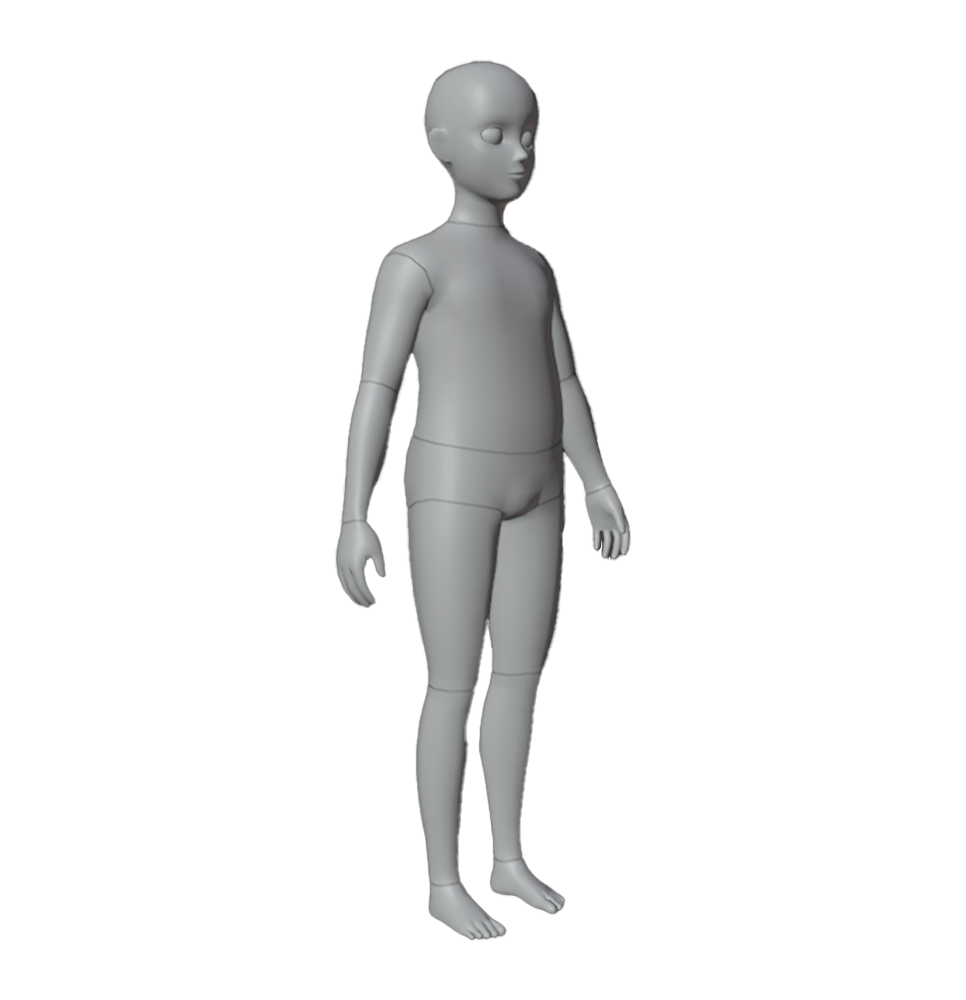
A Rthro Normal body scale downloadable mannequin that's roughly 5.75-6.5 studs tall.
| Asset Type | Width (X) | Height (Y) | Depth (Z) |
|---|---|---|---|
| Hat | 1.87 | 2.5 | 1.87 |
| Hair | 1.87 | 3.12* (Not centered: 1.25 up, 1.875 down) | 2.18* (Not centered: 0.9375 front, 1.25 behind) |
| Face | 1.87 | 1.25 | 1.25 |
| Eyebrow and Eyelashes | 1.5 | 0.5 | 0.5 |
| Neck | 2.95 | 3.68 | 2.16 |
| Shoulder (attached to NeckAttachment) | 6.90 | 3.68 | 3.24 |
| Shoulder (attached to RightCollarAttachment, LeftCollarAttachment) | 2.95 | 3.68 | 3.24 |
| Shoulder (attached to RightShoulderAttachment, LeftShoulderAttachment) | 2.67 | 4.40 | 3.09 |
| Front | 2.95 | 3.68 | 3.24 |
| Back | 9.86 | 8.59 | 4.87* (Not centered: 1.623 front, 3.246 behind) |
| Waist | 3.94 | 4.29* (Not centered: 1.842 up, 2.457 down) | 7.57 |
Slender
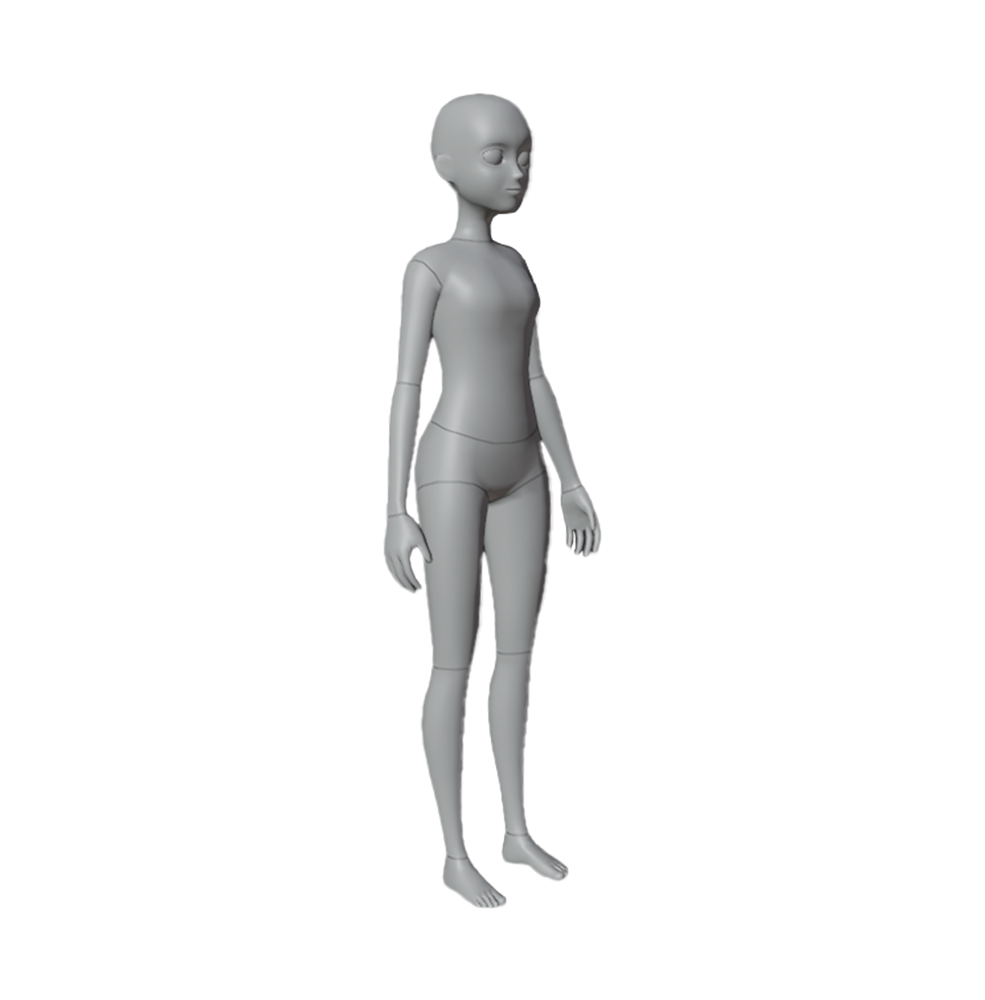
A Rthro Slender (Narrow) body scale downloadable mannequin that's roughly 5.25-6.25 studs tall.
| Asset Type | Width (X) | Height (Y) | Depth (Z) |
|---|---|---|---|
| Hat | 1.78 | 2.5 | 1.78 |
| Hair | 1.78 | 3.12* (Not centered: 1.25 up, 1.875 down) | 2.08* (Not centered: 1.892 front, 1.189 behind) |
| Face | 1.78 | 1.25 | 1.18 |
| Eyebrow and Eyelashes | 1.5 | 0.5 | 0.5 |
| Neck | 2.59 | 3.39 | 1.92 |
| Shoulder (attached to NeckAttachment) | 6.05 | 3.39 | 2.88 |
| Shoulder (attached to RightCollarAttachment, LeftCollarAttachment) | 2.59 | 3.39 | 2.88 |
| Shoulder (attached to RightShoulderAttachment, LeftShoulderAttachment) | 2.37 | 3.96 | 2.75 |
| Front | 2.59 | 3.39 | 2.88 |
| Back | 8.64 | 7.91 | 4.32* (Not centered: 1.443 front, 2.886 behind) |
| Waist | 3.76 | 3.29* (Not centered: 1.414 up, 1.885 down) | 6.73 |
Classic
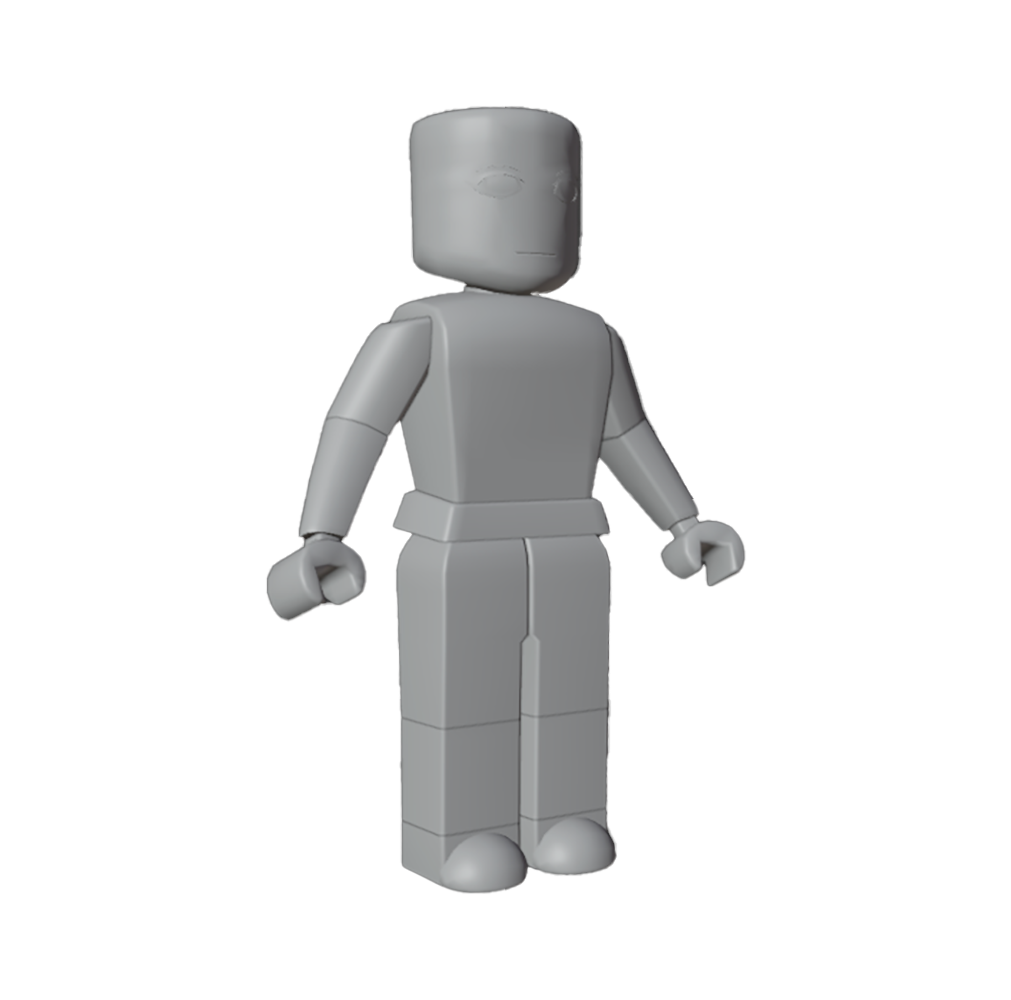
A Classic body scale downloadable mannequin that's roughly 4.75 studs tall.
| Asset Type | Width (X) | Height (Y) | Depth (Z) |
|---|---|---|---|
| Hat | 3 | 4 | 3 |
| Hair | 3 | 5* (Not centered: 2 up, 3 down) | 3.5* (Not centered: 1.5 front, 2 behind) |
| Face | 3 | 2 | 2 |
| Eyebrow and Eyelashes | 1.5 | 0.5 | 0.5 |
| Neck | 3 | 3 | 2 |
| Shoulder (attached to NeckAttachment) | 7 | 3 | 3 |
| Shoulder (other) | 3 | 3 | 3 |
| Front | 3 | 3 | 3 |
| Back | 10 | 7 | 4.5* (Not centered: 1.5 front, 3 behind) |
| Waist | 4 | 3.5* (Not centered: 1.5 up, 2 down) | 7 |
AvatarPartScaleType
Roblox represents body scale in the engine by an AvatarPartScaleType StringValue object within each avatar character part and associated accessory. In most cases, asset creators do not need to directly access or modify this value object since tools like the Accessory Fitting Tool automatically generate the appropriate value object on accessory creation.
In cases where you need to identify the current body scale of a body part or accessory, the following table defines the AvatarPartScaleType value for each type of body size. When importing your rigid accessory, use the Importer's Rig Scale to automatically apply a scale to your accessory.
| Body Scale | AvatarPartScaleType value |
|---|---|
| Classic | `Classic` |
| Normal | `ProportionsNormal` |
| Slender | `ProportionsSlender` |
Textures
- Rigid accessory textures must meet Roblox's general texture specifications. High resolution textures are automatically converted to lower-resolution textures to optimize performance.
- Rigid accessory textures for Marketplace assets cannot exceed 2048x2048 resolution.
Attachment points
Attachment objects determine where an accessory model attaches to a point on a character body. Whether you are creating rigid or layered accessories, Studio's Accessory Fitting Tool (AFT) automatically adds and configures the appropriate Attachment with the following specifications:
- One attachment - Each rigid accessory requires at least one attachment point to its associated body part.
- Naming convention - The
Attachmentname must follow a specific naming convention depending on theAccessory.AccessoryType. The AFT automatically generates an appropriateAttachmentname.
If setting or configuring attachments manually in Studio, use the following names for your Attachment object according to the accessory type:
| Accessory type | Attachment name |
|---|---|
| Hat | `HatAttachment` |
| Hair | `HairAttachment` |
| Back | `BodyBackAttachment` |
| Waist | `WaistFrontAttachment`, `WaistCenterAttachment`, `WaistBackAttachment` |
| Shoulder | `RightShoulderAttachment`, `RightCollarAttachment`, `NeckAttachment`, `LeftCollarAttachment`, `LeftShoulderAttachment` |
| Face, Eyelash, Eyebrow | `FaceFrontAttachment`, `FaceCenterAttachment` |
| Neck | `NeckAttachment` |
| Front | `BodyFrontAttachment` |
Note
Importing attachment objects from a third-party tool is not supported for rigid accessories, but is supported for character bodies.
- Shoulders and Collars - Even though they are in similar locations, Shoulder and Collar attachment points interact with character body armature rigs differently for rigid accessories.
- Items using
RightShoulderAttachmentorLeftShoulderAttachmentmove with the character's arm. - Items using
RightCollarAttachmentorLeftCollarAttachmentdo not move with the character's arm.
- Items using
Marketplace requirements
Rigid accessories must meet the following requirements before you upload them to the Marketplace:
- Ensure that your rigid accessories adhere to Marketplace policies.
- Whenever applicable, ensure that your rigid accessories adhere to Roblox's custom mesh specifications.
- Object
Materialis set toPlastic. - Object
Transparencyis set to 0. - Object
VertexColoris the default1, 1, 1. - Your
Accessoryobject does not contain extraneous objects, likeScriptor additionalPartobjects.