
Source: Roblox Creator Hub · CC BY 4.0 · View source · Code samples: MIT Imported 2026-10-03. Formatting adapted for this site.
Export and Import Animations
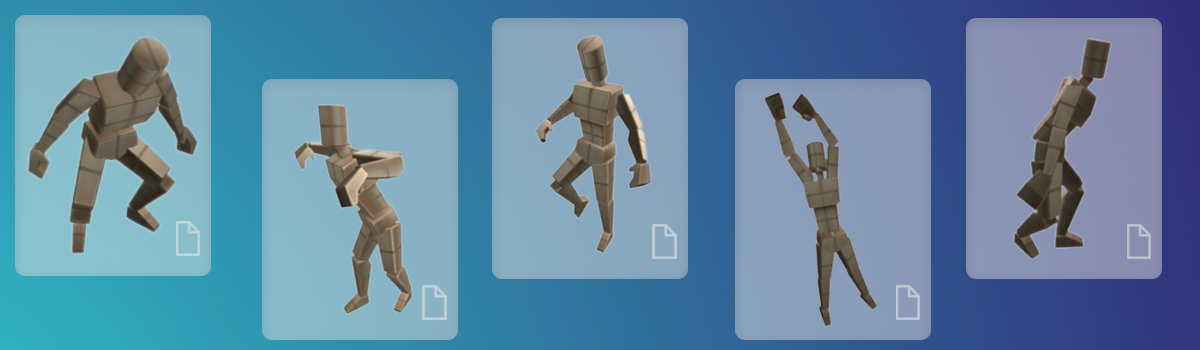
Share animations with friends and fellow developers by exporting and importing them through Studio.
Note
Animation Permission Changes
You can now share animations with friends, groups, and games without re-uploading them. For more information, see Asset privacy.
Export animations
Make sure to save your animation before exporting it.
In Explorer, expand the rig that you were animating with. It's likely that rig is named Dummy.

Expand AnimSaves. Then, find the name of the animation to share.

Right-click the animation name and select Save to File. This saves the animation as an
.RBXMfile on your computer, which can be shared. You can export more than one animation at a time.
Import animations
Animations saved in an .RBXM file can be imported into different rigs by yourself or by friends in any Roblox file.
- Select the rig you want to use. In the Explorer, select AnimSaves.
Note
Check The Rig Has Previous Animations
If the rig doesn't have any previous animations, it won't have an AnimSaves folder. To make that folder, in the rig, create and save a new animation. Saving an animation automatically creates the needed folder.
Right-click on AnimSaves and select Insert From File. Then, pick the
.RBXMfile with the exported animation.To load the animation, in the Animation Editor (see the Plugins tab), click on ⋯.

Next, in the drop-down menu, go to Load and select the name of the
.RBXMfile just imported.
Troubleshooting tips
Issue: Animation Not Loading In the original .RBXM file, make sure there is a saved KeyframeSequence object.
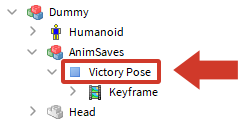
If only a Keyframe object was imported, try re-exporting the original animation and importing again. Make sure to export the named KeyframeSequence and not just a keyframe object.