
Source: Roblox Creator Hub · CC BY 4.0 · View source · Code samples: MIT Imported 2026-10-03. Formatting adapted for this site.
Studio tests for character bodies
After you complete your work and test your character bodies in your third-party modeling tool, it's important to comprehensively test your character bodies in Studio too so that you can understand how they look and behave across the platform. Roblox provides two separate testing workflows:
- Avatar Setup - This all-in-one tool lets you preview and test various character body components, such as facial and full body animations, accessory fitting, and makeup looks.
- Avatar test place - This game provides a wide variety of environmental and clothing tests to ensure that your character model and related components work correctly.
As you iterate on your avatar character bodies, try both workflows regularly and review any areas of concern. The following instructions provide guidance specifically for the Avatar test place.
Configure test place
The Avatar test place includes several features in the interface and environment to quickly perform comprehensive tests of your avatar character bodies. To use the test place, you must save the game locally and configure settings to assist your testing workflow with your character model. To configure the test place:
Download the Avatar test place.

Import your custom character body. For detailed instructions, including how to manually import textures if they didn't load correctly, see Import character bodies.
Set your character model as the starting player character.
- In the Explorer window, rename your character model to StarterCharacter.
- Click and drag your character model to the StarterPlayer service. If a StarterCharacter model already exists, delete it.

Playtest the game and use the following UI buttons on the right side to open various testing tools and options:
| Description | |
|---|---|
 Avatars and facial animation | Use this menu to swap between the custom avatar and control avatars. An additional button option allows you to loop through various facial animations to test your character's face expressions. |
 Emotes and animations | Use this menu to test various animations on your avatar character. |
 Skin tone color palette | Use this menu to select a new skin tone for your character. See Custom Skin Tones for more details on this implementation with template character models. |
 Clothes and accessories | Use this menu to select various clothing items to try on. |
 Movement settings | Use this menu to change movement settings for your character model, such as **jump height** and **walk speed**. |
 Body proportion settings | Use this menu to change various aspects of your character's body proportions. |
 Lighting presets | Use this menu to change the environment lighting to various presets, such as **Mountains - Sunset** or **Indoor - Midday**. |
Test checklist
Review the following checklists to ensure that you are comprehensively testing each component of your avatar. You can use the Avatar menu to switch between your custom avatar and a control avatar to verify expected behavior.
Movement and animation
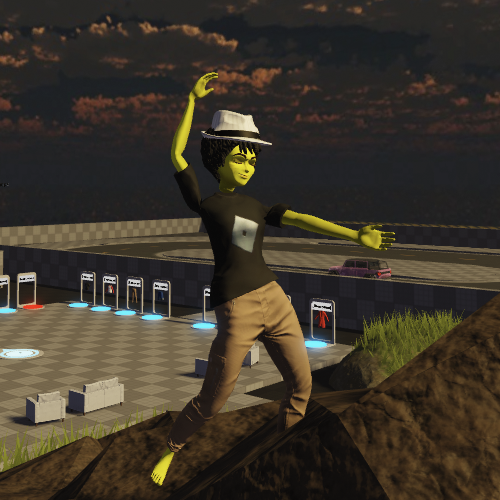 Testing guitar animation emote
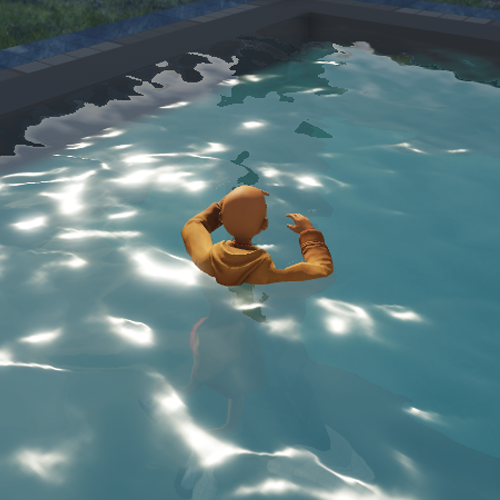 Testing water movement
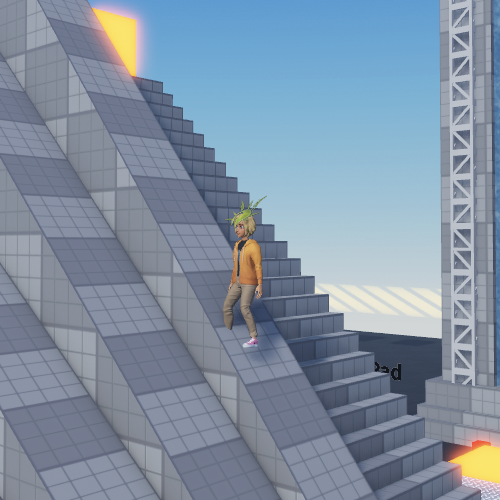 Testing ramp movement
Check the following for any anomalies:
| Function | How to test |
|---|---|
| Walking | Move the character around the environment, ramps, and platforms. |
| Sitting | Move to any of the seats in the environment and press E to sit. |
| Climbing | Move to any of the trusses and ladders. Your character automatically begins climbing when nearby. |
| Swimming | Use the pool of water at the top of the ramp area to verify your swimming animation. |
| Jumping | Press Space to jump. |
| Dying | Use any of the death cubes to set your character to a ragdoll state and respawn. |
| Facial Animation | Use the **Face UI menu** to toggle a face animation cycle. |
| Emotes and Animation | Use the **Emote UI menu** to access and play the available emotes. |
If you see unexpected behavior with your character's movement, there may be issues with the rigging or skinning of your character body that require you to revisit your character's rigging and armature components in your 3D modeling software.
Lighting and color
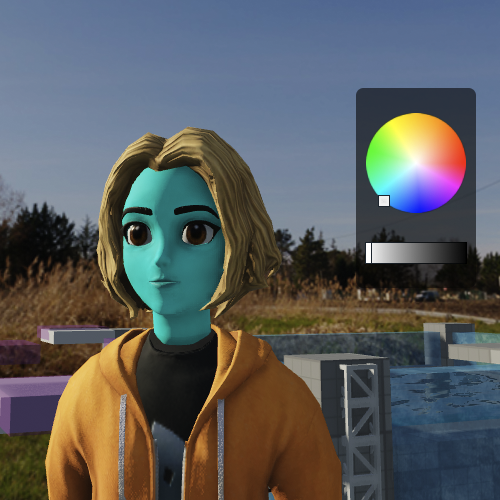 Testing skin tones
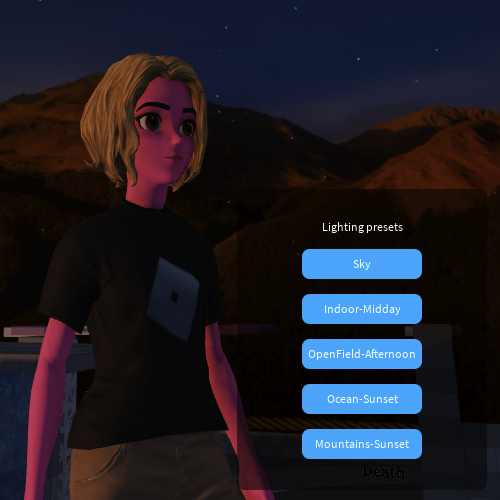 Testing environmental lighting
Check the following for any anomalies:
| Function | How to test |
|---|---|
| Skin tone | Use the **Skin Tone UI** menu to test various skin tones for texturing and lighting compatibility. |
| Environmental lighting | Use the **Lighting UI menu** and the environment to test how your character's textures display in various lighting conditions. |
If you see unexpected behavior with your character's appearance in various lighting and color selections, there may be issues with the texturing of your character body that require re-adjusting your character's texture components in your 3D modeling software.
Clothing and accessories
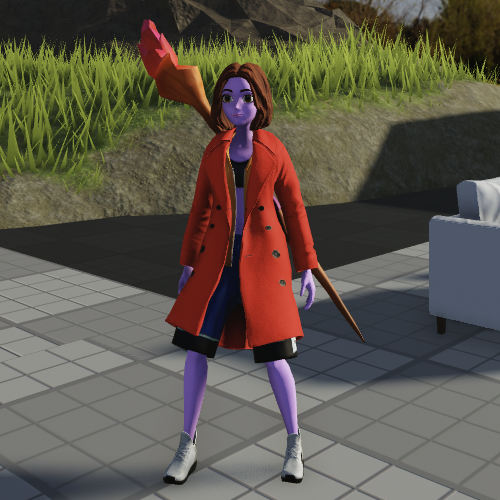 Test a mix of clothing and accessories
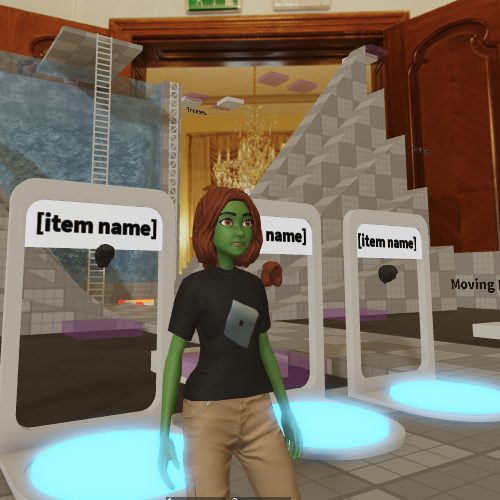 Use the UI menu or pedestals to equip or reset clothing and accessories
Check the following for any anomalies:
| Function | How to test |
|---|---|
| Equipping accessories | Use the **Clothes and Accessories UI menu** or environmental pedestals to equip rigid accessories to your character. |
| Equipping clothing | Use the **Clothes and Accessories UI menu** or environmental pedestals to equip layered accessories to your character, and test your clothing in motion and in animations to verify the fit. |
If you see unexpected behavior with your character equipping rigid or layered accessories, there may be issues with the caging or attachment points of your character body that require re-adjusting your character's cage mesh shapes or attachment objects in your 3D modeling software.
Note
Clothes can layer in unconventional orders, such as a jacket worn below a t-shirt. You can reset the equipped clothing and try various combinations of clothing options and ordering.