
Source: Roblox Creator Hub · CC BY 4.0 · View source · Code samples: MIT Imported 2026-10-03. Formatting adapted for this site.
List and flex layouts
The UIListLayout positions sibling GuiObjects into horizontal rows or vertical columns within their parent container. Whenever you add or remove a sibling object, the layout adjusts accordingly.

Note
Once you insert a UIListLayout, it either overrides or influences the Position, Rotation, and/or Size of all sibling UI objects, so changes to those properties within the Properties window or within a script will not have the normal effect.
Fill direction
The FillDirection property determines the direction in which the list layout's siblings will render.

Ordering is determined by the layout's SortOrder property which can be either ascending numeric, based on each item's LayoutOrder integer value, or alphanumeric based on the item's Name.

Note
To reverse elements, such as right-to-left ordering in a horizontal list, you'll need to reverse the sorting. For example, if four items are ordered by LayoutOrder of 0, 1, 2, 3 respectively, negate each value to form an order of 0, -1, -2, -3.
Alignment
The HorizontalAlignment and VerticalAlignment properties determine the respective X and Y alignment of both the list's siblings in relation to each other and the list's overall bounds within its container. For example, a horizontally-filled list with VerticalAlignment of Center centrally aligns the list's siblings with each other and centers the list vertically in its container.

Note
HorizontalAlignment and VerticalAlignment differ slightly from item line alignment in a flex layout, with which you can align items in the same line without applying the same alignment to the list's overall bounds in its container.
Wrapping
The Wraps boolean controls whether siblings within the parent container wrap to another line when their default size exceeds the width/height of the container's bounds.

Padding
The Padding property determines the amount of empty space between each list item, set to either a scale (percentage of the container's size in the current direction) or an offset (static spacing value similar to pixel size).
Note
This property does not apply padding around the list's overall bounds; see UIPadding to apply top, bottom, left, and/or right padding to the contents of the parent.
Flex layouts
Integrating flex into a UIListLayout is a powerful way to equally fill/distribute or align/stretch list items across their line, or flex specific items across a variable space.
Note
While flex is a powerful tool, you should not apply it to a UIListLayout without purpose, as it adds a slight performance cost above non‑flex, especially when resizing the layout or dynamically adding/removing flex items.
Additionally, a grid layout may be preferable when items should strictly align to a grid in both the X and Y directions, since grid layouts enforce a consistent cell size while flex layouts may use a variable number of items per line.
Equal fill or distribution
When the list layout's fill direction is set to Horizontal, the HorizontalFlex property specifies how to distribute extra horizontal space in the parent container. Similarly, when the fill direction is set to Vertical, the VerticalFlex property specifies how to distribute extra vertical space.
HorizontalFlex

VerticalFlex

One practical use of HorizontalFlex is a tabbed window interface where flex fills the tab bar equally, regardless of the number of tabs. No approach is easier than flex in this case, because it automatically calculates the width of each tab without developer‑defined width settings, and it automatically adjusts if the number of tabs changes.
3 Tabs

6 Tabs

Item line alignment
The ItemLineAlignment property defines the cross‑directional alignment of siblings within a line, letting you align objects of different widths/heights or make objects of lesser width/height fill their entire line.

One practical use case for ItemLineAlignment is to stretch a series of inconsistently sized tiles to fill their entire row (Stretch), making the layout more cohesive.
Uneven Layout

Tiles with varying content heights result in an uneven and staggered layout
Filled Lines
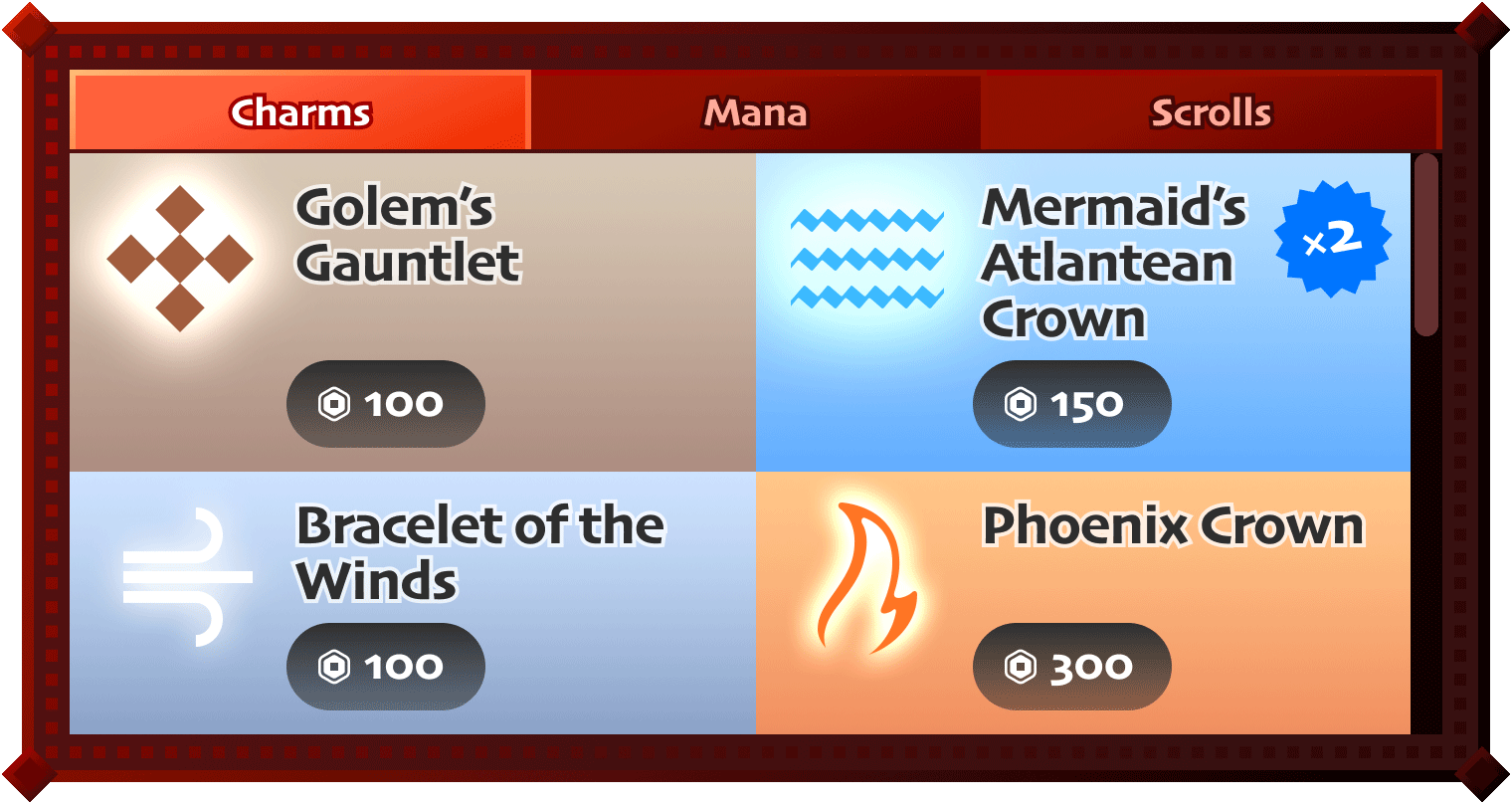
Tiles stretched to fill their line result in a more even and consistent layout
Flex individual items
While flexing an entire layout is a powerful utility, certain layouts are more suited to individual item flexing. In such layouts, some elements in the list maintain their core size while other items flex to fill variable spaces. One practical usage is a slider bar widget with uniform labels on both ends and a flexible slider bar that fills the entire width between.

To set one specific list item as flexible, insert a UIFlexItem as a child of the flexible item, then set its FlexMode property to Fill, Grow, Shrink, or Custom.
