
Source: Roblox Creator Hub · CC BY 4.0 · View source · Code samples: MIT Imported 2026-10-03. Formatting adapted for this site.
Data Stores Manager
With the Data Stores Manager, you can browse and monitor your data stores, their key entries, and their storage usage directly on the Creator Hub.
Access the Data Stores Manager
Note
If you're the owner of a game or the group owner of a group-owned game, you already have full access to the Data Stores Manager by default.
To give members of your group access to the Data Stores Manager, you can grant them one of the following permissions:
- View Data Stores lets them view the Data Stores Manager page in the Creator Hub.
- Edit Data Stores lets them delete keys.
- Delete Data Stores lets them delete data stores.
- Edit experiences gives them full access to all of the functionality of the Data Stores Manager.
To access the Data Stores Manager:
- Go to Creations and select a game.
- Go to Configure ⟩ Data Stores Manager.
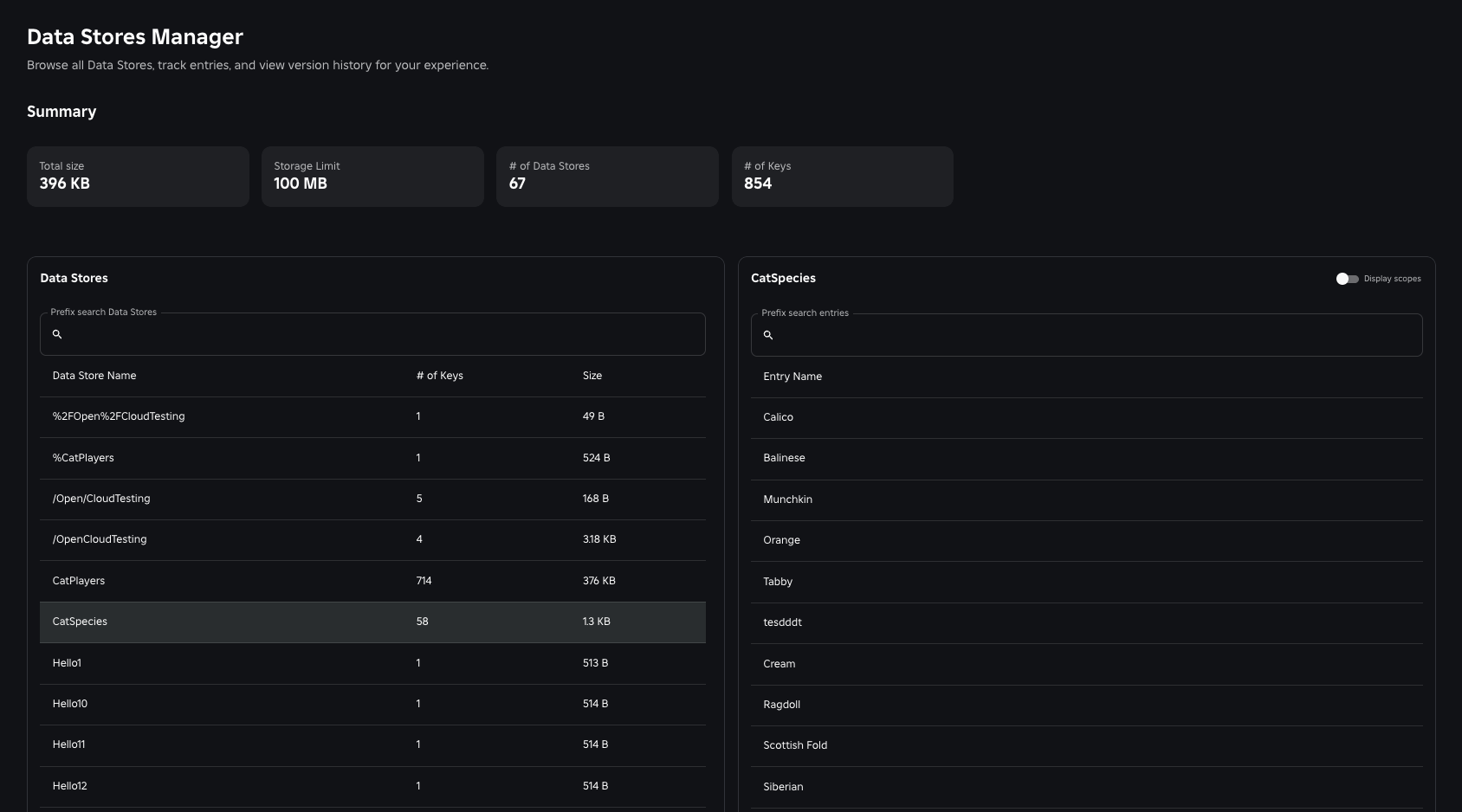
The Summary section of the Data Stores Manager page includes the Total Size and the Storage Limit of your data stores. Total Size is calculated by adding the number of bytes consumed by all existing keys in your game, and Storage Limit is calculated based on your game's lifetime user count. For more information about storage limits, see Limits.
If your Total Size exceeds your Storage Limit, your Est. Monthly Costs will populate in your Summary and show an estimation of the impact of the usage that has gone over your quota. For tips on how to reduce your storage consumption, see Best practices.
View data stores and keys
Note
If your game has more than 100 data stores, the data store size and number of keys won't be available in the Data Stores list.
The Data Stores list displays the name, size, and number of keys for all data stores in your game. You can filter this list by entering a prefix in the search bar.
To further drill down into each specific data store, you can:
- Select a data store from the data store list to display a list of all keys in that data store.
- Enter a prefix in the search bar to filter the list of keys. The prefix must start with the scope name.
- Select a key entry to display that key's value, metadata, version history, status, and when it was last updated.
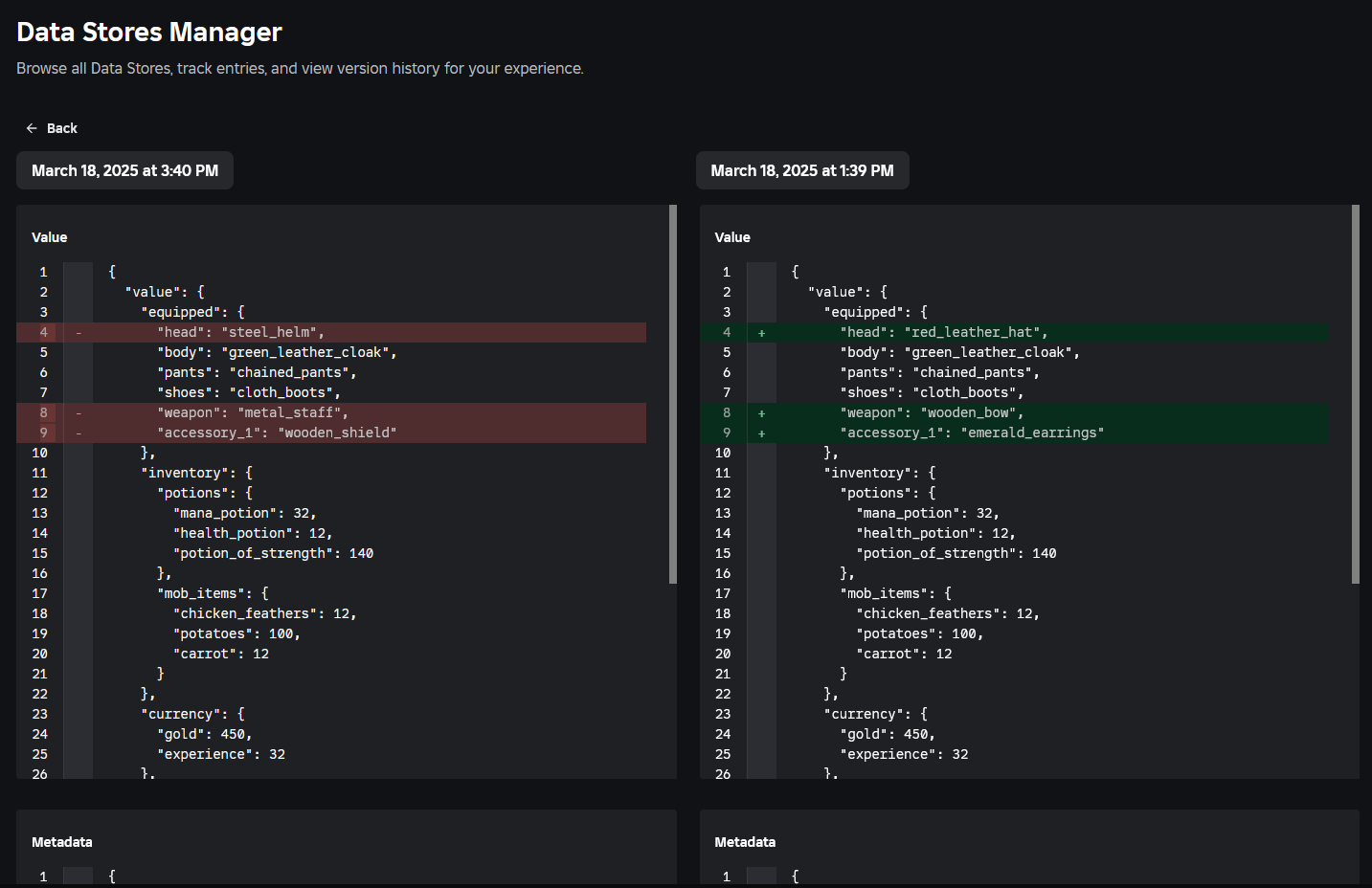
- Select both a key entry and a version, and click Compare versions to compare the current key entry version with the version you selected.
- Select a previous version of a key and click Revert to go back to that version. You must have Edit permissions to do this. Reverting to a previous version conditionally updates the list and writes a new version with the value of the version you have previously selected.
Delete data stores and keys
Note
When you schedule a data store for permanent deletion, that data store immediately becomes inaccessible. Any attempts to read or write to its entries will fail.
To schedule a data store or key for permanent deletion:
- Go to Creations and select a game.
- Go to Configure ⟩ Data Stores Manager.
- Click the Action menu next to the item you want to delete.
- Click Mark for Deletion.
There is a cooldown period between when you delete a data store or key and when that item is actually deleted. During this cooldown period, you can undo the deletion and restore the item to its normal state.
To restore a data store, click the Action menu next to the data store you want to restore and then click Restore, or call the UndeleteDataStore method from the Open Cloud API.
To restore a key, call the UpdateAsync method from the Engine API or the UpdateDataStoreEntry method from the Open Cloud API.