
Source: Roblox Creator Hub · CC BY 4.0 · View source · Code samples: MIT Imported 2026-10-03. Formatting adapted for this site.
Groups (teams)
A Roblox group allows multiple creators to work on the same game, use the same assets, share profits, and give credit to all contributors.
Note
Group ownership of games helps creators collaborate and operate as independent studios. If a conflict arises within a group, Roblox cannot help arbitrate or resolve disagreements.
Group creation
Creating a group costs 100 Robux. You can manage its roles and permissions from the Creator Dashboard or Communities.
Note
Before creating a group, carefully read through the rules and expectations for group management.
To create a new group:
- Navigate to the Creator Dashboard, expand the account switcher in the upper‑left, and click the plus (+) button.
- On the Create Group page, upload an image for the group logo and enter the group name.
- When ready, click the Purchase button. Once the group is created, you'll be directed to the group profile page where you can modify the group's details, including adding up to three social links.
Roles and permissions
Group members can be assigned one or multiple roles within a group, and each role has permissions which specify the abilities of its members.
Note
Role configuration is only accessible if you're the group owner or you have permission to create, configure, and assign group roles.
From the Creator Dashboard, expand the account switcher in the upper‑left and select the group.
Expand the account switcher again and select Roles.
For each role, carefully confirm the permissions under the Permissions tab.
Permissions are organized into General, Creation, and Community categories. The sections below describe the permissions available in each category.
General
General permissions
| **Manage roles** | Members with this permission can create, edit, delete, reorder, and assign or unassign roles below their highest role. They can only edit permissions they already hold. |
| **Assign or remove roles from members** | Members with this permission can assign or unassign roles below their highest role to any member. |
| **Invite or approve members** | Members with this permission can invite people to the group and approve join requests. |
| **Kick members** | Members with this permission can remove members whose highest role is below their own. |
| **Ban members** | Members with this permission can ban members whose highest role is below their own. |
| **Configure group profile** | Members with this permission can configure the group profile. |
| **View audit logs** | Members with this permission can view [group audit logs](#group-audit-logs). |
| **Manage allies and enemies** | Members with this permission can manage the group's allies and enemies. |
Creation
Creations
| **Playtest experiences** | Members with this role can play all games owned by the group, whether they're private or public. Optionally available as a [per‑game permission](/docs/roblox-projects-configure-games). |
| **Edit experiences** | Members with this role can edit all games and [assets](/docs/roblox-projects-assets) owned by the group and use all features in the [Data Stores Manager](/docs/roblox-cloud-services-data-stores-data-stores-manager). Does not include editing a game outside of a [collaborative](/docs/roblox-projects-collaboration) session or saving a place from one game into another game. Optionally available as a [per‑game permission](/docs/roblox-projects-configure-games). |
| **Publish experiences** | Members with this role can both edit games, as above, and also publish games to Roblox. Optionally available as a [per‑game permission](/docs/roblox-projects-configure-games). |
| **Manage share links** | Members with this role can create/configure [share links](/docs/roblox-production-promotion-share-links). |
| **Manage experience events** | Members with this role can create/configure [experience events](/docs/roblox-production-promotion-experience-events). |
| **Access read-only chat (must be 18+) and manage experience bans** | Members with this role can view all in-game chat messages and ban or manage banned users across all games owned by the group. |
| **Manage monetization for experiences** | Members with this role can manage monetization products such as [passes](/docs/roblox-production-monetization-passes), [developer products](/docs/roblox-production-monetization-developer-products), [subscriptions](/docs/roblox-production-monetization-subscriptions), and more. Optionally available as a [per-game permission](/docs/roblox-projects-configure-games). |
| **Manage secrets for experiences** | Members with this role can see the list of [secrets](/docs/roblox-cloud-services-secrets) and can create, update, and delete secrets for all games owned by the group. Members with this role require **Edit experiences** permission to view the Secrets page. Optionally available as a [per‑game permission](/docs/roblox-projects-configure-games). |
Analytics
| **View analytics for experiences** | Members with this role can access the [analytics](/docs/roblox-production-analytics) of all games owned by the group, even if they don't have edit access. Optionally available as a [per-game permission](/docs/roblox-projects-configure-games). |
| **Manage alerts** | Members with this role can create and manage analytics alerts. Pair this permission with **View analytics for experiences** to see alert annotations directly on metrics graphs. |
Monetization
| **View group revenue** | Members with this role can view the group Robux balance, any configured recurring split payouts, and revenue logging features. |
| **Manage and spend group revenue** | Members with this role can view all group revenue, as above, and also directly manage it. This includes setting up [recurring payouts](#recurring-payouts) and sending [one‑time payouts](#one-time-payouts) to collaborators. |
| **Create ad campaigns for the group** | Members with this role can advertise the group. |
Avatar items
| **Create avatar items** | Members with this role can create avatar items such as clothing. |
| **Configure avatar items** | Members with this role can configure sales details, restocks, and sponsorships for existing group avatar items. |
API
| **Manage API keys** | Members with this role can manage [Open Cloud API keys](/docs/roblox-cloud-auth-api-keys) for the group. |
Development items
| **View development items** | Members with this role can view development items owned by the group, for example **Audio**. |
| **Manage development items** | Members with this role can upload and configure asset development items such as **Decals**. |
| **Manage development item permissions** | Members with this role can configure permissions of development items, for example audio sharing. |
Data Stores
| **View Data Stores for experiences** | Members with this role can view data stores for all group games through the [Data Stores Manager](/docs/roblox-cloud-services-data-stores-data-stores-manager), but they cannot delete data. Optionally available as a [per‑game permission](/docs/roblox-projects-configure-games). |
| **Edit Data Stores for experiences** | Members with this role can delete specific keys within data stores for all group games through the [Data Stores Manager](/docs/roblox-cloud-services-data-stores-data-stores-manager). Optionally available as a [per‑game permission](/docs/roblox-projects-configure-games). |
| **Delete Data Stores for experiences** | Members with this role can delete entire data stores for all group games through the [Data Stores Manager](/docs/roblox-cloud-services-data-stores-data-stores-manager). Optionally available as a [per‑game permission](/docs/roblox-projects-configure-games). |
Notifications
| **Manage webhooks for experiences** | Members with this role can list, create, update, and delete webhooks for all group experiences. |
Communication
| **Manage support tickets for experiences** | Members with this role can manage support tickets for all group experiences. |
Legacy
| **Manage access to this group's resources** | Members with this role can create and edit access to the group's resources. |
Community
Posts
| **View community announcements** | Members with this role can view community announcements. |
| **Create community announcements** | Members with this role can create community announcements. |
Forums
| **Manage categories** | Members with this role can manage forum categories. |
| **Create posts** | Members with this role can create forum posts. |
| **Remove posts** | Members with this role can remove forum posts. |
| **Lock posts** | Members with this role can lock forum posts. |
| **Pin posts** | Members with this role can pin forum posts. |
| **Create comments** | Members with this role can create comments on forum posts. |
| **Remove comments** | Members with this role can remove comments from forum posts. |
Content moderation
| **View content moderation** | Members with this role can view content moderation. |
| **Manage content moderation** | Members with this role can manage content moderation. |
Miscellaneous
| **Bypass slow mode** | Members with this role can bypass slow mode. |
| **View community analytics** | Members with this role can view community analytics. |
Click the Save Changes button to apply the permission settings. 5. Click the Settings tab and choose a color and visibility setting for the role, then click Save Changes.
Note
A role's Settings section is also where group owners and members with sufficient permissions can remove a role entirely through the Delete Role button.
Roles are listed in hierarchy order: a role higher in the list has more authority than a role below it. This order matters because some permissions only let members manage roles below their own highest role.
Each role is either public or private. Public roles can be shown on a Community page and in experiences. Private roles are shown only on role and permission management surfaces to authorized members, or to members who hold the private role. Visibility changes where a role appears; it doesn't change the permissions the role grants.
Note
To grant Manage roles, Assign or remove roles from members, Manage access to this group's resources, Manage and spend group revenue, or Delete Data Stores for experiences, you must have two-step verification enabled.
Manage members
Note
Member configuration is only accessible if you're the group owner or you have permission to manage other members and their roles.
To manage members from the Creator Dashboard:
- Expand the account switcher in the upper-left and select the group.
- Expand the account switcher again and select Members.
- Use the Member tab to search for existing members or filter them by role. Use the Invited tab to review pending invitations.
To add a member, click Invite and search for their username. Roblox notifies invited creators according to their notification preferences. You can also copy the group link and share it directly.
Manage roles
You can manage role assignments from either the Members page or a specific role:
- On the Members page, click the plus (+) button next to a member to open the role menu. To assign a role, click the plus (+) button next to it under Add roles. To unassign a role, click the minus (-) button next to it under Current roles, or click the × button on an assigned role next to the member's name.
- On the Roles page, select a role and open its Members tab. Click Add members to search for group members and assign them to the role. To unassign a member, click the minus (-) button at the end of their row.
Member removal
To remove a member from the group, click the ⋮ button at the end of their row, select Kick user, and confirm the action.
Manage payouts
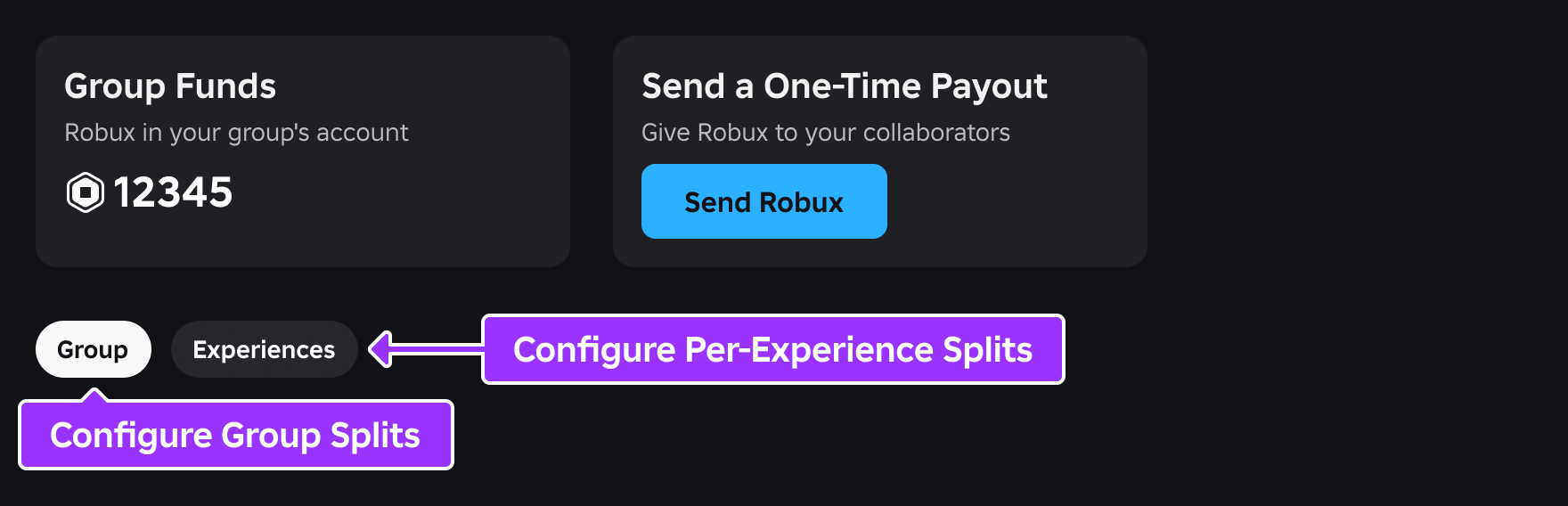
If you're the group owner or you have the correct permission within Group Revenue, you'll find a Payouts page under Finances in the left navigation. Here, you can send one‑time payouts, as well as define percentage splits with other members.
Note
Some groups may not have this page unlocked initially for various reasons, such as the age of the group or insufficient funds to payout.
Note
Payouts cannot be shared across group members for games that charge for paid access in local currency.
One-time payouts
One-time payouts can be made to members in a batch, selecting a set amount for each. Safety features include 2FA challenges, confirmation dialogues, and checks around the eligibility of members being paid.

Once you click the Send Robux button, you can choose payout recipients from the popup or upload a .csv spreadsheet file with the columns userId and payoutInRobux, for example:
<table size="small">
Recurring payouts
Recurring payouts can also be made across the entire group and per‑game, assigning a percentage payout to each member before the remainder enters the group's overall balance.
Consider the following scenario where a group game Laser Maze is split 40%–30%–10% among three members, with a remainder of 20%.

Assuming the game earns 1000 Robux, the three members receive 400, 300, and 100 Robux respectively (40%–30%–10%).
The remaining 200 Robux (20% of the game split) passes onward to the **group split** percentages, defined at 20%–20%–10% among the same three members; they receive an additional 40, 40, and 20 Robux respectively.
The remaining 100 Robux (50% of the group split) is placed in the group's overall balance.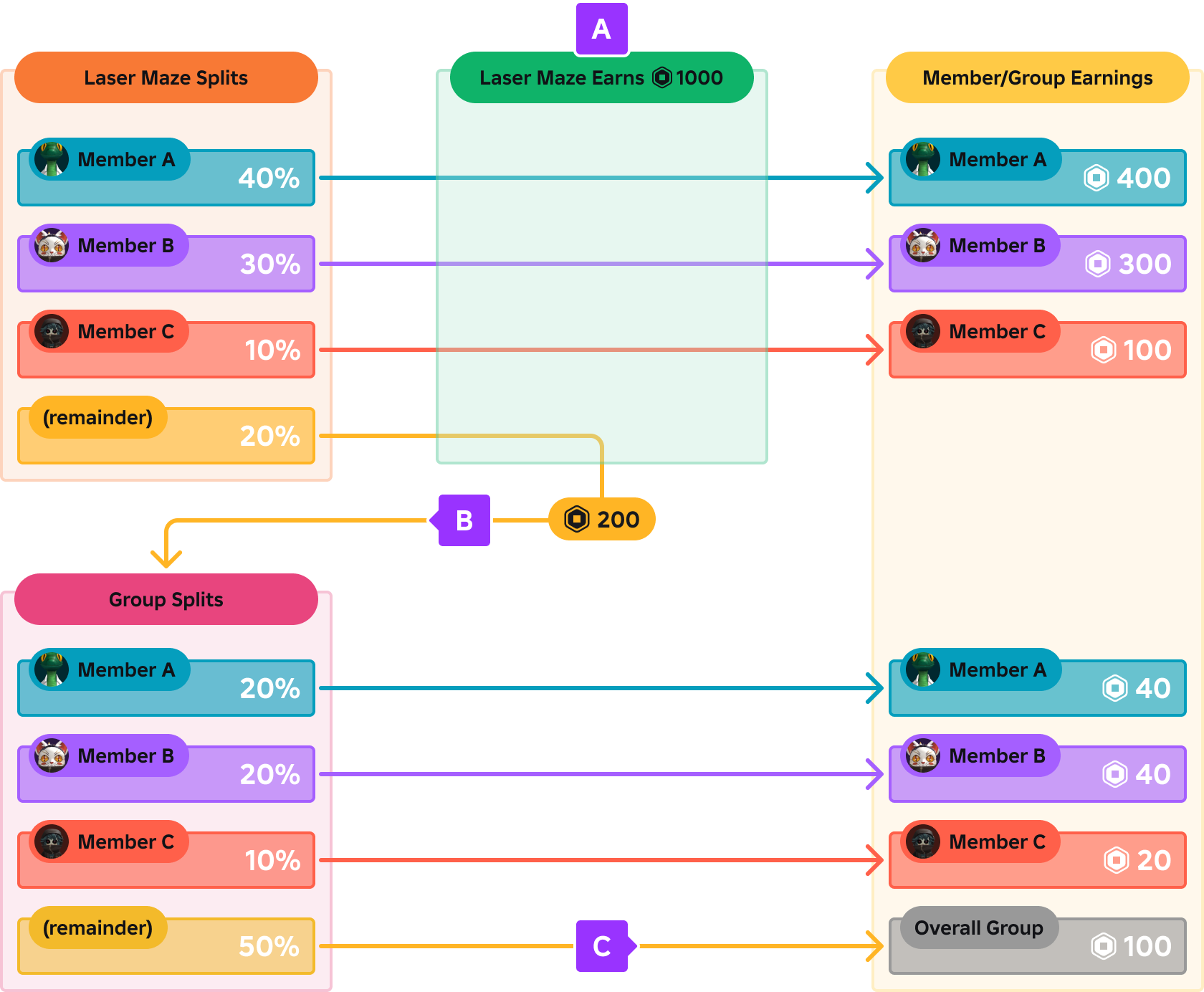
Note
Note that revenue from private server subscriptions does not change if you adjust split percentages at a later time, meaning that if a player buys a private server subscription, the split percentages at time of purchase will apply to that particular subscription forever (until it is canceled). This policy may be changed in the future.
Group audit logs
Group members with the View audit logs permission can review group changes using these group management surfaces:
- On the Creator Dashboard, select Activity History under Collaboration.
- On Communities, open the community's configuration page and select Audit Log.
Group owners can use these logs to monitor activity that might violate group guidelines.
Intellectual property protection
Group members with permission to edit all group games can enable the Place Copying setting for a creation, potentially allowing the entire Roblox community to copy it and use assets within it. To help protect intellectual property in a group, the owner or members with sufficient permissions should:
- Confirm that each member is assigned the appropriate role.
- Check that each group role has the correct permissions.
- Confirm that the Place Copying setting is disabled before private assets are added.
Additional localizations for this page
For additional, localized versions of this page that aren't available in the site's language picker, see the following links:
- Bulgarian (български)
- Croatian (hrvatski)
- Czech (čeština)
- Danish (dansk)
- Dutch (Nederlands)
- Estonian (eesti)
- Finnish (suomi)
- Greek (Ελληνικά)
- Hungarian (magyar)
- Irish (Gaeilge)
- Latvian (latviešu)
- Lithuanian (lietuvių)
- Maltese (Malti)
- Portuguese - Portugal (português)
- Romanian (română)
- Slovak (slovenčina)
- Slovenian (slovenščina)
- Swedish (svenska)